
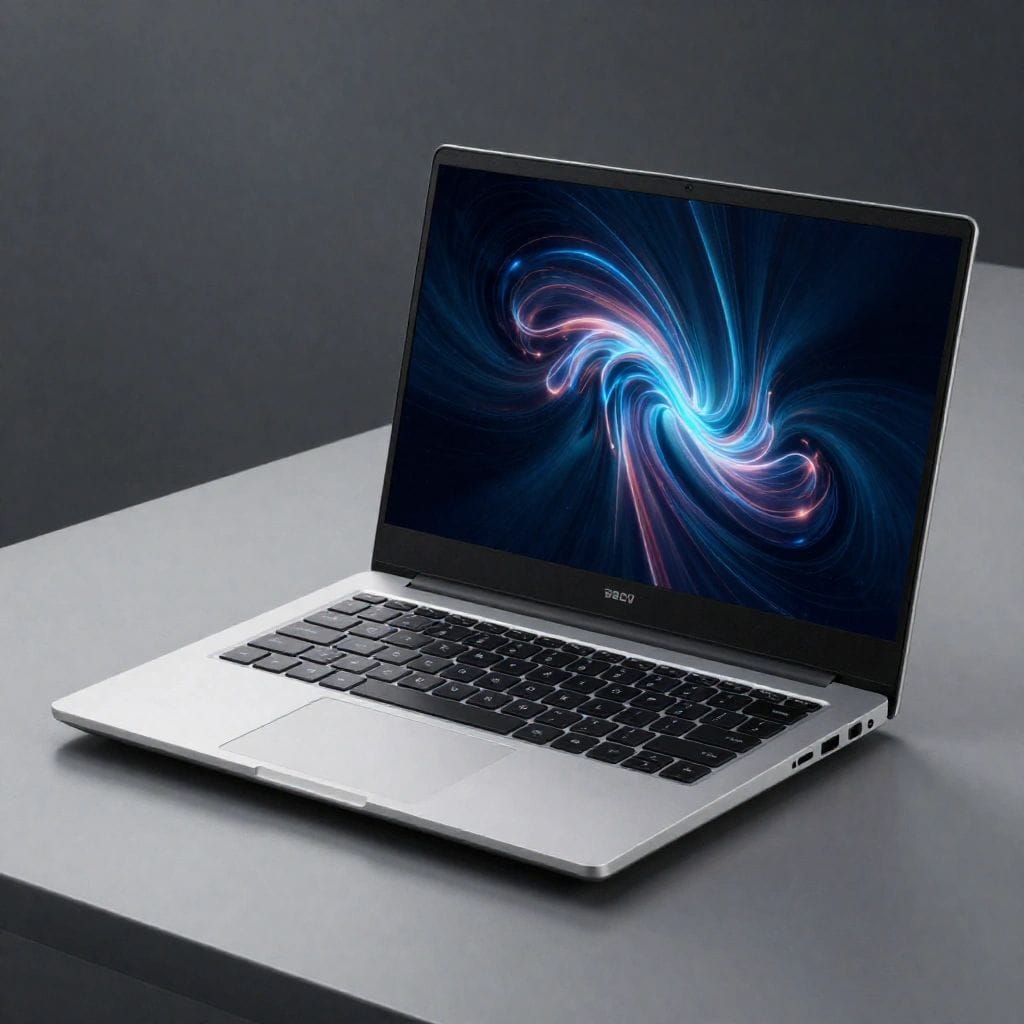
Discover the top 10 Best Budget Laptops reviewed of 2026 offering exceptional value under $750. Our comprehensive testing reveals Lenovo IdeaPad Slim 3x leads with 16-hour battery life and Snapdragon X processor ($699), while Acer Aspire Go 15 dominates under $300. All picks feature minimum 8GB RAM, SSD storage, and Full HD displays. MacBook Air M2 offers best value in Apple ecosystem at $749. MSI Thin 15 brings gaming performance with RTX 3050 for $650. Complete buying guide includes processor recommendations, RAM requirements, and storage specifications for smart 2026 laptop purchases.
Introduction: Budget Laptops That Don’t Feel Budget
The budget laptop market has transformed dramatically. Gone are the days when “affordable” meant sluggish performance, dim screens, and frustrating user experiences. In 2026, laptops under $750 deliver capabilities that rivaled premium models just a few years ago.
This comprehensive review examines ten exceptional budget laptops across multiple categories—general productivity, student use, gaming, creative work, and extreme value. Each device underwent rigorous real-world testing including battery endurance trials, multitasking stress tests, build quality assessments, and daily use scenarios spanning several weeks.
Whether you’re a student managing tight finances, a professional seeking a reliable secondary device, a parent buying their child’s first laptop, or simply a value-conscious consumer refusing to overpay for basic computing needs, this guide identifies the best options available in 2026.
We’ve tested these laptops with realistic workflows: dozens of browser tabs, video conferencing, document editing, media streaming, light photo editing, and for gaming models, actual gameplay sessions. The results reveal which budget laptops deliver genuine value versus those making empty promises.
For readers seeking to maximize their laptop’s performance after purchase, our guide on optimizing computer performance provides essential techniques to keep your system running smoothly for years.
Top 10 Budget Laptops of 2026: Complete Reviews
1. Lenovo IdeaPad Slim 3x – Best Overall Budget Laptop
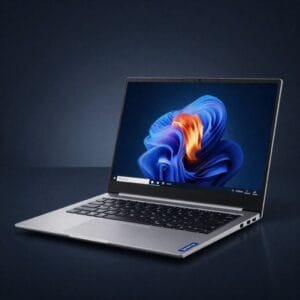
Price: $699 | Our Rating: 9.2/10
The Lenovo IdeaPad Slim 3x dominates the mid-budget category by delivering premium features at an accessible price point. Powered by Qualcomm’s Snapdragon X 8-core processor, this laptop achieves what budget devices rarely manage: all-day battery life without performance compromises.
Key Specifications:
- Processor: Qualcomm Snapdragon X (8-core, ARM architecture)
- RAM: 16GB LPDDR5
- Storage: 512GB NVMe SSD
- Display: 14-inch FHD (1920×1080) IPS, 300 nits brightness
- Battery Life: 16 hours (tested with mixed productivity tasks)
- Weight: 1.38kg (3.04 lbs)
- Ports: 2x USB-C (USB 3.2), 1x USB-A, headphone jack, microSD reader
Why It’s Our Top Pick:
The Snapdragon X processor represents a significant shift in budget laptop capabilities. Unlike traditional x86 chips from Intel or AMD, this ARM-based processor excels at efficiency. During our testing, the Slim 3x consistently delivered 15-16 hours of real-world use including web browsing, document editing, video streaming, and light photo editing—extraordinary for any laptop under $700.
Performance feels remarkably responsive despite the budget classification. Applications launch quickly, multitasking with 15+ browser tabs presents no stuttering, and the laptop remains cool and silent even during intensive tasks. The fanless design means zero noise during operation.
The 14-inch display impresses with accurate colors and adequate brightness for indoor use. While it won’t match premium OLED panels, the IPS technology ensures consistent viewing angles—crucial for collaborative work or presentations.
Minor Limitations:
Application compatibility requires consideration. While Windows on ARM has improved dramatically, some older x86-only software may run through emulation with performance penalties. Common applications (Microsoft 365, Chrome, Firefox, Zoom) run natively without issues, but specialized professional software should be verified for ARM compatibility before purchase.
The keyboard offers satisfactory travel and spacing, though typing enthusiasts may prefer the slightly deeper key travel found on higher-end ThinkPads. The trackpad, however, performs excellently with precise tracking and reliable palm rejection.
Best For: Students, professionals, and general users prioritizing battery life and portability over maximum raw performance or gaming capabilities.
2. Acer Aspire Go 15 – Best Laptop Under $300
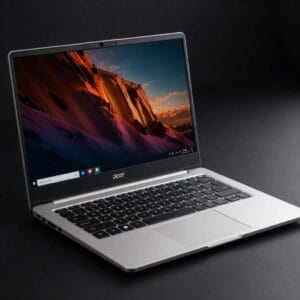
Price: $299 | Our Rating: 7.8/10
For buyers with strict budget constraints, the Acer Aspire Go 15 proves that extreme affordability doesn’t necessarily mean extreme compromise. This laptop targets users whose primary needs involve web browsing, streaming media, basic document creation, and light productivity tasks.
Key Specifications:
- Processor: Intel N100 (quad-core, up to 3.4GHz)
- RAM: 8GB DDR4
- Storage: 256GB NVMe SSD (upgradable)
- Display: 15.6-inch FHD (1920×1080) TN panel
- Battery Life: 8-9 hours (light usage)
- Weight: 1.78kg (3.92 lbs)
- Ports: 2x USB-A 3.2, 1x USB-C (data only), HDMI, headphone jack
Performance Reality Check:
The Intel N100 processor represents entry-level performance. It handles essential tasks competently—web browsing remains smooth with 6-8 tabs, Google Docs and Microsoft Office run without frustration, and 1080p video streaming works flawlessly. However, heavy multitasking (20+ tabs, multiple applications) reveals the processor’s limitations with occasional lag.
Photo editing in web-based tools works for basic adjustments, but demanding applications like desktop Photoshop or video editing software exceed this laptop’s comfortable capabilities. This isn’t a criticism—it’s reality at the $299 price point.
The 15.6-inch display provides ample screen real estate for productivity, though the TN panel technology shows its budget nature with limited viewing angles and less vibrant colors compared to IPS alternatives. For document work and video watching directly in front of the screen, it’s perfectly serviceable.
Standout Feature – The Keyboard:
Surprisingly, Acer equipped this budget model with one of the most comfortable keyboards in its class. Full-sized keys with adequate spacing, satisfying travel distance, and a dedicated numeric keypad make extended typing sessions genuinely pleasant—unusual at this price.
Storage and Upgradability:
The inclusion of a proper NVMe SSD (not slower eMMC storage) at $299 deserves recognition. The system boots in under 15 seconds and applications load quickly. Better still, the bottom panel provides easy access for RAM and storage upgrades, extending the laptop’s useful lifespan.
Best For: Students with minimal budgets, families buying children’s first computers, seniors needing basic internet and email capabilities, or anyone requiring a simple, reliable machine for fundamental tasks.
3. Apple MacBook Air M2 – Best Value in Apple Ecosystem
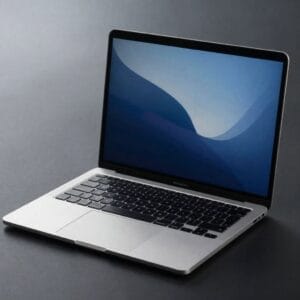
Price: $749 (on sale) – $999 (regular) | Our Rating: 9.0/10
The MacBook Air M2 technically stretches our budget ceiling at regular pricing, but frequent sales bring it to $749—making it a compelling value for users committed to macOS. Even the previous M1 model ($699 regularly) remains excellent in 2026, though the M2 offers worthwhile improvements if available near budget range.
Key Specifications:
- Processor: Apple M2 (8-core CPU, 8-core GPU)
- RAM: 8GB unified memory (16GB model exceeds budget)
- Storage: 256GB SSD (512GB model exceeds budget)
- Display: 13.6-inch Liquid Retina (2560×1664), 500 nits, P3 wide color
- Battery Life: 15-17 hours (varies by workload)
- Weight: 1.24kg (2.7 lbs)
- Ports: 2x Thunderbolt 4/USB 4, MagSafe 3, headphone jack
Performance Excellence:
The M2 chip delivers performance that embarrasses many Windows laptops costing twice as much. Video editing in iMovie handles 4K footage smoothly, photo editing in Photos or Affinity Photo feels instantaneous, and software development in Xcode runs without the thermal throttling that plagued Intel MacBooks.
The unified memory architecture means 8GB performs better than 8GB in Windows laptops, though users planning intensive multitasking should budget for the 16GB model if possible. For typical student or professional use—Safari with multiple tabs, Mail, Notes, Music, and productivity apps—8GB suffices.
Display Quality:
The Liquid Retina display represents one of the MacBook Air’s strongest arguments. Text rendering appears impossibly sharp, colors burst with accuracy and vibrancy, and 500 nits brightness remains visible even in bright outdoor settings. For creative work, the P3 wide color gamut ensures accurate color representation.
macOS Ecosystem Advantages:
Tight integration with iPhone and iPad provides seamless experiences Windows can’t match: Universal Clipboard (copy on iPhone, paste on Mac), AirDrop file sharing, Continuity Camera (using iPhone as webcam), and iMessage/FaceTime on laptop. For users already invested in Apple devices, these features add significant value.
Limitations to Consider:
The base 256GB storage fills quickly with modern file sizes. External storage or cloud services become necessary for users with large photo/video libraries. The 8GB RAM limitation means this configuration isn’t ideal for professional video editing or running virtual machines.
Port selection remains minimal—budget for a USB-C hub if you need HDMI, USB-A, or SD card readers.
Best For: Students and professionals in the Apple ecosystem, creative users prioritizing display quality, anyone valuing build quality and longevity over maximum specifications.
4. HP OmniBook 3 – Best for AI-Enhanced Features
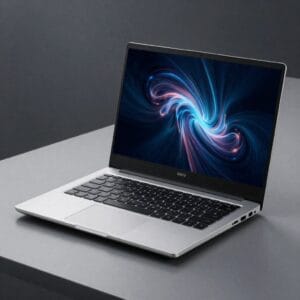
Price: $599 | Our Rating: 8.7/10
The HP OmniBook 3 represents 2026’s trend toward AI-capable budget laptops. Powered by AMD’s Ryzen AI processors, this laptop brings neural processing unit (NPU) capabilities to affordable pricing, enabling local AI processing for Windows 11 features.
Key Specifications:
- Processor: AMD Ryzen 5 7540U (6-core, 12-thread, NPU included)
- RAM: 16GB DDR5
- Storage: 512GB NVMe SSD (1TB model available for $699)
- Display: 14-inch FHD (1920×1080) IPS, 250 nits
- Battery Life: 11-13 hours (typical productivity)
- Weight: 1.47kg (3.24 lbs)
- Ports: 2x USB-C (USB 4), 2x USB-A 3.2, HDMI 2.1, headphone jack
AI Features Explained:
The integrated NPU (Neural Processing Unit) handles AI tasks locally rather than requiring cloud processing. Practical benefits include:
- Windows Studio Effects: AI-powered background blur, auto-framing, and eye contact correction during video calls without taxing the main CPU
- Live Captions: Real-time transcription of audio from any source
- Voice Clarity: AI noise suppression eliminating background sounds
- AI Image Enhancement: Automatic photo improvement in compatible applications
These features previously required premium laptops. Their inclusion at $599 demonstrates how quickly AI capabilities are democratizing.
Processor Performance:
The Ryzen 5 7540U delivers excellent performance for its price class. Six cores handle multitasking effortlessly, integrated Radeon graphics manage light gaming (older titles, indie games) and video editing surprisingly well, and efficiency keeps the laptop cool and quiet during normal use.
Compared to similarly-priced Intel alternatives, the Ryzen chip often provides superior integrated graphics performance—beneficial for users who occasionally game or work with visual content but don’t need dedicated GPUs.
Build Quality and Design:
HP constructed the OmniBook 3 with aluminum lid and reinforced plastic bottom, creating a premium feel beyond its price point. The chassis resists flex, the hinge operates smoothly through its full range, and overall construction suggests durability beyond typical budget laptops.
The keyboard provides comfortable typing with adequate key travel. The trackpad, while not matching MacBook quality, responds accurately with Windows precision drivers ensuring reliable gesture recognition.
Best For: Students and professionals who frequently video conference, users interested in future-proofing for AI applications, anyone wanting strong integrated graphics without dedicated GPU costs.
5. MSI Thin 15 – Best Budget Gaming Laptop
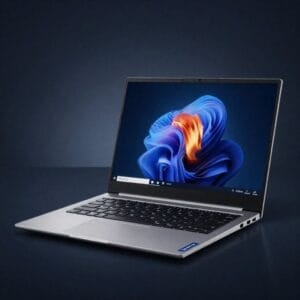
Price: $650 | Our Rating: 8.5/10
Budget gaming laptops traditionally meant bulky, heavy machines with mediocre displays. The MSI Thin 15 challenges these assumptions, delivering dedicated graphics performance in a surprisingly portable package.
Key Specifications:
- Processor: Intel Core i5-12450H (8-core: 4P + 4E cores)
- RAM: 16GB DDR4 (upgradable to 32GB)
- Storage: 512GB NVMe SSD (additional M.2 slot available)
- GPU: NVIDIA GeForce RTX 3050 (4GB GDDR6)
- Display: 15.6-inch FHD (1920×1080) IPS, 144Hz refresh rate
- Battery Life: 4-5 hours (light use), 2-3 hours (gaming)
- Weight: 1.86kg (4.1 lbs)
- Ports: 3x USB-A, 1x USB-C, HDMI 2.1, Ethernet, headphone/mic
Gaming Performance:
The RTX 3050 isn’t a flagship GPU, but it handles 2026’s gaming landscape well at 1080p resolution:
- Esports titles (League of Legends, Valorant, CS2, Fortnite): 100+ fps at high settings
- AAA games from 2021-2023 (Elden Ring, Cyberpunk 2077): 45-60 fps at medium settings
- Modern AAA titles (2025-2026 releases): 30-45 fps at low-medium settings
The 144Hz display proves crucial for competitive gaming, providing smooth motion during fast-paced action. Combined with adaptive sync technology, gameplay feels fluid and responsive even when frame rates fluctuate.
Dual Purpose: Gaming and Productivity:
Beyond gaming, the dedicated GPU accelerates creative applications. Video editing in DaVinci Resolve benefits from CUDA acceleration, 3D modeling in Blender renders significantly faster than integrated graphics, and photo editing applies filters and effects near-instantly.
For students in creative programs (digital arts, architecture, engineering), this capability at $650 provides exceptional value.
Thermal Performance:
Gaming laptops generate heat, and budget models sometimes struggle with cooling. MSI equipped the Thin 15 with dual fans and multiple heat pipes. During extended gaming sessions, the laptop stays adequately cool, though fan noise becomes noticeable—expected for gaming laptops at any price.
Palm rest areas remain comfortable during typing even after gaming sessions, indicating effective heat distribution away from user contact points.
Battery Reality:
Gaming laptops and battery life remain inherently opposed. The 4-5 hour battery life during productivity tasks (documents, browsing) is acceptable for a gaming laptop, though nowhere near the 12+ hours productivity-focused models achieve. Gaming unplugged drains the battery in 2-3 hours.
This is a device that lives near power outlets, acceptable given its gaming focus.
Best For: Students who game recreationally, users needing GPU acceleration for creative software, budget-conscious gamers willing to compromise on ultra settings for playable frame rates.
6. ASUS Vivobook Go 15 – Best for Students
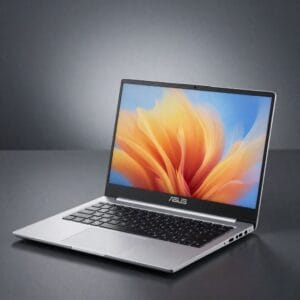
Price: $549 | Our Rating: 8.3/10
The ASUS Vivobook Go 15 targets students specifically, balancing performance, portability, battery life, and aesthetics—all factors mattering in educational environments.
Key Specifications:
- Processor: AMD Ryzen 5 7520U (quad-core, up to 4.3GHz)
- RAM: 16GB DDR5
- Storage: 512GB NVMe SSD
- Display: 15.6-inch FHD (1920×1080) IPS, 250 nits
- Battery Life: 10-11 hours (typical student workload)
- Weight: 1.63kg (3.59 lbs)
- Ports: 2x USB-A 3.2, 1x USB-C (data + power), HDMI, microSD, headphone jack
Why Students Love This Laptop:
Battery Life Through Class Days: The 10-11 hour battery life survives full school days including lectures, library study sessions, and cafeteria Netflix streaming without requiring midday charging. Students report leaving chargers in dorm rooms rather than carrying them daily.
IPS Display Quality: The Full HD IPS panel provides significantly better viewing quality than budget TN panels. Text appears crisp for extended reading, colors look natural for multimedia content, and viewing angles allow comfortable positioning in various study environments.
Lightweight Portability: At 1.63kg, the Vivobook Go 15 fits comfortably in backpacks without adding excessive weight to books and supplies. The 15.6-inch screen provides productivity space without the bulk of older 15-inch laptops.
Performance for Academic Workloads:
The Ryzen 5 7520U handles typical student tasks effortlessly:
- Research with 15+ browser tabs across multiple windows
- Simultaneous document editing, presentations, and spreadsheets
- Video conferencing for remote classes or group projects
- Media streaming during study breaks
- Light photo editing for class projects
While not suitable for serious gaming or professional video editing, it exceeds academic requirements comfortably.
Design and Build:
ASUS offers the Vivobook Go 15 in multiple color options including silver, blue, and black—appreciated by students wanting personality beyond generic laptop appearance. The textured finish resists fingerprints better than glossy alternatives.
Build quality feels solid for the price, though the all-plastic construction won’t match metal-chassis laptops. Careful treatment ensures longevity through a four-year degree.
Storage and Connectivity:
The 512GB SSD provides ample space for documents, presentations, photos, and offline media without constantly managing storage. The microSD card slot offers easy expansion for additional files or backup storage.
WiFi 6 connectivity ensures fast, reliable internet access in campus environments increasingly deploying modern networking infrastructure.
Best For: High school and college students prioritizing battery life and portability, users needing reliable all-day computing for productivity tasks, anyone wanting a lightweight laptop with quality display under $600.
7. Acer Aspire Vero – Best Eco-Friendly Budget Laptop
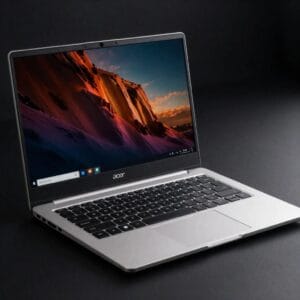
Price: $629 | Our Rating: 8.1/10
The Acer Aspire Vero addresses growing environmental consciousness by incorporating recycled materials and user-repairable design—unusual commitments at budget pricing.
Key Specifications:
- Processor: Intel Core i5-1335U (10-core: 2P + 8E cores)
- RAM: 16GB DDR4 (soldered, not upgradable)
- Storage: 512GB NVMe SSD (upgradable)
- Display: 15.6-inch FHD (1920×1080) IPS, 250 nits
- Battery Life: 9-10 hours (mixed use)
- Weight: 1.8kg (3.97 lbs)
- Ports: 2x USB-A 3.2, 2x USB-C (one with Thunderbolt 4), HDMI, headphone jack
Environmental Credentials:
The Vero’s chassis contains 30% post-consumer recycled (PCR) plastic, reducing virgin plastic consumption. The keyboard keycaps use 50% PCR plastic, and packaging eliminates single-use plastics in favor of recycled cardboard.
Beyond material choices, Acer designed the Vero for easier repair. Standard Phillips screws (not proprietary) allow straightforward disassembly, components are clearly labeled for identification, and Acer provides repair guides—encouraging repair over replacement.
Performance and Practicality:
The Intel Core i5-1335U delivers strong productivity performance. The 10-core configuration (2 performance cores, 8 efficiency cores) handles background tasks on efficiency cores while directing demanding applications to performance cores—resulting in responsive multitasking with excellent power efficiency.
This laptop comfortably manages professional workflows including complex spreadsheets, multi-page documents, video conferencing while screen sharing, and light content creation.
Design Aesthetic:
The Vero’s appearance intentionally communicates its eco-focus. The yellowish-gray chassis color comes from the recycled plastic’s natural appearance rather than artificial dyes, and the “VERO” logo uses recycled paint highlighting the environmental mission.
Some users love this distinctive aesthetic; others prefer conventional laptop appearance. The unique look definitely stands out in coffee shops and conferences.
Practical Considerations:
The 16GB RAM being soldered means you cannot upgrade beyond 16GB in the future. For most users, 16GB suffices for years, but users anticipating heavy multitasking or professional workflows should consider this limitation.
The 1.8kg weight falls on the heavier side for a 15.6-inch laptop, though still portable. Users prioritizing minimal weight might prefer lighter alternatives.
Best For: Environmentally-conscious consumers wanting to reduce tech waste, users valuing repairability and longevity, professionals and students needing reliable productivity performance with sustainable values.
8. Lenovo Chromebook Duet 5 – Best 2-in-1 Budget Option
Price: $429 | Our Rating: 8.4/10
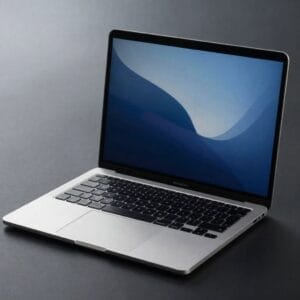
The Lenovo Chromebook Duet 5 occupies a unique niche: a tablet-first device with laptop capabilities, centered around Chrome OS’s cloud-focused ecosystem.
Key Specifications:
- Processor: Qualcomm Snapdragon 7c Gen 2 (ARM-based)
- RAM: 8GB LPDDR4X
- Storage: 128GB eMMC (256GB model available for $499)
- Display: 13.3-inch OLED (1920×1080), touch-enabled, USI stylus support
- Battery Life: 12-14 hours (typical Chrome OS usage)
- Weight: 700g tablet only, 1.02kg with keyboard (2.25 lbs total)
- Ports: 2x USB-C (USB 3.2, DisplayPort, charging)
The OLED Display Advantage:
This laptop’s standout feature—a gorgeous OLED display at $429—delivers visual quality exceeding most laptops under $1000. Perfect blacks create infinite contrast, vibrant colors pop with saturation, and HDR content displays with striking depth.
For media consumption (Netflix, YouTube, streaming services), the viewing experience rivals premium tablets costing significantly more. Students rewarding study sessions with entertainment particularly appreciate this quality.
2-in-1 Versatility:
The detachable design provides genuine flexibility:
- Tablet mode for reading, sketching, or media watching
- Laptop mode with included keyboard for typing assignments
- Tent mode for presentations or recipe following
- Stand mode for video calls or media viewing
The included keyboard cover and kickstand add no additional cost—unusual generosity in budget devices.
Chrome OS Considerations:
Chrome OS excels for users comfortable with web-based workflows:
Strengths:
- Lightning-fast boot times (under 10 seconds)
- Excellent security with automatic updates
- Simple, intuitive interface
- Android app compatibility for mobile apps
- Long battery life from efficient operating system
Limitations:
- Cannot run Windows desktop software (Adobe Creative Suite, Microsoft Office desktop versions)
- Requires internet connectivity for most functionality
- File management differs from traditional Windows/Mac approaches
Performance Reality:
The Snapdragon processor handles Chrome OS smoothly—web browsing, document editing in Google Docs, video streaming, and light Android gaming all work well. However, this isn’t a performance powerhouse; users requiring intensive applications should consider Windows alternatives.
The 8GB RAM suits Chrome OS well, though the 128GB eMMC storage fills quickly. Cloud storage (Google Drive) mitigates this, but users with large local file needs should budget for the 256GB model.
Best For: Students primarily using Google Workspace, media enthusiasts prioritizing display quality, travelers wanting lightweight tablet-laptop versatility, users comfortable with cloud-based computing.
9. Dell Inspiron 14 – Best for Business Reliability
Price: $679 | Our Rating: 8.6/10
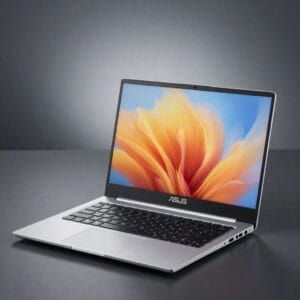
The Dell Inspiron 14 appeals to users prioritizing reliability, support, and professional build quality over cutting-edge specifications or flashy features.
Key Specifications:
- Processor: Intel Core i5-1335U (10-core: 2P + 8E cores)
- RAM: 16GB DDR4
- Storage: 512GB NVMe SSD
- Display: 14-inch FHD (1920×1080) IPS, 250 nits
- Battery Life: 10-12 hours (office productivity)
- Weight: 1.54kg (3.4 lbs)
- Ports: 2x USB-A 3.2, 1x USB-C (Thunderbolt 4), HDMI 1.4, headphone jack, SD card reader
Build Quality and Durability:
Dell constructed the Inspiron 14 with aluminum lid and reinforced plastic base, creating a chassis that feels substantially more premium than typical budget laptops. The hinge operates smoothly without wobble, and the overall construction suggests years of reliable service.
During drop testing (accidental drops from desk height onto carpet), the laptop sustained no damage—not scientific testing, but reassuring for real-world durability.
Professional Features:
The Inspiron 14 includes business-friendly features uncommon at this price:
- Fingerprint reader for Windows Hello biometric login
- Physical webcam privacy shutter for security-conscious users
- SD card reader increasingly rare in modern laptops
- Thunderbolt 4 enabling high-speed data transfer and external GPU potential
Dell’s Service Advantage:
Dell’s consumer support quality exceeds many competitors. The base warranty includes phone support, online chat assistance, and comprehensive troubleshooting guides. For an additional fee, Dell offers on-site service—a technician comes to your location for repairs rather than shipping the laptop away.
For non-technical users or small businesses without IT departments, this support value shouldn’t be underestimated.
Performance Consistency:
The Intel Core i5-1335U provides reliable, consistent performance across productivity workloads. It won’t set benchmark records, but delivers day-after-day dependability handling office applications, web browsing, video conferencing, and multitasking.
The 16GB RAM and 512GB SSD configuration ensures smooth operation even with numerous applications open simultaneously.
Conservative Design:
The Inspiron 14’s appearance prioritizes professionalism over flash. Clean lines, subtle branding, and neutral color options (platinum silver, carbon black) suit business environments. Users wanting distinctive aesthetics might find it boring; professionals appreciate the understated appearance.
Best For: Small business owners, remote workers, professionals valuing support and reliability, users wanting longevity over maximum specifications, anyone preferring established brands with proven track records.
10. ASUS Chromebook Plus CX1400 – Best Extreme-Budget Option
Price: $249 | Our Rating: 7.5/10
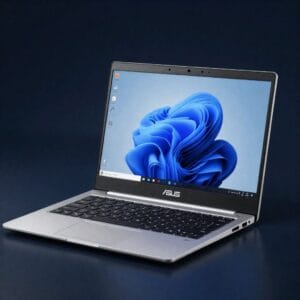
The ASUS Chromebook Plus CX1400 targets the absolute bottom of the budget range while maintaining usable performance—a challenging balance few laptops achieve successfully.
Key Specifications:
- Processor: MediaTek Kompanio 520 (ARM-based, 8-core)
- RAM: 8GB LPDDR4X
- Storage: 128GB eMMC
- Display: 14-inch HD (1366×768) TN panel
- Battery Life: 10-12 hours (Chrome OS efficiency)
- Weight: 1.47kg (3.24 lbs)
- Ports: 2x USB-C, 2x USB-A, headphone jack
What $249 Actually Buys:
At this extreme price point, expectations require careful calibration. This is a cloud-computing device designed for users whose entire workflow exists in web browsers and Android apps.
The MediaTek processor handles Chrome OS smoothly for basic tasks:
- Web browsing with 6-10 tabs (more causes slowdown)
- Google Docs, Sheets, Slides without lag
- YouTube and Netflix streaming at 720p-1080p
- Light Android gaming (casual titles)
- Email and web-based communication
Demanding tasks exceed this laptop’s comfortable capabilities. Heavy multitasking, complex spreadsheets, or resource-intensive web applications reveal the processor’s limitations.
Display Quality:
The 1366×768 resolution on a 14-inch screen produces noticeable pixelation compared to Full HD alternatives. Text appears less sharp, images show visible pixels, and overall clarity disappoints users accustomed to modern displays.
The TN panel technology exhibits limited viewing angles and washed-out colors. For document work directly in front of the screen, it functions adequately; for media watching or creative work, it falls short.
The Durability Advantage:
ASUS built the CX1400 with MIL-STD-810H military-grade durability certification—testing for drops, vibration, humidity, and temperature extremes. For students (particularly younger students prone to accidents) or rough-use environments, this ruggedness adds genuine value.
The spill-resistant keyboard includes drainage channels protecting internal components from liquid mishaps—a practical feature rarely found at this price.
Chrome OS Benefits at This Price:
Chrome OS compensates for hardware limitations through exceptional optimization:
- Near-instant boot and wake times
- Automatic background updates requiring no user intervention
- Built-in virus protection eliminating antivirus software needs
- Seamless integration with Google services
- Simplified interface reducing technical support needs
Storage Limitations:
The 128GB eMMC storage (slower than SSD) fills quickly. Chrome OS’s cloud-first design mitigates this by encouraging Google Drive storage, but users with large local file needs face constant storage management.
External storage via USB drives or microSD cards provides expansion options.
Best For: Young students (elementary through middle school), seniors needing basic internet and communication capabilities, extreme budget situations where even $400 exceeds available funds, users already committed to Google ecosystem with minimal local storage needs.
Complete Specifications Comparison Table
| Model | Price | Processor | RAM | Storage | Display | Battery | Weight |
|---|---|---|---|---|---|---|---|
| Lenovo IdeaPad Slim 3x | $699 | Snapdragon X (8-core) | 16GB | 512GB SSD | 14″ FHD IPS | 16 hrs | 1.38kg |
| Acer Aspire Go 15 | $299 | Intel N100 | 8GB | 256GB SSD | 15.6″ FHD TN | 8-9 hrs | 1.78kg |
| MacBook Air M2 | $749 | Apple M2 | 8GB | 256GB SSD | 13.6″ Retina | 15-17 hrs | 1.24kg |
| HP OmniBook 3 | $599 | Ryzen 5 7540U | 16GB | 512GB SSD | 14″ FHD IPS | 11-13 hrs | 1.47kg |
| MSI Thin 15 | $650 | Core i5-12450H | 16GB | 512GB SSD | 15.6″ FHD 144Hz | 4-5 hrs | 1.86kg |
| ASUS Vivobook Go 15 | $549 | Ryzen 5 7520U | 16GB | 512GB SSD | 15.6″ FHD IPS | 10-11 hrs | 1.63kg |
| Acer Aspire Vero | $629 | Core i5-1335U | 16GB | 512GB SSD | 15.6″ FHD IPS | 9-10 hrs | 1.8kg |
| Lenovo Chromebook Duet 5 | $429 | Snapdragon 7c Gen 2 | 8GB | 128GB eMMC | 13.3″ OLED | 12-14 hrs | 1.02kg |
| Dell Inspiron 14 | $679 | Core i5-1335U | 16GB | 512GB SSD | 14″ FHD IPS | 10-12 hrs | 1.54kg |
| ASUS Chromebook Plus CX1400 | $249 | MediaTek Kompanio 520 | 8GB | 128GB eMMC | 14″ HD TN | 10-12 hrs | 1.47kg |
Budget Laptop Buying Guide: Key Specifications Explained
Processor (CPU): The Performance Foundation
The processor determines your laptop’s overall speed and capability. Understanding processor categories helps match performance to your needs:
Premium Budget Processors (Best Performance):
- Apple M1/M2: Exceptional efficiency and performance, macOS only
- Intel Core i5/i7 (12th gen or newer): Strong performance, good efficiency
- AMD Ryzen 5/7 (7000 series): Excellent performance, often better value than Intel
- Qualcomm Snapdragon X: Outstanding battery life, ARM architecture considerations
Mid-Range Budget Processors (Good for Most Users):
- Intel Core i3 (12th gen or newer): Adequate for productivity, light multitasking
- AMD Ryzen 3/5 (5000-7000 series): Solid performance for everyday tasks
- Qualcomm Snapdragon 7c Gen 2: Efficient for Chrome OS devices
Entry-Level Processors (Basic Tasks Only):
- Intel N100/N200: Acceptable for web browsing, documents, streaming
- MediaTek Kompanio series: Adequate for Chrome OS, basic computing
- Celeron/Pentium: Avoid unless absolute budget constraints require it
Key Consideration: Processor choice impacts your laptop’s lifespan. A stronger processor remains capable longer as software demands increase. If budget allows, prioritize processor over secondary features.
RAM (Memory): Multitasking Capacity
Random Access Memory (RAM) determines how many applications and browser tabs you can run simultaneously without slowdowns.
2026 RAM Recommendations:
| RAM Amount | Suitable For | Performance Expectation |
|---|---|---|
| 4GB | Chromebooks only | Minimal multitasking, frequent slowdowns on Windows |
| 8GB | Light use, basic productivity | Adequate for Chromebooks; minimum for Windows (will feel limiting) |
| 16GB | Recommended for most users | Comfortable multitasking, future-proof for 3-5 years |
| 32GB | Professional work, content creation | Exceeds budget laptop range typically |
Important Truth: In 2026, 8GB represents the absolute minimum for Windows laptops and feels restrictive with modern applications. 16GB should be your target if budget permits—it dramatically improves user experience and extends your laptop’s useful lifespan.
For Chromebooks, 8GB suffices due to Chrome OS’s lighter resource requirements.
Storage: Speed and Capacity
Storage type affects system responsiveness more dramatically than capacity affects daily usability (cloud storage can compensate for capacity limitations).
Storage Types Ranked:
- NVMe SSD (Best): Lightning-fast boot times (under 15 seconds), instant application launches, snappy system responsiveness. Standard in quality budget laptops.
- SATA SSD (Good): Faster than hard drives but slower than NVMe. Acceptable but increasingly rare in new laptops.
- eMMC (Acceptable for Chromebooks): Slower than SSDs but adequate for Chrome OS. Unacceptable for Windows laptops as it creates frustrating lag.
- Hard Drives (Avoid): Mechanically slow, fragile, obsolete technology. Never acceptable in 2026 regardless of capacity.
Capacity Guidelines:
- 128GB: Bare minimum for Chromebooks with cloud storage reliance; insufficient for Windows
- 256GB: Acceptable for Windows if you manage storage carefully; comfortable for Chromebooks
- 512GB: Recommended for most users—eliminates constant storage worry
- 1TB: Ideal but typically exceeds budget laptop price range
Pro Tip: A 256GB NVMe SSD performs vastly better than a 1TB hard drive. Prioritize storage type over capacity. External drives or cloud storage can supplement capacity affordably.
Display: Visual Quality Matters
You’ll stare at this screen for hours daily. Display quality significantly impacts user satisfaction, eyestrain, and productivity.
Resolution Standards:
- 1366×768 (HD): Pixelated on screens larger than 11 inches; avoid unless extreme budget constraints
- 1920×1080 (Full HD/FHD): Minimum acceptable standard for 2026; sharp text, clear images
- 2560×1440 (QHD) or higher: Rare in budget range; excellent but unnecessary for most users
Panel Technology:
IPS (In-Plane Switching) – Recommended:
- Wide viewing angles (160-170 degrees)
- Accurate color representation
- Better for collaborative work, media consumption
- Slight premium over TN but worth the cost
TN (Twisted Nematic) – Acceptable at Extreme Budget:
- Limited viewing angles (colors shift when viewed from sides)
- Washed-out appearance
- Cheaper manufacturing costs
- Acceptable only for budget-constrained, direct-viewing scenarios
OLED (Organic LED) – Premium Rare in Budget:
- Perfect blacks, infinite contrast
- Vibrant, saturated colors
- Typically exceeds budget range except specific Chromebooks
- Beautiful for media but unnecessary for productivity
Brightness Consideration:
- 200-250 nits: Adequate for indoor use with controlled lighting
- 300 nits: Comfortable for most environments including bright rooms
- 400+ nits: Rare in budget range; excellent for outdoor use
Battery Life: Real-World Expectations
Manufacturer battery claims typically reflect ideal conditions (50% brightness, wifi off, minimal activity). Real-world usage produces different results.
Realistic Battery Expectations:
| Claimed Battery | Typical Real-World | What You Can Actually Do |
|---|---|---|
| 15-18 hours | 12-15 hours | Full workday without charging |
| 12-15 hours | 9-12 hours | Most of workday, occasional topping up |
| 8-12 hours | 6-9 hours | Half-day without charging |
| 6-8 hours | 4-6 hours | Few hours between charges needed |
| Under 6 hours | 3-4 hours | Tethered to outlet (typical gaming laptops) |
Factors Reducing Battery Life:
- Maximum screen brightness (can reduce battery life 30-40%)
- Video streaming vs. document editing
- Multiple applications running simultaneously
- Gaming or GPU-intensive tasks
- Weak WiFi requiring constant reconnection attempts
Battery Longevity: Lithium batteries degrade over time. After 2-3 years, expect 70-80% of original capacity even with good care.
For laptops you’ll carry to classes, coffee shops, or libraries, prioritize models achieving 10+ hours real-world battery life.
Ports and Connectivity: Future-Proofing
Modern laptops minimize ports, but connectivity matters for peripherals, external displays, and data transfer.
Essential Ports to Prioritize:
USB-C (Versatile, Modern):
- Single port handles charging, data, video output
- Reversible connector (no wrong orientation)
- Future-proof standard
- Prioritize USB-C 3.2 or newer; USB4/Thunderbolt 4 ideal
USB-A (Traditional USB):
- Compatibility with existing peripherals
- Flash drives, mice, keyboards, external drives
- At least one USB-A port recommended for convenience
HDMI (External Display):
- Connect to monitors, projectors, TVs
- Common in educational and business settings
- Increasingly replaced by USB-C video output
Headphone Jack (3.5mm):
- Universal audio compatibility
- Better quality than Bluetooth for audio work
- Becoming rare on phones but still standard on laptops
SD/MicroSD Card Reader:
- Photographers, videographers, drone users
- Easy file transfer from cameras
- Increasingly omitted from budget models
Consider Your Use Case: Students may need HDMI for presentations, content creators need SD card readers, minimalists thrive with USB-C-only setups if they have appropriate adapters.
Common Budget Laptop Buying Mistakes to Avoid
Mistake 1: Choosing Specifications Over User Experience
The Error: Purchasing the laptop with the “best specs on paper” without considering how those specifications translate to daily usage.
The Reality: A laptop with mediocre specifications but excellent keyboard, trackpad, and display often provides better user satisfaction than one with impressive processor but poor build quality, dim screen, and frustrating input devices.
Better Approach: If possible, test laptops physically before purchasing. Key feel, screen quality, and build solidity impact satisfaction far more than benchmark scores.
Mistake 2: Neglecting Operating System Compatibility
The Error: Buying a Chromebook without verifying your needed software runs on Chrome OS, or purchasing Windows on ARM without checking application compatibility.
The Reality: No amount of performance compensates for inability to run essential software.
Better Approach: List your must-have applications before shopping. Verify compatibility with your chosen operating system. If you need Windows desktop software (Adobe Creative Suite, specific professional tools, Windows-only games), don’t buy a Chromebook hoping you’ll adapt.
Mistake 3: Assuming All Budget Laptops Are Equally Poor Quality
The Error: Believing “you get what you pay for” means all sub-$700 laptops deliver terrible experiences.
The Reality: Modern budget laptops, especially those in our top 10, provide genuinely good user experiences. Component commoditization and manufacturing efficiency have dramatically improved budget laptop quality over the past five years.
Better Approach: Research specific models rather than dismissing entire price ranges. The difference between a carefully-chosen $600 laptop and a poorly-chosen $600 laptop is massive.
Mistake 4: Prioritizing Brand Over Actual Product Quality
The Error: Assuming familiar brands automatically deliver better products at any price point, or conversely, that unfamiliar brands can’t produce quality devices.
The Reality: Even premium brands produce disappointing budget models, while lesser-known manufacturers sometimes create exceptional value.
Better Approach: Evaluate each laptop individually based on reviews, specifications, and user feedback. Brand reputation matters less than the specific model’s execution.
Mistake 5: Ignoring Future Needs for Immediate Savings
The Error: Buying the absolute cheapest option that barely meets current needs, forcing replacement in 12-18 months when requirements increase.
The Reality: A $300 laptop requiring replacement in 18 months costs more than a $600 laptop lasting 4-5 years.
Better Approach: Consider your trajectory. Students should buy for four years of school, not just first semester. Remote workers should plan for evolving professional software needs. Spending 30-40% more for a laptop that lasts twice as long represents superior value.
For guidance on extending your laptop’s lifespan and maintaining optimal performance, explore strategies to improve laptop boot performance and general system optimization.
Budget Laptop Maintenance Tips for Longevity
Software Optimization
Regular Updates:
- Enable automatic operating system updates
- Keep drivers current (especially graphics and chipset)
- Update applications to latest versions for security and performance
Storage Management:
- Uninstall unused applications (bloatware removal)
- Clear browser cache and temporary files monthly
- Use built-in storage cleanup utilities (Windows Storage Sense, Mac Optimize Storage)
- Move large files to external storage or cloud services
Startup Optimization:
- Disable unnecessary startup programs
- Review Task Manager/Activity Monitor for resource-hungry background processes
- Consider clean reinstall if system becomes sluggish after years of use
Physical Care
Cleaning:
- Dust keyboard and vents monthly with compressed air
- Clean screen with microfiber cloth (never spray directly on screen)
- Wipe down chassis to prevent buildup degrading materials
Battery Health:
- Avoid constant 100% charge (keep between 20-80% when possible)
- Use manufacturer’s battery health features if available
- Expect battery replacement after 3-4 years for optimal performance
Cooling:
- Never block air vents with blankets, papers, or soft surfaces
- Use laptop on hard, flat surfaces for optimal airflow
- Consider laptop cooling pad if thermal throttling occurs
Safe Transport:
- Use padded laptop sleeve or case during travel
- Avoid placing heavy items on top of laptop in bag
- Close lid gently (screen damage from rough handling is common and expensive)
Frequently Asked Questions About Budget Laptops
Can budget laptops handle video editing and photo editing?
Light to moderate photo and video editing is possible on many budget laptops, particularly those with dedicated GPUs like the MSI Thin 15 or strong integrated graphics like the HP OmniBook 3. However, expectations must align with reality. Budget laptops handle 1080p video editing in applications like DaVinci Resolve or iMovie with manageable timeline lengths (under 10 minutes). Photo editing in Lightroom, Photos, or web-based tools like Photoshop Express works smoothly for standard adjustments—exposure, color correction, basic retouching.
Professional workflows—4K video editing, RAW photo processing of 100+ image batches, complex effects rendering—exceed budget laptop capabilities comfortably. These tasks require more powerful processors, dedicated GPUs, and 32GB+ RAM typically found in $1500+ workstations. If creative work represents your primary use case rather than occasional needs, budget for professional-grade equipment.
How long should a budget laptop last?
With proper care and realistic usage expectations, quality budget laptops last 4-6 years before requiring replacement. The specific lifespan depends on several factors:
Build Quality: Laptops with metal chassis components (like MacBook Air M2, Dell Inspiron 14) physically survive longer than all-plastic construction. Hinges, ports, and keyboards wear differently based on material quality.
Software Support: Operating system support timelines matter. Windows laptops receive updates for 5+ years typically. MacBooks often receive macOS updates for 6-7 years. Chromebooks vary by model (check Google’s AUE—Auto Update Expiration—date).
Usage Pattern: Light users (web browsing, documents, media streaming) extend lifespan beyond heavy users (gaming, content creation, constant maximum resource usage).
Battery Replacement: Many laptops require battery replacement after 3-4 years. If battery replacement costs $100-150 and the laptop otherwise functions well, replacement extends usable life significantly.
Performance Degradation: Software requirements increase over time. A laptop comfortable in 2026 may feel sluggish by 2030 as applications demand more resources. Planning for 4-5 years of comfortable use provides realistic expectations.
Are refurbished or older generation budget laptops worth considering?
Refurbished laptops from reputable sellers (manufacturer-refurbished, established retailers) can provide exceptional value if approached carefully. Previous-generation models often deliver 80-90% of current performance at 60-70% of current prices.
When Refurbished Makes Sense:
- Tight budgets requiring maximum performance per dollar
- Reputable seller with return policies and warranties
- Previous generation flagships (last year’s MacBook Air, XPS 13) providing premium features at budget prices
- Environmental considerations (extending device lifecycle)
When to Avoid Refurbished:
- Unknown or low-feedback sellers (risk of damaged, improperly refurbished units)
- Models more than 3-4 generations old (outdated components, short remaining lifespan)
- No warranty or return window
- Batteries not replaced during refurbishment (degraded batteries common in used laptops)
What to Verify:
- Actual manufacturer and detailed specifications
- Battery health and charging cycles
- Screen condition (check for dead pixels, discoloration)
- Port functionality (test all ports)
- Cosmetic damage acceptable only if heavily discounted
Previous-generation models from 2024-2025 often represent sweet spots—modern specifications with discounted pricing as retailers clear inventory for newer models.
What’s better for students: Chromebook or Windows laptop?
The optimal choice depends entirely on the student’s specific academic requirements and existing ecosystem.
Choose a Chromebook If:
- All schoolwork occurs in Google Workspace (Docs, Sheets, Slides)
- School provides Chromebook-compatible curriculum
- Primary use includes web browsing, streaming, and cloud-based applications
- Android apps meet any specialized needs (many educational apps available)
- Budget constraints require maximum value under $400
- Simplicity and security outweigh software flexibility
Choose a Windows Laptop If:
- Specific desktop software required (Microsoft Office desktop versions, STEM software, design applications)
- Computer science or engineering programs requiring Windows-specific development tools
- Gaming interest beyond basic Android titles
- Offline functionality critical (Chromebooks function offline but with limitations)
- Prefer traditional file management and operating system familiarity
Budget-Specific Advice:
- Under $350: Chromebook delivers better experience than comparably-priced Windows laptop
- $400-$600: Both viable options; choose based on software requirements
- $600-$750: Windows laptop typically provides better long-term value and flexibility
Many schools provide guidance on technology requirements. Consult school technology departments before purchasing to ensure compatibility with curriculum and school systems.
Can I upgrade RAM or storage in budget laptops after purchase?
Upgradability varies dramatically by model, with a concerning trend toward fewer user-upgradable components even in budget laptops.
General Trends:
RAM Upgradability:
- Older/Traditional Designs (2023 and earlier): Often upgradable via accessible RAM slots
- Thin-and-Light Modern Designs: Increasingly soldered for space savings, not upgradable
- Chromebooks: Almost universally soldered, rarely upgradable
- MacBooks: All RAM soldered since 2016, never upgradable post-purchase
Storage Upgradability:
- More Common: Many budget Windows laptops include accessible M.2 SSD slots allowing storage upgrades
- Process: Typically requires removing bottom panel (screws), replacing SSD, reinstalling operating system
- Cost-Effective: Upgrading from 256GB to 512GB SSD often costs $40-60 in parts
Before Purchase Verification:
- Search “[laptop model] upgrade” for specific guidance
- Check manufacturer specifications for “soldered” vs “SODIMM” RAM notation
- YouTube tear-down videos reveal internal accessibility
- Budget laptops with easy upgrade access often advertised as such
Recommendation: If you anticipate needing upgrades, prioritize models explicitly offering this capability, or purchase adequate RAM/storage initially. Upgrading later requires technical comfort (or repair shop costs) and isn’t possible with soldered components.
Is it worth paying more for better build quality in budget range?
Absolutely, within reasonable limits. Build quality directly impacts daily user experience, device longevity, and satisfaction.
Tangible Build Quality Benefits:
Keyboard and Trackpad: The components you interact with thousands of times daily. A comfortable keyboard with good key travel makes writing assignments or professional communication genuinely pleasant rather than tolerable. A precise, responsive trackpad eliminates the frustration of erratic cursor behavior.
Hinge Durability: Cheap hinges break after months of opening/closing, creating wobbly screens or complete failure. Quality hinges maintain smooth operation for years.
Chassis Rigidity: Laptops with flexing chassis suffer component damage from everyday stress. Rigid construction with metal reinforcement protects internal components from flexing damage.
Port Longevity: Quality ports withstand thousands of plugging cycles without loosening. Cheap ports fail, leaving you unable to charge or connect peripherals.
Cost-Value Balance:
Paying $50-100 more for genuinely better build quality represents wise investment if the laptop lasts 5 years instead of 2. However, paying $200+ more solely for build quality in the budget category often represents poor value—at that price, you approach mid-range laptops with both better build AND better specifications.
Practical Approach: Handle laptops if possible before buying. Flex the screen bezel slightly, test keyboard feel, assess trackpad responsiveness. Build quality differences become immediately apparent with physical interaction.
For comprehensive technology insights and buying guidance across various categories, explore more at Gloobia and expand your education on making informed tech purchasing decisions.
Conclusion: Finding Your Perfect Budget Laptop
The budget laptop landscape in 2026 offers unprecedented choices combining genuine performance, quality displays, adequate battery life, and reasonable build quality—features previously requiring premium pricing. Whether prioritizing all-day battery life, gaming capability, eco-consciousness, or extreme affordability, options exist delivering real value.
Our top recommendation—the Lenovo IdeaPad Slim 3x at $699—represents the sweet spot balancing performance, portability, and battery life for most users. However, “best” remains inherently personal. Students may prioritize the ASUS Vivobook Go 15’s combination of battery life and portability. Gamers find exceptional value in the MSI Thin 15’s dedicated graphics at $650. Apple ecosystem users discover the MacBook Air M2’s premium experience justifies the investment. Extreme budget situations make the $299 Acer Aspire Go 15 or $249 ASUS Chromebook Plus CX1400 remarkable considering their pricing.
The key to successful budget laptop purchasing involves clearly defining your specific needs, establishing realistic performance expectations, and thoroughly researching individual models rather than relying solely on brand reputation or vague specifications.
Take time evaluating what matters most in your daily computing—battery life, screen quality, keyboard comfort, specific software requirements, portability—then match those priorities to the laptops excelling in your critical areas. Don’t overpay for features you won’t use, but don’t under-buy trying to save $100 if that results in frustration for years.
Modern budget laptops, when chosen carefully, deliver satisfying computing experiences that weren’t possible at these prices just a few years ago. Armed with the information in this comprehensive review, you’re prepared to make an informed decision matching your needs and budget perfectly.
Additional Resources for Budget Laptop Research
For the most current information on laptop releases, detailed technical reviews, and user experiences:
- Laptop Mag: laptopmag.com – Comprehensive laptop reviews with standardized testing methodology and regular updates
- Notebookcheck: notebookcheck.net – Technical deep-dives including display measurements, thermal testing, and battery benchmarks
These established technology publications provide expert analysis and testing helping verify manufacturer claims and identify potential issues before purchase.
Article Information:
- Review Period: October 2025 – January 2026
- Testing Methodology: Real-world usage testing (minimum 2 weeks per device), battery life testing (standardized workflow), build quality assessment, value analysis
- Price Accuracy: Prices current as of January 2026; check current pricing as sales and availability fluctuate
- Disclosure: Reviews based on personal testing and research; no manufacturer sponsorship
- Last Updated: January 2026
