
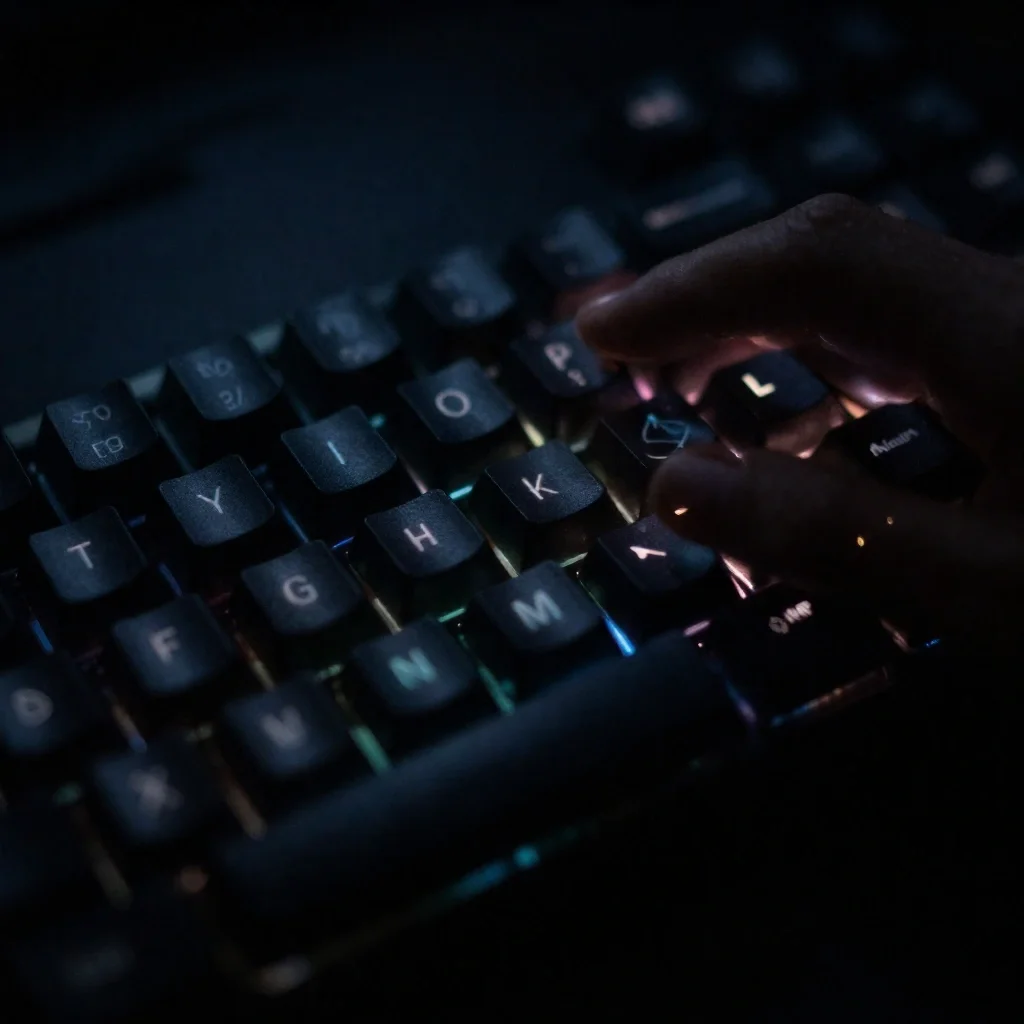
Have you ever struggled to see your keyboard keys in the dark? Maybe you’re working late at night, gaming in a dimly lit room, or presenting in a conference room with low lights. Your laptop’s keyboard backlight can make these situations much easier – if you know how to use it.
Many people don’t realize their laptop even has a backlit keyboard, or they can’t figure out how to turn it on. Even worse, some discover the feature but can’t adjust the brightness or customize the colors.
This complete guide will teach you everything about keyboard light settings. You’ll learn how to turn on your keyboard backlight, adjust brightness levels, customize RGB colors on gaming laptops, and fix common problems when the lights won’t work.
Table of Contents
- Understanding Keyboard Backlighting
- Quick Methods to Turn On Keyboard Lights
- Keyboard Light Settings on Windows
- Keyboard Light Settings on Mac
- Customizing RGB Lighting on Gaming Laptops
- Troubleshooting Common Problems
- Frequently Asked Questions
<a id=”understanding-backlight”></a>
Understanding Keyboard Backlighting: The Basics
Before diving into how to control your keyboard lights, let’s understand what keyboard backlighting actually is and why it matters.
What Is a Backlit Keyboard?
A backlit keyboard has small LED lights underneath or around each key. These lights shine through the letters and symbols on the keys, making them visible in dark environments.
There are two main types:
Standard White Backlight Most business and everyday laptops have simple white LED backlighting. You can usually turn it on or off and adjust the brightness, but you can’t change the color.
RGB Backlight Gaming laptops and high-end models often have RGB (Red, Green, Blue) backlighting. These can display millions of colors and often support fancy effects like breathing, waves, or reactive lighting that responds to your keystrokes.
Why Use Keyboard Backlighting?
Better Visibility in Dark Rooms The most obvious benefit is being able to see your keys when working in low light without turning on bright overhead lights.
Reduced Eye Strain When your keyboard is properly lit, your eyes don’t have to strain as much to locate keys, especially if you’re not a touch typist.
Professional Appearance In presentations or meetings where lights are dimmed, a backlit keyboard looks more professional and helps you work confidently.
Gaming Advantage For gamers, RGB lighting can highlight important keys (like WASD movement keys) and create an immersive gaming atmosphere.
Personalization RGB keyboards let you express your style with custom colors and effects that match your setup.
<a id=”quick-methods”></a>
How to Turn On Keyboard Lights: Fast Methods for Every Brand
The quickest way to activate your keyboard backlight is usually a keyboard shortcut. Here’s how to do it on every major laptop brand.
Finding Your Keyboard Light Key
Look at the top row of your keyboard (the F1 through F12 keys) or your spacebar. You’re searching for a small icon that looks like:
- A keyboard with rays of light coming from it
- A sun or light bulb symbol
- Three horizontal bars with light rays
Keyboard Shortcuts by Laptop Brand
| Laptop Brand | Keyboard Shortcut | Additional Notes |
|---|---|---|
| HP | F5 or Fn + F5 | Some models use F11 instead |
| Dell | F10, F6, or Fn + Right Arrow | Varies by model year |
| Lenovo | Fn + Spacebar | Most common across all Lenovo models |
| ASUS | F7 or Fn + F7 | Gaming models may use F4 |
| Acer | Fn + F8 or Fn + F9 | Depends on model series |
| MSI | Fn + Plus/Minus keys | Usually on the number pad |
| Apple MacBook | F5 (dim) / F6 (brighten) | No Fn key needed on most models |
| Razer | Fn + F11 | Adjustable through Razer Synapse software |
| Samsung | Fn + F9 | Less common on newer models |
| Microsoft Surface | Fn + Spacebar | Available on Surface Laptop models |
General Tips for All Keyboards
Try Multiple Times Most keyboards cycle through multiple brightness levels:
- Off → Low → Medium → High → Off
Press the keyboard light key multiple times to cycle through these options.
Check if Fn Lock Is On Some keyboards have an “Fn Lock” function. If your F5 or F6 key isn’t working, try pressing Fn + Esc or Fn + Caps Lock to toggle Fn Lock.
Look for a Dedicated Button Some gaming laptops have a dedicated keyboard lighting button separate from the F-keys. Check near the power button or along the side of your laptop.
<a id=”windows-settings”></a>
Keyboard Light Settings on Windows 11 & Windows 10
Windows doesn’t have a single, universal control panel for keyboard lighting. Instead, control is split between system settings, manufacturer software, and sometimes BIOS settings.
Method 1: Windows Mobility Center (Basic Control)
This method works on many Windows laptops, especially older models.
Step-by-step instructions:
- Right-click the Start button (Windows logo in taskbar)
- Select Mobility Center from the menu
- Look for a section labeled Keyboard Backlighting or Keyboard Brightness
- Use the slider to adjust brightness or toggle the light on/off
Note: If you don’t see a keyboard lighting section, your laptop either doesn’t support it, or you need to use manufacturer software instead.
Method 2: Windows Settings App
Windows 11 has started integrating more hardware controls into the Settings app.
For Windows 11:
- Open Settings (press Windows + I)
- Go to Bluetooth & devices → Devices
- If your laptop supports it, you’ll see keyboard lighting options here
- Adjust the brightness slider
Note: This feature is still being rolled out and may not be available on all devices yet.
Method 3: Manufacturer-Specific Software (Recommended)
For advanced control and customization, you need the software made by your laptop manufacturer. This is especially true for gaming laptops with RGB lighting.
| Laptop Brand | Required Software | What You Can Control |
|---|---|---|
| Dell | Alienware Command Center or Dell Power Manager | Brightness, colors, zones, effects |
| HP | HP Command Center or OMEN Gaming Hub | Brightness, RGB zones, preset themes |
| Lenovo | Lenovo Vantage | Brightness levels, auto-dimming settings |
| ASUS | Armoury Crate or MyASUS | Full RGB control, per-key lighting, effects |
| Acer | NitroSense or PredatorSense | RGB customization, gaming profiles |
| MSI | SteelSeries Engine or Dragon Center | Complex RGB effects, key-by-key programming |
| Razer | Razer Synapse | Advanced RGB, Chroma integration, profiles |
How to install manufacturer software:
- Visit your laptop manufacturer’s official website
- Navigate to the Support or Downloads section
- Enter your laptop model number
- Download the keyboard or lighting control software
- Install and restart your laptop
- Open the software to access all lighting controls
Method 4: Third-Party Software for Advanced Users
If you want unified control across different devices or your manufacturer’s software is buggy, consider these options:
OpenRGB (Free and Open Source)
- Controls RGB lighting from multiple brands in one interface
- Supports keyboards, mice, motherboards, and more
- Great for custom builds or mixing brands
- Download from: openrgb.org
SignalRGB (Free/Premium)
- Syncs lighting across all your devices
- Includes community-made effects
- Works with most major brands
<a id=”mac-settings”></a>
Keyboard Light Settings on macOS (MacBook)
Apple makes keyboard lighting control much simpler than Windows laptops. MacBooks have had backlit keyboards for years, and the controls are straightforward.
Method 1: Using Physical Keyboard Keys
The easiest way to control your MacBook keyboard lighting:
On MacBooks with F5 and F6 keys:
- Press F5 to decrease keyboard brightness
- Press F6 to increase keyboard brightness
- Keep pressing to cycle through brightness levels
On MacBooks with Touch Bar:
- Tap the expansion arrow (chevron) in the Control Strip on the right side of the Touch Bar
- Tap the keyboard brightness icon
- Tap multiple times to adjust brightness
Important: On newer MacBooks, you might need to press the Fn key along with F5/F6 if you’ve changed your function key behavior.
Method 2: System Settings (macOS Ventura and Later)
For more control and automatic adjustments:
- Click the Apple menu → System Settings
- Click Keyboard in the sidebar
- You’ll see a Keyboard brightness slider
- Drag the slider left (dimmer) or right (brighter)
Additional options on this page:
Adjust keyboard brightness in low light Check this box to let your Mac automatically adjust the keyboard backlight based on ambient light. The built-in light sensor will dim the keys when the room is bright and brighten them when it’s dark.
Turn keyboard backlight off after inactivity You can set a timer (5 seconds, 10 seconds, 30 seconds, 1 minute, or 5 minutes) to automatically turn off the keyboard light when you’re not typing. This saves battery life.
Method 3: Control Center (Quick Access)
For fast adjustments without opening Settings:
- Click the Control Center icon in the menu bar (two toggles)
- Click Keyboard Brightness
- Drag the slider to adjust
Troubleshooting MacBook Keyboard Lights
If F5/F6 aren’t working:
- Go to System Settings → Keyboard
- Click “Keyboard Shortcuts” button
- Select “Function Keys” from the sidebar
- Make sure “Use F1, F2, etc. keys as standard function keys” is unchecked
If the light doesn’t turn on at all:
- Your MacBook might be in a very bright environment, and the automatic adjustment thinks the backlight isn’t needed
- Try covering the ambient light sensor (near the webcam) to trick the system into thinking it’s darker
<a id=”rgb-customization”></a>
Customizing RGB Lighting on Gaming Laptops
If you have a gaming laptop, you likely have RGB backlighting, which allows for millions of color combinations and stunning visual effects. Here’s how to take full advantage.
Understanding RGB Zones
Gaming laptops typically have one of three RGB setups:
| RGB Type | Description | Control Level | Examples |
|---|---|---|---|
| Single Zone | Entire keyboard one color | Can change color but not individual keys | Entry-level gaming laptops |
| Multi-Zone | Keyboard divided into 3-4 sections | Each zone can be a different color | Mid-range gaming laptops |
| Per-Key RGB | Every key individually controllable | Complete customization | High-end gaming laptops |
Popular RGB Effects Explained
Most gaming keyboard software offers these effects:
Static The entire keyboard stays one solid color. Simple but professional-looking.
Breathing Colors slowly fade in and out, like breathing. Relaxing and popular for productivity.
Wave Colors flow across the keyboard in a wave pattern. Eye-catching and dynamic.
Reactive/Ripple Keys light up when you press them, creating a ripple effect. Fun for typing and gaming.
Spectrum Cycling Colors continuously rotate through the entire color spectrum. Colorful and attention-grabbing.
Game-Specific Profiles Some software can highlight keys used in specific games. For example, WASD keys might glow brighter in a first-person shooter.
Setting Up Custom RGB Profiles
Here’s a general process that works with most gaming laptop software:
Step 1: Open Your Lighting Software (Razer Synapse, ASUS Armoury Crate, MSI Dragon Center, etc.)
Step 2: Select Your Keyboard The software should detect your laptop’s keyboard automatically.
Step 3: Choose a Base Effect Start with a preset effect like Static or Breathing to get familiar with the controls.
Step 4: Customize Colors
- Click on the color picker
- Choose your favorite color or input a hex code
- For multi-zone keyboards, select each zone and assign different colors
Step 5: Adjust Speed and Brightness
- Most effects have speed sliders (for animations)
- Brightness sliders let you control how intense the lighting is
Step 6: Save Your Profile
- Name your custom profile (like “Work Mode” or “Gaming”)
- Save it so you can switch between different lighting setups quickly
Step 7: Set Up Triggers (Advanced) Some software lets you automatically switch profiles when you launch specific games or applications.
Best RGB Color Combinations
If you’re not sure where to start, here are popular color schemes:
For Productivity:
- Calm blue or white (easy on the eyes)
- Warm amber (reduces blue light at night)
For Gaming:
- Red and black (aggressive, high-energy)
- Purple and cyan (futuristic, cyberpunk aesthetic)
- Green (classic gamer look, Matrix vibes)
For Content Creation:
- Soft pink and blue gradient
- Pastel rainbow spectrum
Battery Considerations
RGB lighting, especially at high brightness with dynamic effects, drains battery quickly. Here’s how to balance style and battery life:
- On Battery: Use static colors at low brightness or turn RGB off completely
- Plugged In: Feel free to use full brightness and animated effects
- Best of Both: Set up automatic profiles that switch to power-saving lighting when unplugged
<a id=”troubleshooting”></a>
Troubleshooting: Keyboard Light Not Working
If your keyboard backlight isn’t working, don’t panic. Most issues have simple solutions. Work through these fixes in order.
Step 1: Confirm Your Keyboard Has Backlighting
Not all laptops have backlit keyboards. Even some expensive models skip this feature.
How to check:
- Look at your keyboard for a light icon on any key (usually F-keys or spacebar)
- Check your laptop’s specifications on the manufacturer’s website
- Look at the product description or manual that came with your laptop
If there’s no mention of “backlit keyboard” or “keyboard illumination,” your laptop probably doesn’t have this feature.
Step 2: Try All Keyboard Shortcuts
You might be using the wrong key combination:
- Try Fn + F5, Fn + F6, Fn + F9, and Fn + Spacebar
- Try the keys without the Fn key pressed
- Press each combination multiple times (you might be cycling through “off” modes)
- Check if there’s a dedicated lighting button on your laptop
Step 3: Check Power Settings
Windows power-saving modes often disable keyboard backlighting to conserve battery.
On Windows:
- Open Settings → System → Power & battery
- Click on Power mode and set it to “Best performance”
- Click Screen and sleep and adjust settings
- Try your keyboard light shortcut again
On Mac:
- Open System Settings → Battery
- Uncheck “Turn keyboard backlight off after [time] of inactivity”
- Make sure “Low Power Mode” is turned off
Step 4: Update Keyboard Drivers
Outdated or corrupted drivers can prevent hardware features from working.
For Windows:
- Right-click the Start button
- Select Device Manager
- Expand the Keyboards section
- Right-click on your keyboard device
- Select Update driver
- Choose “Search automatically for drivers”
- Restart your laptop after installation
For Mac:
Mac keyboard drivers update automatically with macOS updates. Make sure your system is up to date:
- Apple menu → System Settings → General → Software Update
Step 5: Check BIOS/UEFI Settings
Sometimes keyboard backlighting is disabled at the hardware level in your computer’s BIOS or UEFI firmware.
How to access and check:
- Restart your computer
- Immediately press the BIOS key (varies by manufacturer):
- Dell: F2 or F12
- HP: F10 or Esc
- Lenovo: F2 or Fn + F2
- ASUS: F2 or Delete
- Acer: F2 or Delete
- Once in BIOS, navigate using arrow keys to find settings like:
- “Keyboard Illumination”
- “Keyboard Backlight”
- “System Configuration”
- “Onboard Devices”
- Make sure keyboard lighting is set to Enabled
- Save changes and exit (usually F10, then confirm)
Warning: Be careful in BIOS. Only change settings you understand, as incorrect changes can cause boot problems.
Step 6: Reinstall Manufacturer Software
If you have manufacturer-specific lighting software, it might be corrupted.
- Uninstall the current software (Settings → Apps → find the software → Uninstall)
- Restart your laptop
- Download the latest version from the manufacturer’s website
- Install and restart again
Step 7: Check for Physical Damage
If nothing else works, there might be hardware damage:
Signs of hardware failure:
- You spilled liquid on the keyboard recently
- Some keys don’t work, or keyboard feels different
- Backlight worked before but stopped after dropping the laptop
- Visible damage to the keyboard area
What to do:
- Contact manufacturer support if under warranty
- Visit a repair shop for assessment
- Consider using an external USB keyboard with backlighting as a workaround
Step 8: Reset Your Laptop
As a last resort, you can try resetting your laptop’s settings. Just like sometimes you need to improve your laptop’s boot performance by optimizing settings, resetting can fix stubborn hardware issues.
On Windows: Settings → System → Recovery → Reset this PC (choose “Keep my files”)
On Mac: Backup your data, then reinstall macOS through Recovery Mode
<a id=”faq”></a>
Frequently Asked Questions About Keyboard Light Settings
How do I know if my laptop keyboard is backlit?
Look for a small icon on the top row of keys (F1-F12) or on the spacebar that looks like a shining keyboard, sun, or light rays. You can also check your laptop’s product specifications online or in the manual. If you don’t see this icon anywhere and can’t find “backlit keyboard” in the specs, your keyboard likely doesn’t have backlighting.
Why won’t my keyboard backlight turn on even after trying shortcuts?
There are several possible reasons: the backlight might be disabled in your laptop’s BIOS settings, your keyboard drivers might be outdated or corrupted, you might be in a power-saving mode that disables lighting, or in rare cases, there could be hardware failure. Work through the troubleshooting steps in order to identify and fix the problem.
Does using keyboard backlighting drain laptop battery significantly?
Yes, keyboard backlighting does consume battery power. At maximum brightness, it can reduce battery life by 15-30 minutes on average laptops. RGB lighting with animated effects on gaming laptops can drain even more power. To save battery, use lower brightness levels or turn off the backlight when you don’t need it, especially when using your laptop unplugged.
Can I add backlighting to a laptop that doesn’t have it built-in?
You cannot easily add internal backlighting to a laptop keyboard that wasn’t designed with it. However, you can buy external solutions like USB-powered keyboard lights (small LED strips that attach above your keyboard and illuminate it from above) or simply use an external backlit USB keyboard.
What’s the difference between white backlit and RGB keyboards?
White backlit keyboards have simple white LED lights under the keys. You can usually only turn them on/off and adjust brightness. RGB keyboards have Red, Green, and Blue LEDs that can combine to create millions of colors. RGB keyboards allow you to choose any color, create multi-color zones, and use animated lighting effects. RGB is more customizable but more expensive and uses more battery.
How do I stop my keyboard backlight from turning off automatically?
On Windows, check your power settings (Settings → System → Power & battery) and look for keyboard timeout settings in your manufacturer software. On Mac, go to System Settings → Keyboard and adjust the “Turn keyboard backlight off after [time] of inactivity” setting. You can also check your laptop’s power plan settings to ensure it’s not in an aggressive battery-saving mode.
Can keyboard backlighting damage my laptop or keyboard?
No, keyboard backlighting is designed to be safe for continuous use. The LED lights generate very little heat and are built to last for many years (typically 50,000+ hours of use). However, running backlighting at maximum brightness constantly will drain your battery faster and may cause the laptop to run slightly warmer.
Why does my MacBook keyboard backlight automatically adjust?
MacBooks have an ambient light sensor near the webcam that detects how bright your environment is. When the “Adjust keyboard brightness in low light” option is enabled (System Settings → Keyboard), macOS automatically adjusts the backlight brightness based on the room’s lighting. You can disable this feature if you prefer manual control.
What should I do if only some keys on my RGB keyboard light up?
This could indicate a software issue or partial hardware failure. First, try updating your keyboard lighting software and drivers. If that doesn’t work, reset your lighting profiles to default. If specific zones still don’t work after software troubleshooting, you may have hardware damage in those LED zones, which would require professional repair.
Can I sync my keyboard lighting with other RGB devices?
Yes, if you’re using gaming peripherals. Most major brands (Razer, Corsair, Logitech, ASUS, etc.) offer software that can synchronize lighting across keyboards, mice, headsets, and even RGB room lighting. Some universal solutions like SignalRGB and OpenRGB can sync lighting across different brands.
Advanced Tips for Power Users
Creating Keyboard Shortcuts for Quick Brightness Changes
On Windows, you can use AutoHotkey scripts to create custom shortcuts that control your keyboard lighting through software commands.
Using Keyboard Lighting for Notifications
Some advanced software allows your keyboard to flash or change colors based on notifications like incoming emails, Discord messages, or low battery warnings.
Per-Application Lighting Profiles
Set up your keyboard to automatically switch colors based on what program you’re using. For example, white light for Microsoft Word, blue for web browsers, and red for gaming.
Reducing Blue Light at Night
Some keyboard software supports “night mode” profiles with warmer colors (orange, amber, or red) that reduce blue light exposure before bedtime, potentially improving sleep quality.
Extending Your Keyboard’s Lifespan
While managing keyboard lights, keep these maintenance tips in mind:
Keep It Clean Dust and debris can interfere with backlight diffusion. Gently clean between keys regularly with compressed air.
Avoid Liquid Spills Liquids can damage both the keys and the backlight circuitry. Use a keyboard cover if you often drink near your laptop.
Use Appropriate Brightness You don’t always need maximum brightness. Using lower levels extends LED life and saves battery.
Update Software Regularly Manufacturer software updates often include performance improvements and bug fixes for lighting control.
Conclusion: Mastering Your Keyboard Light Settings
Learning to control your keyboard light settings enhances your computing experience in multiple ways. Whether you need better visibility for late-night work, want to express your style with RGB effects, or simply prefer the aesthetic of a backlit keyboard, you now have the knowledge to take full control.
Remember the key points:
- Use keyboard shortcuts for quick on/off control
- Install manufacturer software for advanced customization
- Check BIOS settings if nothing else works
- Balance aesthetics with battery life based on your needs
- Regular driver updates prevent most problems
For more technical information about keyboard technology and backlighting, check out How-To Geek’s comprehensive keyboard guide or visit PC Mag’s laptop reviews for detailed specifications on backlit keyboards across different models.
Your keyboard backlight is a small feature that makes a big difference in daily use. Now you know exactly how to control it, customize it, and fix it when problems arise.
Start experimenting with your keyboard lighting today and find the perfect settings that work for your needs!
