
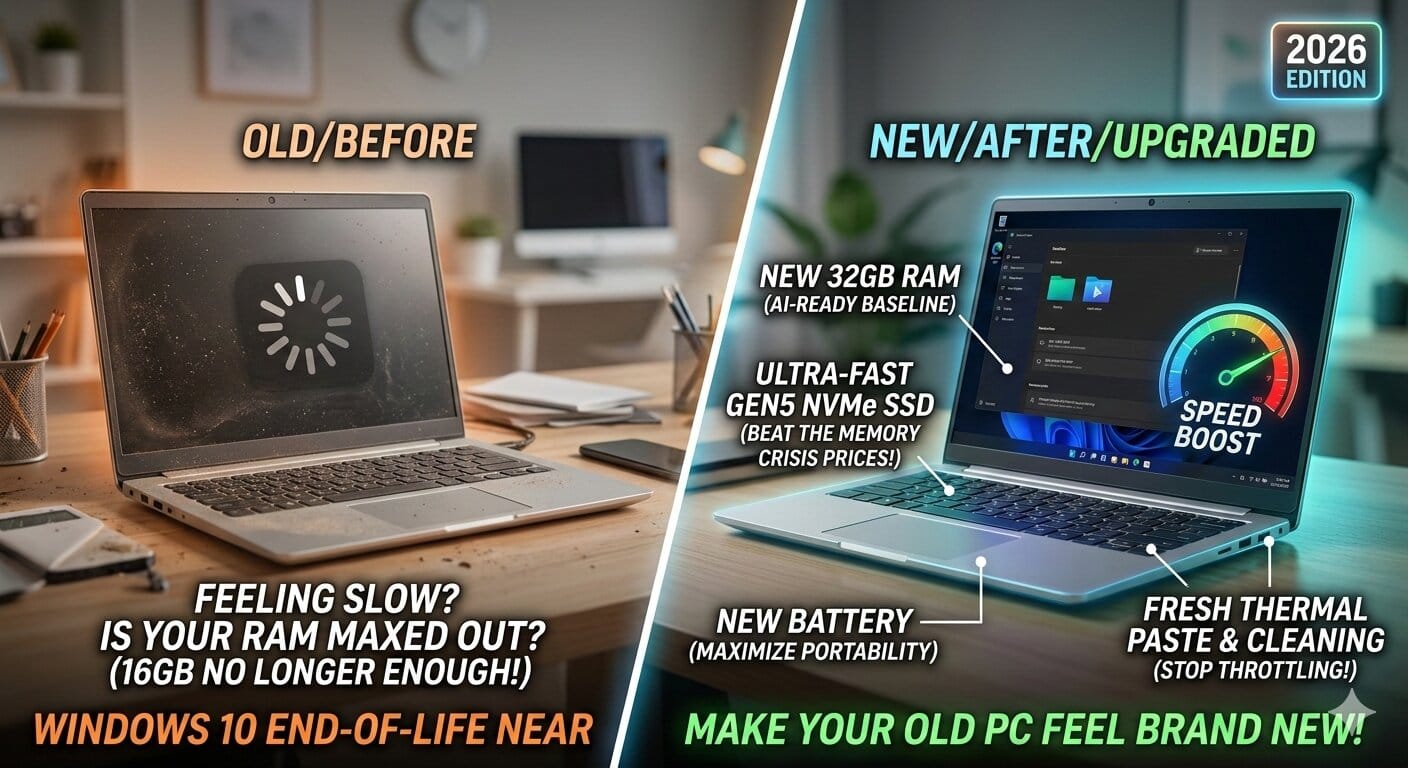
Replacing your laptop every few years wastes money and contributes to electronic waste. Smart upgrades can transform your sluggish machine into a responsive, powerful device rivaling newer models—at a fraction of the cost. In 2026, upgrading laptops has become easier than ever with affordable components, modular designs, and straightforward installation processes.
This comprehensive guide presents 7 practical laptop upgrade ideas helping you extend device lifespan, boost performance significantly, and save hundreds or thousands of dollars before considering a new purchase.
Why Upgrade Instead of Replace?
Before diving into specific upgrades, understanding the compelling reasons for upgrading versus buying new helps you make informed decisions:
Financial Savings
Most meaningful upgrades cost $50-$300 total, while new laptops average $800-$2,000. Even multiple upgrades typically cost less than half a replacement’s price.
Environmental Impact
Electronic waste creates significant environmental challenges. Extending your laptop’s useful life by 2-5 years through upgrades reduces e-waste and conserves resources required for manufacturing new devices.
Performance Targeting
Upgrades let you address specific bottlenecks affecting your workflow. Gaming needs differ from video editing or general productivity—targeted upgrades provide customized solutions.
Familiarity and Compatibility
You already know your laptop’s quirks, have your preferred software configured, and maintain established workflows. Avoiding the learning curve and reconfiguration time of new devices has real value.
Upgrade 1: Install a Solid-State Drive (SSD)
Replacing your traditional hard disk drive with an SSD represents the single most impactful upgrade available, dramatically transforming overall system responsiveness.
Why This Upgrade Matters
Traditional hard drives use spinning platters and moving read/write heads—mechanical components causing delays and vulnerability to damage. SSDs use flash memory with no moving parts, accessing data nearly instantaneously.
Immediate Benefits:
- Computer boots in 10-15 seconds instead of 30-60 seconds
- Applications launch almost instantly
- File transfers complete dramatically faster
- System remains responsive during multiple simultaneous tasks
- Complete silence during operation
- Significantly reduced power consumption extending battery life
HDD vs SSD Comparison
| Performance Factor | Traditional HDD | Modern SSD | Performance Improvement |
|---|---|---|---|
| Boot Time | 30-60 seconds | 10-15 seconds | 3-4x faster |
| Application Launch | Noticeable delay | Nearly instant | 5-10x faster |
| File Transfer Speed | 80-160 MB/s | 500-3,500 MB/s | 6-40x faster |
| Noise Level | Audible spinning/clicking | Completely silent | Total elimination |
| Durability | Fragile (shock-sensitive) | Highly durable | No mechanical failure risk |
| Power Usage | 6-7 watts active | 2-3 watts active | 50% reduction |
| Average Lifespan | 3-5 years | 5-10 years | Double longevity |
| Price per GB (2026) | $0.02-0.03 | $0.08-0.15 | Higher upfront cost |
SSD Types and Selection
SATA SSDs:
- Most common and compatible
- 500-550 MB/s maximum speeds
- Best for older laptops (pre-2017)
- Most affordable option
NVMe SSDs:
- Uses M.2 connector and PCIe interface
- 2,000-7,000 MB/s speeds possible
- Requires compatible motherboard
- Best for maximum performance
Capacity Recommendations:
- 256GB: Minimum for Windows + basic applications
- 512GB: Comfortable for most users with moderate storage needs
- 1TB: Ideal for power users, content creators, or gamers
- 2TB+: Professional workstations requiring extensive local storage
Installation Difficulty: Moderate. Most laptops allow easy drive replacement through bottom panel access, though some ultrabooks require more disassembly.
Upgrade 2: Expand Random Access Memory (RAM)
RAM directly determines how many applications run simultaneously without slowing down your system. Insufficient memory forces computers to use much slower hard drive storage as virtual memory.
How RAM Affects Performance
When you open applications, active data loads into RAM for quick processor access. Running out of RAM causes your system to “page” data to storage drives, creating dramatic slowdowns even with SSDs.
Performance Impact:
- Smooth switching between many open programs
- Better responsiveness in memory-intensive applications (photo/video editing, programming, large spreadsheets)
- Improved browser performance with numerous tabs
- Enhanced gaming experience with complex environments
- Faster virtual machine operation
RAM Upgrade Considerations
Compatibility Requirements:
- Check maximum RAM your motherboard supports
- Verify RAM type (DDR4, DDR5) and speed compatibility
- Confirm available slots (many laptops have 2, some only 1)
- Note some ultrabooks use soldered RAM (non-upgradeable)
2026 RAM Recommendations:
| Use Case | Minimum RAM | Recommended RAM | Professional/Power User |
|---|---|---|---|
| Basic computing (web, email, documents) | 8GB | 16GB | Not applicable |
| General productivity and multitasking | 16GB | 16GB | 32GB |
| Photo editing and moderate creative work | 16GB | 32GB | 64GB |
| Video editing and 3D rendering | 32GB | 64GB | 128GB |
| Gaming (modern titles) | 16GB | 32GB | 32GB |
| Software development and VMs | 16GB | 32GB | 64GB |
| AI/ML workloads | 32GB | 64GB | 128GB+ |
Advantages:
- Relatively affordable ($40-$150 for 16-32GB)
- Noticeable immediate performance improvement
- Easy installation in most laptops
- Completely reversible if needed
Limitations:
- Cannot exceed motherboard maximum capacity
- Some laptops use soldered, non-replaceable RAM
- Performance gains limited if RAM wasn’t original bottleneck
- Different from storage—doesn’t increase file capacity
Installation Difficulty: Easy to moderate. Typically involves removing bottom panel, releasing clips, and inserting new modules.
Upgrade 3: External Graphics Processing Unit (eGPU)
For gaming enthusiasts, content creators, or professionals requiring serious graphics power, external GPUs provide desktop-class performance to laptops lacking powerful internal graphics.
Understanding eGPU Systems
An eGPU consists of a desktop graphics card housed in an external enclosure connecting to your laptop via high-speed Thunderbolt 3/4 or USB4 port. This provides dedicated graphics processing unavailable through integrated laptop GPUs.
Key Benefits:
- Transform thin-and-light laptops into gaming powerhouses
- Desktop-level performance in 3D rendering and video editing
- Future-proof—swap GPU cards as technology advances
- Portable setup you can move between locations
- Maintains laptop’s portability when disconnected
Practical Applications:
- Playing AAA games at high settings and resolutions
- GPU-accelerated video rendering and effects processing
- Machine learning and AI model training
- CAD and 3D modeling workflows
- Cryptocurrency mining (where legal and profitable)
eGPU Requirements and Considerations
Essential Requirements:
- Thunderbolt 3, Thunderbolt 4, or USB4 port on laptop
- Compatible operating system (Windows 10/11 best supported)
- External display recommended for optimal performance
- Adequate power supply (eGPU enclosures include power)
Cost Breakdown:
- eGPU Enclosure: $200-$400
- Graphics Card: $300-$1,500+ depending on performance level
- Total Investment: $500-$2,000
Performance Considerations:
- Expect 10-20% performance reduction versus desktop installation due to Thunderbolt bandwidth limitations
- Best results with external monitors (built-in display adds overhead)
- Some laptops limit Thunderbolt bandwidth when running on battery
Drawbacks:
- Significant upfront investment
- Not portable—desktop-style setup required
- Compatibility issues with some laptops
- Thunderbolt/USB4 requirement excludes many laptops
- Performance not quite matching true desktop configurations
Installation Difficulty: Moderate. Requires driver installation and Thunderbolt configuration, though no physical laptop modification needed.
For detailed guidance on graphics card selection and performance, check Tom’s Hardware GPU Buyer’s Guide.
Upgrade 4: Battery Replacement
Laptop batteries inevitably degrade through charge cycles, reducing unplugged runtime and limiting portability. Battery replacement restores original battery life at reasonable cost.
Recognizing Battery Degradation
Common Symptoms:
- Dramatic reduction in battery life (from 6 hours to 1-2 hours)
- Unexpected shutdowns despite showing remaining charge
- Battery percentage jumping erratically
- Physical swelling creating bulges in laptop chassis
- Overheating during normal use
- Failure to charge beyond certain percentage
Battery Health Monitoring:
Windows users can generate battery report via Command Prompt:
powercfg /batteryreportMac users check battery condition in System Settings → Battery → Battery Health.
Battery Replacement Options
Original Equipment Manufacturer (OEM) Batteries:
- Guaranteed compatibility and safety
- Proper capacity ratings
- Typically include warranty
- Higher cost ($60-$150)
- Best for important devices
Third-Party Certified Batteries:
- More affordable ($30-$80)
- Varying quality levels
- Check certification and reviews carefully
- May lack some safety features
- Adequate for older devices
Warning: Avoid ultra-cheap no-name batteries. Poor quality batteries create fire hazards and can damage your laptop.
Replacement Considerations
Removable vs. Internal Batteries:
Older laptops often feature user-replaceable batteries requiring no tools. Modern laptops typically use internal batteries requiring disassembly but offering better integration and capacity.
Expected Results:
Quality battery replacement should restore 85-95% of original battery life. If your laptop originally lasted 8 hours, expect 7-7.5 hours after replacement.
Installation Difficulty: Easy for removable batteries (simple clip release), moderate for internal batteries (requires opening laptop and disconnecting cables).
Upgrade 5: Improve Cooling System
Excessive heat reduces performance through thermal throttling and shortens component lifespan. Cooling upgrades maintain optimal temperatures enabling sustained performance.
Why Cooling Matters
Processors and graphics chips reduce clock speeds when temperatures exceed safe thresholds, dramatically cutting performance. Sustained high temperatures also accelerate component degradation.
Performance Impact:
- Elimination of thermal throttling during intensive tasks
- Sustained maximum performance in gaming and rendering
- Quieter operation as fans don’t need maximum speed
- Extended lifespan for all internal components
- Better stability and fewer crashes
Cooling Upgrade Options
Thermal Paste Replacement:
Original thermal paste dries out over 2-3 years, reducing heat transfer efficiency. Quality thermal paste costs $5-15 and significantly improves temperatures.
Expected Temperature Reduction: 5-15°C depending on paste quality and application technique.
Internal Dust Cleaning:
Dust accumulation blocks airflow through heatsinks and fans. Compressed air cleaning or professional service restores airflow.
Expected Temperature Reduction: 10-20°C in severely dusty systems.
Cooling Pads:
External cooling pads with fans provide supplemental airflow underneath laptop, particularly helpful for gaming or rendering workloads.
Expected Temperature Reduction: 3-8°C depending on pad quality and laptop design.
Benefits:
- Prevents performance degradation from overheating
- Extends overall hardware longevity
- Reduces fan noise during normal use
- Relatively inexpensive improvements
- Immediate measurable results
Limitations:
- Thermal paste replacement requires technical skill and laptop disassembly
- Risk of damage if inexperienced
- Cooling pads add bulk, reducing portability
- Some ultra-thin laptops difficult to service
Installation Difficulty: Internal work (paste, cleaning) is advanced; external cooling pads are trivial.
Upgrade 6: Operating System and Software Optimization
Sometimes perceived hardware problems stem from software bloat, outdated systems, or poor optimization. Software-based improvements cost nothing but deliver noticeable improvements.
Operating System Upgrades
Windows Users:
Upgrading to Windows 11 (or Windows 12 when available) provides performance optimizations, security improvements, and modern features. Requirements include compatible processor, TPM 2.0, and Secure Boot capability.
Alternative: Lightweight Linux Distributions:
Linux distributions like Ubuntu, Linux Mint, or Pop!_OS revitalize older hardware through reduced resource requirements. Excellent for web browsing, office work, and development.
Mac Users:
Keep macOS updated to latest compatible version. Older Macs benefit from optimized software even if unable to run newest macOS releases.
Software Optimization Strategies
Remove Startup Programs:
Disable unnecessary applications launching at startup, reducing boot times and freeing system resources.
Uninstall Bloatware:
Remove pre-installed trial software, unused applications, and redundant utilities consuming resources.
Disk Cleanup:
Use built-in tools (Windows Disk Cleanup, macOS Storage Management) removing temporary files, caches, and unnecessary system files.
Disable Visual Effects:
Reducing animations and transparency effects frees resources for actual productivity.
Browser Optimization:
Clear browser caches, limit extensions, and consider lightweight browsers for older systems.
Advantages:
- Completely free improvements
- No physical installation required
- Immediate performance gains possible
- Reversible if issues arise
- Updates include security improvements
Limitations:
- Cannot overcome fundamental hardware limitations
- Learning curve with new operating systems
- Software compatibility considerations with Linux
- Some optimizations require technical knowledge
For comprehensive Windows optimization guides, visit Microsoft’s Windows Support.
Upgrade 7: Enhanced Peripherals and Accessories
External accessories dramatically improve user experience and productivity without modifying laptop internals.
High-Impact Peripheral Upgrades
External Monitors:
Secondary or larger displays massively increase productivity through expanded workspace. 2026 offers affordable 4K monitors providing stunning clarity.
Benefits:
- Multiple applications visible simultaneously
- Reduced eye strain with proper sizing
- Enhanced color accuracy for creative work
- Gaming immersion with larger displays
Mechanical Keyboards:
Superior typing comfort, customization, and durability compared to laptop keyboards.
Benefits:
- Reduced finger fatigue during extended typing
- Satisfying tactile feedback
- Customizable switches for personal preference
- Long-term durability (50+ million keystrokes)
Precision Mice:
Ergonomic mice reduce strain and improve accuracy versus trackpads.
Benefits:
- Reduced wrist and hand strain
- Improved precision for design work
- Programmable buttons for efficiency
- Better gaming control
Docking Stations:
Single-cable connectivity to multiple peripherals, displays, and charging.
Benefits:
- One-cable desktop transformation
- Consistent workspace setup
- Simultaneous charging while docked
- Expanded port availability
External Storage:
Fast external SSDs or large HDDs for backups, media libraries, and project files.
Benefits:
- Offload large files freeing internal storage
- Portable data access across devices
- Backup protection against hardware failure
- Expandable as needs grow
Webcam and Microphone:
Laptop built-in cameras and microphones often provide poor quality. External options dramatically improve video calls and content creation.
Advantages:
- Immediate user experience improvements
- No laptop modification required
- Portable between devices
- Upgradeable independently
- Wide price range accommodating budgets
Limitations:
- Reduces laptop portability when used
- Requires desk space
- Additional items to transport if mobile
- Can become expensive across multiple upgrades
Upgrade Advantages and Limitations
Understanding the broader benefits and constraints of laptop upgrading helps set realistic expectations:
| Advantages | Limitations |
|---|---|
| Significantly cheaper than replacement ($100-500 vs $800-2000) | Hardware compatibility restricts some upgrades |
| Extends useful laptop life 2-5 additional years | Ultrabooks and MacBooks often non-upgradeable |
| Customizable to your specific needs | Some upgrades require technical skills or professional installation |
| Environmentally responsible (reduces e-waste) | May void manufacturer warranty |
| Targeted performance improvements | Cannot overcome fundamental architecture limitations |
| Educational—learn hardware components | Risk of damage during installation if inexperienced |
| Retain familiar system and software | Cumulative upgrade costs can approach replacement cost |
| Gradual investment spread over time | Very old laptops (8+ years) may not be worth upgrading |
Determining Which Upgrades You Need
Prioritize upgrades based on specific performance bottlenecks and usage patterns:
If your laptop is slow to boot and applications lag: → SSD upgrade should be your first priority
If your laptop slows down with many open programs: → RAM expansion addresses multitasking limitations
If gaming or 3D work is sluggish: → Consider eGPU if you have Thunderbolt/USB4, otherwise upgrade may not be feasible
If battery life is disappointing: → Battery replacement restores portability
If laptop gets hot and loud: → Cooling system improvements prevent throttling
If general experience feels dated: → OS upgrade or peripheral enhancements modernize interaction
If storage is constantly full: → External storage or larger SSD provides breathing room
Common Questions About Laptop Upgrades
What is the most cost-effective laptop upgrade?
Installing an SSD provides the most dramatic performance improvement per dollar spent. Even basic SATA SSDs costing $50-100 transform system responsiveness more than any other single upgrade. The difference between HDD and SSD usage feels like a completely new computer.
Can every laptop be upgraded?
No. Modern ultrabooks (Dell XPS, HP Spectre) and MacBooks often feature soldered RAM and storage, preventing upgrades. Gaming laptops and business models typically offer better upgradeability. Check your specific model’s service manual before purchasing components.
Is upgrading a laptop cheaper than buying new?
Typically yes, dramatically so. Meaningful upgrades (SSD + RAM) usually cost $150-300 total, while new laptops with equivalent performance cost $800-2,000. Even extensive upgrades rarely exceed half the replacement cost.
How much longer can upgrades extend my laptop’s useful life?
Quality upgrades can add 2-5 years of productive use depending on original age and specifications. A 3-year-old mid-range laptop with SSD and RAM upgrades often outperforms brand-new budget models, making it viable for another 3-4 years.
Do laptop upgrades void manufacturer warranty?
Potentially yes, depending on manufacturer and specific upgrade. Many manufacturers allow RAM and storage upgrades without voiding warranty, but others don’t. Always review warranty terms before opening your laptop. After warranty expiration, this concern disappears.
Can I upgrade my laptop’s processor or graphics card?
Desktop replacement laptops occasionally offer CPU upgrades, but it’s rare, complex, and often not cost-effective. Internal GPU upgrades are essentially impossible in laptops—components are soldered to motherboards. External GPUs (eGPUs) provide the only graphics upgrade path.
What tools do I need for laptop upgrades?
Most upgrades require only basic tools: small Phillips screwdriver, plastic pry tools for clips, and anti-static precautions (wrist strap or frequent grounding). Thermal paste application requires additional supplies. Tool kits specifically for electronics cost $15-30 and include everything needed.
Should I upgrade an old laptop or buy new?
If your laptop is under 5 years old, upgrades usually make financial sense. Laptops 5-7 years old require case-by-case evaluation based on original specifications and current condition. Laptops over 7-8 years old often aren’t worth upgrading—fundamental architecture and efficiency improvements in newer models provide better value.
Installation Difficulty and Professional Services
Easy (DIY-friendly):
- External peripherals (monitors, keyboards, mice)
- Removable batteries
- External storage
- Cooling pads
Moderate (careful DIY possible with research):
- RAM installation
- SSD replacement in accessible slots
- Internal battery replacement
Advanced (consider professional service):
- Thermal paste application
- Internal dust cleaning
- eGPU configuration
- Complex disassembly for storage upgrades
Many computer repair shops offer installation services for $50-100, worthwhile if uncomfortable with DIY approaches.
Conclusion
Upgrading your laptop in 2026 represents a smart, economical, and environmentally conscious alternative to premature replacement. The seven upgrade ideas presented—SSD installation, RAM expansion, eGPU setup, battery replacement, cooling improvements, software optimization, and peripheral enhancement—offer targeted solutions addressing specific performance limitations.
Before investing in a new laptop, honestly assess whether strategic upgrades can meet your needs. Most users find that $200-400 in targeted upgrades provides performance matching or exceeding budget replacements costing $800-1,200.
Start with the highest-impact upgrade for your situation (usually SSD), then evaluate whether additional improvements are worthwhile. You’ll likely discover your “old” laptop has plenty of life remaining—it just needed the right enhancements to shine.
Don’t let manufacturers’ marketing convince you that constant replacement is necessary. With informed upgrades, your laptop can remain productive, powerful, and relevant for years beyond its expected lifespan.