
Table of Contents
- Understanding Device Drivers
- Why You Need to Update Drivers Manually
- Before You Begin: Essential Preparation
- Method 1: Update Drivers Using Device Manager
- Method 2: Update Drivers from Manufacturer Websites
- Method 3: Update Drivers via Windows Update Catalog
- Comparison of All Update Methods
- Troubleshooting Failed Driver Updates
- How to Roll Back Driver Updates
- Frequently Asked Questions with Detailed Answers
- Best Practices for Driver Safety
- Conclusion and Next Steps
What Are Device Drivers? A Simple Explanation
Think of your computer hardware like a foreign visitor who doesn’t speak English. Device drivers act as translators between your Windows operating system and physical hardware components like your printer, graphics card, keyboard, mouse, Wi-Fi adapter, and audio system.
When you plug in a printer, Windows needs to know how to communicate with it. The printer driver is the instruction manual that tells Windows exactly what signals to send. Without proper drivers, Windows has no way to instruct these devices what to do, resulting in non-functional hardware.
Therefore, to understand how to manually update your device Drivers (Windows 10/11) step-by-step, here are the common devices that rely on drivers include:
- Graphics Processing Units (GPUs) from NVIDIA, AMD, or Intel
- Network adapters (Wi-Fi and Ethernet cards)
- Printing devices and scanners
- Audio devices and sound cards
- USB devices and controllers
- Motherboard chipset drivers
- Touch pad and keyboard controllers
- Camera and webcam devices
Why Manually Update Device Drivers?
While Windows 10 and Windows 11 come with automatic driver updating through Windows Update, there are several practical reasons why you might need to take control of driver updates yourself.
Fixing Hardware Recognition Problems
Sometimes Windows fails to recognize a newly connected device. Your printer shows up with a yellow question mark in Device Manager, or your scanner won’t respond to commands. This often happens because Windows installed a generic or outdated driver. By downloading the specific driver from the manufacturer, you solve the recognition issue completely.
Resolving Performance Issues
Graphics drivers directly impact gaming performance and video rendering speed. Network drivers affect internet connection stability. Audio drivers influence sound quality. Outdated drivers can cause stuttering, lag, poor video quality, or audio dropouts. A manual update to the latest driver version often fixes these problems immediately.
Unlocking New Features
Manufacturers regularly release driver updates that add new capabilities. A graphics driver update might enable support for newer games or ray tracing technology. A network adapter driver update could add WiFi 6E compatibility. By staying current, you access these improvements.
Improving System Stability
When Windows Update installs drivers automatically, it doesn’t always choose the most stable version—it might install a newer driver with known bugs instead of a thoroughly tested older version. Manual updates let you choose specific versions known to be stable.
Maintaining Compatibility with New Windows Builds
As Windows releases feature updates and new builds, some older hardware might need updated drivers to work properly with the latest Windows 11 version. Staying proactive with manual updates prevents compatibility headaches.
Preparing Your System Before Updating Drivers
Before starting the driver update process, take these safety steps:
1. Back Up Your System
Create a system restore point so you can roll back if something goes wrong. Press Win + R, type rstrui.exe, and click OK. Select “Create a restore point” to save your current system state.
2. Identify Your Hardware
You need to know exactly what devices you’re updating. Here’s how to find this information:
- Right-click the Windows Start button
- Select “Device Manager”
- Look for devices with yellow exclamation marks (these need drivers)
- Right-click any device and select “Properties”
- Note the device name and Model Number
3. Download the Correct Driver Version
Never guess which driver you need. Visit the official manufacturer’s website and search for your specific device model and Windows version (10 or 11, 32-bit or 64-bit).
4. Check Windows Version and Build Number
Press Win + R, type winver, and press Enter to see your exact Windows version. This ensures you download compatible drivers.
Method 1: Update Drivers Using Device Manager (Most Common)
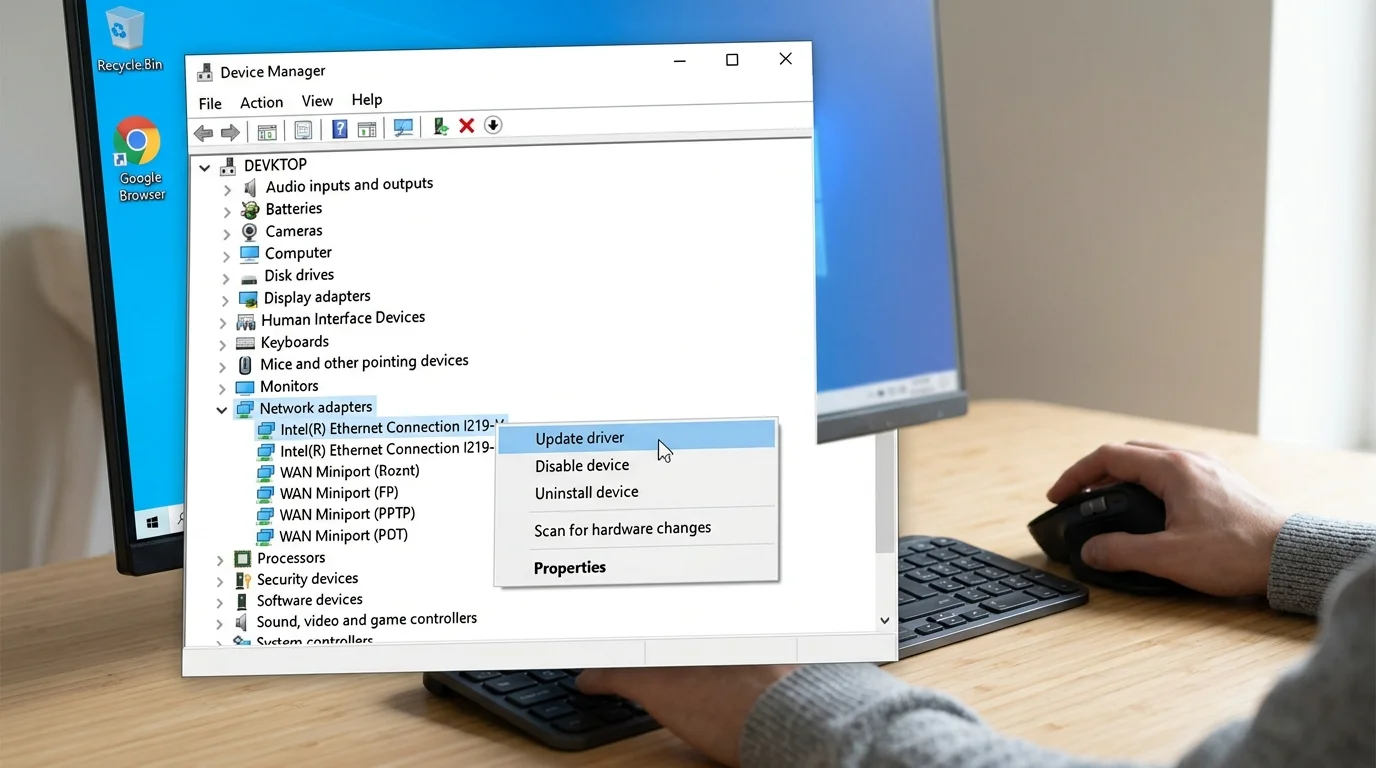
Device Manager is built into Windows and provides the simplest way to update most drivers manually.
Step 1: Open Device Manager
- Right-click the Windows Start button (or press Win + X)
- Select “Device Manager” from the menu
- If prompted by User Account Control, click “Yes” to confirm
Step 2: Locate the Device
- Expand the category containing your device (for example, “Display adapters” for graphics cards, “Network adapters” for internet connections, “Imaging devices” for scanners)
- You can also look under “Other devices” if your device has an unrecognized driver
Step 3: Start the Update Process
- Right-click the device you want to update
- Select “Update driver” from the context menu
- A new window appears with two options
Step 4: Choose How to Search for Drivers
You have two choices:
Option A: Automatic Search
- Select “Search automatically for updated driver software”
- Windows searches its database and potentially connects to Microsoft’s servers
- This takes 2-3 minutes
- If found, Windows installs the driver automatically
Option B: Manual Selection
- Select “Browse my computer for drivers”
- Click “Browse…” and navigate to the folder containing your downloaded driver files
- Click “Next” to install
- This gives you complete control over which version installs
Step 5: Complete Installation
- Wait for the installation to finish (usually 30-60 seconds)
- You’ll see “The driver software for your device has been updated successfully”
- Click “Close”
- Some drivers require a restart—follow the prompts if necessary
Method 2: Update Drivers Directly from Manufacturer Websites
This method ensures you get the absolute latest and most optimized driver version available.
Step 1: Identify Your Exact Hardware Model
Different hardware models need different drivers, even from the same manufacturer.
For Graphics Cards:
- Right-click your desktop and select graphics settings
- Look for “NVIDIA Control Panel,” “AMD Radeon Settings,” or “Intel Graphics Settings”
- The control panel displays your exact GPU model
- Alternatively, in Device Manager under “Display adapters,” right-click your graphics card and select “Properties” to see the exact model number
For Network Adapters:
- In Device Manager, expand “Network adapters”
- Right-click your adapter and select “Properties”
- Write down the exact model name
For Other Devices:
- Always check the physical device (printers usually have model numbers printed on them)
- Check device documentation or original packaging
- Use Device Manager’s Properties tab
Step 2: Visit the Manufacturer’s Website
Go directly to the official website of your hardware manufacturer:
- NVIDIA Graphics: www.nvidia.com/Download/driverDetails.aspx/
- AMD Graphics: www.amd.com/en/technologies/radeon
- Intel Graphics: www.intel.com/content/www/us/en/support/intel-iris-graphics.html
- Microsoft Surface Devices: www.microsoft.com/en-us/download/windows-drivers
- Canon Printers/Scanners: www.canon.com/support/
- HP Printers/Scanners: www.hp.com/en-us/support.html
Step 3: Download the Correct Driver
- Use the manufacturer’s search tool to find your specific device
- Select “Windows 10” or “Windows 11” as your operating system
- Choose whether you need the 32-bit or 64-bit version (most modern systems use 64-bit)
- Download the driver file—it usually comes as an .exe installer or .zip archive
- Save it to your Downloads folder
Step 4: Install the Driver
If it’s an .exe file:
- Right-click the downloaded file
- Select “Run as administrator”
- Follow the installation wizard
- Choose “Express Installation” or “Standard Installation” (standard is safer for beginners)
- Wait for completion and restart your computer if prompted
If it’s a .zip file:
- Right-click and select “Extract All…”
- Choose a destination folder
- Navigate to the extracted folder
- Look for a file named “Setup.exe” or similar
- Run it as administrator and follow installation steps
Step 5: Verify Installation
- Restart your computer
- Open Device Manager again
- The device should now appear without any warning symbols
- Right-click the device and select “Properties”
- The “Driver” tab shows the installation date (should be today’s date)
Method 3: Update Drivers via Microsoft Update Catalog
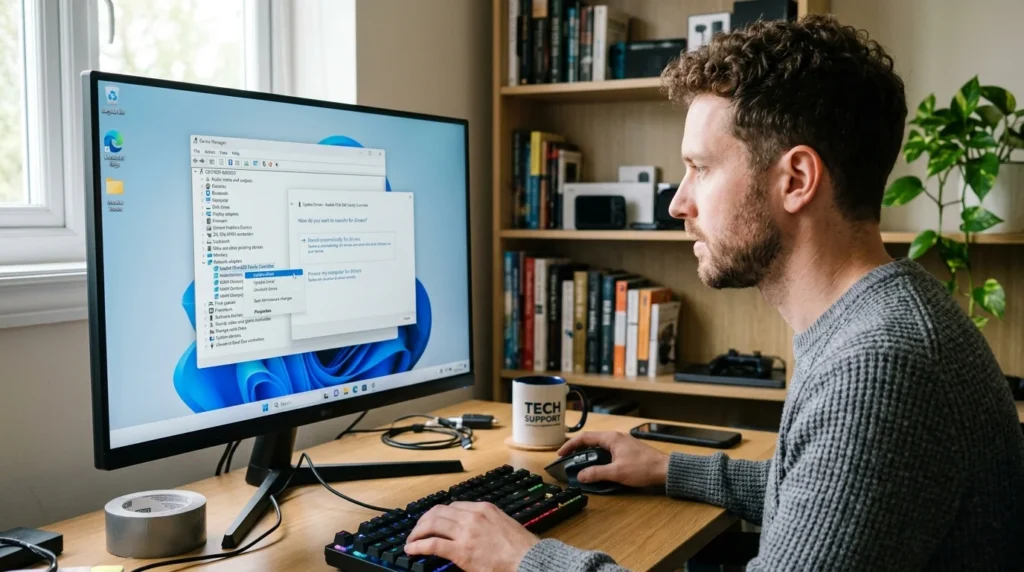
Microsoft maintains an official repository of driver files. This method works when the manufacturer’s website isn’t accessible or if you want drivers from Microsoft’s verified database.
Step 1: Access Microsoft Update Catalog
- Open your web browser
- Visit https://www.catalog.update.microsoft.com/Home.aspx
- This is Microsoft’s official driver repository
Step 2: Search for Your Driver
- Type your device name, model number, or driver name in the search box
- Examples: “NVIDIA RTX 3060,” “Realtek audio,” “Intel chipset”
- Click “Search”
- Review results—look for entries marked with your Windows version (10 or 11)
Step 3: Download the Correct File
- Results show .cab files (compressed driver files)
- Click the download link next to the correct entry
- Save the file to your computer
Step 4: Extract and Install
- Locate the downloaded .cab file
- Right-click it and select “Extract All…”
- Choose where to extract the files
- Once extracted, open Device Manager
- Right-click your device and select “Update driver”
- Choose “Browse my computer for drivers”
- Navigate to the extracted folder and click “Next”
- Windows installs the driver from the extracted files
Comprehensive Comparison: All Driver Update Methods
| Update Method | Installation Time | Technical Difficulty | Best For | Pros | Cons |
|---|---|---|---|---|---|
| Device Manager Automatic | 3-5 minutes | Very Easy | Beginners | Simple, no file searching needed | May install older driver versions, limited control |
| Device Manager Manual | 5-10 minutes | Moderate | Users with downloaded files | Full version control, works offline | Requires having the correct file downloaded |
| Manufacturer Website | 8-15 minutes | Moderate | Power users, latest features | Access newest drivers, manufacturer support | Time-consuming to find correct model, requires internet |
| Windows Update Catalog | 10-15 minutes | Moderate to Advanced | IT professionals, specific versions | Official Microsoft source, verified drivers | Less intuitive search interface, fewer driver choices |
| Driver Update Software | 3-8 minutes | Easy | Non-technical users | Automated scanning and updating | Often includes bundled software, potential malware risk |
Common Driver Update Problems and Solutions
Problem: “No Driver Found” in Device Manager
Causes:
- Device is using generic Windows drivers
- Manufacturer doesn’t provide drivers for Windows 11 yet
- You’re searching in the wrong driver location
Solutions:
- Visit the manufacturer’s website directly instead of using automatic search
- For very old devices, check if the manufacturer is still in business
- Ensure you downloaded 64-bit drivers for a 64-bit Windows installation (check Settings > System > About)
- Try manually browsing to the extracted driver folder in Device Manager
Problem: “The INF File is Invalid” Error
Causes:
- Downloaded corrupted file
- Extracted only part of the driver package
- File is from wrong Windows version
Solutions:
- Delete the downloaded file and download again from the manufacturer
- Ensure all files extracted completely, not just the main executable
- Verify Windows version matches the driver package (Windows 10 64-bit vs. Windows 11 64-bit)
- Right-click the .inf file itself and select “Install” instead of using Device Manager
Problem: Device Still Doesn’t Work After Update
Causes:
- Wrong driver installed
- Hardware is physically damaged
- BIOS needs updating
- Multiple conflicting drivers installed
Solutions:
- Go back to Device Manager and try a different driver version from the manufacturer
- Check physical connections (cables, USB ports) are secure
- Visit manufacturer’s website to check BIOS update requirements
- Uninstall the device completely, restart, then reinstall the driver fresh
- If scanner or printer won’t connect, see our detailed guide on connecting a scanner to your device on Windows 10/11 for specific troubleshooting steps
Problem: Blue Screen After Driver Installation
Causes:
- Incompatible driver version
- Corrupted installation
- Hardware conflict
Solutions:
- Boot into Safe Mode by restarting and holding Shift during startup
- Open Device Manager in Safe Mode
- Right-click the problematic device
- Select “Roll Back Driver” to revert to the previous version
- Restart and try a different driver version
- If the issue persists, contact the manufacturer’s technical support
Problem: Driver Installation Requires Restart But System Freezes
Causes:
- Other background processes interfering
- USB connection unstable (if external device)
- Corrupted driver file
Solutions:
- Force restart using Ctrl + Alt + Delete, then select “Restart”
- Let Windows boot normally—sometimes the driver installation completes during startup
- If the device is USB-connected, try a different USB port on your computer
- Download the driver again and retry installation
How to Safely Roll Back Driver Updates
Sometimes a new driver causes more problems than it solves. Rolling back to a previous version is simple and safe.
Method 1: Using Device Manager
- Right-click the Windows Start button
- Select “Device Manager”
- Expand the category containing your device
- Right-click the device and select “Properties”
- Click the “Driver” tab
- Look for “Roll Back Driver” button
- If it’s grayed out, no previous version is available
- If it’s active, click it
- Select a reason for rolling back (optional but helpful for troubleshooting records)
- Click “Yes” to confirm
- Wait for Windows to uninstall the new driver and restore the previous version
- Restart your computer
Method 2: Uninstall and Reinstall Previous Version
If “Roll Back Driver” isn’t available:
- Open Device Manager
- Right-click the problem device
- Select “Uninstall device”
- Check the box “Delete the driver software for this device” if you want to completely remove it
- Click “Uninstall”
- Restart your computer
- Windows will reinstall the previous driver automatically from its database
- If that doesn’t work, manually install the previous driver version from the manufacturer’s website
FAQs: Your Driver Update Questions Answered
Q1: Is it safe to manually update drivers?
A: Yes, absolutely. Manually updating drivers from official manufacturer sources is actually safer than using unverified third-party driver update tools. Microsoft and manufacturers test drivers extensively before release. Just follow these safety rules: (1) Download only from official manufacturer websites or Microsoft Update Catalog, (2) Always back up your system first, (3) Never download drivers from random websites or peer-to-peer networks.
Q2: How often should I update my drivers?
A: For most devices, check for updates quarterly (every three months). For graphics cards used for gaming, monthly checks are better. For network adapters, update when you experience connection issues. Critical security updates for WiFi and Bluetooth drivers should be installed immediately. Most importantly, only update when you have a specific reason (new features, performance issues, or critical security patches). Unnecessary updates can sometimes introduce problems.
Q3: Can I update multiple drivers at once?
A: Technically yes, but it’s not recommended for beginners. Updating one driver at a time lets you identify which driver caused problems if something goes wrong. Update multiple drivers only if you’re comfortable with troubleshooting and have created a recent system restore point. Professional IT technicians batch updates, but this requires experience.
Q4: What’s the difference between 32-bit and 64-bit drivers?
A: They’re completely different files. A 64-bit computer needs 64-bit drivers. Installing 32-bit drivers on a 64-bit system won’t work. To check your Windows version: Press Win + R, type “winver,” and press Enter. Look for “64-bit operating system” or “32-bit operating system.” Most computers built after 2015 use 64-bit Windows.
Q5: Do I need to uninstall the old driver before installing a new one?
A: Usually no. Most manufacturer installers automatically remove old versions before installing new ones. However, if you’re experiencing problems or updating via Device Manager’s manual browse option, it’s safer to uninstall the old driver first, restart, then install the new one. This prevents conflicts between driver versions.
Q6: Why does Windows Update install drivers automatically?
A: Windows Update includes driver updates as part of system maintenance. For most users, these automatic drivers work fine. However, they’re often not the absolute latest version because Microsoft must test drivers extensively before distributing them. Manufacturer websites usually have newer versions available first.
Q7: Should I update drivers if my device is working fine?
A: Not necessarily. There’s a saying: “If it ain’t broke, don’t fix it.” Update drivers only for specific reasons: fixing problems, getting new features, or security updates. However, always install critical security driver updates immediately, especially for network and Bluetooth drivers that connect to the internet.
Q8: Can I update drivers without restarting?
A: Some driver updates don’t require restarts (like certain software driver updates), but hardware device drivers usually do. When prompted to restart, do so. Not restarting can leave the system in an inconsistent state where the old and new drivers conflict. Some drivers only fully activate after a restart.
Q9: What if I can’t find drivers for my old device?
A: Check if the manufacturer still exists—some companies discontinue products. If they’re defunct, try searching for driver compatibility lists online. Some older devices have community-created drivers available. As a last resort, contact the manufacturer’s support team—they sometimes maintain archived drivers not easily discoverable online.
Q10: Can bad drivers cause security problems?
A: Yes. Outdated WiFi and Bluetooth drivers can have security vulnerabilities. Criminals can exploit these weaknesses to access your computer. This is why security updates for network drivers should be installed immediately. Check your manufacturer’s security bulletins for any critical driver security patches.
Best Practices for Safe and Effective Driver Management
1. Create Regular System Restore Points
Before updating any driver, create a restore point. If the update causes problems, you can roll back your entire system to before the update with just a few clicks. This is your safety net.
2. Only Download from Official Sources
- Manufacturer’s official website
- Microsoft Update Catalog
- Never from download aggregator sites or torrents
- Avoid suspicious-looking websites offering “free drivers”
3. Keep Driver Update Records
Write down which driver version you’re installing and when. If a newer version causes problems, you’ll know which previous version worked well. Create a simple spreadsheet with: Device Name | Current Version | Installation Date | Notes.
4: Update Drivers One at a Time
Install one driver, restart, verify everything works, then update the next one. This isolates problems to specific drivers.
5: Check Windows Update Regularly
Keep Windows Update enabled and run automatic updates. While these aren’t the newest drivers, they’re stable and thoroughly tested.
6: Monitor Device Manager Regularly
Open Device Manager every few weeks. Any device with a yellow exclamation mark needs attention—either a driver is missing or outdated.
7: Document Hardware Specifications
Keep a list of all your hardware components (graphics card model, network adapter type, etc.). This saves hours when you need to download drivers. You can export this from Device Manager or use free system information tools.
Conclusion: Taking Control of Your Device Drivers
Manually updating device drivers empowers you to maintain system stability, unlock new features, and fix hardware problems that automatic updates miss. While the process looks intimidating at first, following these step-by-step instructions makes it straightforward.
The key takeaway: use Device Manager for quick updates, visit manufacturer websites for the latest versions, and always back up your system first. With these tools and knowledge, you’re equipped to handle any driver situation your Windows 10 or Windows 11 system throws at you.
If you encounter scanning device issues specifically, our detailed walkthrough on connecting scanners to Windows devices addresses common scanner-related driver problems with targeted solutions.
Remember, drivers are just software—if an update doesn’t work out, rolling back takes only seconds. Don’t let driver anxiety hold you back from keeping your hardware current and running at peak performance.
External Authoritative References
For more information, consult these official sources: