
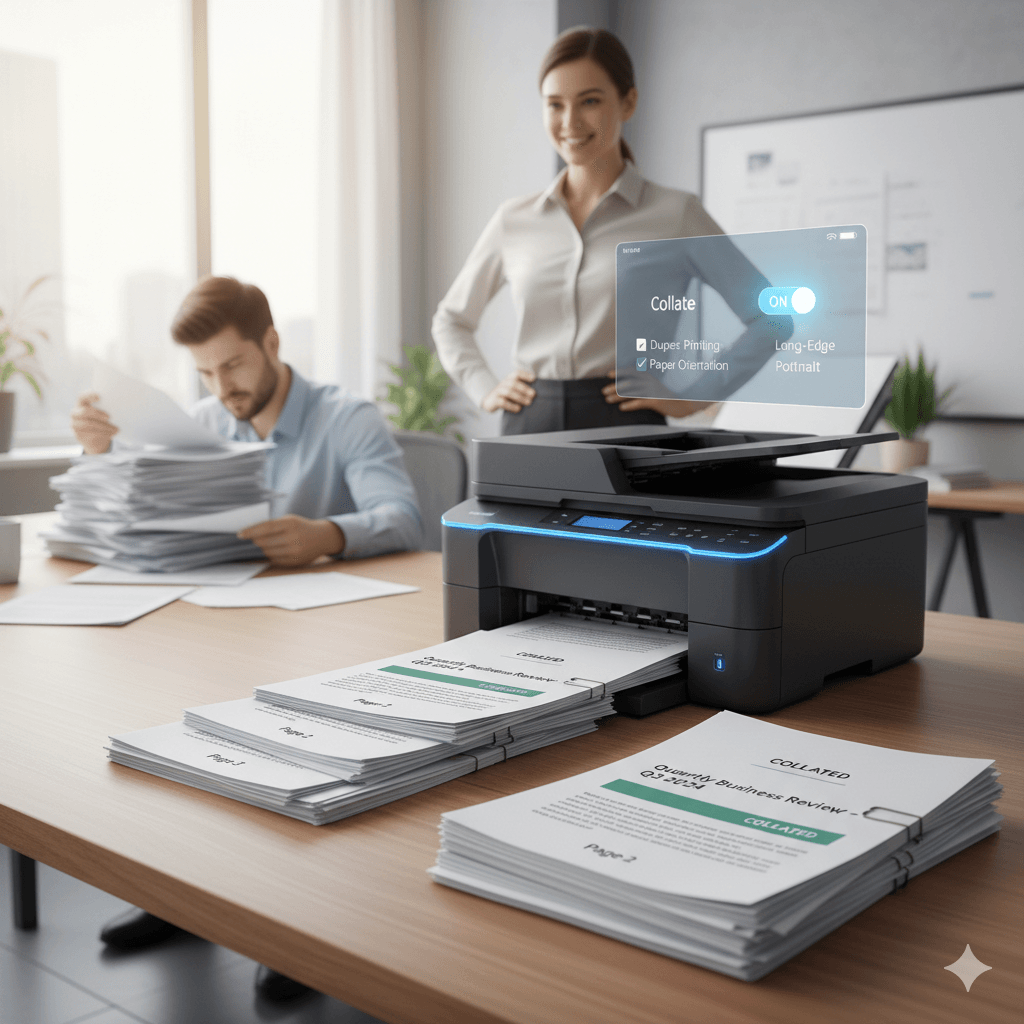
Why That Little “Collate” Checkbox Matters More Than You Think
Picture this: You’ve just printed 50 copies of a 12-page report for tomorrow’s meeting. You walk to the printer expecting neat, organized packets. Instead, you find 50 copies of page one, 50 copies of page two, and so on. Now you’re stuck manually assembling 600 pages into 50 complete reports. Sound familiar?
This headache happens because of one overlooked setting: collation. Understanding your print settings properly can transform your printing experience from frustrating chaos to smooth efficiency. Let’s break down exactly what collation means and explore the other critical settings every printer user should master.
Breaking Down Collation: What It Actually Does
At its core, collation controls how your printer organizes multiple copies of multi-page documents. Think of it as choosing between two completely different filing systems.
When you enable collation, your printer assembles complete document sets, one full copy at a time. When disabled, it batches identical pages together before moving to the next page. Here’s how this plays out in real life:
| Setting Status | How Your Printer Works | What You Get (3 copies of a 2-page doc) |
|---|---|---|
| Collated | Completes entire documents sequentially | Copy 1: pages 1-2<br>Copy 2: pages 1-2<br>Copy 3: pages 1-2 |
| Uncollated | Prints all duplicates of each page together | Group 1: page 1 (×3)<br>Group 2: page 2 (×3) |
The bottom line: Collated printing delivers ready-to-distribute documents. Uncollated printing requires manual assembly afterward.
The Real-World Impact of Choosing Correctly
The difference between these two options becomes dramatically clear when dealing with volume. Consider these scenarios:
Scenario 1: Small Office Meeting
- Document: 8-page quarterly update
- Copies needed: 15
- Total pages: 120
With collation enabled, you grab 15 complete reports from the printer. Without it, you’re manually sorting 120 pages into 15 sets—a task that could take 10-15 minutes of tedious work.
Scenario 2: Training Materials
- Document: 35-page employee handbook
- Copies needed: 75
- Total pages: 2,625
Without collation, you face hours of manual assembly. One printing expert I spoke with estimated this could take a full day of work for one person. The collate function essentially does this labor for you automatically while you focus on more valuable tasks.
When to Collate (And When Not To)
Knowing which setting to use saves both time and sanity. Here’s your decision guide:
Always Choose Collated For:
Business documents distributed to individuals: Reports, presentations, proposals, training packets, and meeting agendas all need to be handed out as complete sets.
Educational materials: Tests, quizzes, study guides, and class handouts must maintain page order for every recipient.
Client-facing documents: Anything leaving your organization should look professional and organized without requiring manual assembly.
Sequential reading materials: Manuals, instructions, booklets, or any document where page order matters.
Choose Uncollated When:
Professional finishing is involved: Some binding services prefer uncollated stacks because their industrial equipment feeds identical pages more efficiently.
Mixing paper types: If you’re printing page 1 on cardstock, page 2 on standard paper, and page 3 on glossy paper, uncollated printing lets you swap paper trays between pages.
Quality checking specific pages: Need to inspect how page 5 looks across all 100 copies? Uncollated gives you a stack of just that page for quick review.
Creating specialized documents: Think ticket books where the stub and main ticket are different colors—uncollated printing with paper swapping makes this possible.
The Complete Print Settings Toolkit
While collation handles organization, other print settings control everything from paper usage to document appearance. Mastering these options puts you in complete control of your printing outcomes.
Two-Sided Printing (Duplex): Your Paper-Saving Powerhouse
Duplex printing automatically prints on both sides of the paper, cutting your paper consumption in half for most documents. According to Environmental Protection Agency guidelines, the average office worker uses 10,000 sheets annually—duplex printing could eliminate 5,000 sheets per person.
| Duplex Option | Paper Flips Over | Best Used For |
|---|---|---|
| Long-Edge (Book-style) | The long side | Standard documents, reports, books (vertical/portrait) |
| Short-Edge (Tablet-style) | The short side | Horizontal documents, calendars, flip-pads (landscape) |
Pro tip: Long-edge duplex is your default for 95% of documents. Short-edge duplex is specifically for landscape-oriented content where you want pages to flip upward rather than sideways.
Portrait vs. Landscape: Matching Format to Content
Orientation determines whether your document prints vertically or horizontally on the page. Getting this wrong means content gets cut off or appears sideways.
| Orientation | Paper Position | Perfect For |
|---|---|---|
| Portrait | Tall and narrow (standard) | Letters, essays, articles, most text documents |
| Landscape | Wide and short | Spreadsheets, wide tables, photographs, presentation slides |
Most printers default to portrait, which works for typical documents. Switch to landscape when your content naturally extends horizontally or when you’re printing things like Excel spreadsheets where columns extend beyond standard page width.
Scale and Fit: Controlling Document Size
These settings adjust how your digital document maps onto physical paper. According to Microsoft’s printing documentation, incorrect scaling is one of the top reasons documents don’t print as expected.
Fit to Page (Automatic Scaling): Intelligently shrinks or enlarges your content to fill the selected paper size completely. Perfect when your document size doesn’t match your paper size.
Actual Size (100%): Prints everything at its designed size, which may result in edges being cut off if your paper is smaller than the document dimensions.
Multiple Pages Per Sheet (N-Up Printing): Reduces multiple document pages onto one physical sheet. Common options include:
| N-Up Setting | Pages Per Sheet | Ideal Application |
|---|---|---|
| 2-up | 2 pages | Booklet creation |
| 4-up | 4 pages | Presentation handouts |
| 6-up | 6 pages | Compact reference sheets |
| 9-up | 9 pages | Contact sheets, proof sheets |
This feature dramatically reduces paper usage. A 40-slide presentation becomes just 10 sheets when printed 4-up instead of 40 sheets when printed normally.
 Common Questions About Print Settings
 Common Questions About Print Settings
Does collating affect ink usage? No. Collation only changes page order, not the actual printing process. You’ll use identical amounts of ink whether collated or uncollated—the total page count doesn’t change.
Why does collated printing sometimes take longer? Some older printers need to access pages from memory in a different sequence for collation, which can add processing time. However, modern printers handle this efficiently, and the time saved from not manually sorting usually far exceeds any minor printing delay.
How do I access print settings on my computer? In any application, use Ctrl+P (Windows) or Cmd+P (Mac) to open the print dialog. All major settings—collation, duplex, orientation, and paper size—appear in this window before you click “Print.”
Can I save custom print settings? Yes. Most operating systems let you save preset configurations. For instance, if you regularly print collated, duplex reports on letterhead, save this combination as “Standard Report” for one-click access. Check your printer preferences or HP’s printing guide for specific instructions.
What’s the difference between printer settings and document settings? Document settings (like page size and margins) are embedded in your file and travel with it. Printer settings (like collation and duplex) are applied at print time and don’t alter the original document. This separation means you can print the same document different ways without modifying the file itself.
Becoming a Printing Power User
 Becoming a Printing Power User
Understanding your print settings transforms printing from a source of frustration into a tool for efficiency. The collate function alone can save hours of manual labor on large jobs, while duplex printing cuts your paper costs in half. Combine these with proper orientation and scaling choices, and you’ll produce professional documents while minimizing waste.
Next time you click “Print,” take five seconds to verify your settings match your needs. That small investment of attention pays dividends in time saved, reduced frustration, and better-looking documents. Your future self—standing at the printer with perfectly organized packets instead of a chaotic pile—will thank you.
Start with collation, master duplex printing, and explore the advanced features your specific printer offers. The difference between someone who just “uses the printer” and someone who truly understands print settings is measured in hours saved and hassles avoided every single week.
Pingback: DTF Printing 2026: The Complete Guide to Direct-to-Film Technology, Cost & Setup - Gloobia
Pingback: What is Sublimation Printing: The Ultimate Beginner's Guide (How It Works) - Gloobia