
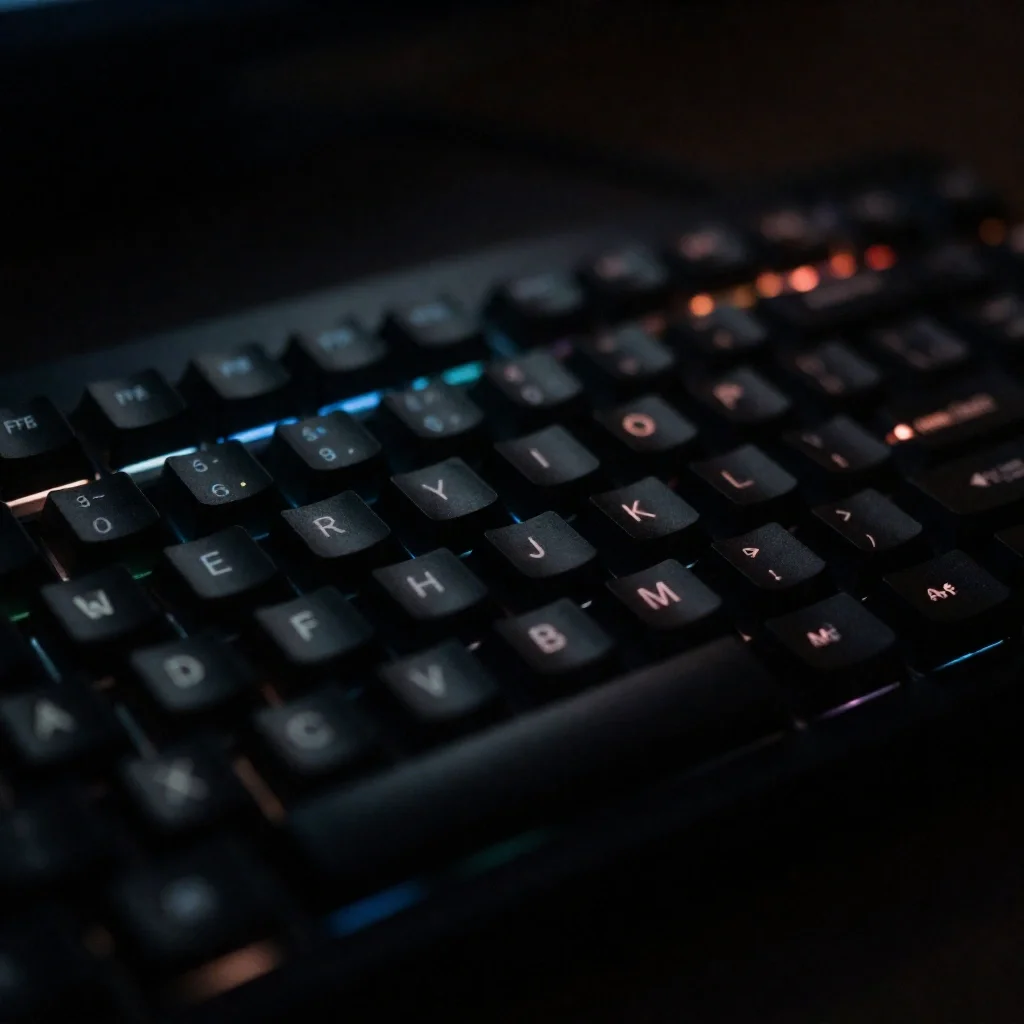
Is your laptop keyboard stuck in the dark? You’re trying to work on an important project, but you can’t see the keys because your room lighting isn’t great. Or maybe you just bought a new laptop and can’t figure out how to turn on that fancy backlight everyone talks about.
Keyboard backlight problems are incredibly common and incredibly frustrating. The good news? Most keyboard backlight issues can be fixed in less than 60 seconds with the right knowledge.
This complete troubleshooting guide will show you exactly how to fix keyboard backlight settings on any Windows laptop or Mac. Whether your backlight won’t turn on, randomly turns off, stays too dim, or behaves unpredictably, you’ll find the solution here.
Understanding Keyboard Backlight Problems
Before we dive into fixes, let’s understand what we’re dealing with. Keyboard backlight problems usually fall into these categories:
Complete Failure The backlight doesn’t turn on at all, no matter what you try.
Intermittent Issues The backlight works sometimes but not others, or turns off randomly.
Control Problems You can’t adjust brightness, or the controls don’t respond as expected.
Settings Confusion The backlight exists, but you can’t find the right settings to control it.
Hardware Damage Physical damage prevents the backlight from functioning (less common).
Most problems are software-related, which means you can fix them yourself without opening your laptop or spending money on repairs.
Quick Fix: Turn On Keyboard Backlight in 10 Seconds
Let’s start with the fastest solutions. These work for 90% of people experiencing keyboard backlight problems.
For Windows Laptops
The quickest way to activate your keyboard backlight is using the function key shortcut. Here’s how:
Step 1: Find Your Backlight Key
Look at the top row of your keyboard (F1 through F12 keys). Search for an icon that shows:
- A keyboard with light rays coming from it
- A sun or light bulb symbol
- Three horizontal lines with brightness rays
Step 2: Press the Shortcut
Once you locate the icon, try these combinations:
- Press the key by itself (on newer laptops)
- Press Fn + the backlight key (most common)
- Press the key multiple times to cycle through brightness levels
Step 3: Check If It Works
Your keyboard should light up immediately. If not, continue to the brand-specific shortcuts below.
For MacBooks
Apple makes it even simpler:
Method 1: Use Function Keys
- Press F5 to decrease brightness
- Press F6 to increase brightness
- Keep pressing F6 until the backlight appears
Method 2: Use Control Center
- Click the Control Center icon in the top-right corner (looks like two switches)
- Click Keyboard Brightness
- Drag the slider to the right
If your MacBook keyboard still won’t light up, jump to the Mac-specific troubleshooting section below.
Brand-Specific Keyboard Backlight Shortcuts
Different laptop manufacturers use different key combinations. Here’s a comprehensive reference table:
| Laptop Brand | Primary Shortcut | Alternative Shortcut | Notes |
|---|---|---|---|
| HP | Fn + F5 | F5 alone or Fn + F11 | Some models use F4 |
| Dell | Fn + F10 | Fn + Right Arrow or F6 | Alienware models may differ |
| Lenovo | Fn + Spacebar | Fn + F5 or Fn + F6 | ThinkPad uses Fn + Spacebar consistently |
| ASUS | Fn + F7 | Fn + F4 or Fn + F3 | ROG gaming laptops use Armoury Crate |
| Acer | Fn + F9 | Fn + F8 | Predator series uses F9 |
| MSI | Fn + Plus/Minus | Dedicated light button | Gaming models have extra controls |
| Apple MacBook | F5/F6 | Control Center slider | No Fn key needed on most models |
| Razer | Fn + F11 | Razer Synapse software | Chroma keyboards need software |
| Microsoft Surface | Fn + Spacebar | N/A | Only on Surface Laptop models |
| Samsung | Fn + F9 | Fn + F8 | Varies by model year |
Important tip: Press the shortcut key multiple times. Many keyboards cycle through these states:
- Off → Low brightness → Medium brightness → High brightness → Off
You might be accidentally landing on “Off” when you press once.
Deep Dive: Windows Keyboard Backlight Settings
If the quick shortcuts didn’t work, let’s explore deeper Windows settings.
Method 1: Check Windows Mobility Center
Windows Mobility Center is a hidden control panel that manages hardware features on laptops.
How to access it:
- Right-click the Start button (Windows logo)
- Select Mobility Center from the menu
- Look for a tile labeled Keyboard Backlighting or Keyboard Brightness
- Use the slider or dropdown to adjust settings
What if I don’t see Mobility Center?
Some Windows 11 systems removed this feature. If you don’t see Mobility Center in the menu, try:
- Press Windows + X on your keyboard
- Look through the menu for Mobility Center
- If it’s not there, skip to Method 2
Method 2: Use Manufacturer Control Software
Most laptop makers provide dedicated software for managing hardware features. This is where you’ll find advanced backlight controls.
| Brand | Software Name | Where to Download | Key Features |
|---|---|---|---|
| Dell | Dell Power Manager or Alienware Command Center | Dell Support website | Brightness presets, timeout settings, color control |
| HP | HP Command Center or OMEN Gaming Hub | HP Support website | Brightness zones, gaming profiles |
| Lenovo | Lenovo Vantage | Microsoft Store or Lenovo website | Smart backlighting, battery optimization |
| ASUS | Armoury Crate or MyASUS | ASUS Support or Microsoft Store | Full RGB control, Aura Sync |
| Acer | NitroSense or PredatorSense | Acer Support website | Gaming-focused lighting profiles |
| MSI | Dragon Center or SteelSeries Engine | MSI website | Per-key RGB, gaming integration |
How to install and use:
- Visit your laptop manufacturer’s official support website
- Search for your exact laptop model
- Download the keyboard or lighting control utility
- Install the software and restart your laptop
- Open the software and look for “Keyboard,” “Lighting,” or “Backlight” sections
- Adjust brightness, colors, and timeout settings
Method 3: Check Power Settings
Windows power plans can automatically disable keyboard backlighting to save battery. This is a common culprit.
Adjust power settings:
- Open Settings (Windows + I)
- Go to System → Power & battery
- Click on Power mode and set to “Best performance” (temporarily)
- Click Screen and sleep and check timeout settings
- Try your keyboard backlight shortcut again
For advanced users:
- Search for Edit power plan in the Start menu
- Click Change advanced power settings
- Expand Display settings
- Look for any keyboard-related timeout options
- Set them to maximum or “Never turn off”
Method 4: Update or Reinstall Keyboard Drivers
Corrupted or outdated keyboard drivers are a frequent cause of backlight failures.
Update drivers the easy way:
- Right-click the Start button
- Select Device Manager
- Expand the Keyboards section
- Right-click on your keyboard (usually says “Standard PS/2 Keyboard” or your laptop brand name)
- Select Update driver
- Choose “Search automatically for drivers”
- Wait for Windows to find and install updates
- Restart your laptop
If updating doesn’t work, try reinstalling:
- Follow steps 1-4 above
- Instead of Update, select Uninstall device
- Check the box “Delete the driver software for this device” if it appears
- Click Uninstall
- Restart your laptop
- Windows will automatically reinstall the driver on reboot
Method 5: Check BIOS/UEFI Settings
Sometimes keyboard backlighting is disabled at the deepest hardware level – in your laptop’s BIOS or UEFI firmware.
Access and check BIOS settings:
- Restart your computer
- Immediately start tapping the BIOS key as it boots:
- Dell: F2 or F12
- HP: F10, F2, or Esc
- Lenovo: F2 or Fn + F2
- ASUS: F2 or Delete
- Acer: F2 or Delete
- MSI: Delete or F2
- Once in BIOS, use arrow keys to navigate
- Look for settings under these menus:
- System Configuration
- Advanced
- Onboard Devices
- Keyboard/Mouse Features
- Find an option like:
- “Keyboard Illumination”
- “Keyboard Backlight”
- “KB Backlight Timeout”
- Change the setting to Enabled or Always On
- Press F10 to save and exit (or follow on-screen instructions)
Warning: Only change settings you understand in BIOS. Incorrect BIOS settings can prevent your computer from booting properly.
Deep Dive: Mac Keyboard Backlight Settings
MacBook keyboard backlight issues usually have simpler solutions than Windows laptops, but when they fail, the fixes are different.
Method 1: Adjust System Settings
macOS centralizes most keyboard controls in System Settings.
For macOS Ventura (13.0) and later:
- Click the Apple menu → System Settings
- Click Keyboard in the left sidebar
- Find the Keyboard brightness slider
- Drag it to the right to increase brightness
Additional options on this page:
- Adjust keyboard brightness in low light: Enable this to let macOS automatically control the backlight based on room lighting
- Turn keyboard backlight off after [time] of inactivity: Set this to “Never” if you want the light to stay on constantly
For macOS Monterey (12.0) and earlier:
- Open System Preferences (from Apple menu)
- Click Keyboard
- Adjust the Keyboard brightness slider
- Check “Adjust keyboard brightness in low light” if desired
Method 2: Control Center Quick Access
The fastest way to adjust brightness on modern Macs:
- Click the Control Center icon in the menu bar (top-right)
- Click Keyboard Brightness
- Adjust the slider
- For more options, click the arrow next to Keyboard Brightness
Method 3: Function Key Behavior
If F5 and F6 aren’t working, your function key settings might be configured differently.
Check function key settings:
- Open System Settings → Keyboard
- Look for “Keyboard Shortcuts” or “Function Keys”
- Make sure “Use F1, F2, etc. keys as standard function keys” is UNCHECKED
- If it’s checked, you’ll need to press Fn + F5/F6 instead
Method 4: Reset SMC (System Management Controller)
For Intel-based MacBooks, the SMC controls hardware functions including keyboard backlighting. Resetting it often fixes mysterious hardware issues.
For MacBooks with removable battery (older models):
- Shut down your Mac
- Remove the battery
- Press and hold the power button for 5 seconds
- Reinsert the battery
- Turn on your Mac
For MacBooks with non-removable battery (2009-2017):
- Shut down your Mac
- Press and hold Shift + Control + Option (all on the left side)
- While holding those keys, press the Power button
- Hold all four keys for 10 seconds
- Release all keys
- Press the Power button normally to turn on your Mac
For MacBooks with T2 Security Chip (2018-2020):
- Shut down your Mac
- Press and hold the power button for 10 seconds
- Release the power button, wait a few seconds
- Press the power button again to turn on your Mac
For M1, M2, M3 MacBooks (Apple Silicon):
- Shut down your Mac
- Wait 30 seconds
- Turn on your Mac
- If issues persist, Apple Silicon Macs rarely need SMC resets; try NVRAM reset instead
Method 5: Reset NVRAM/PRAM
NVRAM (Non-Volatile RAM) stores settings like keyboard backlight preferences.
How to reset NVRAM:
- Shut down your Mac
- Turn it on and immediately press and hold Option + Command + P + R
- Keep holding for about 20 seconds
- Your Mac might restart during this process
- Release the keys when you hear the startup sound twice (older Macs) or see the Apple logo appear and disappear twice
Note: M1, M2, M3 Macs automatically manage NVRAM and don’t require manual resets.
Troubleshooting: When Backlight Still Won’t Work
If you’ve tried everything above and your keyboard backlight still isn’t working, let’s diagnose the specific problem.
Problem 1: No Response to Any Keyboard Shortcut
Possible causes:
- Keyboard shortcuts are disabled in BIOS
- Function key lock is active
- Hardware failure
Solutions:
- Check Fn Lock: Press Fn + Esc or Fn + Caps Lock to toggle Function Lock. Try your backlight shortcut again.
- Test in BIOS: Restart and enter BIOS. If the keyboard backlight works in BIOS but not in Windows/Mac, it’s a software issue, not hardware.
- Enable Action Keys (HP laptops specifically):
- Enter BIOS (press F10 during startup)
- Go to System Configuration → Action Keys Mode
- Set to “Enabled”
Problem 2: Backlight Turns On Then Immediately Off
Possible causes:
- Aggressive timeout settings
- Power-saving mode
- Ambient light sensor issues
Solutions:
- Disable timeout in software: Open your manufacturer’s control software and find timeout settings. Set to “Never” or maximum time.
- Cover ambient light sensor: Many laptops have a sensor near the webcam that detects room brightness. Cover it temporarily to see if the backlight stays on.
- Disable adaptive brightness:
- Windows: Settings → System → Display → Turn off “Change brightness automatically”
- Mac: System Settings → Displays → Uncheck “Automatically adjust brightness”
Problem 3: Only Some Keys Light Up
Diagnosis: This is almost certainly hardware failure.
Possible causes:
- Dead LED zones in the keyboard
- Damaged ribbon cable connecting keyboard to motherboard
- Liquid damage affecting specific circuits
Solutions:
- Check warranty: If your laptop is under warranty, contact the manufacturer for a free repair.
- Professional repair: A laptop repair shop can replace the keyboard or repair the ribbon cable (usually $100-$300).
- External keyboard: As a workaround, use an external backlit keyboard until you can get it repaired.
Problem 4: Brightness Adjustment Doesn’t Work
Symptoms: The backlight turns on, but you can’t make it brighter or dimmer.
Solutions:
- Update manufacturer software: Download the latest version of your laptop’s control software.
- Check for software conflicts: Uninstall any third-party keyboard customization software that might interfere.
- Try Windows Update: Some keyboard functionality updates come through Windows Update, not manufacturer sites.
Advanced Fixes for Stubborn Problems
If standard fixes haven’t worked, try these advanced solutions.
Windows Registry Fix (Advanced Users Only)
Warning: Editing the registry can cause serious problems if done incorrectly. Backup your data first.
- Press Windows + R
- Type regedit and press Enter
- Navigate to:
HKEY_LOCAL_MACHINE\SYSTEM\CurrentControlSet\Services\i8042prt\Parameters - Look for entries related to keyboard backlighting
- If values are set to 0, change them to 1
- Restart your computer
Note: This is a last resort and should only be attempted if you’re comfortable with registry editing.
Clean Boot to Find Software Conflicts
Sometimes third-party software interferes with keyboard backlight controls.
Perform a clean boot:
- Press Windows + R
- Type msconfig and press Enter
- Click the Services tab
- Check “Hide all Microsoft services”
- Click “Disable all”
- Click the Startup tab
- Click “Open Task Manager”
- Disable all startup items
- Restart your computer
- Test keyboard backlight
If it works after a clean boot, one of your programs was causing the problem. Re-enable services one by one to identify the culprit.
Hardware Diagnostics
Most laptop manufacturers include built-in diagnostic tools.
Access hardware diagnostics:
- Dell: Restart and press F12, select “Diagnostics”
- HP: Restart and press F2 for HP PC Hardware Diagnostics
- Lenovo: Restart and press F10 or F11 for Lenovo Diagnostics
- ASUS: Download MyASUS app and run Hardware Diagnostics
Run the keyboard test to check if the backlight hardware is functioning properly.
Understanding Keyboard Backlight Technology
Knowing how keyboard backlighting works can help you troubleshoot more effectively.
Types of Keyboard Backlighting
| Type | How It Works | Customization | Battery Impact | Cost |
|---|---|---|---|---|
| Single-color LED | White or blue LEDs under keys | On/off and brightness only | Low | Budget to mid-range |
| Dual-color LED | Two color options | Switch between two colors | Low to medium | Mid-range |
| RGB per-zone | Different colors for keyboard sections | Zone-specific colors | Medium | Mid to high-range |
| RGB per-key | Individual LED for each key | Complete customization | High | High-end gaming |
Common Backlight LED Configurations
Zone-based lighting divides your keyboard into sections:
- Left side (WASD gaming keys)
- Center (main typing area)
- Right side (number pad, if present)
Per-key lighting gives you control over each individual key, allowing for:
- Highlighting specific keys for different applications
- Creating custom color patterns and effects
- Reactive lighting that responds to keypresses
Battery Life Considerations
Keyboard backlighting consumes power. Understanding the impact helps you make informed decisions.
Battery Drain Comparison
| Brightness Level | Approximate Battery Impact |
|---|---|
| Off | 0% impact (baseline) |
| Low (10-30%) | 3-5% reduction in total battery life |
| Medium (50-70%) | 8-12% reduction in total battery life |
| High (90-100%) | 15-25% reduction in total battery life |
| RGB animated effects | 20-30% reduction in total battery life |
Tips to balance visibility and battery life:
- Use adaptive brightness: Let your laptop automatically adjust based on ambient light
- Lower brightness when plugged in isn’t available: Set a timer to turn off after 10-30 seconds of inactivity
- Turn off completely on battery: Create power profiles that disable backlighting when unplugged
- Use static colors over animations: RGB animations drain significantly more power
For a comprehensive guide on all keyboard lighting features and customization options, check out our detailed keyboard light settings guide.
Frequently Asked Questions About Keyboard Backlight Settings
How do I make my keyboard backlight stay on permanently?
Most laptops automatically turn off the backlight after a period of inactivity to save battery. To keep it on permanently, you need to change the timeout setting. This is usually found in your laptop manufacturer’s control software (like Lenovo Vantage, ASUS Armoury Crate, or Dell Power Manager). Set the timeout to “Never” or the maximum available time. Note that this will reduce battery life significantly.
Why does my keyboard backlight keep turning off automatically?
This is a power-saving feature. Your laptop has a setting that turns off the backlight after you stop typing for a certain period (usually 10-30 seconds). This is normal behavior designed to extend battery life. You can adjust or disable this timeout in your laptop’s control software or BIOS settings.
Can I change the color of my keyboard backlight?
Only if you have an RGB keyboard, which is common on gaming laptops but rare on business or standard laptops. Standard keyboards typically have only white or blue backlight with no color options. Check your keyboard – if you have RGB capability, you’ll need to use your manufacturer’s software (Razer Synapse, Alienware Command Center, ASUS Armoury Crate, etc.) to change colors.
Is keyboard backlighting bad for the laptop or battery?
No, keyboard backlighting is designed to be used regularly and won’t damage your laptop. However, it does consume battery power. Using maximum brightness constantly can reduce your battery runtime by 15-30%. The LED bulbs themselves are rated to last 50,000+ hours, which is much longer than you’ll likely use the laptop.
What if my laptop doesn’t have a backlit keyboard – can I add one?
You cannot add internal keyboard backlighting to a laptop that wasn’t designed with it. However, you have alternatives: use a clip-on USB keyboard light (small LED lights that attach to your screen and illuminate the keyboard), use an external backlit USB keyboard, or improve your workspace lighting with a desk lamp.
Why does my keyboard backlight work in BIOS but not in Windows or Mac?
This indicates a software or driver problem, not hardware failure. The BIOS operates at a lower level than your operating system, so if it works there, your hardware is fine. Try updating your keyboard drivers, reinstalling manufacturer software, or resetting your operating system’s power settings.
How do I know if my keyboard backlight is broken or just disabled?
First, try all the software fixes in this guide. If none work, restart your laptop and enter BIOS. If the backlight works in BIOS, it’s a software issue. If it doesn’t work even in BIOS, you likely have hardware failure. Also check if the backlight ever worked – some budget laptops don’t include this feature at all.
Why does my MacBook keyboard backlight turn on in dark rooms but not bright ones?
This is the “Adjust keyboard brightness in low light” feature working as designed. MacBooks have an ambient light sensor that detects room brightness. In bright environments, macOS assumes you don’t need the backlight and disables it. You can turn off this automatic adjustment in System Settings → Keyboard.
Can outdated BIOS cause keyboard backlight problems?
Yes, sometimes BIOS updates include fixes for hardware control issues, including keyboard backlighting. Check your laptop manufacturer’s support website for BIOS updates. However, only update BIOS if you’re experiencing problems, as the process carries some risk if done incorrectly.
What’s the difference between keyboard backlight and keyboard light?
These terms mean the same thing – LED lights underneath or around the keys that illuminate them from behind. Some manufacturers say “backlight,” others say “keyboard illumination” or “keyboard light.” They all refer to the same feature.
When to Seek Professional Help
You’ve tried everything in this guide and your keyboard backlight still doesn’t work. Here’s when to get professional assistance:
Situations requiring professional repair:
- Backlight doesn’t work in BIOS or any mode
- Only specific keys or zones light up (partial failure)
- Backlight worked before liquid spill or physical impact
- Laptop is making unusual sounds when backlight attempts to turn on
- You see visible damage to the keyboard area
Where to get help:
- Manufacturer support: If under warranty, contact your laptop maker for free repair
- Authorized service centers: Use official repair centers for warranty-covered laptops
- Local computer repair shops: For out-of-warranty repairs (typically $100-$300 for keyboard replacement)
- Online forums: Communities like Reddit’s r/techsupport or manufacturer-specific forums
Prevention Tips: Keeping Your Backlight Working
Regular maintenance:
- Keep your laptop clean and dust-free
- Avoid eating or drinking near your laptop
- Close the lid gently to avoid keyboard stress
- Update drivers and manufacturer software regularly
- Don’t force keys or keyboard panel
Software care:
- Create a restore point before making major system changes
- Keep Windows or macOS updated
- Don’t install random keyboard customization software
- Regularly restart your laptop to clear temporary glitches
Conclusion: Quick Summary
Most keyboard backlight problems have simple solutions:
Quick fixes (try these first):
- Press Fn + backlight key (check the brand-specific table)
- Update keyboard drivers through Device Manager
- Install or update manufacturer control software
- Check power settings and disable aggressive battery saving
- Reset SMC (Mac) or reinstall drivers (Windows)
If those don’t work:
- Check BIOS/UEFI settings for keyboard illumination options
- Run hardware diagnostics
- Perform a clean boot to identify software conflicts
- Consider professional repair if hardware is damaged
Remember: 90% of keyboard backlight issues are software-related and can be fixed without opening your laptop or spending money.
For more technical details about keyboard technology and advanced troubleshooting, visit Laptop Mag’s keyboard technology guide or check Tom’s Hardware’s laptop reviews for specific model information.
Don’t let a dark keyboard slow you down. With the solutions in this guide, you should have your keyboard backlight working perfectly in under 60 seconds!