
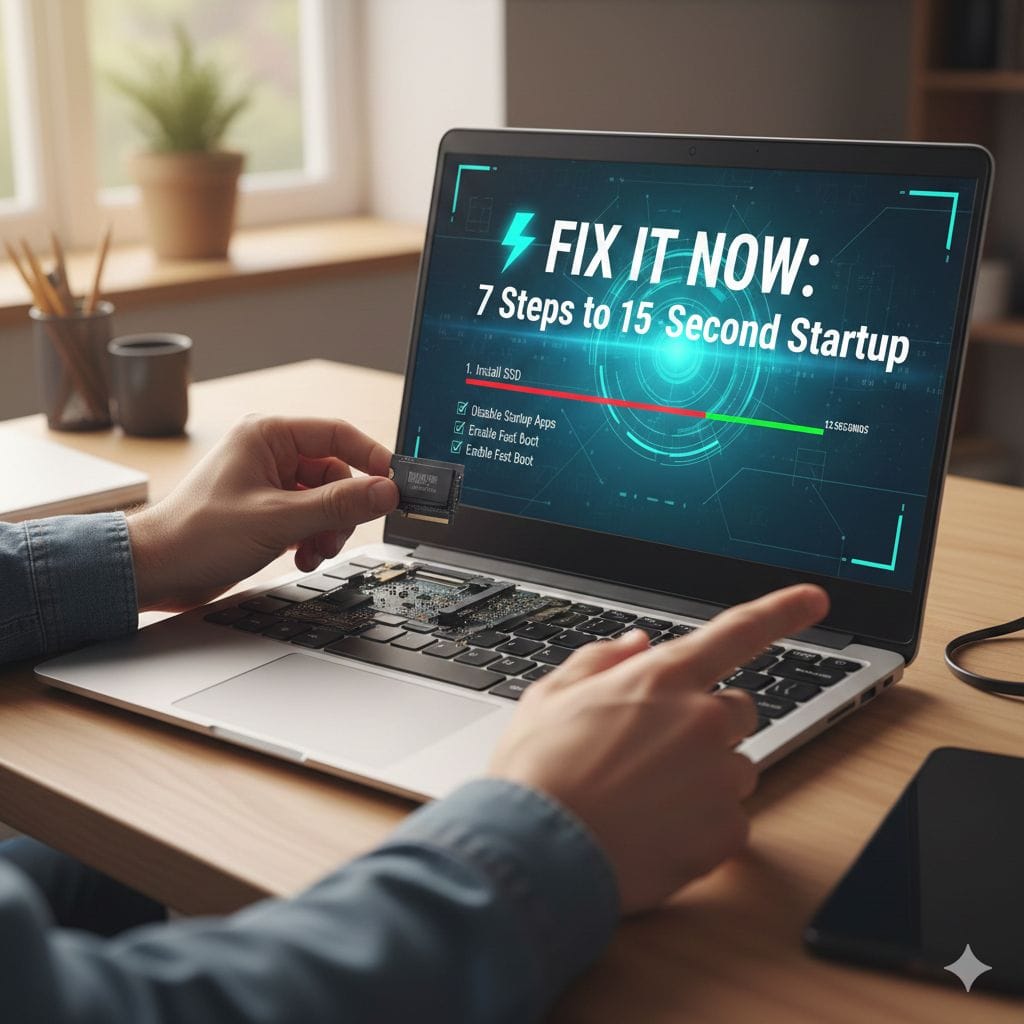
To improve laptop boot performance: (1) Upgrade to an NVMe SSD—reduces boot time from 60+ seconds to 10-15 seconds, (2) Disable unnecessary startup programs via Task Manager (Ctrl+Shift+Esc > Startup tab), (3) Enable Fast Boot in BIOS/UEFI settings, (4) Free up 20%+ disk space, (5) Update OS and chipset drivers, (6) Remove malware/bloatware, (7) Set power plan to High Performance. SSDs provide the biggest impact—up to 5x faster boots than HDDs.
Stop Wasting Time Waiting for Your Laptop to Start
Does your laptop take forever to boot up each morning? That painful wait while Windows loads, programs launch, and your computer finally becomes usable isn’t just annoying—it’s stealing precious time from your day.
A truly optimized laptop should start in under 15 seconds from the moment you press the power button until you’re actually working. Anything longer signals performance problems you can fix.
I’ve spent years troubleshooting slow computers, and I can tell you that dramatic boot time improvements are absolutely achievable. Whether you’re running Windows 10, Windows 11, or macOS, these seven proven strategies will transform your startup experience.
Let me show you exactly how to diagnose the bottlenecks and implement fixes that deliver measurable results.
Step 1: Upgrade to an SSD (The Game-Changing Solution)
If you’re still using a traditional spinning hard drive, this single hardware change will revolutionize your boot speed more than every other step combined.
Why Storage Type Dominates Boot Performance
Your storage drive is where your operating system lives. Every single time you start your computer, the system must read thousands of files from this drive. The speed difference between drive technologies is staggering:
| Drive Type | Technology | Typical Boot Time | Performance Impact |
|---|---|---|---|
| Traditional HDD | Mechanical spinning platters with moving read head | 45-120 seconds | Severe bottleneck—physical parts can only move so fast |
| SATA SSD | Electronic flash memory via SATA connection | 15-30 seconds | Major improvement—no moving parts, but limited by older SATA interface |
| NVMe M.2 SSD | Flash memory via high-speed PCIe lanes | 8-15 seconds | Maximum performance—direct CPU connection, 5-7x faster than HDD |
Real-World Upgrade Impact
I recently upgraded an older Dell laptop from a 5400 RPM hard drive to a Samsung NVMe SSD. The boot time dropped from 87 seconds to just 12 seconds—a transformation that felt like getting a brand new computer.
Budget-friendly approach: If buying a new SSD for your entire system seems expensive, consider installing a smaller SSD (250GB costs around $30-40) just for your operating system and keeping your old hard drive connected for document storage. You get the boot speed benefits without the higher capacity cost.
Migration process: Use free cloning software like Macrium Reflect (Windows) or Carbon Copy Cloner (Mac) to copy your existing system onto the new SSD—you won’t need to reinstall everything from scratch.
Step 2: Control Your Startup Programs (The Quick Win)
Every application set to launch automatically when you start your laptop adds delay. Many programs sneak themselves into your startup sequence without asking, creating a traffic jam of competing processes.
This is the fastest software fix you can implement right now—and it costs nothing.
Windows: Disabling Startup Items Step-by-Step
- Press Ctrl + Shift + Esc simultaneously to open Task Manager
- Click the “Startup” tab at the top
- Click the “Startup impact” column header to sort by impact level
- Look for programs marked “High” impact that you don’t need immediately:
- Spotify, iTunes, or music players
- Messaging apps like Discord or Slack
- Cloud sync services (Dropbox, OneDrive) you can start manually
- Game launchers (Steam, Epic Games)
- Adobe Creative Cloud updater
- Right-click each unnecessary program and select “Disable”
Critical warning: Never disable items labeled as “Windows Security,” system drivers, or your primary antivirus. These are essential for proper operation.
macOS: Managing Login Items
- Click the Apple menu (Apple icon) in the top-left corner
- Select “System Settings” (or “System Preferences” on older macOS)
- Navigate to General > Login Items (or Users & Groups > Login Items)
- Review the list of applications that open at login
- Select any non-essential apps and click the minus (-) button to remove them
Measuring Your Impact
| Startup Configuration | Typical Added Time | Performance Rating |
|---|---|---|
| 0-3 startup programs | 2-5 seconds | Excellent—system resources available for OS |
| 4-8 startup programs | 8-15 seconds | Acceptable—manageable resource competition |
| 9-15 startup programs | 20-40 seconds | Poor—heavy resource contention |
| 16+ startup programs | 45+ seconds | Critical—immediate cleanup needed |
After disabling unnecessary programs, restart your laptop and time the difference. Many users see 10-30 second improvements from this step alone.
Step 3: Optimize BIOS/UEFI Boot Settings (The Technical Tweak)
Your computer’s firmware—BIOS (older systems) or UEFI (modern systems)—runs before Windows or macOS even loads. Optimizing these low-level settings can shave additional seconds off your boot time.
Enable Fast Startup (Windows-Specific)
Windows includes a feature that saves your kernel session to disk, allowing faster subsequent startups:
- Type “power plan” in the Windows search box
- Click “Choose a power plan”
- Select “Choose what the power buttons do” from the left sidebar
- Click “Change settings that are currently unavailable” at the top
- Check the box for “Turn on fast startup (recommended)”
- Click “Save changes”
BIOS/UEFI Configuration Changes
Accessing your BIOS/UEFI typically requires pressing a specific key during startup—usually F2, Delete, F10, or F12 (your screen briefly shows which key during boot).
Settings to modify:
| BIOS Setting | What to Change | Why It Helps |
|---|---|---|
| Fast Boot / Ultra Fast Boot | Enable | Skips thorough hardware checks like USB device scanning |
| Boot Order / Boot Priority | Set your SSD/HDD as first device | Prevents system from checking network boot or USB drives first |
| Secure Boot | Keep enabled unless troubleshooting | Security feature—don’t disable unless necessary |
| Logo Display | Disable manufacturer logo | Removes 1-2 second delay showing brand logo |
Important: Only change settings you understand. Incorrect BIOS configurations can prevent your system from booting properly. Take photos of original settings before making changes.
Step 4: Free Up Disk Space (The Performance Maintainer)
A nearly-full hard drive creates fragmentation and forces your operating system to work harder finding files during startup. Maintaining at least 15-20% free space is crucial for optimal performance.
Why Space Matters for Boot Speed
Your OS needs room for temporary files, cache storage, and virtual memory during the boot process. When your drive exceeds 80-85% capacity, performance degrades measurably.
Windows Cleanup Strategy
| Cleanup Task | Method | Typical Space Recovered |
|---|---|---|
| Delete Temp Files | Settings > System > Storage > Temporary files | 2-10 GB |
| Uninstall Unused Programs | Settings > Apps > Installed apps | 5-50 GB depending on programs |
| Clear Browser Cache | Browser settings > Clear browsing data | 500 MB – 5 GB |
| Remove Old Windows Updates | Disk Cleanup > Clean up system files | 5-20 GB |
| Move Large Files | Identify files over 1GB and move to external drive | Varies widely |
How to run Disk Cleanup:
- Type “disk cleanup” in Windows search
- Select your main drive (usually C:)
- Click “Clean up system files” for additional options
- Check all relevant boxes
- Click “OK” to remove files
macOS Storage Management
- Click Apple menu > About This Mac
- Select “Storage” tab
- Click “Manage” button
- Review recommendations:
- Empty Trash automatically
- Remove old iOS backups
- Clear cache files
- Uninstall unused applications
Pro tip: Use built-in search to find large files consuming space. In Windows File Explorer, search for size:>1GB to locate files over 1 gigabyte.
Step 5: Update Drivers and Operating System (The Stability Improver)
Outdated drivers—especially chipset drivers—create compatibility issues that slow down hardware initialization during boot. Keeping everything current ensures smooth operation.
Operating System Updates
Modern OS updates include more than security patches. They often contain boot optimization improvements and bug fixes that directly impact startup performance.
Windows Update process:
- Go to Settings > Windows Update
- Click “Check for updates”
- Install all available updates
- Restart when prompted
macOS Update process:
- Click Apple menu > System Settings
- Select “General > Software Update”
- Install available updates
Critical Driver Updates
| Driver Type | Impact on Boot | How to Update |
|---|---|---|
| Chipset Drivers | High—controls CPU, memory, storage communication | Manufacturer website (Dell, HP, Lenovo) or Intel/AMD directly |
| Storage Controller | Very High—manages SSD/HDD communication | Windows Update or manufacturer support site |
| Graphics Drivers | Medium—affects desktop loading phase | NVIDIA, AMD, or Intel graphics website |
| Network Drivers | Low-Medium—can delay if searching for connection | Device Manager > Network adapters > Update driver |
Manufacturer support tools make this easy:
- Dell Command Update
- HP Support Assistant
- Lenovo Vantage
- ASUS Live Update
These utilities automatically identify your specific laptop model and recommend appropriate driver updates, eliminating guesswork.
Just as understanding historical Windows networking features like Internet Connection Sharing’s evolution helps contextualize modern network performance, keeping drivers updated ensures your hardware and software work in harmony for optimal boot speeds.
Step 6: Eliminate Malware and Bloatware (The Hidden Saboteurs)
Malicious software and unnecessary pre-installed programs run silently in the background, consuming resources and extending boot times. Many users don’t realize how much these hidden processes affect startup performance.
Scanning for Malware
Even cautious users can pick up adware, browser hijackers, and potentially unwanted programs (PUPs) that inject startup processes.
Recommended scanning approach:
- Run Windows Security scan (built into Windows 10/11):
- Go to Settings > Privacy & Security > Windows Security
- Click “Virus & threat protection”
- Run “Quick scan” or “Full scan”
- Use Malwarebytes for thorough cleaning (free version available):
- Download from official Malwarebytes website
- Install and run full system scan
- Remove all detected threats
- Check browser extensions:
- Unknown toolbars and extensions often load at startup
- Remove any you don’t recognize or use
Removing Bloatware
Pre-installed software from laptop manufacturers (often called “bloatware”) rarely provides value but always consumes resources.
Common bloatware examples:
- Trial antivirus software (Norton, McAfee) when you already use Windows Security
- Manufacturer utility apps you never use
- Third-party “PC optimizer” tools
- Promotional shopping apps
- Trial office suites when you use Office 365 or Google Docs
Safe removal process:
- Go to Settings > Apps > Installed apps
- Sort by install date or size
- Identify programs you didn’t personally install
- Uninstall anything you don’t actively use
- Keep only manufacturer utilities you actually use (like battery management tools)
Step 7: Configure Power Settings for Performance (The Final Optimization)
Your laptop’s power management can throttle performance during boot to save energy. Adjusting these settings ensures full performance when you need it most.
Windows Power Plans
- Search for “power plan” in Windows search
- Select “Choose a power plan”
- Choose “High performance” (if visible)
To enable Ultimate Performance (hidden by default):
- Open Command Prompt as Administrator
- Type:
powercfg -duplicatescheme e9a42b02-d5df-448d-aa00-03f14749eb61 - Return to Power Options—Ultimate Performance now appears
- Select it for maximum boot performance
Balanced plan adjustment (if you prefer battery life):
- Click “Change plan settings” next to your current plan
- Click “Change advanced power settings”
- Expand “Processor power management”
- Set “Minimum processor state” to at least 50% when plugged in
macOS Energy Settings
macOS automatically provides full performance when plugged into power. However, you can optimize:
- Go to System Settings > Battery
- For “Power Adapter” settings:
- Disable “Prevent automatic sleeping on power adapter when the display is off” if you don’t need it
- Ensure “Optimize video streaming while on battery” is unchecked (doesn’t apply when plugged in)
Best practice: Always start your laptop while connected to power for fastest boot times. Battery operation forces power-saving measures that slow initialization.
Measuring Your Boot Performance
Understanding your actual boot time helps track improvement as you implement these steps.
How to Check Boot Time in Windows
- Press Ctrl + Shift + Esc to open Task Manager
- Click the “Startup” tab
- Look at “Last BIOS time” in the upper-right corner
- This number (in seconds) shows how long your firmware took to hand control to Windows
Total boot time = BIOS time + Windows loading time + desktop readiness
Boot Time Performance Standards
| Boot Time Category | Time Range | System Health Assessment |
|---|---|---|
| Excellent | Under 15 seconds | Fully optimized—SSD with minimal startup programs |
| Good | 15-25 seconds | Healthy system—room for minor improvements |
| Average | 25-40 seconds | Acceptable but improvable—check startup programs |
| Poor | 40-60 seconds | Needs attention—likely HDD or too many startup items |
| Critical | Over 60 seconds | Urgent optimization needed—probably requires SSD upgrade |
For comprehensive system performance testing beyond boot times, tools like UserBenchmark can help identify hardware bottlenecks across your entire system.
Frequently Asked Questions
Does adding more RAM improve boot performance?
No, RAM capacity doesn’t significantly affect boot speed. Boot time depends primarily on storage speed (SSD vs HDD) and CPU performance. RAM matters for post-boot performance—how smoothly applications run and how many programs you can run simultaneously. If your laptop has 8GB or more RAM, adding more won’t make it boot faster.
Is 30 seconds a good laptop boot time?
It’s acceptable but not optimal. For laptops with SSDs, 30 seconds suggests either too many startup programs or other optimization opportunities. For older laptops still using hard drives, 30 seconds is actually reasonable performance. The goal should be under 15 seconds on any SSD-equipped laptop.
Should I disable my antivirus to boot faster?
Absolutely not. While antivirus software adds 2-4 seconds to boot time, the security protection is essential. Never disable your primary antivirus from startup. Instead, ensure you’re using efficient modern security (Windows Security is excellent) rather than resource-heavy older solutions.
What’s the single most important factor for fast boot times?
Storage drive type—specifically using an NVMe SSD instead of a traditional hard drive. This upgrade alone typically reduces boot time by 60-80%, often transforming a 60-second boot into a 12-second boot. No other single change delivers comparable impact.
Will these steps work on older laptops?
Most steps work on any laptop, but hardware limitations apply. If your laptop is 7+ years old, the BIOS might not support all fast boot features, and you might be limited to SATA SSDs rather than faster NVMe drives. However, even older laptops see dramatic improvements from SSD upgrades and startup program optimization.
Can I damage my laptop by changing BIOS settings?
Changing the specific settings mentioned (Fast Boot, Boot Order) is safe. However, modifying voltage settings, CPU multipliers, or advanced memory timings can cause instability if done incorrectly. Stick to the boot-related settings discussed here, and photograph your original settings before making any changes so you can revert if needed.
How often should I perform these optimizations?
Run maintenance quarterly: check for OS/driver updates monthly, review startup programs every 2-3 months, and run malware scans monthly. The SSD upgrade is one-time. Power settings and BIOS configurations rarely need adjustment once properly set.
Achieve Your 15-Second Startup Goal
These seven strategies work together synergistically. The SSD upgrade (Step 1) provides the foundation for fast storage access. Controlling startup programs (Step 2) prevents resource conflicts. The remaining steps eliminate friction points that slow the process.
Implementation priority:
Immediate impact (do first):
- Disable unnecessary startup programs (free, takes 5 minutes)
- Run malware scan and remove bloatware (free, takes 30-60 minutes)
High impact (plan for this week):
- Upgrade to SSD if still using HDD ($30-150 depending on capacity)
- Free up disk space to maintain breathing room
Sustained performance (ongoing maintenance):
- Keep OS and drivers updated
- Review startup programs quarterly
- Monitor boot times to catch degradation early
Your laptop should serve you efficiently, not waste your time. By implementing these evidence-based optimizations, you’re taking control of your technology rather than letting it control you.
Start with the quick wins today, and you’ll see measurable improvements by tomorrow morning.