
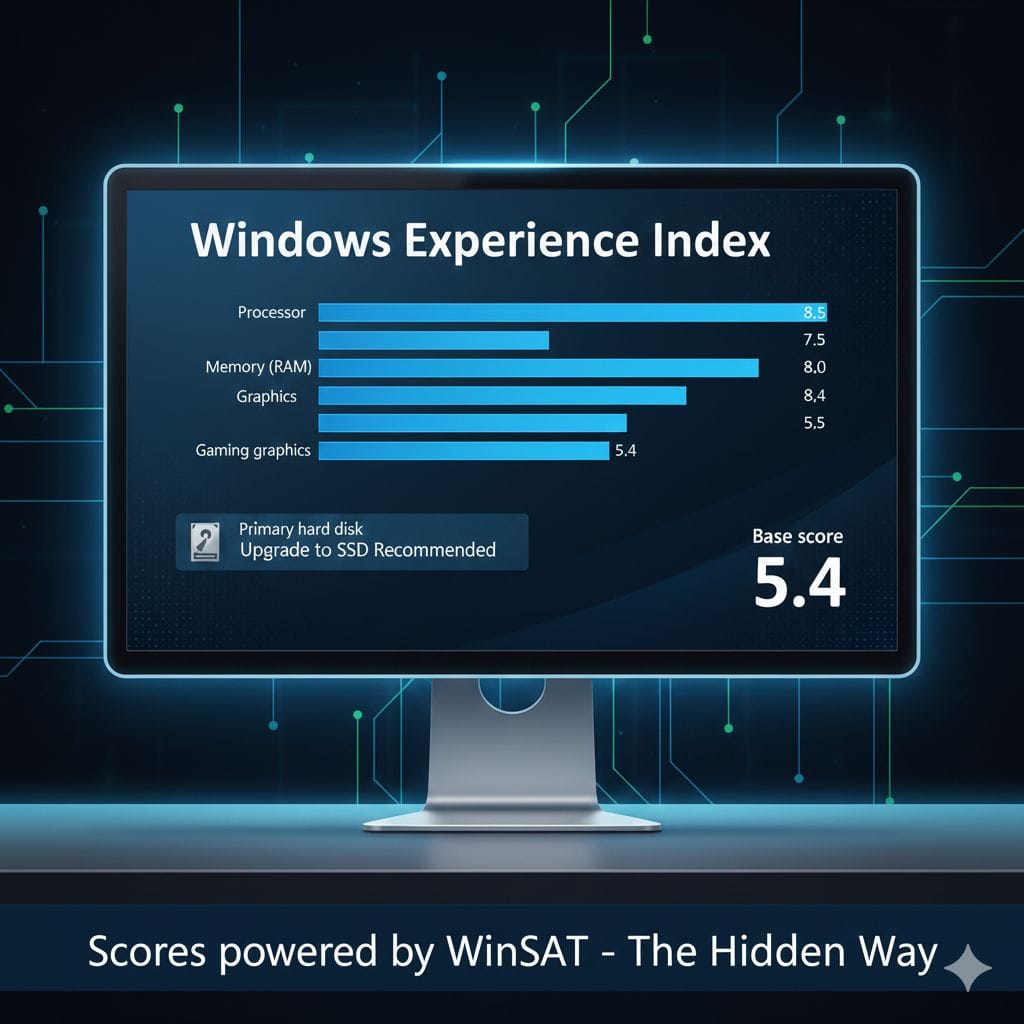
The Windows Experience Index still exists in Windows 10/11 but without a GUI. Check it using PowerShell: Press Win+X, select “PowerShell (Admin)”, run Get-CimInstance Win32_WinSAT, and view your scores. The WinSPRLevel shows your overall score (1.0-9.9 scale), which equals your lowest component score. To update scores after hardware changes, run winsat formal in Administrator Command Prompt. Your weakest score identifies upgrade priorities.
The Hidden Performance Score Microsoft Doesn’t Show You
Remember when Windows Vista and Windows 7 displayed that simple performance rating showing how capable your computer was? That feature—called the Windows Experience Index—gave you an instant snapshot of your PC’s capabilities with a single number.
Microsoft removed the visual interface starting with Windows 8.1, leaving many users wondering if the feature disappeared entirely. Here’s the truth: The scoring system still runs automatically in the background of Windows 10 and Windows 11. Microsoft just hid the interface that displayed it.
The assessment tool (called WinSAT) continues evaluating your computer’s processor, memory, graphics, and storage performance. You simply need to know where to look for the results.
In this guide, I’ll show you three practical methods to uncover your current Windows Experience Index score, helping you identify exactly which hardware component is holding back your PC’s performance.
Method 1: The Fastest PowerShell Command
This approach gives you instant results without navigating through files or running lengthy tests. It’s my preferred method for quickly checking current scores.
Complete Step-by-Step Instructions
Step 1: Launch PowerShell with Administrator Rights
You need administrator access to view system assessment data.
- Press Windows Key + X simultaneously on your keyboard
- From the menu that appears, click “Windows PowerShell (Admin)” or “Windows Terminal (Admin)”
- If a User Account Control window pops up, click “Yes” to allow access
Step 2: Execute the Assessment Query
Type this command exactly as shown:
powershell
Get-CimInstance Win32_WinSATPress Enter to run the command.
Step 3: Interpret Your Results
PowerShell displays your performance scores immediately. Here’s what each number means:
| Score Field | Hardware Component | What It Measures |
|---|---|---|
| WinSPRLevel | Overall Base Score | Your final Windows Experience Index rating (always equals your lowest individual score) |
| CPUScore | Processor | Computing power for calculations, compression, encryption tasks |
| MemoryScore | RAM | System memory speed and data throughput |
| DiskScore | Primary Drive | Boot drive performance (critical for system responsiveness) |
| GraphicsScore | Basic Graphics | 2D desktop performance, window animations, interface rendering |
| D3DScore | Gaming Graphics | 3D performance for games and graphics-intensive applications |
Key insight: Your overall WinSPRLevel will always match your lowest individual component score. A computer performs only as well as its weakest part—if your disk scores 5.2 but everything else scores 8.0+, your effective system rating is 5.2.
Method 2: Running a Fresh Performance Assessment
Sometimes you need updated scores—perhaps you just installed a new SSD, upgraded your RAM, or replaced your graphics card. The old cached scores won’t reflect these improvements until you force a new assessment.
How to Generate Updated Scores
Step 1: Open Command Prompt as Administrator
- Click the Start button or press the Windows Key
- Type “cmd” in the search box
- Right-click on “Command Prompt” in the results
- Select “Run as administrator”
- Approve the User Account Control prompt
Step 2: Execute the Formal Assessment
In the Command Prompt window, enter this command:
cmd
winsat formalPress Enter to begin.
Step 3: Wait for Completion
The assessment runs multiple tests that typically take 3-5 minutes:
- Your screen may flicker or go black temporarily during graphics testing
- Don’t use your computer during this process—running other programs affects accuracy
- The cursor might freeze momentarily—this is normal
- When finished, you’ll see a completion message
Step 4: View Your Updated Scores
Return to Method 1 above and run the PowerShell command again. You’ll now see scores reflecting your current hardware configuration.
Pro tip: Run this formal assessment anytime you make hardware changes to see exactly how much improvement your upgrade delivered.
Method 3: Accessing Detailed XML Performance Logs
For those who want comprehensive technical details beyond basic scores, Windows stores complete assessment data in XML format. This method reveals additional metrics and precise decimal values.
Finding Your Performance Data Files
Navigate to the Assessment Storage Location:
- Open File Explorer (Windows Key + E)
- Click in the address bar at the top
- Paste this path exactly:
C:\Windows\Performance\WinSAT\DataStore- Press Enter
Locate Your Most Recent Assessment:
You’ll see multiple XML files with names like:
2024-01-15 14.23.47.500 Formal.Assessment (Recent).WinSAT.xml
The filename shows the date and time of each assessment. Find the most recent one.
Open and Read the Data:
- Right-click the latest XML file
- Select “Open with”
- Choose your web browser (Chrome, Edge, Firefox)
Your browser formats the data readably. Scroll to find the <WinSPR> section near the top—this contains all your scores with extra precision.
This detailed view helps advanced users understand specific performance characteristics beyond the simple numerical ratings.
Understanding Your Windows Experience Index Scores
The scoring system has evolved since Windows Vista first introduced it. Here’s what the numbers mean in modern Windows versions.
Current Score Range and Performance Levels
| Score Range | Performance Category | Typical Capabilities |
|---|---|---|
| 1.0 – 3.9 | Basic Computing | Web browsing, email, word processing, meets minimum Windows requirements |
| 4.0 – 5.9 | Standard Performance | Office productivity, multitasking, video streaming, basic photo editing |
| 6.0 – 7.9 | Strong Performance | Modern applications, casual gaming, Full HD video editing, heavy multitasking—typical for PCs with SSDs and recent CPUs |
| 8.0 – 9.9 | Premium Performance | Enthusiast gaming, 4K video editing, 3D rendering, professional content creation |
Historical context: Original Windows Vista scores maxed at 5.9. Windows 7 expanded this to 7.9. The underlying WinSAT tool in Windows 10 and 11 now rates hardware up to 9.9, accommodating modern high-performance components.
The Bottleneck Principle
Your overall score always equals your lowest individual component score. This “weakest link” approach makes practical sense—a computer with a blazing fast processor but a slow hard drive still feels sluggish during everyday use.
Real-world example: Imagine your scores look like this:
- CPU: 8.1
- Memory: 7.8
- Graphics: 8.5
- D3D: 8.3
- Disk: 5.4
- Overall: 5.4
Your disk score bottlenecks the entire system. Upgrading to an SSD would dramatically improve your overall experience, while upgrading your already-excellent CPU would have minimal impact.
Just as understanding historical Windows features like Internet Connection Sharing helps contextualize how Windows networking evolved, knowing your WEI scores helps you understand your PC’s performance evolution and upgrade path.
How to Actually Improve Your Windows Experience Index
Identifying low scores is only useful if you know what to do about them. Here’s your upgrade roadmap based on which component scores lowest.
Targeted Upgrade Recommendations
| Lowest Component | Best Upgrade Strategy | Expected Impact |
|---|---|---|
| DiskScore | Replace hard drive (HDD) with solid-state drive (SSD) | Massive improvement in boot time, application loading, system responsiveness—often the single most impactful upgrade |
| MemoryScore | Add more RAM (8GB→16GB or 16GB→32GB) or install faster RAM modules | Smoother multitasking, better performance in memory-intensive applications |
| CPUScore | Upgrade processor (verify motherboard compatibility first) | Better performance in demanding applications, faster processing tasks |
| GraphicsScore / D3DScore | Install dedicated graphics card or upgrade existing GPU | Improved gaming performance, faster video rendering, better 3D application performance |
Budget-conscious advice: If you can only afford one upgrade, prioritize based on your lowest score and how you use your PC. For most users, switching from HDD to SSD delivers the most noticeable real-world improvement per dollar spent.
Why Microsoft Removed the Visual Interface
Understanding Microsoft’s reasoning helps explain why you need these workarounds.
Microsoft eliminated the graphical Windows Experience Index display in Windows 8.1 and later versions because they considered it too simplistic for modern computing needs. Their perspective:
The official reasoning:
- A single number oversimplifies complex performance characteristics
- Different applications stress different components in varying ways
- Modern hardware diversity makes universal benchmarking challenging
- Marketing departments misused scores, focusing on numbers rather than real-world performance
Microsoft’s current recommendation: Use specialized benchmarking tools designed for specific purposes—gaming benchmarks for gamers, professional rendering benchmarks for content creators, etc.
However, the WEI still serves an important purpose for average users who just want to identify upgrade priorities without learning complex benchmarking software.
For comprehensive PC benchmarking beyond basic WEI scores, tools like PassMark PerformanceTest provide detailed analysis across hundreds of metrics.
Is the Windows Experience Index Still Relevant?
This question deserves an honest, balanced answer.
Where WEI Still Excels:
✓ Quick bottleneck identification – Instantly spots your PC’s weakest component ✓ Built-in and trusted – Uses Microsoft’s own assessment logic ✓ No installation needed – Works with commands available in every Windows installation ✓ Upgrade decision support – Helps prioritize hardware improvements effectively ✓ Progress tracking – Monitor performance improvements after upgrades
Where WEI Falls Short:
✗ Limited precision – Doesn’t distinguish between similar-performing components ✗ No comparative data – Can’t compare specific CPU or GPU models ✗ Gaming performance – Doesn’t test actual game frame rates ✗ Professional workloads – Doesn’t assess specialized tasks like video encoding efficiency
Bottom line: The Windows Experience Index remains highly valuable for its intended purpose—giving average users a quick health check of their PC and identifying upgrade priorities. For detailed performance analysis or comparing specific hardware models, specialized benchmarking tools provide more useful data.
Safe Third-Party GUI Tools
If you prefer graphical interfaces over command-line methods, several reputable free utilities display WEI scores in the familiar Windows 7-style interface.
Popular options:
- Winaero WEI Tool – Simple, clean interface that reads existing scores
- ExperienceIndexOK – Lightweight utility with additional system information
- ChrisPC Win Experience Index – Includes refresh and export features
Important clarification: These tools don’t run their own tests. They simply read the scores already generated by Windows’ built-in WinSAT tool and display them graphically. They’re essentially convenience wrappers around the same data you can access using the PowerShell method above.
Frequently Asked Questions
What does WinSAT stand for?
WinSAT means Windows System Assessment Tool. It’s the command-line utility built into Windows that performs the actual performance tests measuring your CPU, RAM, storage, and graphics capabilities. The Windows Experience Index is simply the scoring system based on WinSAT’s test results.
How often does Windows update my WEI score automatically?
Windows doesn’t automatically refresh your WEI scores on a regular schedule. Scores typically update only when you run the winsat formal command manually or when Windows detects significant hardware changes during major updates. This means your scores might be months or years old unless you manually refresh them.
Can I compare my WEI score with other computers?
Technically yes, but it’s not very meaningful. Two computers with identical overall scores might have completely different individual component scores. For example, both might score 7.2 overall, but one achieves this with a strong CPU and weak graphics, while the other has weak CPU and strong graphics. For real comparisons, use dedicated benchmark databases.
Does a higher WEI score mean my computer is faster?
Generally yes, but with important nuances. A higher score indicates more capable hardware, but real-world speed depends on what you’re doing. A computer scoring 6.0 overall with an 8.5 CPU score will outperform a 7.0-scoring computer with a 7.0 CPU score in processor-intensive tasks, even though the second computer has a higher overall rating.
Will running WinSAT tests harm my computer?
No, the assessment is completely safe. WinSAT simply runs performance benchmarks—the same types of calculations and operations your computer performs during normal use, just in a controlled testing sequence. The tests stress your hardware briefly, but this poses no risk to healthy components.
Why is my Disk Score so much lower than other scores?
If you’re still using a traditional spinning hard drive (HDD) rather than a solid-state drive (SSD), your Disk Score will be dramatically lower—typically in the 5.0-6.0 range even on modern computers. This is the most common bottleneck on otherwise capable PCs. Upgrading to an SSD typically raises your Disk Score to 8.0+ and provides massive real-world performance improvements.
Taking Action with Your WEI Information
Now that you know how to find and interpret your Windows Experience Index scores, here’s how to use this information effectively:
Immediate next steps:
- Run Method 1 to check your current scores right now
- Identify your lowest score to find your performance bottleneck
- Run Method 2 if your scores seem outdated or you’ve made recent hardware changes
- Research specific upgrades addressing your lowest-scoring component
- Prioritize based on usage – upgrade what matters most for how you actually use your PC
Long-term monitoring:
Re-check your scores after any hardware upgrades to verify improvements and ensure components are performing as expected. Declining scores over time might indicate hardware issues like failing drives or thermal throttling from dust buildup.
The Windows Experience Index isn’t perfect, but it remains one of the simplest and most accessible ways to understand your PC’s capabilities and make informed upgrade decisions. Even though Microsoft hid the interface, the valuable insights it provides are still just a command away.