
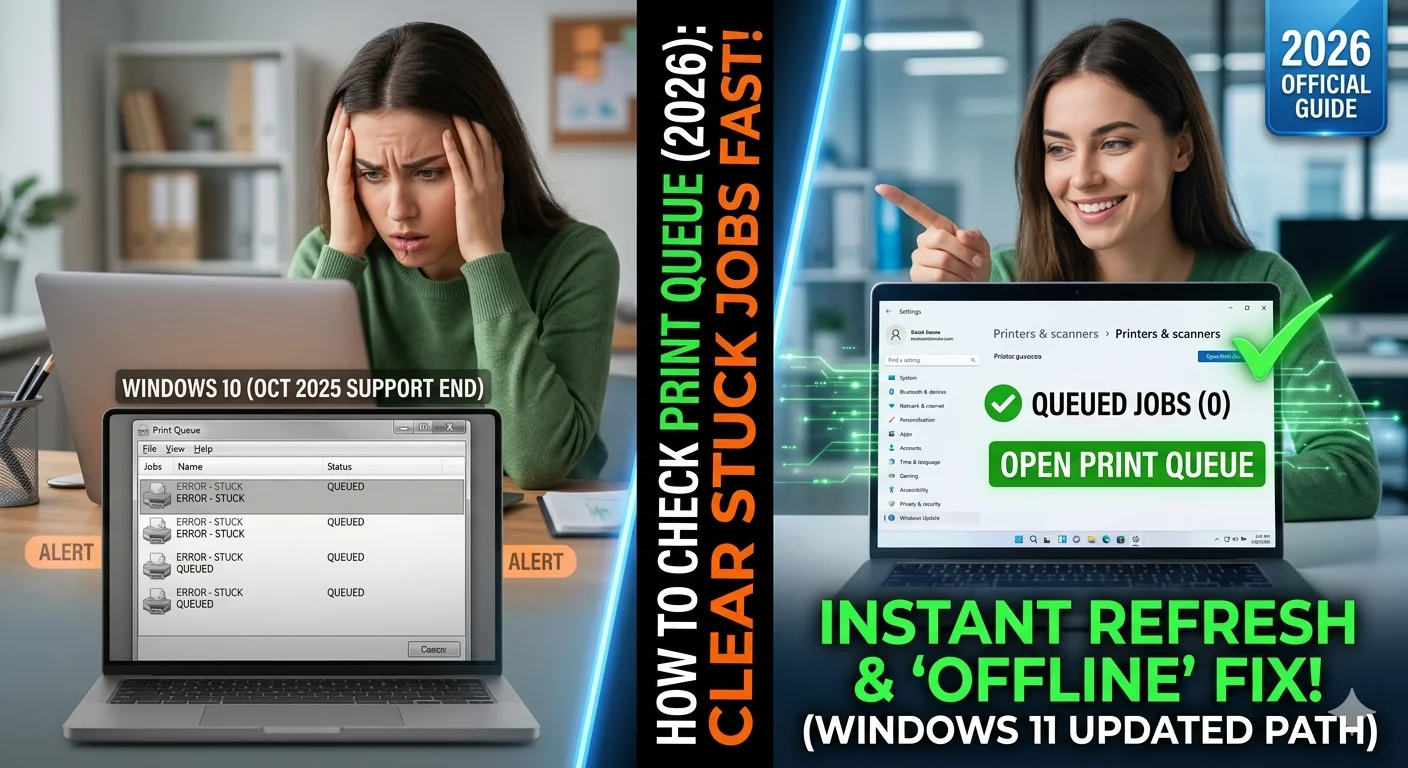
Nothing disrupts productivity quite like clicking “Print” only to watch your document vanish into digital limbo. Whether working remotely, managing office workflows, or handling urgent documents, frozen print jobs create unnecessary delays and frustration. The good news? Windows provides straightforward methods to check current print jobs in queue and resolve issues quickly.
This comprehensive guide walks you through viewing your print queue, managing pending documents, and troubleshooting common printing problems in Windows 10, 11, and upcoming Windows 12. You’ll learn multiple approaches, that will make you understand how to check current print jobs in queue Windows and when to use each method, and master techniques for clearing stubborn stuck jobs.
Understanding the Windows Print Queue
The print queue functions as a digital waiting line for documents heading to your printer. Windows processes these documents sequentially, but several factors can cause jobs to freeze or hang indefinitely.
What Causes Print Jobs to Stall?
Common Culprits:
- Printer power or connection loss during transmission
- Outdated or corrupted printer drivers
- Extremely large files (high-resolution PDFs, complex graphics)
- Network connectivity issues with wireless or network printers
- Printer hardware errors or paper jams
- Conflicting print jobs from multiple users
- Insufficient printer memory for complex documents
Understanding these causes helps you diagnose problems quickly and apply appropriate solutions.
Method 1: Control Panel Approach (All Windows Versions)
The Control Panel method works reliably across Windows 10, 11, and provides familiar navigation for experienced users.
Step-by-Step Instructions:
Step 1: Access Control Panel
- Press Windows key + R to open Run dialog
- Type
controland press Enter - Control Panel window opens
Step 2: Navigate to Printers
- Click “Hardware and Sound” (or “View devices and printers” if in icon view)
- Select “Devices and Printers”
Step 3: Open Your Printer’s Queue
- Locate your printer among displayed devices
- Right-click the printer icon
- Choose “See what’s printing” from context menu
Step 4: View Pending Jobs
- A window appears showing all queued documents
- Each job displays document name, status, owner, pages, and submission time
- Current printing job appears at top with “Printing” status
- Waiting jobs show “Spooling” or document size
When to Use This Method:
- Working with Windows 10 where Settings app is less developed
- Prefer traditional Windows interface
- Need detailed job information at a glance
- Managing multiple printers simultaneously
Method 2: Windows Settings App (Windows 11/12 Optimized)
Microsoft redesigned printer management in Windows 11, creating a streamlined Settings interface that’s faster and more intuitive.
Step-by-Step Instructions:
Step 1: Open Windows Settings
- Press Windows key + I (opens Settings directly)
- Alternatively, click Start → Settings gear icon
Step 2: Navigate to Printer Settings
- Click “Bluetooth & devices” in left sidebar
- Select “Printers & scanners” from options
Step 3: Select Your Printer
- Scroll through connected printers list
- Click the printer you want to check
Step 4: Access Print Queue
- Click “Open print queue” button
- Queue window displays all pending jobs
Modern Interface Benefits:
- Faster access with fewer clicks
- Cleaner, more readable layout
- Integrated with Windows 11/12 design language
- Touch-screen optimized for tablets and hybrid devices
Method 3: Quick Taskbar Access
When actively printing, Windows often displays a printer icon in your system tray providing instant queue access.
How to Use:
Step 1: Locate Printer Icon
- Look for printer icon in taskbar notification area (near clock)
- Icon appears automatically when print jobs are processing
- May need to click up arrow to reveal hidden icons
Step 2: Click to Open Queue
- Single-click the printer icon
- Queue window opens immediately showing active jobs
Step 3: Select Specific Printer
- If multiple printers are active, tooltip shows printer name
- Click appropriate icon for the printer you want to check
Best Use Cases:
- You’re actively printing and need quick status check
- Want fastest possible access during print sessions
- Don’t want to navigate through menus
- Monitoring print progress in real-time
For official Microsoft documentation on printer management, visit Microsoft Windows Print Support.
Quick Comparison: Queue Access Methods
| Method | Access Speed | Ease of Use | Windows Version | Best Scenario |
|---|---|---|---|---|
| Control Panel | Moderate (3-4 clicks) | Familiar interface | Windows 10/11/12 | Traditional users, detailed information needed |
| Settings App | Fast (2-3 clicks) | Modern, intuitive | Windows 11/12 (limited in 10) | Quick checks, modern interface preference |
| Taskbar Icon | Fastest (1 click) | Extremely simple | All versions (when available) | Active printing sessions, instant access |
| Run Command | Fast (direct) | Requires knowledge | All versions | Power users, keyboard shortcuts |
Clearing Stuck Print Jobs: Standard Method
When documents freeze in the queue, they block all subsequent print jobs from processing. Here’s how to clear them:
Quick Clearing Process:
Step 1: Open Print Queue Use any of the three methods above to access your printer’s queue window.
Step 2: Select Stuck Job
- Identify the problematic document (usually shows “Error” or remains at top while others wait)
- Click once to select the job
Step 3: Cancel Individual Job
- Right-click the selected job
- Choose “Cancel” from context menu
- Confirm cancellation if prompted
Step 4: Clear All Jobs (if needed)
- If multiple jobs are stuck, click “Printer” in menu bar
- Select “Cancel All Documents”
- Confirm the action
Wait for Clearing: Windows may take 15-30 seconds to fully remove jobs, especially large ones. Be patient before attempting to print again.
Advanced Solution: Restart Print Spooler Service
When standard cancellation fails, the Print Spooler service itself may need restarting. This Windows service manages all print job processing.
Complete Print Spooler Restart:
Step 1: Open Services Manager
- Press Windows key + R
- Type
services.mscand press Enter - Services window opens showing all Windows services
Step 2: Locate Print Spooler
- Scroll down alphabetically to find “Print Spooler”
- Or click in the list and type “print” to jump there
Step 3: Restart the Service
- Right-click “Print Spooler”
- Select “Restart” from menu
- Service stops, clears queue, and restarts fresh
Step 4: Verify Queue Cleared
- Reopen print queue window
- Should now be empty
- Try printing test document
Alternative Method Using Command Prompt:
- Open Command Prompt as Administrator (Windows key, type “cmd”, right-click, “Run as administrator”)
- Type:
net stop spoolerand press Enter - Wait for confirmation message
- Type:
net start spoolerand press Enter - Print spooler restarts with clean queue
When to Use This Method:
- Standard cancellation doesn’t work
- Queue shows jobs but they won’t cancel
- Printer appears stuck in “Printing” status indefinitely
- Error messages prevent normal cancellation
Clearing Queue Benefits and Drawbacks
Understanding both advantages and limitations helps you make informed decisions:
| Benefits | Potential Drawbacks |
|---|---|
| Immediately restores printing functionality | Cancels ALL queued jobs requiring reprinting |
| Resolves most common printing errors | May require administrator privileges on work computers |
| Works across all Windows versions | Doesn’t address underlying driver or hardware problems |
| Simple process requiring minimal technical knowledge | Temporary solution if root cause isn’t fixed |
| No additional software needed | Brief service interruption affects all users (shared printers) |
| Clears corrupted print jobs | Lost formatting or settings from canceled jobs |
Troubleshooting Common Print Queue Problems
Problem 1: Jobs Won’t Cancel
Symptoms: Clicking “Cancel” does nothing; jobs remain in queue
Solutions:
- Close and reopen queue window to refresh display
- Restart Print Spooler service using method above
- Disconnect and reconnect printer physically
- Restart computer if other methods fail
- Check for printer firmware updates
Problem 2: Queue Appears Empty But Won’t Print
Symptoms: Queue shows no jobs but nothing prints when you try
Solutions:
- Verify printer is powered on and online (check display panel)
- Ensure printer selected as default in Windows settings
- Check cable connections or wireless network status
- Update or reinstall printer drivers
- Run Windows printer troubleshooter (Settings → Troubleshoot)
Problem 3: Recurring Stuck Jobs
Symptoms: Print jobs consistently freeze requiring frequent clearing
Root Causes and Fixes:
- Outdated Drivers: Visit printer manufacturer’s website for latest drivers
- Network Issues: Use wired connection if possible; strengthen WiFi signal
- Large Files: Print complex documents in smaller page ranges
- Printer Memory: Reduce print quality or resolution for complex jobs
- Hardware Problems: Clean printer, replace worn parts, or service professionally
Problem 4: “Access Denied” When Canceling Jobs
Symptoms: Windows denies permission to cancel print jobs
Solutions:
- Log in with administrator account
- Right-click Command Prompt and select “Run as administrator”
- Use administrator credentials to restart Print Spooler
- Check printer permissions in Devices and Printers (right-click printer → Printer properties → Security)
For comprehensive printer troubleshooting, check HP’s Official Printer Support.
Preventing Future Print Queue Issues
Proactive measures reduce how often you’ll encounter stuck print jobs:
Regular Maintenance:
Keep Drivers Updated
- Check printer manufacturer’s website quarterly
- Enable automatic driver updates in Windows Update
- Install updates during low-usage periods
Print Smaller Batches
- Break large print jobs (100+ pages) into smaller segments
- Reduces likelihood of errors during transmission
- Easier to recover if problems occur
Restart Printer Regularly
- Power cycle printer weekly for home use
- Daily restart for high-volume office printers
- Clears temporary memory and refreshes connections
Use Reliable Connections
- Wired USB or Ethernet connections more stable than WiFi
- If using wireless, ensure strong signal strength
- Position printer closer to router if possible
- Consider upgrading to 5GHz WiFi band for faster transmission
Monitor Print Quality
- Clean print heads and rollers monthly
- Replace worn or damaged parts promptly
- Use manufacturer-recommended paper and supplies
- Address paper jams immediately before they cause job failures
Software Optimization:
Set Realistic Default Settings
- Use standard quality instead of highest quality for everyday printing
- Reduce default page count for test prints
- Configure appropriate paper sizes matching your typical usage
Manage Print Server Settings (Network Printers)
- Limit number of simultaneous print jobs
- Increase timeout values for complex documents
- Allocate sufficient server resources for print management
Quick Reference: Step-by-Step Summaries
How to Check Print Queue (Fast Method):
- Press Windows + I
- Click “Bluetooth & devices”
- Select “Printers & scanners”
- Click your printer
- Click “Open print queue”
How to Clear Single Stuck Job:
- Open print queue (any method above)
- Right-click problematic job
- Select “Cancel”
- Wait 15-30 seconds for clearing
How to Clear All Print Jobs:
- Open print queue window
- Click “Printer” menu
- Select “Cancel All Documents”
- Confirm action
How to Restart Print Spooler:
- Press Windows + R
- Type
services.mscand press Enter - Find “Print Spooler”
- Right-click → “Restart”
- Wait for restart to complete
Frequently Asked Questions
How do I check current print jobs in Windows?
Open Windows Settings (Windows + I), navigate to “Bluetooth & devices” → “Printers & scanners,” select your printer, and click “Open print queue.” Alternatively, access through Control Panel → Devices and Printers → right-click printer → “See what’s printing.” Both methods display all pending print jobs with their status, size, and submission details.
How do I clear stuck print jobs that won’t cancel?
First try standard cancellation by right-clicking the job and selecting “Cancel.” If this fails, restart the Print Spooler service: press Windows + R, type services.msc, find “Print Spooler,” right-click and select “Restart.” This forcibly clears all jobs from the queue. Alternatively, use Command Prompt (as administrator) to stop and start the spooler service.
Why do my print jobs keep getting stuck?
Common causes include outdated printer drivers, unstable network connections, excessively large file sizes, insufficient printer memory, or hardware issues. To prevent recurring problems, update drivers regularly, use wired connections when possible, print smaller batches of large documents, and maintain your printer with regular cleaning and part replacement.
Does clearing the print queue delete my documents permanently?
Clearing the queue cancels the print jobs but doesn’t delete your original files. Documents remain in their original locations on your computer or network. You’ll simply need to reprint them after clearing the queue. The queue only contains printing instructions, not the actual document files.
Can I prioritize certain print jobs in the queue?
Yes, though the feature is hidden by default. Open the print queue, click “Printer” menu, and uncheck “Pause Printing” and “Use Printer Offline” if enabled. Then click “View” → “Show Jobs in All Printers” (if managing multiple devices). While you cannot directly reorder jobs without administrator access, you can pause less important jobs, allowing others to print first.
Do I need administrator rights to clear print jobs?
For jobs you submitted, typically no administrator rights are needed. However, clearing other users’ jobs or restarting the Print Spooler service usually requires administrator privileges. On workplace computers with restricted access, contact your IT department for assistance with persistent print queue issues.
What’s the difference between pausing and canceling print jobs?
Pausing temporarily stops job processing without removing it from the queue—useful if you need to change paper or fix a minor printer issue. The job resumes from where it stopped when unpaused. Canceling permanently removes the job from the queue, requiring you to reprint the entire document if needed.
How long can jobs stay in the print queue?
Jobs can theoretically remain in the queue indefinitely until cleared manually or the computer restarts. However, keeping old jobs queued for extended periods can cause conflicts. Best practice is clearing completed or error jobs daily, especially on shared network printers serving multiple users.
For additional Windows troubleshooting guides, explore Microsoft’s Windows Support site.
When to Seek Professional Help
Most print queue issues resolve with the methods outlined above. However, certain situations warrant professional technical support:
Persistent Hardware Problems:
- Printer consistently displays error codes despite queue clearing
- Physical damage visible on printer components
- Strange noises during printing attempts
- Frequent paper jams indicating mechanical issues
Network Infrastructure Issues:
- Multiple users experiencing simultaneous print failures
- Print server consistently crashing or becoming unresponsive
- Corporate network changes causing widespread printing problems
Complex Driver or Software Conflicts:
- Multiple printers interfering with each other
- Windows updates breaking previously functional printing
- Third-party software creating driver conflicts
Security or Permission Issues:
- Unable to access Services even with administrator account
- Group Policy restrictions preventing queue management
- Network printer permissions incorrectly configured
Conclusion
Checking current print jobs in queue Windows and clearing stuck documents doesn’t require advanced technical expertise. Whether you prefer the traditional Control Panel, modern Settings app, or quick taskbar access, Windows provides multiple straightforward methods for queue management.
Remember the key approaches:
- Use Settings app (Windows + I) for fastest modern access
- Access Control Panel when you need detailed information
- Click taskbar printer icon during active print sessions
- Restart Print Spooler service for stubborn problems
Regular printer maintenance, updated drivers, and stable connections prevent most queue issues before they occur. When problems do arise, you now have the knowledge to diagnose and resolve them quickly, minimizing disruption to your workflow.
Stop letting stuck print jobs waste your time. Apply these techniques today and maintain smooth, frustration-free printing throughout 2026 and beyond.
