
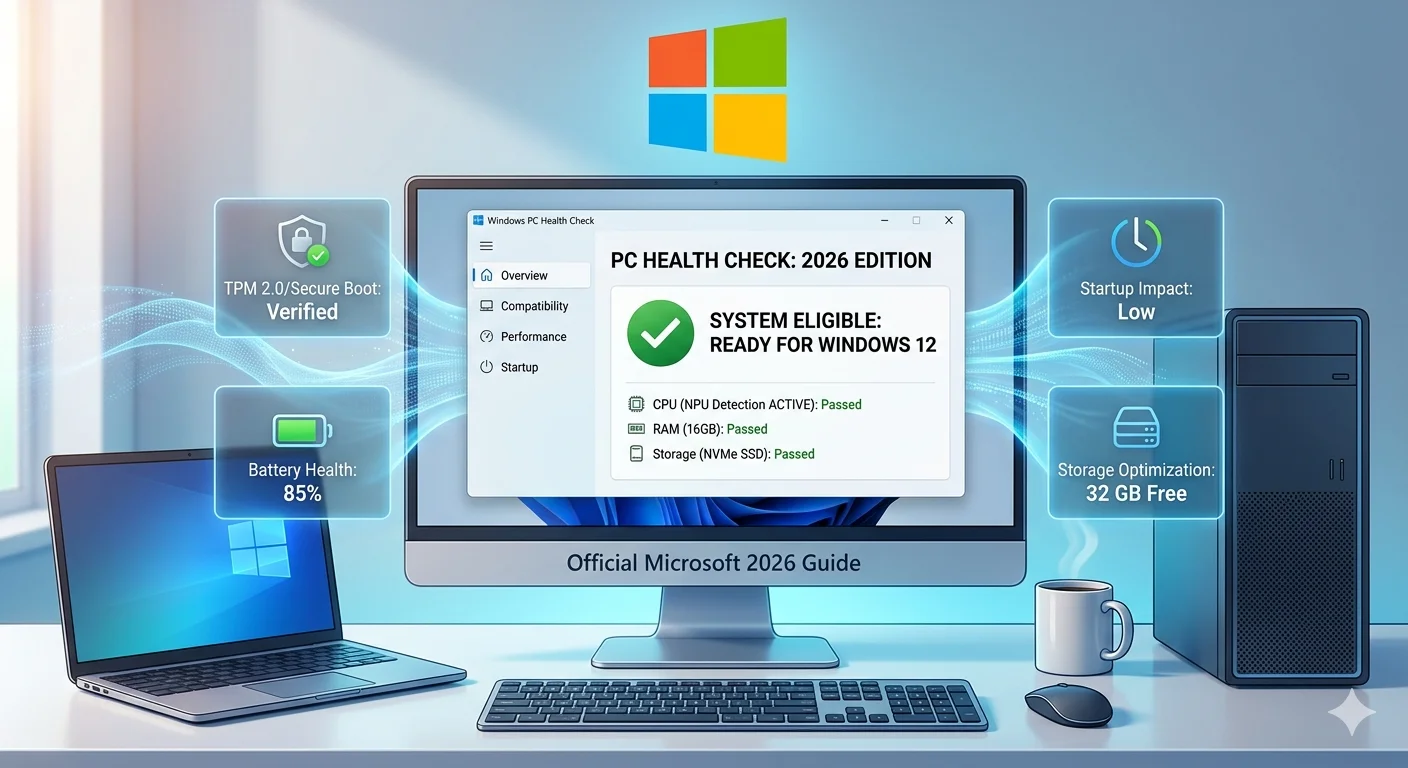
Wondering if your computer can run Windows 11 or the upcoming Windows 12? Concerned about your PC’s performance and health? Microsoft’s PC Health Check tool gives you instant answers.
This free official app from Microsoft tells you if your computer meets the requirements for the latest Windows versions, identifies performance problems, and helps you optimize your system. Whether you’re planning to upgrade Windows or just want to keep your PC running smoothly, PC Health Check is essential.
This complete 2026 guide shows you how to download PC Health Check safely, use it effectively, and understand what the results mean for your computer.
What Is PC Health Check?
PC Health Check is a free diagnostic tool created by Microsoft. Think of it as a doctor’s checkup for your computer – it examines your hardware and tells you what’s working well and what needs attention.
Originally launched to help people upgrade to Windows 11, the 2026 version does much more:
System Compatibility Checking Instantly see if your PC can run Windows 11 or is ready for Windows 12 when it releases.
Performance Monitoring Track your computer’s health including storage space, startup speed, and battery condition.
Upgrade Readiness Get detailed reports on what hardware upgrades you might need for future Windows versions.
Optimization Recommendations Receive specific suggestions to improve your PC’s speed and performance.
Backup Status Check if your important files are safely backed up to OneDrive.
Why You Need PC Health Check in 2026
Avoid Upgrade Surprises Nothing is worse than trying to upgrade Windows and discovering your computer doesn’t qualify. PC Health Check tells you upfront if you’re compatible.
Understand Your Hardware The tool explains in plain language what TPM, Secure Boot, and other technical requirements mean for your specific computer.
Prevent Performance Issues Identify problems before they become serious, like a failing battery or apps slowing down your startup.
Prepare for Windows 12 As Microsoft prepares to release Windows 12, PC Health Check now includes early compatibility checks for AI-powered features that require specific hardware.
Free and Official Unlike third-party tools that might contain malware or give inaccurate results, PC Health Check comes directly from Microsoft.
Windows 11 vs Windows 12 Requirements (2026 Comparison)
Understanding what your PC needs helps you interpret PC Health Check results. Here’s what Microsoft requires:
| Component | Windows 11 Minimum | Windows 12 Expected (2026) | Why It Matters |
|---|---|---|---|
| Processor | 1 GHz, 2 cores, 64-bit | 2 GHz, 4+ cores, AI-optimized | Faster processing, AI features |
| RAM Memory | 4 GB | 8-16 GB | Better multitasking, AI tools |
| Storage | 64 GB | 128 GB SSD (no hard drives) | Faster boot and app loading |
| Graphics | DirectX 12 compatible | DirectX 12 + NPU | Advanced visual effects, AI |
| Security | TPM 2.0, Secure Boot | TPM 2.0 + Pluton chip | Enhanced security protection |
| Display | 720p, 9″ diagonal | 1080p recommended | Better visual experience |
Key takeaway: If your PC barely meets Windows 11 requirements, you might struggle with Windows 12. PC Health Check helps you plan ahead.
How to Download PC Health Check (Safe Method)
Always download PC Health Check from official Microsoft sources. Third-party websites may bundle malware or outdated versions.
Method 1: Direct Download from Microsoft
- Open your web browser
- Visit the official Microsoft Windows 11 page
- Scroll down to find “Check compatibility”
- Click “Download PC Health Check”
- Save the file to your Downloads folder
- The file name is WindowsPCHealthCheckSetup.msi
Method 2: Through Windows Update
If you have Windows 10 or Windows 11:
- Open Settings (Windows + I)
- Go to Windows Update
- Click “Check for updates”
- Microsoft often includes PC Health Check as an optional update (labeled KB5005463)
- If available, click Download and Install
Method 3: Microsoft Store
Some newer versions are available through the Microsoft Store:
- Open Microsoft Store
- Search for “PC Health Check”
- Look for the app with Microsoft Corporation as the publisher
- Click Get or Install
Which method is best?
Method 1 (direct download) is most reliable and always gives you the latest version. Methods 2 and 3 depend on your system’s update status.
Installing PC Health Check Step-by-Step
Once downloaded, installation takes less than a minute:
- Locate the downloaded file (usually in your Downloads folder)
- Double-click WindowsPCHealthCheckSetup.msi
- A security warning may appear – click “Yes” to allow installation
- Read and accept the license agreement
- Click “Install” button
- Wait 10-20 seconds for installation to complete
- Click “Finish”
- PC Health Check will automatically open
The app installs to your Program Files folder and adds a shortcut to your Start menu.
Using PC Health Check: Complete Walkthrough
Now that it’s installed, let’s explore every feature and what the results mean.
The Main Compatibility Check
When you first open PC Health Check, you’ll see a large “Check now” button.
Click it to scan your system.
You’ll get one of three results:
Green Checkmark: “This PC meets Windows 11 requirements”
- Your computer can run Windows 11 perfectly
- You’re eligible for automatic updates
- All features will work
Yellow Warning: “This PC can run Windows 11 with limitations”
- Your PC works but lacks certain hardware
- Some advanced features won’t be available
- Examples: AI features, enhanced security tools
Red X: “This PC doesn’t meet Windows 11 requirements”
- Your hardware doesn’t meet minimum standards
- You cannot upgrade to Windows 11
- Details explain what’s missing
Understanding the detailed results:
Click “See all results” to view specifics:
- Which requirements you pass
- Which requirements you fail
- Specific hardware that needs upgrading
Storage Health Check
Click on “Storage capacity” to see:
Total storage: How much space your drive has Used space: What’s currently filled Free space: What’s available Category breakdown: What types of files are using space
Color coding:
- Green: Plenty of space (20%+ free)
- Yellow: Running low (10-20% free)
- Red: Critical (less than 10% free)
Recommendations appear if you’re running low:
- Delete temporary files
- Move files to cloud storage
- Uninstall unused applications
- Upgrade to a larger drive
Battery Health (Laptops Only)
For laptop users, this is incredibly valuable:
Original capacity: What your battery held when new Current capacity: What it holds now Health percentage: Current divided by original
Example interpretation:
If your laptop battery was originally 50,000 mWh and now holds 30,000 mWh:
- Current capacity: 30,000 mWh
- Health: 60%
- Status: Consider replacement soon
What the percentages mean:
- 90-100%: Excellent – battery is like new
- 70-89%: Good – normal degradation
- 50-69%: Fair – noticeably shorter battery life
- Below 50%: Poor – replace battery soon
Startup Apps Management
This section shows which programs launch when Windows starts.
Why it matters:
Too many startup apps make your computer boot slowly. PC Health Check identifies the worst offenders.
How to use it:
- Click “Startup apps”
- View the list of programs that launch at boot
- See the “Impact” rating for each:
- High impact: Significantly slows startup
- Medium impact: Noticeable slowdown
- Low impact: Minimal effect
- Click “Manage startup apps”
- Toggle off apps you don’t need at startup
Pro tip: You can safely disable most communication apps, updaters, and utilities. Keep only essential security software.
For a comprehensive guide on speeding up your computer’s startup, check out our detailed article on how to improve laptop boot performance.
OneDrive Backup Status
Shows if your important folders are backed up to Microsoft’s cloud:
Green checkmark: Your Documents, Pictures, and Desktop folders are safely backed up Yellow warning: Backup is set up but not current Red X: No backup configured
Why this matters:
Before any major system upgrade or hardware change, having backups prevents data loss.
Windows Update Status
Displays:
- Last time you checked for updates
- Any pending updates waiting to install
- Whether your Windows is fully up to date
Recommendations appear if updates are needed:
- Install pending security updates
- Restart to complete installations
- Check for optional feature updates
Understanding Common Results and Fixes
“TPM 2.0 Not Found”
What it means: TPM (Trusted Platform Module) is a security chip required for Windows 11. Your PC either doesn’t have it or it’s disabled.
How to fix:
Most modern computers have TPM but it’s turned off in BIOS:
- Restart your computer
- Press F2, Del, or F10 during startup (varies by manufacturer)
- Enter BIOS/UEFI settings
- Look for:
- “PTT” (Intel processors)
- “fTPM” (AMD processors)
- “Security Device”
- “TPM”
- Change setting to “Enabled”
- Save and exit BIOS
- Restart and run PC Health Check again
If you truly don’t have TPM hardware, your computer is too old for Windows 11.
“Secure Boot Must Be Enabled”
What it means: Secure Boot prevents unauthorized software from loading during startup. Windows 11 requires it.
How to fix:
- Enter BIOS (same as TPM instructions above)
- Find “Secure Boot” in security settings
- Set to “Enabled”
- Save and exit
Important: If Secure Boot won’t enable, your hard drive might use the older MBR partition style instead of GPT. Converting requires advanced knowledge or reinstalling Windows.
“Processor Not Compatible”
What it means: Microsoft maintains a list of approved processors. Older CPUs aren’t supported even if they’re technically powerful enough.
Minimum supported processors:
- Intel: 8th generation (2017) or newer
- AMD: Ryzen 2000 series (2018) or newer
- Qualcomm: Snapdragon 850 or newer
Your options if not supported:
- Stay on Windows 10 (supported until October 2025)
- Upgrade your computer
- Use unofficial workarounds (not recommended, may cause issues)
“Not Enough RAM”
What it means: You have less than 4 GB of RAM.
How to fix:
- Check how much RAM you have: Settings → System → About
- Purchase and install additional RAM (if your laptop/desktop allows upgrades)
- RAM upgrades typically cost $30-100 and significantly improve performance
“Insufficient Storage”
What it means: Your hard drive has less than 64 GB total capacity.
How to fix:
- Free up space by deleting old files
- Move files to external storage or cloud
- Upgrade to a larger SSD (recommended, dramatically improves speed)
Troubleshooting PC Health Check Problems
App Won’t Open or Crashes
Try these fixes in order:
Fix 1: Repair the app
- Open Settings → Apps → Installed apps
- Find “Windows PC Health Check”
- Click the three dots → Advanced options
- Click “Repair”
- Wait for repair to complete
- Try opening the app again
Fix 2: Reset the app
- Follow steps 1-3 above
- Click “Reset” instead of Repair
- This deletes app data but usually fixes crashes
Fix 3: Reinstall
- Uninstall PC Health Check completely
- Restart your computer
- Download and install fresh from Microsoft
Stuck at Loading Screen
This usually indicates corrupted system files.
Fix:
- Press Windows + X
- Select “Terminal (Admin)” or “Command Prompt (Admin)”
- Type:
sfc /scannow - Press Enter
- Wait 10-30 minutes for scan to complete
- Restart your computer
- Run PC Health Check again
Results Don’t Match Reality
Example: PC Health Check says you don’t have TPM, but you know your computer has it.
Causes:
- BIOS settings changed
- Windows needs updating
- PC Health Check app is outdated
Solutions:
- Update Windows completely
- Check BIOS settings as described earlier
- Download the newest version of PC Health Check
PC Health Check vs Third-Party Tools
You might see other compatibility checkers available. Here’s how they compare:
| Feature | PC Health Check | WhyNotWin11 | Other Tools |
|---|---|---|---|
| Official Microsoft tool | Yes | No | No |
| Updates automatically | Yes | Manual | Varies |
| Safe to use | Yes | Generally | Be careful |
| Marks system as eligible | Yes | No | No |
| Detailed explanations | Yes | Technical | Varies |
| Works with Windows Update | Yes | No | No |
Why PC Health Check is better:
When PC Health Check approves your system, Microsoft’s servers recognize your computer as eligible for Windows 11. This enables automatic feature updates and unlocks new capabilities.
Third-party tools can tell you if you meet requirements, but they don’t communicate with Microsoft’s systems.
Frequently Asked Questions
Is PC Health Check safe to use?
Yes, it’s completely safe when downloaded from Microsoft’s official website. It’s a legitimate Microsoft program that only reads your hardware information without making any changes to your system unless you specifically choose to enable a setting.
Does PC Health Check work on Windows 12?
The 2026 version includes preliminary checks for Windows 12 compatibility. While Windows 12 isn’t officially released yet, PC Health Check can tell you if your hardware meets the expected requirements, especially for AI-powered features that need Neural Processing Units (NPUs).
Why does it say my computer can’t run Windows 11 when it seems powerful?
Microsoft has specific requirements beyond just power. The most common issues are missing TPM 2.0 or unsupported CPU models. Even a powerful computer from 2015-2016 might fail because it lacks modern security features Microsoft now requires for Windows 11.
Can I bypass the PC Health Check requirements?
While technical workarounds exist to install Windows 11 on unsupported hardware, Microsoft doesn’t recommend this. You may not receive updates, features might not work correctly, and stability isn’t guaranteed. It’s safer to use Windows 10 or upgrade your hardware.
How often should I run PC Health Check?
Run it whenever you’re planning to upgrade Windows, after making hardware changes, or if you notice performance problems. For general maintenance, checking every 3-6 months is reasonable to monitor battery health and storage usage.
Will PC Health Check delete any files?
No, PC Health Check only reads information from your computer. It won’t delete files, change settings, or modify anything without your explicit permission. The only actions it can take are through the settings you choose to adjust in the app.
What if I pass all checks but Windows Update still won’t upgrade?
This can happen due to temporary Microsoft server issues, incomplete Windows updates, or driver incompatibilities. Make sure Windows is fully updated, check for pending driver updates, and try again in a few days. You can also use the Windows 11 Installation Assistant as an alternative.
Can I uninstall PC Health Check after checking?
Yes, you can safely uninstall it anytime through Settings → Apps → Installed apps. However, keeping it installed is useful for monitoring battery health, startup apps, and storage usage. It uses minimal disk space and resources.
Best Practices for Using PC Health Check
Before Major Updates
Always run PC Health Check before attempting to upgrade Windows. This prevents failed installations and saves time.
Regular Maintenance Checks
Run it monthly to:
- Monitor battery health on laptops
- Check storage capacity
- Review startup programs
- Verify backup status
After Hardware Changes
Anytime you upgrade RAM, change hard drives, or modify BIOS settings, run PC Health Check to confirm everything is still compatible.
Before Buying a Used Computer
If purchasing a used PC, ask the seller to run PC Health Check. This verifies the computer can run modern Windows versions.
Share Results When Seeking Help
If asking for technical support online or from IT, take screenshots of your PC Health Check results. This gives helpers complete information about your system.
Alternative Ways to Check Windows 11 Compatibility
While PC Health Check is best, you have other options:
Windows Settings
Settings → System → About shows your processor, RAM, and system type. Compare these manually to requirements.
System Information
Press Windows + R, type msinfo32, and press Enter. This shows detailed hardware information including BIOS mode and Secure Boot state.
Command Prompt
Advanced users can check TPM status by typing tpm.msc in Command Prompt.
BIOS/UEFI
Restart and enter BIOS to directly verify TPM and Secure Boot settings.
Preparing Your PC for the Future
If You Pass All Checks
Congratulations! Your PC is ready for:
- Current Windows 11 updates
- Upcoming Windows 11 features
- Likely Windows 12 compatibility (when it releases)
Keep your system updated and maintain good storage management.
If You Fail Some Checks
Don’t panic. Many failures are fixable:
- Enable TPM and Secure Boot in BIOS (free)
- Add more RAM ($30-100)
- Upgrade to SSD ($50-200)
These upgrades improve performance beyond just Windows compatibility.
If Your PC Isn’t Compatible
You have choices:
- Continue using Windows 10 until October 2025
- Upgrade to a new computer
- Consider Windows 11-compatible refurbished computers (often under $300)
Conclusion
PC Health Check is your essential tool for keeping your computer healthy and ready for Windows upgrades. In 2026, with Windows 12 on the horizon and AI features requiring specific hardware, knowing your PC’s capabilities is more important than ever.
Key takeaways:
- Always download PC Health Check from official Microsoft sources
- Run it before attempting Windows upgrades
- Use it regularly to monitor battery, storage, and startup performance
- Most compatibility issues are fixable through BIOS settings or affordable upgrades
- It’s free, safe, and gives you peace of mind about your system
For more detailed information about Windows system requirements and updates, visit Microsoft’s official Windows 11 specifications page or check PC World’s Windows 11 compatibility guide for additional help.
Don’t wait until you’re trying to upgrade to discover problems. Download and run PC Health Check today to know exactly where your computer stands!
