
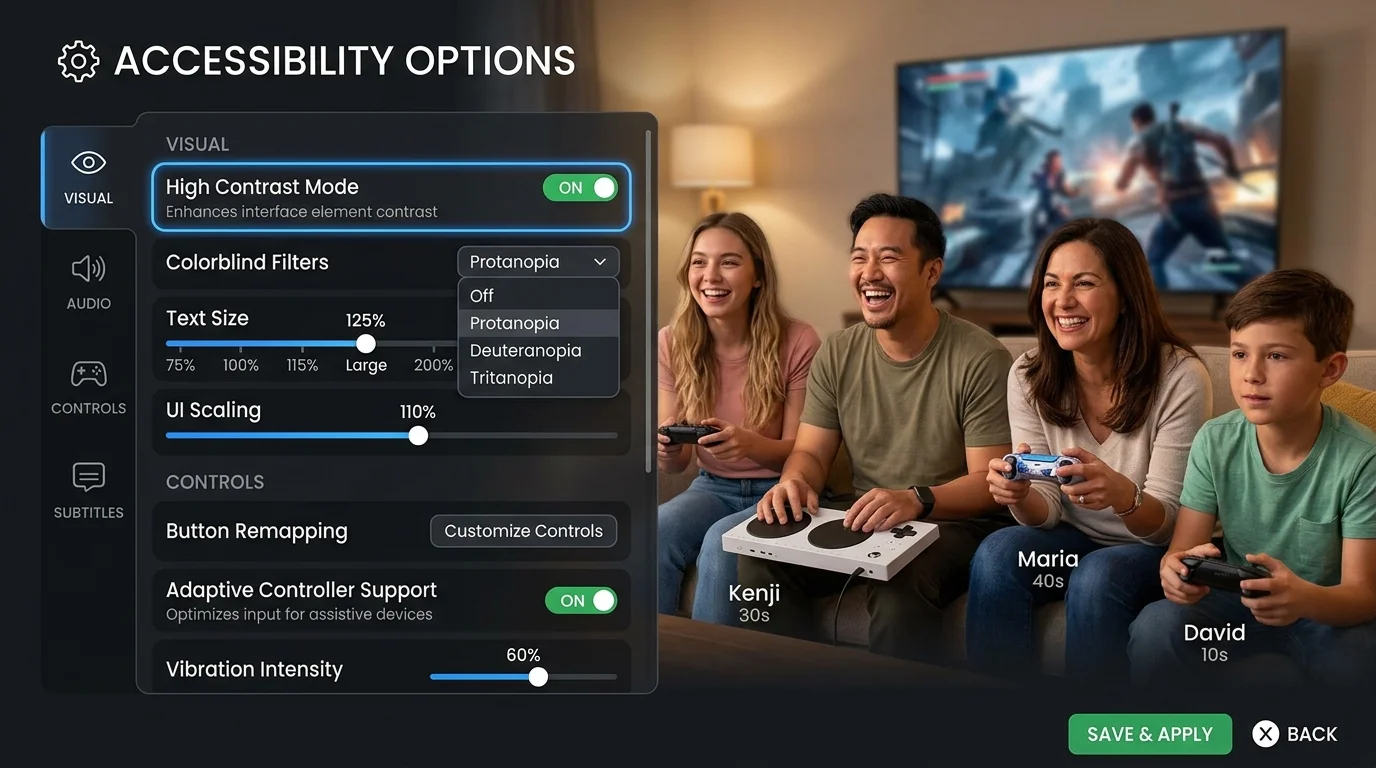
Gaming should be fun for everyone—whether you play casual mobile games or competitive shooters. Many players face real challenges: difficulty seeing colors, trouble holding controllers, hearing loss, or needing extra time to process information. The good news? Modern games and gaming platforms in 2026 offer powerful tools to solve these problems.
Gaming accessibility options aren’t just nice-to-have extras. They let players with different abilities enjoy games their friends play. Parents setting up games for kids with motor difficulties, older gamers returning after years away, and competitive players managing fatigue all benefit from the right adjustments.
This guide walks you through every type of accessibility feature, explains where to find them, and shows you which settings work best for your needs.
Understanding the Five Core Areas of Gaming Accessibility
Gaming accessibility options break down into five main categories. Think of these as toolkits you can mix and match based on what helps you play better.
1. Control Customization (Making Games Feel Natural to Play)
How your hands interact with a controller or keyboard matters more than anything else. When buttons are in the wrong place or require strange finger combinations, games become exhausting—even for players without disabilities.
Button Remapping: Most games in 2026 let you move actions to different buttons. Instead of pressing Triangle + R1 + L2 for a combo, you might make a single button do it.
Hold vs. Toggle: Some games force you to hold down buttons (like holding Sprint while running). Accessibility options let you tap once to start running, tap again to stop. This saves your hands from cramping.
Input Buffering: This accepts button presses slightly before the game normally would. Helpful if you can’t time actions perfectly.
One-Handed Play: Games increasingly support playing with just a left or right controller, letting players with single-arm mobility play normally.
2. Visual Adjustments (Seeing What Matters)
Vision challenges in gaming range from colorblindness to low vision to light sensitivity. Fortunately, visual accessibility tools are mainstream now.
Colorblind Modes: About 1 in 12 men can’t see reds and greens the way others do. Games like Halo and Call of Duty ship with colorblind presets that shift reds to blues or use patterns instead of pure colors.
High Contrast UI: Text and buttons become easier to find against backgrounds. This helps anyone playing in bright rooms or with low vision.
Text Scaling: You can make all on-screen text 25%, 50%, or even 100% larger—useful for aging eyes or players sitting far from screens.
Reduced Motion: Animations and camera shake can trigger motion sickness or discomfort. Many games let you turn these off completely.
3. Sound and Audio Feedback (Playing Without Perfect Hearing)
Deaf and hard-of-hearing players shouldn’t miss story details or environmental clues. Modern games solve this with sound alternatives.
Subtitles and Captions: Go beyond basic subtitles. Modern captions include speaker names, music descriptions, and [footsteps approaching] notifications for sound design that matters.
Visual Sound Indicators: When an enemy approaches from behind, a visual indicator appears on your HUD instead of (or alongside) audio.
Mono Audio: Some players hear only in one ear. Mono audio folds stereo information into a single channel so nobody misses directional clues.
Haptic Feedback: Vibrations in controllers or specialized haptic vests let players feel explosions, footsteps, and other key moments.
4. Cognitive and Timing Adjustments (Playing at Your Pace)
Not everyone processes information at the same speed. Some players need more time to read text, solve puzzles, or react to quick prompts.
Adjustable Timers: Timed puzzles become untimed. Quick-time events (QTEs) give extra seconds to respond.
Simplified Menus: Cleaner interfaces with fewer options reduce decision fatigue.
Tutorial Pacing: Tutorials play at your speed. Want to spend 30 minutes learning basic controls? Go ahead. Want 5 minutes? That works too.
Reading Aids: Text-to-speech narrates menu text and dialogue, so you can listen instead of reading.
5. Motor and Adaptive Hardware (Playing Comfortably)
Some accessibility features live in hardware, not settings. These tools range from modified controllers to foot pedals.
Adaptive Controllers: The Xbox Adaptive Controller is industry-leading. It breaks into parts you can arrange for your body. Need a button on the left instead of right? Snap it there.
Foot Pedals: Players with limited hand mobility can assign actions to feet.
Single Switch Devices: One large button that cycles through actions (jump, attack, run).
Eye Trackers: Control games by looking at the screen. Increasingly available and affordable.
Finding Accessibility Options in Your Game: Step-by-Step
Most games follow similar menu structures. Use this process:
- Open Settings/Options. Usually in the main menu, or press Start/Menu during gameplay.
- Look for Accessibility, Gameplay, Display, or Audio tabs. Not all are labeled the same way.
- Check submenus. Sometimes accessibility is buried under Display > Accessibility or Gameplay > Difficulty.
- Search if available. Newer games let you search “subtitle” or “colorblind” to jump straight to the option.
- Test in safe mode. Use tutorials, practice levels, or inactive multiplayer lobbies to try settings before diving into campaigns.
- Save profiles. Many games let you save custom profiles (like “My Low Vision Setup”) and load them anytime.
Complete Accessibility Checklist: What to Enable First
Start with these universally helpful settings:
Essential for Everyone
- Enable subtitles (includes speaker names)
- Increase text size to 125%–150%
- Enable closed captions for sounds (footsteps, alarms)
- Remap your most-used button to something comfortable
For Better Comfort
- Enable toggle for Sprint (instead of holding)
- Turn on high-contrast mode if colors feel washed out
- Adjust brightness to match your room lighting
- Enable auto-aiming if you struggle with fine controller movements
For Specific Needs
- Colorblind mode if you mix up reds/greens or blues/yellows
- Mono audio if you hear from one ear only
- Extended timers if you need time to think
- Simplified UI if menus overwhelm you
Platform-by-Platform Accessibility: What Each System Offers
Windows PC Gaming
Pros:
- Full control remapping via Steam Input
- Third-party tools add extra options
- Many indie games ship with robust accessibility
- Game Pass includes diverse accessible titles
Cons:
- Settings vary wildly between games
- Third-party tools can conflict with anti-cheat
- Requires more tech knowledge to set up optimally
Key Point: If you’re playing on PC, keeping your device drivers updated ensures controllers and audio devices work smoothly. Outdated drivers often break controller compatibility or cause audio cutting out—both critical when using accessibility features.
PlayStation (PS5/PS4)
Accessibility Highlights:
- System-level button remapping (applies to all games)
- Subtitles and captions in most first-party titles
- Custom DualSense haptic profiles
- Text-to-speech for menus built into the OS
Gaps:
- Fewer colorblind presets than Xbox or PC
- Adaptive controller support limited to third-party USB adapters
- Some indie titles skip accessibility entirely
Xbox Series X/S (and PC Game Pass)
Why Xbox Leads:
- Xbox Adaptive Controller compatibility (genuine native support)
- Quick Resume saves your accessibility settings between games
- Game Pass includes accessibility-focused indie games
- Easier one-button input support in Accessibility menu
Trade-offs:
- Some backward-compatible games don’t support modern accessibility
- Older Game Pass titles may lack features
Nintendo Switch
What Works:
- Simple button remapping per-game
- Handheld mode reduces fatigue for some players
- Portable gaming helps players play in comfortable positions
What’s Missing:
- No system-wide colorblind mode
- Limited haptic accessibility (vibration works, but no audio descriptions)
- Smallest adaptive controller ecosystem
Detailed Accessibility Features Comparison Table
| Accessibility Feature | Windows PC | PlayStation 5 | Xbox Series X | Nintendo Switch | Average Availability |
|---|---|---|---|---|---|
| Full button remapping | ✓ Full | ✓ Full | ✓ Full | ◐ Per-game only | 94% |
| Colorblind modes | ✓ Common | ◐ Varies | ✓ Common | ◐ Varies | 82% |
| Subtitles + captions | ✓ Standard | ✓ Standard | ✓ Standard | ◐ Often missing | 88% |
| Text-to-speech | ✓ Yes | ◐ OS only | ✓ Yes | ✗ Rare | 71% |
| Adaptive controller support | ◐ Third-party | ◐ Limited | ✓ Native | ◐ Very limited | 58% |
| Adjustable timers | ◐ By game | ◐ By game | ◐ By game | ◐ By game | 65% |
| Visual sound indicators | ◐ Some games | ◐ Some games | ◐ Some games | ✗ Rare | 48% |
| Mono audio option | ✓ Yes | ✗ No | ✓ Yes | ◐ Rare | 64% |
| One-handed mode | ◐ Some titles | ✗ Rare | ✓ Growing | ◐ Rare | 42% |
Legend: ✓ Full = Universal across platform | ◐ Partial = Varies by game | ✗ Rare/No = Not common
The Essential Accessibility Settings You Should Know About
Visual Accessibility: Detailed Look
For Players with Colorblindness:
- Look for Deuteranopia (red-green loss), Protanopia (red-green loss, different), or Tritanopia (blue-yellow loss)
- Test each mode in-game to see which matches your perception
- Combine with high contrast UI for best results
For Low Vision Players:
- Start by scaling UI to 125%–175% depending on screen distance
- Use high-contrast mode (dark text on light or light text on dark)
- Increase HUD opacity so elements stand out
For Light Sensitivity:
- Reduce brightness and frame rate if possible (high frame rate can increase flicker perception)
- Enable reduced motion to minimize screen flashes
Audio Accessibility: Complete Breakdown
For Deaf Players:
- Subtitles with speaker identification ([Guard]: “Halt!” instead of just “Halt!”)
- Visual indicators for directional sound (arrows on HUD showing enemy direction)
- Haptic feedback for rhythm games and action sequences
For Hard-of-Hearing Players:
- Captions for dialogue + audio descriptions ([explosion in distance])
- Closed captions distinguish music from speech
- Mono audio if hearing only one ear
For Players Sensitive to Sound:
- Ability to mute specific audio channels (dialogue vs. effects vs. music)
- Haptic-only feedback for notifications
- No forced audio cues for timers
Motor Accessibility: Control Options
For Players with Limited Arm Strength:
- Aim assist that slightly guides your targeting
- Reduced input force needed (lighter controller pressure)
- Automatic targeting for stationary enemies
For Players with Hand/Finger Dexterity Issues:
- Hold-to-toggle conversions (press once = act; press again = stop)
- Input buffering giving you extra milliseconds to time button presses
- Single-button sequences where holding and releasing plays an action automatically
For Players with Upper Body Immobility:
- Foot pedal support (look for USB HID foot switches)
- Eye tracking integration
- Voice command support (say “jump” to jump)
Easy Setup: Your First Thirty Minutes of Tweaking
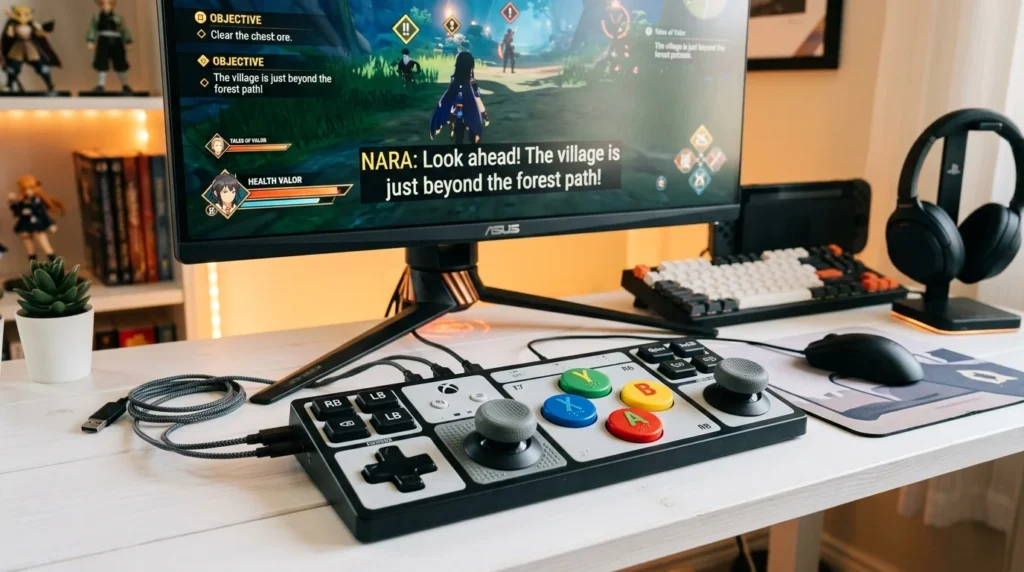
Minute 0–5: Start in a Safe Space
- Load a tutorial or practice arena, not a live mission
- Open Settings/Options menu
Minute 5–10: Fix What You See
- Enable subtitles and increase text size to 150%
- If colors feel off, enable colorblind mode and test it
- Bump UI scale to 120% minimum
Minute 10–20: Fix How You Control
- Remap your three most-used buttons to spots that feel natural
- Try toggling Sprint and Jump (hold → tap to toggle)
- Enable input buffering if available
- Test movement in the practice area
Minute 20–25: Fix What You Hear
- Enable sound visualizer (if available)
- Test mono audio by turning off one ear’s speaker
- Enable captions for environmental sounds
Minute 25–30: Difficulty & Pacing
- Lower combat difficulty one notch (keep puzzle difficulty normal if you prefer challenge)
- Increase timer durations if puzzles feel rushed
- Enable simplified menus if available
Minute 30: Save and Test
- Save your profile if the game allows it
- Play a 10-minute mission or level with all settings enabled
- Adjust one thing at a time if something feels wrong
Pros and Cons: The Real Impact of Accessibility Options
Pros: What You Gain
| Pro | Details |
|---|---|
| Longer play sessions | Comfortable settings mean less hand fatigue, eye strain, or cognitive overload. You play for 3 hours instead of 30 minutes. |
| Story access | Subtitles and simplified UI mean you can follow the plot at your pace instead of missing details. |
| Social inclusion | Play the same games as your friends. Sit together, even if you use different settings. |
| Reduced stress | Extended timers and lower difficulty options remove anxiety about failing fast. |
| Customization | Every profile can have totally different settings. You and your sibling can share a console but play completely differently. |
Cons: Real Tradeoffs
| Con | Details | Solution |
|---|---|---|
| Challenge may decrease | Easy difficulty might make the game feel less exciting. | Use difficulty sliders. Lower combat but keep puzzles hard. |
| Settings vary by game | What you set up in Game A doesn’t transfer to Game B. | Take screenshots of your settings. Save profiles when available. |
| Anti-cheat conflicts | Third-party remapping tools can trigger anti-cheat bans. | Use only built-in game settings or platform-level remapping. |
| Online play restrictions | Some accessibility features disable in ranked/competitive modes. | Play casual matches or private lobbies with friends. |
Specialized Accessibility Hardware Worth Buying (2026 Edition)
Xbox Adaptive Controller
Price: $150 USD (₹12,400 INR approximately) Best for: Players with limited hand/arm mobility Why: Modular design lets you arrange buttons and sticks exactly where you need them. Industry standard. Drawback: High price, Xbox-first compatibility (works on PC but best on Xbox)
Foot Pedal Switch (USB)
Price: $25–80 USD (₹2,000–6,600 INR) Best for: Assigning actions to feet (jump, crouch, ability) Why: Simple plug-and-play, works on PC and consoles with USB support Drawback: Requires game support; not every game recognizes foot input
Eye Tracker
Price: $100–400 USD (₹8,200–33,000 INR) Best for: Players unable to use hands for aiming or camera control Why: Accurate, increasingly game-compatible, life-changing for some Drawback: Learning curve; needs calibration; not all games support it
Gaming Gloves with Grip Markers
Price: $15–40 USD (₹1,200–3,300 INR) Best for: Players with weak grip strength or tremors Why: Textured patches help fingers land on buttons consistently Drawback: Generic solution; doesn’t replace proper accessibility settings
One-Button Controller
Price: $40–120 USD (₹3,300–9,900 INR) Best for: Players with severe mobility limitations (cerebral palsy, spinal injuries) Why: Single large button cycles through actions; minimal dexterity needed Drawback: Slow input; requires game programming support for usefulness
Accessibility Across Popular Game Genres in 2026
Story-Driven Games (Accessibility: Excellent)
- Subtitles almost always included
- Difficulty affects combat only; puzzles remain separate
- Slower pacing naturally helps players who need time
- Best Example: The Last of Us, Baldur’s Gate 3, Elden Ring
Competitive Multiplayer (Accessibility: Moderate)
- Basic remapping always available
- Accessibility features often disabled in ranked play
- Custom game modes let friends play together with different settings
- Reality Check: Aim assist will get you flagged in competitive ranking; use in casual matches
Rhythm Games (Accessibility: Growing)
- Visual indicators showing when to hit (not just audio cues)
- Haptic feedback lets deaf players feel the beat
- Difficulty sliders for speed and complexity
- Challenge: Colorblind mode rarely implemented
Puzzle Games (Accessibility: Very Good)
- Turn-based gameplay removes time pressure
- Extended timers or no timers common
- Colorblind modes important for color-matching puzzles
- Innovation: Text-to-speech clues help players who struggle reading
Technical FAQ: Answers to Your Specific Questions
“Will accessibility settings slow down my game performance?”
No. Accessibility options like subtitles, text scaling, and colorblind modes don’t affect frame rates. Reduced motion might actually improve performance on older consoles by lowering GPU load.
“Can I save different accessibility profiles for different family members?”
Yes, on PlayStation, Xbox, and Switch. Each user account has its own settings. On PC, most games save per-profile too. Take screenshots of settings you don’t want to repeat.
“Do accessibility settings work in online multiplayer?”
Yes, generally—except ranked competitive play often restricts aim assist and auto-aim. Use private matches with friends or casual playlists.
“Why does my adaptive controller keep disconnecting?”
Usually a Bluetooth/USB issue. Restart the console, re-pair the controller, or update your Windows drivers if on PC. Outdated drivers are a common culprit for peripheral disconnect problems.
“Are there games made entirely for accessibility?”
Yes. Titles like Play the Past, Obra Dinn, and What Remains of Edith Finch prioritize accessibility from day one. Check AbleGamers for curated lists.
Quick Reference: Accessibility Checklist for Specific Disabilities
For Players Who Are Colorblind
- ✓ Enable colorblind mode (pick your type: Deuteranopia, Protanopia, Tritanopia)
- ✓ Increase UI contrast
- ✓ Avoid games where color is the only information channel (rare, but happens)
- ✓ Test settings in actual gameplay, not just menus
For Players with Low Vision
- ✓ Scale UI to 125–200% depending on screen distance
- ✓ Enable high contrast mode
- ✓ Increase HUD element size/opacity
- ✓ Reduce motion/screen shake if applicable
For Deaf or Hard-of-Hearing Players
- ✓ Enable subtitles with speaker labels
- ✓ Enable captions for sound effects ([explosion], [footsteps approaching])
- ✓ Use visual sound indicator mode (arrows showing enemy direction)
- ✓ Turn on haptic feedback if available
For Players with Limited Hand/Arm Mobility
- ✓ Use Xbox Adaptive Controller or third-party one-handed controller
- ✓ Enable aim assist
- ✓ Convert hold actions to toggles
- ✓ Remap heavy-use buttons to easy-to-reach spots
For Players with Cognitive or Processing Differences
- ✓ Enable extended/adjustable timers
- ✓ Separate difficulty sliders (easy combat, hard puzzles, or vice versa)
- ✓ Use text-to-speech for menus and dialogue
- ✓ Enable simplified UI if available
- ✓ Use practice modes without failure states
External Resources to Bookmark
- Microsoft Xbox Accessibility Hub — Official guide to Xbox accessibility features, adaptive controller setup, and Game Pass accessible titles.
- AbleGamers Foundation — Nonprofit organization providing resources, curated game lists, funding for adaptive equipment, and community forums for accessible gaming.
- International Game Accessibility Consortium (IGAC) — Developer resources, testing frameworks, and best practices for building accessible games.
Best Practices: How Game Developers Build Accessibility In
From Day One:
- Design with accessibility in mind, not as an afterthought
- Multiple difficulty axes (combat separate from puzzles)
- Redundant cues (audio + visual + haptic)
- Customizable input and timing windows
Testing Phase:
- Test with real players who have disabilities (not just developers imagining needs)
- Validate color contrast against WCAG standards
- Ensure keyboard and controller navigation works for all menus
- Provide closed captions with proper speaker labels
- Allow settings export/import so players can backup and share profiles
Post-Launch:
- Gather community feedback on accessibility
- Patch missing subtitle timing or caption errors
- Add accessibility features in major updates
- Document which features work offline vs. online
Setting Up Your Ideal Gaming Station (The Comfortable Setup)
Position Your Screen
- 24–30 inches from your eyes
- Top of screen at or slightly below eye level
- Reduce glare (position away from windows or use anti-glare screen)
Arrange Your Seating
- Feet flat on floor or footrest
- Back against chair support
- Arms at 90-degree angles when holding controller
- Neck in neutral position (not looking down or up)
Configure Your Controls
- Most-used buttons (jump, attack) under your strongest fingers
- Secondary actions on harder-to-reach buttons
- Spacing buttons wide enough you don’t accidentally hit two at once
Optimize Lighting
- Avoid bright backlighting behind your screen
- Use warm lighting (avoid blue light before bed)
- Dim if you’re sensitive to brightness
Set Audio Levels
- Dialogue at 100%, effects at 70%, music at 50% (adjust to taste)
- Use subtitles even if hearing is fine (cafes, roommates, late-night play)
- If mono audio, verify it’s working (one speaker test first)
Where to Get Help When Settings Don’t Work
Game Community Discords: Most games have Discord servers where accessibility experts help troubleshoot. Search “Game Name + Accessibility Discord.”
Platform Support:
- Xbox: Support.Xbox.com/Accessibility
- PlayStation: Playstation.com/Accessibility
- Nintendo: Support.Nintendo.com/Accessibility
- Steam: Community guides section (search “accessibility”)
Disability Gaming Orgs:
- AbleGamers (US-based, international outreach)
- One Hand Clapping Community (one-handed gaming tips)
- DeafGamers (deaf player community)
Technical Issues: For hardware conflicts (controller not recognized, audio cutting out), check that your device drivers are up to date. Outdated drivers are a frequent cause of accessibility feature failures on Windows.
The Future of Gaming Accessibility (2026 and Beyond)
What’s Here Now:
- Adaptive controllers becoming standard, not niche
- Machine learning improving auto-captions
- Eye tracking finally affordable
- Developer toolkits making accessibility easier to implement
Coming Soon:
- AI-generated real-time captions (beyond pre-recorded subtitles)
- Haptic vests for immersive feedback
- Brain-computer interfaces in early testing
- Real-time speech-to-text for team communication
The Big Picture: Accessibility isn’t a box to check. It’s fundamental game design. Games with strong accessibility sell better, attract more players, and create communities where everyone belongs.
Closing Thoughts: Start Small, Iterate, Share
You don’t need to enable every accessibility feature. Start with one or two that matter to you—maybe subtitles and button remapping. Play for 20 minutes. Add one more feature if it helps. Keep tweaking.
Share your optimal settings with friends who might play the same game. Take a screenshot of your accessibility menu. Post it to Discord or your gaming community. You might help someone discover a feature they didn’t know existed.
Gaming accessibility in 2026 is powerful, inclusive, and personal. The right combination of settings transforms gaming from frustrating to joyful. Your perfect setup is waiting—you just need to find it.