
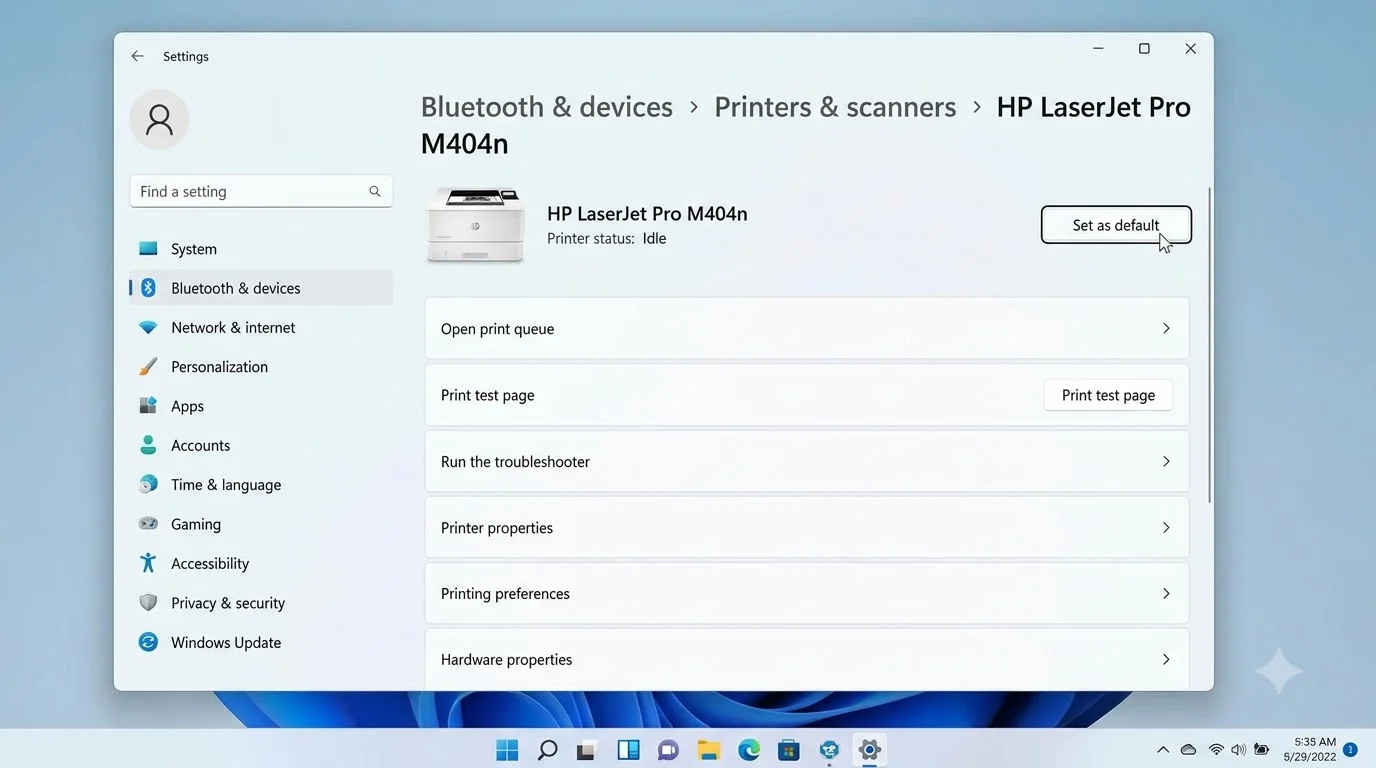
If you work with multiple printers—at home, in an office, or across different locations—you’ve probably experienced this frustrating moment: you send a print job expecting it to go to your desk printer, only to discover later that it printed to someone else’s device, or worse, disappeared into an unknown printer somewhere in the building.
This common printing problem wastes time, paper, and productivity. The solution is simpler than you think: setting your preferred default printer ensures every document automatically goes to the correct device without requiring manual selection each time.
Whether you’re printing spreadsheets in Excel, documents in Word, photos, emails, or PDFs, Windows can remember your preferred printer and automatically use it. This single setting eliminates printing errors, reduces wasted paper, and streamlines your workflow—especially valuable for remote workers managing multiple printing scenarios.
This comprehensive guide covers three different methods to set your preferred default printer (windows 11 & 10 ). We’ll explain what a default printer actually does, compare the easiest approach for different user types, provide troubleshooting solutions for common problems, and help you decide which method works best for your situation.
Quick Answer: What Is a Default Printer?
A default printer is the device Windows automatically selects whenever you print anything—documents, spreadsheets, images, emails, or PDFs—without requiring you to choose a specific printer each time.
Think of it this way: Without a default printer, every print action forces you to manually select which printer to use. With a default printer set, Windows handles this automatically, and the document prints immediately.
Real Benefits You’ll Actually Experience
| Benefit | What It Means for You |
|---|---|
| Faster Workflow | No printer selection dialog appears; documents print immediately |
| Fewer Mistakes | Documents go to the right device, eliminating embarrassing print mishaps |
| Better Productivity | Less time managing printing options, more time on actual work |
| Remote Work Friendly | Switch between home printer and office network printer seamlessly |
| Less Paper Waste | Prevents accidental prints to wrong devices that nobody retrieves |
| Simplified Setup | Reduces frustration, especially for less technical users |
Before You Start: Printer Prerequisites
Before adjusting default printer settings, verify these basics:
✅ Printer is physically installed (connected via USB, WiFi, or network)
✅ Printer appears in Windows Settings (Settings > Devices > Printers & scanners)
✅ Printer drivers are installed and current (updated through Windows Update or manufacturer website)
✅ Printer is powered on (most methods won’t work if the device is offline)
✅ Network printers have stable connection (WiFi or ethernet is reliably connected)
If your printer doesn’t appear in Windows settings yet, you may need to install it first using the official driver software from your printer maker’s support site, such as HP Printer Support, Canon Printer Support, or Epson Support.
Comparison: Which Method Is Right for You?
| Method | Difficulty | Time Required | Best For | Works On |
|---|---|---|---|---|
| Method 1: Settings App | Very Easy | 1-2 minutes | Most users, Windows 11 preferred | Windows 11 & 10 |
| Method 2: Control Panel | Easy | 2-3 minutes | Traditional users, reliable method | Windows 11 & 10 |
| Method 3: Print Dialog | Very Easy | <1 minute | Quick temporary changes | Windows 11 & 10 |
Our Recommendation: Start with Method 1 (Settings App) if you use Windows 11. It’s the most modern approach and takes the least time. If you’re comfortable with older Windows interfaces, Method 2 (Control Panel) works equally well.
Method 1: Set Default Printer Using Windows Settings (Recommended)
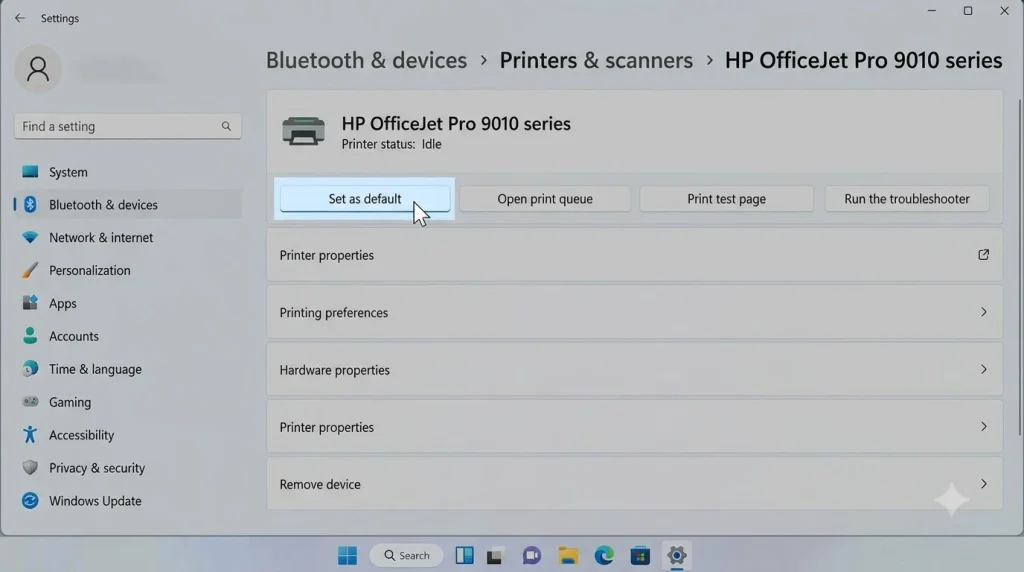
This is the easiest and most straightforward approach. Windows Settings is specifically designed for this task and provides the clearest interface.
Windows 11 Instructions
Step 1: Open Windows Settings
Press these keys together:
Windows + IThe Settings app opens. You should see “Home” or your current settings screen.
Step 2: Navigate to Printers & Scanners
Click the sidebar option:
Bluetooth & devicesThen click:
Printers & scannersYou’re now in the printer management section where all your installed printers appear.
Step 3: Turn Off Automatic Printer Management
Look for the toggle switch labeled:
Let Windows manage my default printerClick this toggle to turn it OFF (it should show as gray/disabled).
Why this matters: When this setting is enabled, Windows automatically switches your default printer to whatever you used most recently. By disabling it, you take manual control and keep your chosen printer as default regardless of recent usage.
Step 4: Select Your Preferred Printer
Scroll through the printer list and click on the printer you want to use as default.
Step 5: Click Set as Default
A button labeled:
Set as defaultappears below your selected printer. Click it.
Confirmation: Below the printer name, you should see the label:
DefaultThis confirms the setting is now active.
Windows 10 Instructions
Step 1: Open Settings
Navigate to:
Settings > Devices > Printers & scannersStep 2: Disable Automatic Management
Turn off:
Let Windows manage my default printerStep 3: Select Your Printer
Click on your preferred printer from the list.
Step 4: Click Manage
A “Manage” button appears. Click it to open printer options.
Step 5: Click Set as Default
The option appears in the management window.
Your printer is now set as the Windows 10 default.
Method 2: Set Default Printer Using Control Panel
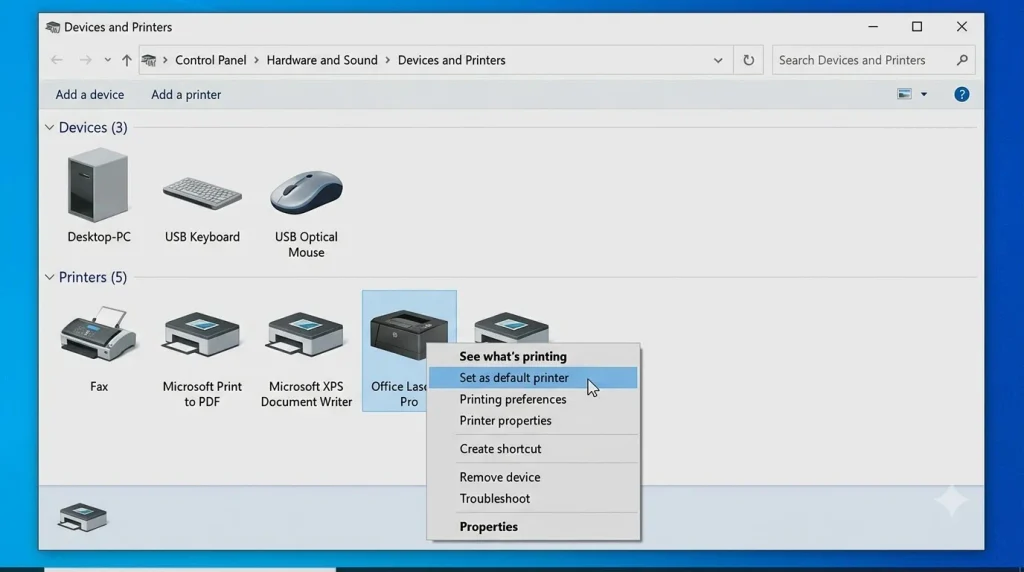
For users who prefer the traditional Windows Control Panel interface, this method offers a reliable alternative that’s been consistent across Windows versions.
Complete Steps
Step 1: Open Control Panel
Press the Windows key and type:
Control PanelClick the result that appears.
Step 2: Navigate to Devices and Printers
Inside Control Panel, find and click:
Hardware and SoundThen click:
Devices and PrintersAll your installed printers display on this screen.
Step 3: Find Your Preferred Printer
Locate the printer you want to set as default. Look carefully if you have multiple devices installed.
Step 4: Right-Click the Printer
Right-click on the printer icon or name.
A context menu appears with several options.
Step 5: Select “Set as Default Printer”
Click the option:
Set as default printerConfirmation: A small green checkmark appears on the printer icon, indicating it’s now your default device.
Why Some Users Prefer This Method
- Familiar interface (unchanged since Windows 7)
- Works reliably on both Windows 10 and 11
- Fast access to all printer settings
- Easy visual confirmation with the green checkmark
- No confusing toggles or automation options to understand
Method 3: Quick Printer Selection from Print Dialog
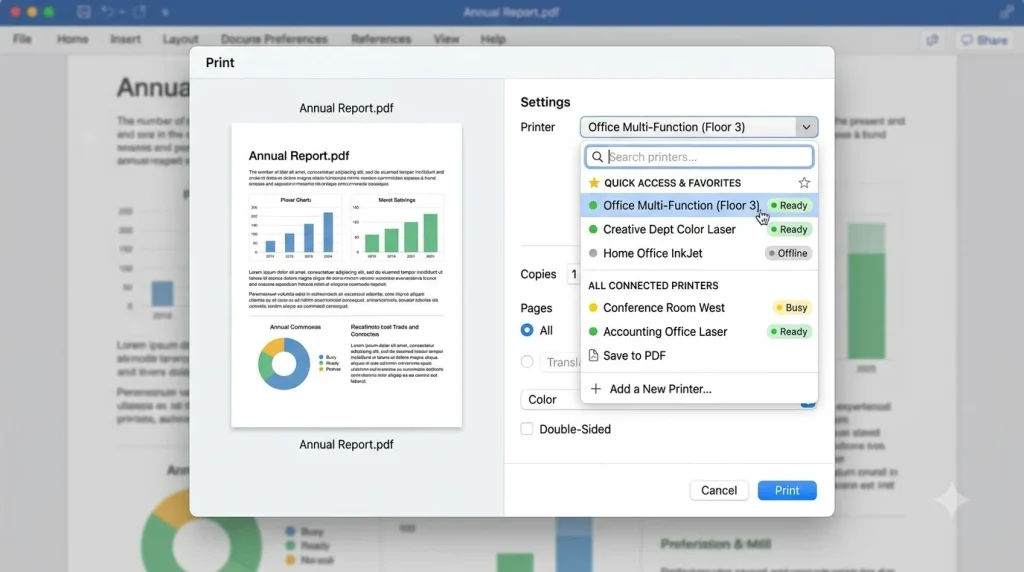
Sometimes you’re already in the middle of printing and want to quickly change your default printer or print to a different device without adjusting system settings.
Steps
Step 1: Open Any Document
Open something you want to print:
- Microsoft Word document
- PDF file
- Excel spreadsheet
- Photo
- Web page
- Email attachment
Step 2: Open the Print Dialog
Press:
Ctrl + PThe print dialog window appears, showing available printers.
Step 3: Select Your Preferred Printer
In the printer dropdown menu, select the device you want to use.
Step 4: Review Printer Preferences
Optional: Click “Preferences” to adjust:
- Color settings
- Paper size
- Quality settings
- Double-sided printing
Step 5: Click Print
Send your document to the selected printer.
Note: This method changes which printer you use for this specific print job only. It doesn’t permanently change your default printer. Use Methods 1 or 2 if you want a permanent default setting.
Real-World Scenarios: Which Method Should You Use?
Scenario 1: Work-from-Home Employee with Multiple Printers
Situation: You have a home printer connected via WiFi and use an office network printer when working from the office two days per week.
Best Approach: Use Method 1 (Settings) to set your home printer as the permanent default since you use it 60% of the time. When you’re at the office, use Method 3 (Print Dialog) to temporarily print to the office network printer without changing your default setting.
Why: This saves you from accidentally printing home documents at the office or office documents at home.
Scenario 2: Office Manager with 5+ Printers
Situation: Your office has color printers, black-and-white printers, and a specialty label printer. Different teams use different devices.
Best Approach: Use Method 2 (Control Panel) to set one primary printer as default (probably the most-used general printer), then train staff to use Method 3 (Print Dialog) for specialty printers when needed.
Why: Control Panel is more stable for complex setups with many devices. Staff can still use their preferred printer when needed without affecting the default.
Scenario 3: First-Time Windows User
Situation: You’re new to Windows and just installed your first printer.
Best Approach: Use Method 1 (Settings) with Windows 11, or Method 2 (Control Panel) with Windows 10. Both are equally simple with visual confirmation.
Why: These methods provide the clearest feedback confirming your setting worked correctly.
Scenario 4: Troubleshooting Printer Problems
Situation: You’re trying to fix a printing issue and need to change your default printer as part of troubleshooting.
Best Approach: Use Method 2 (Control Panel) because it provides the clearest view of all installed printers and any potential problems.
Why: Control Panel shows more detailed information about each device, helping identify issues.
Why Windows Sometimes Changes Your Default Printer (And How to Stop It)
The Problem
You set your default printer to Device A. But tomorrow, after using Device B once, Windows switches Device B to your new default. This frustrating behavior wastes your time and causes printing mistakes.
Why This Happens
When you have “Let Windows manage my default printer” enabled, Windows automatically switches your default to whatever printer you most recently used, especially at different physical locations.
This “feature” was intended to be helpful for people who move between office and home locations. In practice, it’s more annoying than useful.
The Solution
Disable automatic printer management immediately:
Windows 11:
Settings > Bluetooth & devices > Printers & scanners > Turn OFF "Let Windows manage my default printer"Windows 10:
Settings > Devices > Printers & scanners > Turn OFF "Let Windows manage my default printer"Once disabled, your default printer stays exactly as you set it, regardless of which device you use most recently.
Setting Up Network and Wireless Printers as Default
Network printers require slightly different considerations than USB-connected printers, but the process is nearly identical.
Prerequisites for Network Printers
✅ Printer is connected to your WiFi network (or wired ethernet)
✅ Printer has a stable IP address (usually provided by DHCP)
✅ Printer drivers are installed on your computer
✅ Network printer appears in Windows Printers & Scanners list
✅ Network is functioning and the printer is powered on
Setup Steps
Step 1: Connect Printer to Network
Most modern printers have WiFi setup through their control panel or a mobile app. Follow the printer manufacturer’s instructions to connect to your WiFi network.
Step 2: Verify Windows Recognition
Open:
Settings > Devices > Printers & scannersScroll through the list. Your network printer should appear with its model name.
Step 3: Install Drivers If Needed
If the printer doesn’t appear, download the driver from the manufacturer’s website and install it.
Step 4: Follow Method 1 or 2
Use either the Settings or Control Panel method described above to set it as default.
Step 5: Test Printing
Open a document and print to confirm it works correctly.
Advantages of Network Printers as Default
- Multiple computers on the same network can print to one device
- No USB cables cluttering your workspace
- Prints from mobile devices (phones, tablets) on the same network
- Shared resources in offices reduce equipment costs
- Central location for scanning/copying if the printer has these features
For Business Users: Managing Multiple Printer Types
Business environments often require managing different printers for different purposes.
Typical Business Printer Setup
| Printer Type | Primary Purpose | Suggested Default? |
|---|---|---|
| Black & White Laser | Daily documents, memos, reports | Yes (if it’s most-used) |
| Color Printer | Marketing materials, presentations, charts | No (select manually when needed) |
| Specialty (Label) Printer | Shipping labels, barcode labels | No (select manually) |
| Multifunction (Print/Scan/Copy) | General office work, scanning | Yes (good all-purpose device) |
| Large Format Printer | Blueprints, posters, engineering drawings | No (select manually) |
| Network Printer (Shared) | Team-wide printing | Usually yes (office standard) |
Recommendation for Business Settings
Set your most-used general printer as the default (usually the shared network printer or main office laser printer). Train employees to manually select specialty printers through the Print Dialog when needed, rather than changing the system default frequently.
This approach:
- Eliminates confusion about system defaults
- Reduces accidental prints to wrong devices
- Keeps settings stable for most users
- Allows flexibility for specialty printing needs
Troubleshooting: Common Default Printer Problems and Solutions
Problem 1: Printer Doesn’t Appear in the Printer List
Cause: Driver not installed, USB not connected, or network printer not detected.
Solutions:
- Restart the printer
- Physically reconnect USB cable (or restart WiFi router for network printers)
- Download and install the latest driver from the manufacturer website (see Microsoft’s printer support guidance for general driver help)
- Check Windows Update (Settings > Update & Security > Windows Update) for driver updates
- Restart your computer
Problem 2: “Set as Default” Button Is Missing or Grayed Out
Cause: Usually caused by “Let Windows manage my default printer” being enabled.
Solution:
Windows 11:
Settings > Bluetooth & devices > Printers & scanners > Turn OFF "Let Windows manage my default printer"Windows 10:
Settings > Devices > Printers & scanners > Turn OFF "Let Windows manage my default printer"Restart Settings and the button should now be available.
Problem 3: You Set a Default but Windows Changed It
Cause: Automatic printer management is still enabled.
Solution: Follow the instructions for “Problem 2” above to permanently disable automatic management.
Problem 4: Printer Shows as “Offline” and Won’t Print
Cause: Device is off, disconnected, or experiencing hardware issues.
Solutions:
- Power on the printer and wait 30 seconds for startup
- Check USB connection is secure (or WiFi connection is stable)
- For WiFi printers: restart your WiFi router
- Restart the Print Spooler service:
- Press Windows + R
- Type:
services.msc - Find “Print Spooler”
- Right-click > Restart
Problem 5: Multiple Printers Keep Switching Around
Cause: Multiple computers on a network are changing settings, or automatic management is still on.
Solution:
- Permanently disable “Let Windows manage my default printer” on every computer
- If using network printer: check printer’s network settings to ensure stable connection
- Restart your computer
Problem 6: Wireless Printer Connected but Not in Printer List
Cause: WiFi connection issues or driver not installed.
Solutions:
- Verify printer is connected to the same WiFi network as your computer
- Restart the printer
- Go to printer manufacturer’s website and download/install drivers
- Check Windows Update for printer driver updates
- Restart your computer
Windows 11 vs Windows 10: Key Printer Differences
| Feature | Windows 11 | Windows 10 |
|---|---|---|
| Default Method | Settings app (modern) | Settings or Control Panel |
| Printer Management | Same basic functionality | Same basic functionality |
| Network Printer Support | Excellent | Excellent |
| Wireless Printing | Excellent (improved) | Good |
| Driver Support | Latest drivers preferred | Good driver support |
| Automatic Management Toggle | Same toggle available | Same toggle available |
| Print Spooler | Works identically | Works identically |
For most users: The process is nearly identical between Windows 11 and 10. The main difference is that Windows 11 moved the settings from “Devices” to “Bluetooth & devices” for organizational clarity. You can read more about current Windows features on the official Microsoft Windows support site.
Advanced Tips: Best Practices for Multiple Printers
If you regularly work with multiple printers, follow these practices to stay organized and avoid frustration:
1. Rename Your Printers with Clear Names
Don’t rely on manufacturer model numbers. Instead, rename printers in your printer list to clearly identify them:
Good Printer Names:
Home_Color_Printer
Office_Main_Laser
Conference_Room_Printer
Label_Printer_Shipping
Avoid These Names:
HP OfficeJet 7740
XEROX WorkCentre 5845
Printer 1
Device
How to Rename (Windows 11):
- Settings > Bluetooth & devices > Printers & scanners
- Find printer
- Click it
- Select “Print server properties”
- Find the printer and rename it
2. Remove Unused Printers Periodically
Over time, old printers accumulate in your list (from previous jobs, old devices, guests’ printers). Remove these:
- Settings > Printers & scanners
- Find printer you no longer use
- Click it
- Click “Remove device”
This prevents accidentally selecting the wrong printer.
3. Update Printer Drivers Regularly
Manufacturers release driver updates that improve:
- Printing speed
- Reliability
- Security
- New feature support
Check the printer manufacturer’s website quarterly for driver updates.
4. Set One Primary Printer and Use Print Dialog for Others
Instead of constantly changing your default printer:
- Set your most-used printer as the permanent default
- Use Ctrl+P (Print Dialog) to temporarily select other printers
- This avoids confusion and accidental default changes
5. Use Print Preview Before Printing Important Documents
Press Ctrl+P and look at the preview to confirm:
- Correct printer is selected
- Correct page orientation (portrait/landscape)
- Correct paper size
- Document won’t look broken in the output
This simple habit prevents wasted paper and reprints.
Related Topic: Connecting Wireless Printers
If you haven’t yet connected a wireless printer to Windows, check out our detailed guide on how to easily connect a wireless printer to Windows. That guide covers the initial setup process, which is a prerequisite for setting your wireless printer as default.
Frequently Asked Questions
Q1: How do I set my preferred default printer in Windows 11?
A: Open Settings (Windows + I) > Bluetooth & devices > Printers & scanners. Turn off “Let Windows manage my default printer.” Select your preferred printer and click “Set as default.”
Q2: Why does Windows keep changing my default printer automatically?
A: The “Let Windows manage my default printer” setting is enabled. This causes Windows to automatically switch to whatever printer you most recently used. Disable this toggle in Printer Settings to stop the automatic changes.
Q3: Can I have more than one default printer?
A: No. Windows allows only one default printer at a time. However, you can quickly switch between printers using the Print Dialog (Ctrl+P) without changing your system default.
Q4: Do these methods work for wireless and network printers?
A: Yes. Wireless printers connected via WiFi and network printers (shared on your office network) work identically to USB printers. The setup process is the same once the printer is installed in Windows.
Q5: What if my printer is offline but still appears as default?
A: Windows may still show it as default even if it’s offline. Turn the printer back on and ensure it’s connected (USB or WiFi). Restart your computer if the printer still shows as offline.
Q6: Can I set different default printers for different applications?
A: Not directly through Windows settings. However, some applications (like Microsoft Office) have internal printer settings. Check individual application preferences, though most follow your system default printer.
Q7: Is Control Panel still available in Windows 11?
A: Yes. Control Panel remains fully functional in Windows 11, though Microsoft encourages using the modern Settings app. Both methods work equally well.
Q8: What should I do if the “Set as Default” button won’t appear?
A: Disable “Let Windows manage my default printer” in Printer Settings. Close and reopen Printer Settings. The button should then appear.
Q9: How often should I update printer drivers?
A: Check for updates quarterly, or whenever you experience printing issues. Windows Update often installs drivers automatically, but visiting the manufacturer’s website ensures the latest version.
Q10: Can guests on my WiFi print to my network printer?
A: Only if they’re on the same network and the printer drivers are installed on their computer. Many modern printers support guest printing through mobile apps or web interfaces, but this varies by printer model.
Conclusion: Taking Control of Your Printer Settings
Setting your preferred default printer is one of the simplest adjustments you can make in Windows—yet it dramatically improves your printing experience. Just a few minutes of configuration saves hours of frustration, wasted paper, and embarrassing printing mistakes.
The three methods we covered offer flexibility for different preferences:
- Method 1 (Settings): Best for Windows 11 users and anyone who wants the most modern, straightforward approach
- Method 2 (Control Panel): Perfect for traditional Windows users and complex multi-printer setups
- Method 3 (Print Dialog): Ideal for quick temporary printer changes without modifying your system default
The most important step is disabling “Let Windows manage my default printer.” This single toggle change prevents Windows from automatically switching your printer, ensuring your chosen device stays default indefinitely.
For the best printing experience going forward:
- Set your most-used printer as the permanent default
- Keep printer drivers updated from the manufacturer’s website
- Use the Print Dialog to temporarily select other printers
- Periodically remove unused printers from your list
- Use print preview before printing important documents
Whether you’re a home user with two printers or an office manager with dozens of devices, these methods keep your printing workflow smooth, reliable, and mistake-free.
Your next step: Choose the method that feels most comfortable, follow the instructions for your Windows version, and enjoy the improved printing experience that comes from having full control over your default printer.