
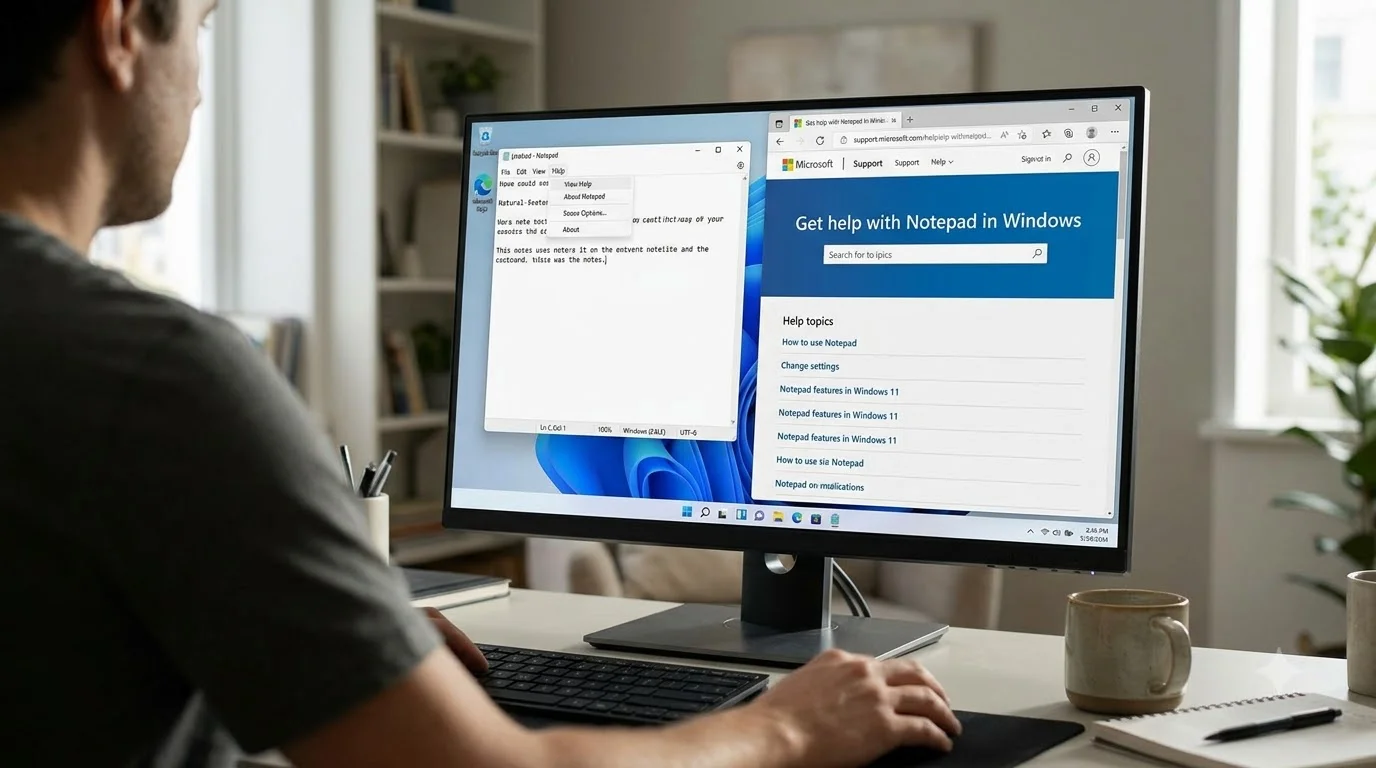
Notepad stands as one of Windows’ most enduring applications, remaining largely unchanged since its introduction in 1983. This simple text editor has become indispensable for millions of users worldwide—from developers writing code to regular users taking quick notes. What makes Notepad special isn’t what it has, but rather what it doesn’t have: no bloat, no complexity, no waiting for startup.
However, when Notepad stops working as expected, users often feel confused about where to find help. This comprehensive guide tell how to get help with notepad in windows with practical step-by-step solutions for every Notepad problem you might encounter, organized in a way that works for users in any country or time zone, regardless of whether you use Windows 11 or Windows 10.
What You’ll Learn:
- Exact steps to launch Notepad on your specific Windows version
- Solutions for startup failures, crashing, and freezing
- Techniques for recovering unsaved or deleted files
- How to use hidden features most people never discover
- Customization options to suit your preferences
- When Notepad is the right tool versus when other applications work better
Section 1: Finding and Opening Notepad
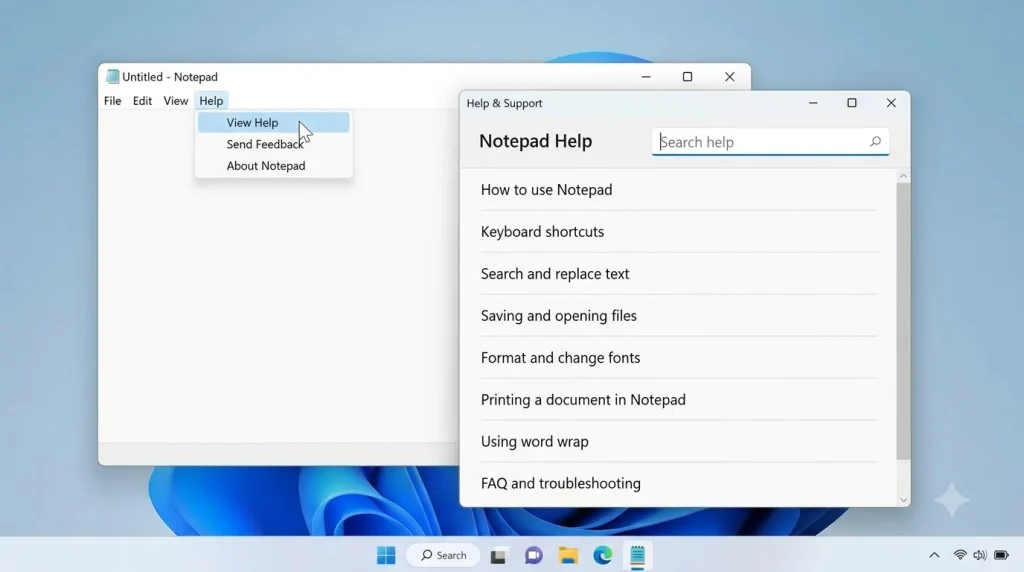
Method 1: Using Windows Search (Works on Windows 10 & 11)
The fastest way to launch Notepad on any modern Windows computer:
Step-by-step:
- Look for the Windows logo button (bottom-left corner of your screen)
- Click it once
- Type the word: notepad
- When “Notepad” appears in the search results, click it
- The application opens immediately (usually within 2-3 seconds)
Why this method works: Windows Search checks your system files every time you type, so it finds Notepad even if it’s been hidden or moved.
Method 2: Using the Start Menu (Windows 11 Specific)
Steps for Windows 11 users:
- Click the Windows Start button
- You’ll see an app list organized alphabetically
- Scroll down to the “N” section
- Look for “Notepad” with a document icon
- Click it to open
Method 3: Using File Explorer (Alternative Approach)
If search isn’t working:
- Press Windows key + E (opens File Explorer)
- Paste this path into the address bar:
C:\Windows\System32\ - Look for notepad.exe
- Double-click it
Note for International Users: This path is the same regardless of your system language or location.
Method 4: Creating a Desktop Shortcut (Convenience)
For fastest access:
- Open File Explorer
- Navigate to:
C:\Windows\System32\ - Find notepad.exe
- Right-click it
- Select “Create shortcut”
- Confirm saving the shortcut to your desktop
- Now you can launch Notepad by double-clicking the desktop shortcut
Section 2: Troubleshooting: Notepad Won’t Open
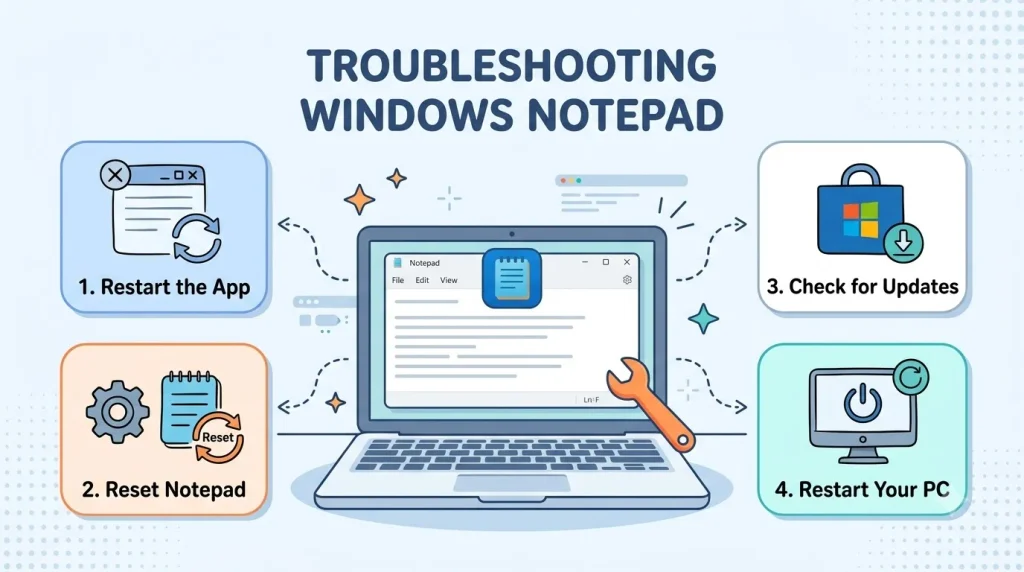
Diagnosis: Why Notepad Fails to Start
When you try to launch Notepad and nothing happens, one of these causes is responsible:
| Cause | Likelihood | Severity | Fix Difficulty |
|---|---|---|---|
| Windows needs updating | 45% | Moderate | Easy |
| Corrupted system files | 25% | High | Moderate |
| User permissions issue | 15% | Moderate | Moderate |
| Third-party software blocking it | 10% | Moderate | Hard |
| Disk space exhausted | 5% | High | Easy |
Solution 1: The Restart Method (Fixes 40% of Issues)
Before trying anything complex, restart your computer:
Steps:
- Click the Windows Start button
- Click the Power icon (circular button)
- Select “Restart”
- Wait 2-3 minutes for your computer to restart
- Try opening Notepad again using the search method
Why this works: Restarting clears temporary system memory, resets running processes, and allows Windows to reload fresh copies of essential files.
Solution 2: Update Windows (Fixes 35% of Issues)
Outdated Windows versions contain bugs that prevent applications from functioning:
For Windows 11:
- Press Windows key + I (opens Settings)
- Click “System” in the left menu
- Click “About”
- Look for “Windows Update settings”
- Click “Check for updates”
- If updates appear, click “Install now”
- Restart your computer when prompted
- Try Notepad again
For Windows 10:
- Press Windows key + I
- Click “Update & Security”
- Click “Check for updates”
- Install any available updates
- Restart your computer
- Attempt to open Notepad
Why this matters: Each Windows update includes fixes for application compatibility. Missing even one update can cause startup failures.
Solution 3: Reinstall Notepad Completely (Fixes 20% of Issues)
Windows 11 Reinstallation Process:
- Press Windows key + I (Settings)
- Click “Apps”
- Click “Apps & features”
- Scroll until you find “Notepad”
- Click the three-dot menu next to it
- Select “Uninstall”
- Confirm by clicking “Uninstall” again
- Wait for removal (usually 30-60 seconds)
- Now go back to: Settings > Apps > Optional features
- Click the plus sign: “Add a feature”
- Type: notepad
- Select “Notepad” from results
- Click “Next”
- Click “Install”
- Restart your computer
- Try opening Notepad
Windows 10 Reinstallation Process:
- Right-click the Windows Start button
- Click “Apps and Features”
- Find “Notepad” in the list
- Click it once to highlight
- Click “Uninstall”
- Confirm deletion
- Go to: Settings > Apps > Apps & features > Optional features
- Click “Add a feature”
- Search for and select “Notepad”
- Click “Install”
- Restart when finished
Section 3: Fixing Notepad Crashes and Freezing

Understanding Crash Causes
| Symptom | Likely Cause | Solution Time |
|---|---|---|
| Crashes after opening | Corrupted settings | 5 minutes |
| Crashes when saving | Disk space issue | 10 minutes |
| Crashes when opening specific files | File format conflict | 15 minutes |
| Random freezes | System memory shortage | 20 minutes |
| Crash on startup (every time) | System file corruption | 30 minutes |
Fix 1: Reset Notepad to Default Settings
Steps:
- Press Windows key + I
- Navigate to: Apps > Apps & features
- Find and click “Notepad”
- Click “Advanced options”
- Scroll down
- Click the “Reset” button
- Confirm by clicking “Reset” again
- Wait for the reset to complete
- Open Notepad again
This removes any problematic settings while keeping your saved files intact.
Fix 2: Free Up Disk Space (Prevents Crashes)
Low disk space causes many applications to freeze or crash:
Check your available space:
- Open File Explorer
- Click “This PC”
- Look at your C: drive
- If the progress bar appears mostly full (red), you need space
How much space is needed: At least 10 GB free for Windows to function properly.
Quick space-clearing steps:
- Delete old downloads (they’re usually not needed)
- Empty the Recycle Bin
- Delete temporary files
- Uninstall programs you no longer use
Fix 3: Repair Windows System Files
Using System File Checker (Advanced):
- Press Windows key
- Type: cmd
- Right-click “Command Prompt”
- Select “Run as administrator”
- Type:
sfc /scannow - Press Enter
- Let it run completely (15-30 minutes)
- Restart your computer
This command finds and repairs damaged Windows system files automatically.
Section 4: File Problems – Can’t Save or Find Files
Problem: “I Can’t Save My File”
| Error Message | Cause | Solution |
|---|---|---|
| “Access Denied” | Permission problem | Check folder permissions |
| “Disk Full” | No storage space | Delete unnecessary files |
| “File is Read-Only” | File protection enabled | Right-click > Properties > uncheck Read-Only |
| “Invalid Filename” | Bad characters used | Use different filename characters |
| No error, file doesn’t appear | Wrong save location | Check Documents/Desktop folders |
Solution for Permission Errors
Steps:
- Open File Explorer
- Find the folder where you want to save
- Right-click the folder
- Select “Properties”
- Click the “Security” tab
- Click “Edit”
- Select your username
- Check the box next to “Modify”
- Click “Apply”
- Click “OK”
- Try saving again
Solution for “Disk Full” Error
Quick steps:
- Press Windows key + E
- Right-click your C: drive
- Click “Properties”
- Check the available space shown
- If less than 1 GB is free, you need to delete files
- Delete: old downloads, duplicate files, unused applications
Solution: Characters to Avoid in Filenames
Windows doesn’t allow these characters: **< > : ” / \ | ? ***
Instead of this: Report: Final (2026).txt Use this: Report - Final 2026.txt
Section 5: Hidden Features and Advanced Tools
Feature 1: Word Wrap (Automatic Line Breaking)
What it does: Text automatically moves to the next line when reaching the right edge, preventing horizontal scrolling.
How to enable:
- Open Notepad
- Click the “View” menu
- Click “Word wrap”
- A checkmark appears when active
When to use:
- Writing notes or articles
- Composing emails
- Creating documents for reading
When NOT to use:
- Editing code (line breaks affect programming)
- Working with configuration files (.ini, .cfg)
- Handling data files where structure matters
Feature 2: Find and Replace (The Power Tool)
Opening Find:
Press Ctrl + F (works on any keyboard worldwide)
- A search box appears at the top
- Type what you’re searching for
- Press Enter to find the first occurrence
- Press Enter again to find the next match
Opening Replace:
Press Ctrl + H
- Type what you want to find
- Type what you want to replace it with
- Click “Replace” (changes one instance)
- Click “Replace All” (changes every instance)
Practical uses:
| What You Want | Find | Replace | Result |
|---|---|---|---|
| Remove extra spaces | ” ” (two spaces) | ” ” (one space) | Cleaner text |
| Fix repetition | “is is” | “is” | Correct grammar |
| Update contact info | “john@old.com“ | “john@new.com“ | Fresh information |
| Standardize format | “—” (dash) | “-” (hyphen) | Consistent style |
Feature 3: Going to a Specific Line
Using Go To:
Press Ctrl + G
- A dialog box opens
- Type the line number
- Press Enter
- Cursor jumps to that line
This is useful when working with code or configuration files.
Feature 4: Inserting Date and Time
Quick insertion:
Press F5
- Current date and time insert at cursor position
- Format depends on your Windows language/location settings
Section 6: Customizing Notepad for Your Needs
Changing Font Size (Easy Solution for Vision)
Method 1: Using View Menu
- Open Notepad
- Click “View”
- Look for font or zoom options
- Adjust as needed
Method 2: Keyboard Shortcut
- Hold Ctrl
- Roll mouse wheel up (larger) or down (smaller)
- Text size changes instantly
Recommended sizes:
| Use Case | Font Size | Reason |
|---|---|---|
| General writing | 12-14 pt | Balanced readability |
| Code editing | 11-12 pt | See more content |
| Accessibility | 16+ pt | Easier for vision needs |
| Dense information | 10 pt | Fit more on screen |
Selecting the Right Font
Available fonts for Notepad:
| Font Name | Best For | Characteristics |
|---|---|---|
| Cascadia Code | Programming | Clear symbols, monospace |
| Consolas | Code editing | Professional, monospace |
| Courier New | Typewriter style | Classic look, monospace |
| Segoe UI | General use | Modern, clean appearance |
| Arial | Professional documents | Universal, sans-serif |
How to change font:
- Click “View” in the menu
- Look for “Font” option
- Select your preferred font
- Choose size
- Click “OK”
Enabling Dark Mode (Windows 11)
Steps:
- Press Windows key + I (Settings)
- Click “System”
- Click “Display”
- Under “App theme,” select “Dark”
- Open Notepad
- The interface now appears dark
Benefits of dark mode:
- Reduces eye strain during evening work
- Saves battery on modern laptops
- Preferred by many developers and writers
Section 7: Recovering Lost Files and Data
Accidental Deletion: Recovery Steps
Step 1: Check Recycle Bin
- Right-click your desktop
- Click “Recycle Bin”
- Look for your file
- If found, right-click it
- Select “Restore”
- File returns to original location
Step 2: Use File History (Automatic Backup)
Windows automatically backs up your files:
- Press Windows key + I
- Navigate to: System > Storage
- Look for “Advanced storage options”
- Click “File History”
- Find the file you want to recover
- Select it
- Click “Restore”
Step 3: Search for Temporary Files
When Notepad crashes, Windows saves emergency copies:
- Press Windows key + E
- Click “View”
- Check “Hidden items”
- Navigate to:
C:\Users\[YourUsername]\AppData\Local\Temp - Look for files with “~” in the name
- These might be your lost document
Step 4: Use Previous Versions
For files saved before deletion:
- Open File Explorer
- Go to where you usually save files
- Right-click the folder
- Select “Restore previous versions”
- Choose a version from before deletion
- Click “Restore”
Files Never Saved (Unsaved Work)
Unfortunately, if you closed Notepad without saving and no automatic backup exists, recovery is not possible. However, modern Windows versions often create temporary backups automatically.
Section 8: Notepad File Types Guide
Notepad works with many file formats beyond just .txt:
| File Extension | Full Name | Common Use | Safe to Edit |
|---|---|---|---|
| .txt | Text File | Notes, documents | ✓ Yes |
| .log | Log File | System messages, errors | ✓ Yes |
| .ini | Configuration File | Program settings | ✓ Yes (careful) |
| .cfg | Configuration File | System settings | ✓ Yes (careful) |
| .bat | Batch Script | Automated Windows tasks | ✓ Yes |
| .cmd | Command Script | System commands | ✓ Yes |
| .html | Web Page | Website code | ✓ Yes |
| .css | Style Sheet | Website appearance | ✓ Yes |
| .js | JavaScript | Web interactivity | ✓ Yes |
| .xml | Data Format | Structured data | ✓ Yes |
| .json | Data Format | Application data | ✓ Yes |
| .csv | Spreadsheet Data | Import to Excel | ✓ Yes |
| .py | Python Code | Programming | ✓ Yes |
| .exe | Executable | Program file | ✗ No (binary) |
| .dll | Library | System file | ✗ No (binary) |
| .zip | Compressed | Archive file | ✗ No (binary) |
Important: Just because Notepad can open a file doesn’t mean you should edit it. Binary files (like .exe or .jpg) will show meaningless characters if opened in Notepad.
Section 9: Complete Keyboard Shortcuts Reference
Master these combinations to work faster:
| Shortcut | Action | Use Case |
|---|---|---|
| Ctrl + N | New document | Start fresh |
| Ctrl + O | Open file | Retrieve saved work |
| Ctrl + S | Save file | Store your work |
| Ctrl + Shift + S | Save As | New name or location |
| Ctrl + P | Send to printer | |
| Ctrl + F | Find text | Locate words/phrases |
| Ctrl + H | Find & Replace | Change multiple instances |
| Ctrl + A | Select all | Highlight everything |
| Ctrl + C | Copy | Duplicate text |
| Ctrl + X | Cut | Remove and copy |
| Ctrl + V | Paste | Insert copied content |
| Ctrl + Z | Undo | Reverse last action |
| Ctrl + Y | Redo | Repeat an action |
| Ctrl + G | Go to line | Jump to specific line |
| F5 | Insert date/time | Add current timestamp |
| Ctrl + Mouse wheel | Zoom | Adjust text size |
| Alt + Tab | Switch apps | Move between programs |
Pro tip: Learning 5-10 of these shortcuts can double your typing speed.
Section 10: When to Use Notepad vs. Other Applications
Use Notepad When:
- Speed matters – It opens in 1-2 seconds
- Simplicity preferred – No learning curve
- Plain text only – No special formatting needed
- File size small – Minimal computer resources
- Quick notes – No permanent document required
- Code editing – Programming and scripts
- Removing formatting – Paste styled text to strip formatting
Use Microsoft Word Instead:
- Professional documents – Reports, resumes, letters
- Formatting required – Bold, italic, colors, styles
- Collaboration needed – Multiple people editing
- Images needed – Inserting pictures and diagrams
- Complex layouts – Advanced page design
- Spell checking – Grammar and spelling tools
- Template use – Pre-designed document formats
Consider Notepad++ Alternative:
- Syntax highlighting – Color-coded code elements
- Multiple files – Work on many documents at once
- Advanced search – Powerful find and replace
- Programming projects – Professional code editing
Section 11: Frequently Asked Questions
Q1: Is Notepad truly free?
A: Yes. Notepad is included with Windows at no cost. There are no subscriptions, hidden fees, or premium versions. This has remained true since 1983 and will continue in 2026.
Q2: Can Notepad handle very large files?
A: Notepad can technically open files over 1 GB, but performance decreases significantly. For optimal performance, keep files under 500 MB. For very large files, alternative text editors perform better.
Q3: What’s the difference between Save and Save As?
A:
- Save (Ctrl + S): Stores changes to the existing file with the same name and location
- Save As (Ctrl + Shift + S): Creates a copy with a new name or saves to a different location, leaving the original unchanged
Q4: Why do I see strange characters when opening a file?
A: This occurs when opening binary files (like .exe or image files) in Notepad. These files contain data Notepad cannot interpret as text. Don’t edit binary files in Notepad—use their proper applications instead.
Q5: Can I recover a file I didn’t save before closing Notepad?
A: Recovery depends on whether Windows created an automatic backup. Check the Temp folder and File History. However, if no backup exists, the file cannot be recovered. Always save important work immediately.
Q6: How do I make Notepad open .txt files by default?
A:
- Right-click any .txt file
- Select “Open with”
- Choose “Notepad”
- Check “Always use this app”
- Click “OK”
Q7: Why won’t Notepad open even after restarting?
A: Try these in order: Update Windows → Reinstall Notepad → Run System File Checker → Check if another program is blocking it → Restore from Windows backup.
Q8: Does Notepad work without internet?
A: Completely offline. Notepad requires no internet connection, cloud account, or online service. It works reliably whether connected or disconnected.
Q9: Can I change Notepad’s default save location?
A: Notepad doesn’t have a default save location setting. Each save requires manual location selection. Create a desktop shortcut to your preferred folder for convenience.
Q10: Is it safe to edit Windows system files in Notepad?
A: Proceed with extreme caution. Editing critical system files (.sys, .dll) can break Windows. Use Registry Editor for registry files, not Notepad. When in doubt, consult official documentation first.
Section 12: International Support and Regional Considerations
Notepad works identically across all regions and languages:
- Date/time format adjusts to your system locale
- Keyboard input supports all languages
- File paths work the same worldwide
- Menu translations appear in your Windows language
For users outside English-speaking regions, all solutions in this guide apply directly to your system regardless of:
- Your country or time zone
- Your native language
- Your Windows language setting
- Your keyboard layout
Section 13: External Resources for Further Help
For specific issues beyond this guide:
Official Microsoft Support: https://support.microsoft.com/windows – Complete Windows documentation and troubleshooting from Microsoft’s official team
Windows Help Community: https://answers.microsoft.com – Real users and Microsoft staff answering Windows questions
System Optimization Resources: When optimizing your Windows workflow, understanding peripheral settings like setting your preferred default printer in Windows becomes valuable, especially when printing documents from Notepad.
Final Recommendations: Getting Maximum Value From Notepad
Notepad succeeds because it solves genuine problems: instant startup, reliable operation, and zero unnecessary complexity. Whether you’re troubleshooting a specific issue or exploring advanced features, the strategies in this guide address virtually every scenario.
Key takeaways:
- Check menus first – Most answers are built into the application
- Start simple – Try restart before complex solutions
- Keep Windows updated – Updates prevent most issues
- Use keyboard shortcuts – Dramatically increase your speed
- Know your tool – Use Notepad where it excels, other tools where they shine
By following these practical solutions and understanding when Notepad is the right tool for your task, you’ll maintain reliable, efficient operation for years to come.
2026 is the perfect time to master Notepad – its stability, speed, and unchanging interface make it one of your most valuable Windows tools.