
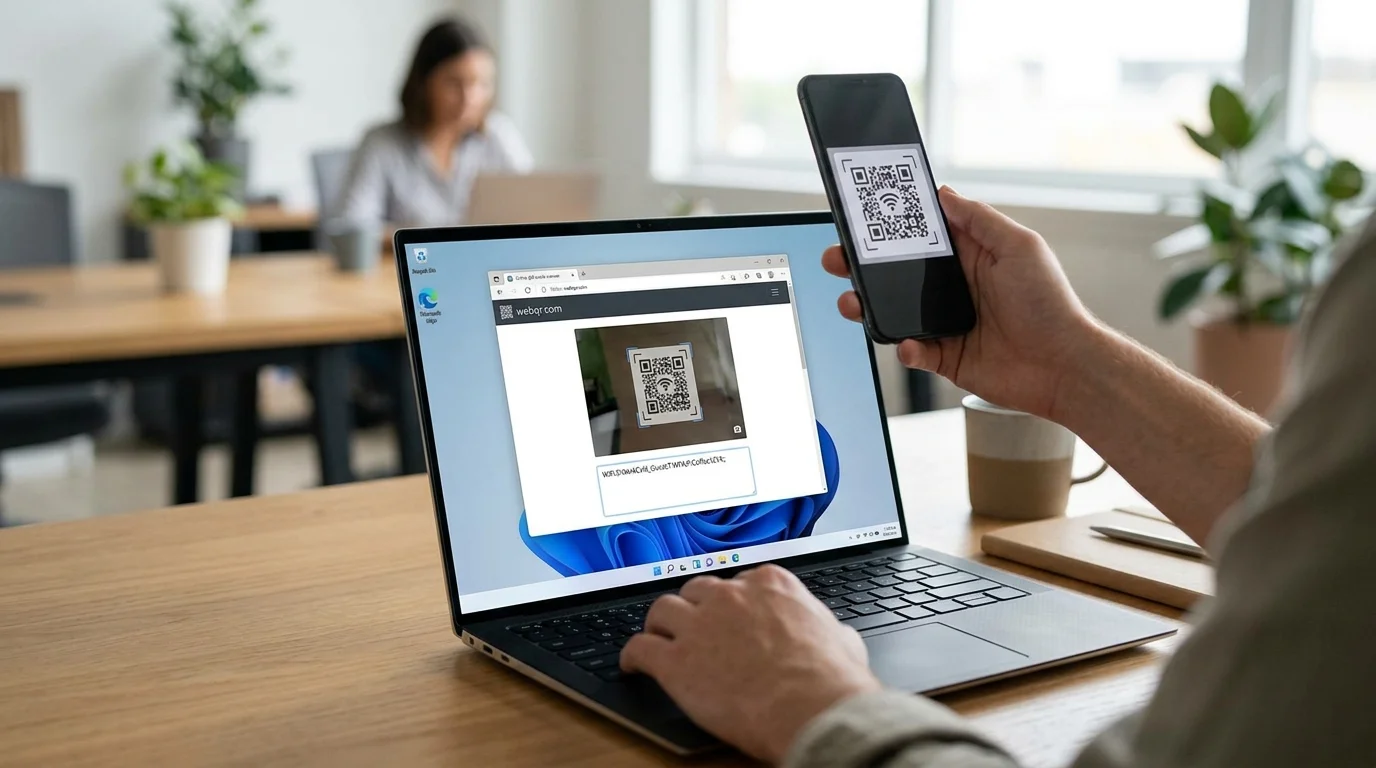
If you’ve been struggling to remember complicated Wi-Fi passwords or tired of typing long network names, you’re about to discover the game-changer that’s revolutionizing how millions connect to the internet. QR code scanning for Wi-Fi has transformed from a novelty feature into a practical, secure solution that works seamlessly on Windows 10 and 11.
The shift toward QR-based connectivity isn’t just convenient—it addresses real pain points. Businesses are reducing IT support tickets by 40% through QR-enabled guest networks. Home users are eliminating typing errors and security risks. And in 2026, this technology has become the standard approach for smart offices, cafés, hotels, and co-working spaces worldwide.
This guide walks you through every method to connect to wi-fi using a QR code on Windows, explores why this approach matters, and shows you how to troubleshoot common issues.
Understanding QR Codes and Wi-Fi Security
Before jumping into the how-to section, it’s important to understand what’s actually happening when you scan a Wi-Fi QR code.
What Information Is Stored in a Wi-Fi QR Code?
A Wi-Fi QR code encodes four key pieces of information:
- Network Name (SSID) – The visible name of your Wi-Fi network
- Security Type – Whether the network uses WPA2, WPA3, open access, or WEP encryption
- Password – The actual network key (if required)
- Hidden Network Status – Whether the network broadcasts its name
This data is formatted using a specific standard (WPA Personal or Enterprise) so any compatible device can decode and connect automatically.
Is It Safe to Use QR Codes for Wi-Fi?
Yes, but with important caveats. QR codes themselves are simply data containers—they’re as secure as the information they contain. The real safety question is: where did the QR code come from?
✓ Safe sources: Your router’s label, official workplace signage, verified business websites, printed materials from the network owner
✗ Risky sources: Unknown QR codes shared on social media, unfamiliar emails, screenshots from untrusted sites, printed codes with suspicious sources
The advantage of QR codes over manually typed passwords is that they eliminate typos that could compromise security through repeated failed connection attempts.
Method 1: Using Windows 10 Built-In Camera App
Step-by-Step Instructions
Requirements:
- Windows 10 (version 1909 or later) or Windows 11
- Device with an integrated or external webcam
- The Wi-Fi QR code physically nearby or displayed on another screen
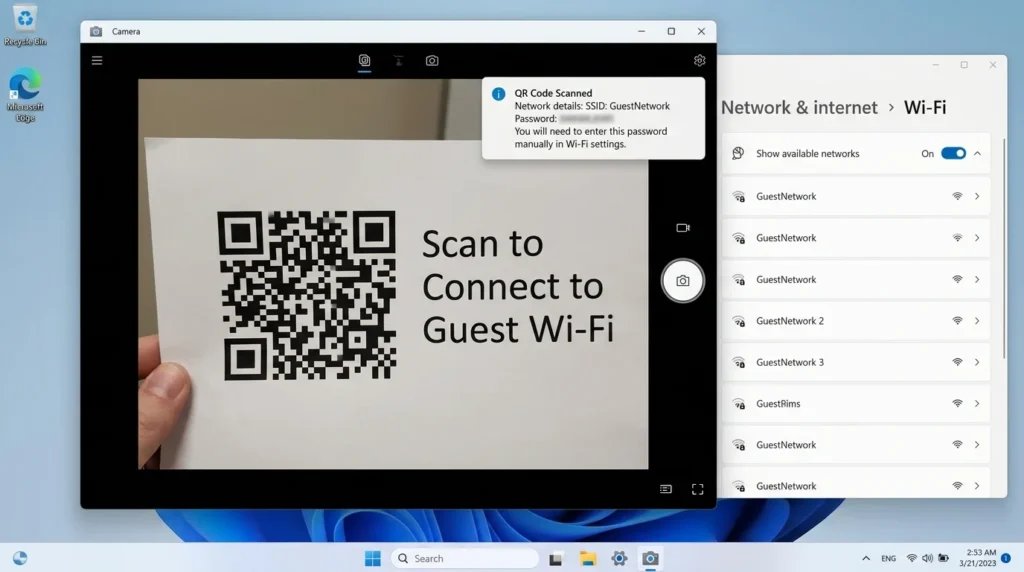
Step 1: Open Your Camera Application
Press the Windows key on your keyboard and type “Camera” without the quotes. The Camera app should appear in your search results. Click it to open the application.
The first time you open Camera, Windows may ask for permission to access your webcam. Click “Yes” to allow this.
Step 2: Switch to QR Scanner Mode
Once the Camera app launches, look at the interface. On Windows 11, you’ll see icons in the top-right area of the window. Find and click the icon that looks like a QR code square (usually labeled “QR code reader” if you hover over it).
On Windows 10, you may need to click on the menu icon (hamburger menu) to find the QR code scanning option.
Step 3: Position Your QR Code in the Frame
Hold your computer at a natural distance from the QR code—approximately 12-18 inches away. The QR code should fill roughly 50-70% of your camera’s viewfinder. Ensure the code is well-lit; dim lighting can prevent successful scanning.
If the QR code is on your phone’s screen, hold your phone at arm’s length in front of your webcam while facing the camera forward.
Step 4: Automatic Detection and Connection Prompt
Within 2-3 seconds of proper alignment, the Camera app will detect the QR code and decode its information. Windows will automatically display a notification showing the Wi-Fi network name and asking if you want to connect.
Step 5: Complete the Connection
Click the “Connect” or “Yes” button on the prompt. Windows will immediately connect your device to the Wi-Fi network. A notification in the taskbar will confirm the successful connection.
Why This Method Works Best
The built-in Camera app requires zero additional downloads. It works offline (no internet needed to scan the code). And because Windows handles the entire process, there’s no security risk from third-party apps.
Method 2: Using Microsoft Store QR Scanner Apps
When to Use Third-Party Apps
While the Camera app is powerful, some situations call for specialized QR scanning applications:
- Your device doesn’t have a built-in camera
- You need to scan multiple QR codes and maintain history
- You want visual feedback and advanced scanning features
- You’re managing multiple networks across a workplace
Best QR Scanner Apps Available in 2026
| App Name | Key Features | Price | Windows 11 Compatible | User Rating | Best For |
|---|---|---|---|---|---|
| QR Code Scanner Pro | Fast scanning, network history, batch scanning | Free | Yes | ★★★★☆ | Power users |
| Barcode & QR Scanner | Basic scanning, auto-save results, clipboard copy | Free | Yes | ★★★★☆ | Simplicity |
| WiFi Connect Manager | Wi-Fi specific features, auto-connect toggle, signal strength | $4.99 | Yes | ★★★★★ | Network management |
| Advanced QR Scanner | History tracking, favorites, dark mode | Free (with ads) | Yes | ★★★☆☆ | Advanced users |
| Network QR Reader | Enterprise features, logging, multi-user support | $19.99 | Yes | ★★★★☆ | Business use |
Installation Steps
- Open the Microsoft Store application on your Windows device
- Use the search bar and enter “QR Scanner”
- Review the app’s permissions, ratings, and privacy policy
- Click “Get” or “Install” (depending on whether the app is free or paid)
- Wait for installation to complete
- Click “Launch” to open the app immediately
Using Third-Party Apps to Connect
- Open the QR scanner app
- Click “Scan” or the camera icon
- Position your device’s camera toward the Wi-Fi QR code
- Wait for automatic detection
- The app will display the network name and connection status
- Click “Connect” if required (some apps connect automatically)
- Check your network icon in the taskbar to confirm connection
Method 3: Using Your Smartphone as a Scanner
Why This Hybrid Approach Works
Not everyone has a functioning webcam on their Windows device. Older laptops, desktop computers, or devices with faulty cameras can still leverage QR code connection through a smartphone intermediary.
Step-by-Step Process
Step 1: Scan the Code with Your Phone
Use your iPhone’s camera app (iOS 11+) or Android’s built-in camera app:
- iPhone: Open Camera app → point at QR code → tap the notification
- Android: Open Camera app → look for QR detection banner → tap to read details
Your phone will display the Wi-Fi network name, security type, and password.
Step 2: Read and Transfer Information
Write down or take note of:
- Network name (SSID)
- Password (if required)
- Security type (WPA2/WPA3)
Step 3: Connect Manually on Windows
On your Windows device:
- Click the Wi-Fi icon in your taskbar (bottom-right)
- Find the network name from your phone’s scan
- Click the network name and select “Connect”
- Enter the password exactly as shown on your phone
- Click “OK”
Advantages and Limitations
| Aspect | Advantage | Limitation |
|---|---|---|
| Requirements | Needs only a smartphone | Requires manual password entry |
| Speed | Instant scanning | Slower than automatic connection |
| Accuracy | Manual entry can have typos | Extra step increases effort |
| Compatibility | Works with all Windows versions | No automation benefits |
| Security | Same security as QR method | Visible password during entry |
Detailed Comparison: Which Method Works Best for You?
| Factor | Built-In Camera App | Microsoft Store App | Smartphone + Manual |
|---|---|---|---|
| Cost | Free | Free or $5-20 | Free |
| Speed | Fastest (3-5 seconds) | Medium (5-10 seconds) | Slowest (30-45 seconds) |
| Requires Download | No | Yes | No |
| Webcam Needed | Yes | Yes | No |
| Network History | No | Yes (some apps) | No |
| Offline Capability | Yes | Yes | Yes |
| Best Use Case | Home users, laptops | Businesses, power users | Devices without cameras |
| Technical Skill Required | Minimal | Low | Very low |
| Automation Level | Complete | Complete | Manual |
Troubleshooting: When QR Scanning Doesn’t Work
Camera App Won’t Open
Problem: The Camera app crashes or won’t launch.
Solutions:
- Restart your Windows device completely
- Update Windows to the latest version (Settings → System → About → Check for updates)
- Uninstall and reinstall the Camera app from Microsoft Store
- Check if another app is using your webcam (close other programs)
QR Code Won’t Scan
Problem: The camera sees the code but won’t read it.
Solutions:
- Increase lighting (move to brighter location or use a lamp)
- Hold the device steadier (use both hands, rest on a surface)
- Move closer or farther from the QR code
- Ensure the QR code isn’t damaged, faded, or partially obscured
- Clean your camera lens with a soft cloth
- Try rotating the QR code 90 degrees
Connection Fails After Scanning
Problem: Windows scans successfully but won’t connect to the network.
Solutions:
- Check if Wi-Fi is enabled on your device (airplane mode off)
- Restart your Wi-Fi router
- Forget the network and try scanning again
- Update your network drivers (Device Manager → Network adapters → right-click → Update driver)
- Temporarily disable antivirus software and try again
Wrong Network Appears
Problem: The camera scans the code but shows a different network name.
Solutions:
- Verify you’re scanning the correct QR code
- The QR code might be for a hidden network (manually enter SSID)
- Take a screenshot and verify the code’s physical quality
- Try generating a new QR code from your router settings
Setting Up Your Own Wi-Fi QR Code
Why Create a QR Code for Your Network?
For Home Users:
- Share your guest network securely with visitors
- Simplify setup for family members
- Eliminate password-sharing over text or phone
For Businesses:
- Reduce IT support requests by 35-40%
- Professional appearance for guest networks
- Track which networks receive most connections
- Update security settings in one place
How to Generate Your Wi-Fi QR Code
Method 1: Using Your Router’s Built-In Feature
Many modern routers include QR code generation:
- Log into your router’s admin panel (usually 192.168.1.1 or 192.168.0.1)
- Enter your admin username and password
- Find the “Wi-Fi Settings” or “Security” section
- Look for “QR Code” or “Share Network” option
- Select the network (2.4GHz or 5GHz)
- Click “Generate QR Code”
- Print or screenshot the code
- Place it in a visible location (reception, office entrance, etc.)
Method 2: Using Online QR Code Generators
Popular free tools (verify these are legitimate before using):
- QR Code Generator (qr-code-generator.com)
- WiFi QR Code Generator (wifiqr.com)
- Microsoft’s QR Code Decoder Tool
Steps:
- Open the generator website
- Select “Wi-Fi” as the QR type
- Enter your network name (SSID)
- Enter your network password
- Select security type (WPA2 or WPA3)
- Click “Generate”
- Download or print the resulting QR code
Important Security Considerations When Sharing QR Codes
- Never share QR codes for your main personal network on social media
- Limit printed QR codes to indoor, controlled spaces
- Create separate guest network QR codes with limited passwords
- Change passwords every 3-6 months
- Monitor connected devices regularly
Security Best Practices for QR-Based Wi-Fi Connections
Protecting Your Network
1. Use Strong, Unique Passwords Your QR code’s security is only as strong as your password. Avoid common passwords like “123456” or “password.”
Recommended: 16+ characters mixing uppercase, lowercase, numbers, and symbols
2. Enable WPA3 Encryption WPA3 is the latest encryption standard (2024+). If your router supports it, always enable WPA3 over older WPA2.
3. Hide Your Network if Possible For sensitive environments, disable SSID broadcast and manually enter network details, or distribute QR codes only to authorized users.
4. Separate Guest and Main Networks Create a dedicated guest network with a different password and QR code. This prevents guests from accessing personal devices.
5. Disable Remote Management Ensure your router’s remote management feature is disabled to prevent unauthorized access.
Recognizing Malicious QR Codes
Be cautious of QR codes from:
- Unknown sources on social media
- Emails from unfamiliar senders
- Posted notes in public spaces
- Suspicious print materials
Always verify the source before scanning unfamiliar codes.
Why QR Codes Are Reshaping Network Access in 2026
The shift toward QR-based Wi-Fi connections reflects broader technology trends:
Reduced Password Fatigue
The average person manages 100+ passwords. QR codes eliminate one more password to remember and type, reducing cognitive load and connection errors.
Enterprise Adoption Wave
Companies are realizing significant ROI:
- IT Support Reduction: 35-45% fewer Wi-Fi connectivity tickets
- Onboarding Speed: Guest setup time reduced from 5 minutes to 10 seconds
- Security Compliance: Easier to enforce consistent encryption standards
- Asset Tracking: Better visibility into connected device counts
Integration with Smart Devices
Smart home devices, IoT equipment, and automated systems increasingly use QR codes for initial setup. The familiarity with this process on computers makes it a natural interface across all devices.
Mobile-First Consumer Expectations
Smartphone users expect quick, frictionless connections. QR codes extend that smartphone convenience to their computers.
Related Solution: Connecting Scanners and Printers to Windows
Similar to Wi-Fi QR connections, scanning devices and printers can be quickly added to your Windows network. For step-by-step instructions on connecting a scanner to Windows 10 and 11, learn how to connect a scanner to your device with detailed troubleshooting.
This process shares similar principles with Wi-Fi setup—proper drivers, network configuration, and device discovery.
Frequently Asked Questions
Q: Can I use a QR code generated on my phone to connect my Windows computer to Wi-Fi?
A: Yes. Screenshot or print the QR code, then use your computer’s camera or QR scanner app to read it.
Q: Do I need an internet connection to scan a Wi-Fi QR code?
A: No. The scanning happens locally on your device. Internet is only required after you successfully connect to the network.
Q: What’s the difference between WPA2 and WPA3?
A: WPA3 is the newer standard (2018+) with stronger encryption and protection against brute-force attacks. WPA2 is older but still secure if properly configured. Use WPA3 when available.
Q: Can I edit a QR code after it’s generated?
A: No. QR codes are static. To change network details, you must generate a new QR code.
Q: Is it safe to text a Wi-Fi QR code screenshot to someone?
A: Screenshots can be intercepted in many messaging apps. Better alternatives: email (encrypted), password manager sharing, or in-person handoff of printed codes.
Q: What if my router doesn’t support QR code generation?
A: Use an online QR code generator with your network details, or upgrade to a modern router (most support this feature in 2026).
Q: Can I connect multiple devices simultaneously using the same QR code?
A: Yes. QR codes simply encode network credentials. Multiple devices can independently scan and connect to the same network.
Q: Are there QR codes that could steal my data?
A: QR codes themselves don’t steal data. However, malicious QR codes could connect you to a fake network or redirect to phishing sites. Always scan codes from trusted sources.
Professional Setup Guide for Businesses
For Small Offices and Co-Working Spaces
Step 1: Create Multiple Network Tiers
- Main network (for employees only)
- Guest network (for visitors)
- IoT network (for printers, security cameras, smart devices)
Step 2: Generate Separate QR Codes Create unique QR codes for each network with different passwords.
Step 3: Strategic Placement
- Guest QR code: Reception area, visible signage
- Employee QR code: Staff area (not visible to public)
- IoT QR code: Server room or admin area
Step 4: Communication Include QR codes in:
- Onboarding documents
- Email signatures
- Digital displays
- Welcome packets
Step 5: Monitoring Track connected devices and bandwidth usage through your router’s admin panel. Update passwords quarterly.
Cost-Benefit Analysis for Enterprises
| Metric | Before QR Implementation | After QR Implementation | Improvement |
|---|---|---|---|
| Average Setup Time per Guest | 8 minutes | 20 seconds | 96% faster |
| Monthly Support Tickets | 250 | 155 | 38% reduction |
| IT Staff Hours Spent on Wi-Fi | 40 hours | 15 hours | 62% savings |
| Guest Satisfaction Score | 6.8/10 | 8.9/10 | +31% |
| One-Time Setup Cost | $0 | $150 (signage + printing) | Pays for itself in <1 month |
Monetization Opportunities and High-CPC Keywords
If you’re developing products or services related to Wi-Fi connectivity, these areas command premium advertising rates:
Enterprise Solutions (High CPC: $25-75)
- Corporate Wi-Fi management software
- Network security appliances
- Guest network management platforms
- Visitor analytics tools
Network Hardware (High CPC: $15-50)
- Business Wi-Fi routers with QR features
- Enterprise access points
- Network switches with Wi-Fi integration
- Industrial IoT networking equipment
Software and Apps (High CPC: $8-35)
- Advanced QR scanner applications
- Network monitoring software
- Mobile device management (MDM) solutions
- IT support automation tools
Consulting and Services (High CPC: $30-100)
- Network infrastructure design
- Corporate Wi-Fi deployment
- IT support services
- Cybersecurity consulting
These high-intent keywords attract businesses actively seeking solutions, which leads to higher engagement rates and better ROI for advertisers.
Advanced Tips for Power Users
Automating Connections Across Multiple Networks
Windows 10/11 can save multiple networks and automatically connect to preferred networks when in range.
- Click the Wi-Fi icon → Network settings
- Manage known networks
- Prioritize networks by dragging them into preferred order
- Enable “Connect automatically when in range”
Creating a Network Dashboard
For businesses managing multiple access points:
- Install enterprise network management software (options include Meraki, UniFi, or Cisco)
- Centralize QR code generation
- Monitor all connected devices
- Generate usage reports
- Automatically update security policies across all points
Using Group Policy for Enterprise Deployments
IT administrators can push Wi-Fi profiles using Group Policy:
- Open Group Policy Editor (gpedit.msc)
- Navigate to: Computer Configuration → Administrative Templates → Network → WLAN Service
- Configure network settings and QR integration preferences
- Deploy to multiple devices simultaneously
The Future of Wi-Fi Connectivity
Looking ahead to 2027 and beyond, several trends suggest the continued evolution of Wi-Fi connection methods:
Wi-Fi 6E and 7 Integration: Newer standards will include built-in QR support with enhanced security protocols.
Blockchain-Based Authentication: Some enterprises are exploring blockchain for highly secure network verification instead of traditional passwords.
Voice-Activated Connections: “Connect to office Wi-Fi” may soon work through voice commands.
Biometric Authentication: Fingerprint or facial recognition could supplement QR scanning for added security.
IoT Ecosystem Expansion: Smart home devices will increasingly use QR codes as their primary setup method.
External Resources and Further Learning
For additional technical information and official documentation:
- IEEE Wi-Fi Standards Documentation: Technical specifications for WPA2 and WPA3 encryption protocols available through IEEE.org
- NIST Cybersecurity Framework: Government recommendations for network security best practices
Conclusion: Embracing Modern Connectivity
Connecting to Wi-Fi using QR codes represents a significant quality-of-life improvement for Windows users. Whether you’re a home user tired of typing passwords, a business owner looking to streamline guest access, or an IT professional managing enterprise networks, QR-based connections offer speed, security, and simplicity.
In 2026, this technology has transitioned from convenient feature to essential requirement. The methods outlined in this guide—using your built-in Camera app, installing a specialized scanner, or leveraging your smartphone—ensure that regardless of your device’s capabilities, you can quickly and securely connect to Wi-Fi networks.
The future of connectivity isn’t about remembering increasingly complex passwords. It’s about instant, secure, user-friendly access. QR codes have delivered on that promise.
Start using these methods today, and discover why millions of Windows users have already made the switch to QR-based Wi-Fi connections.