
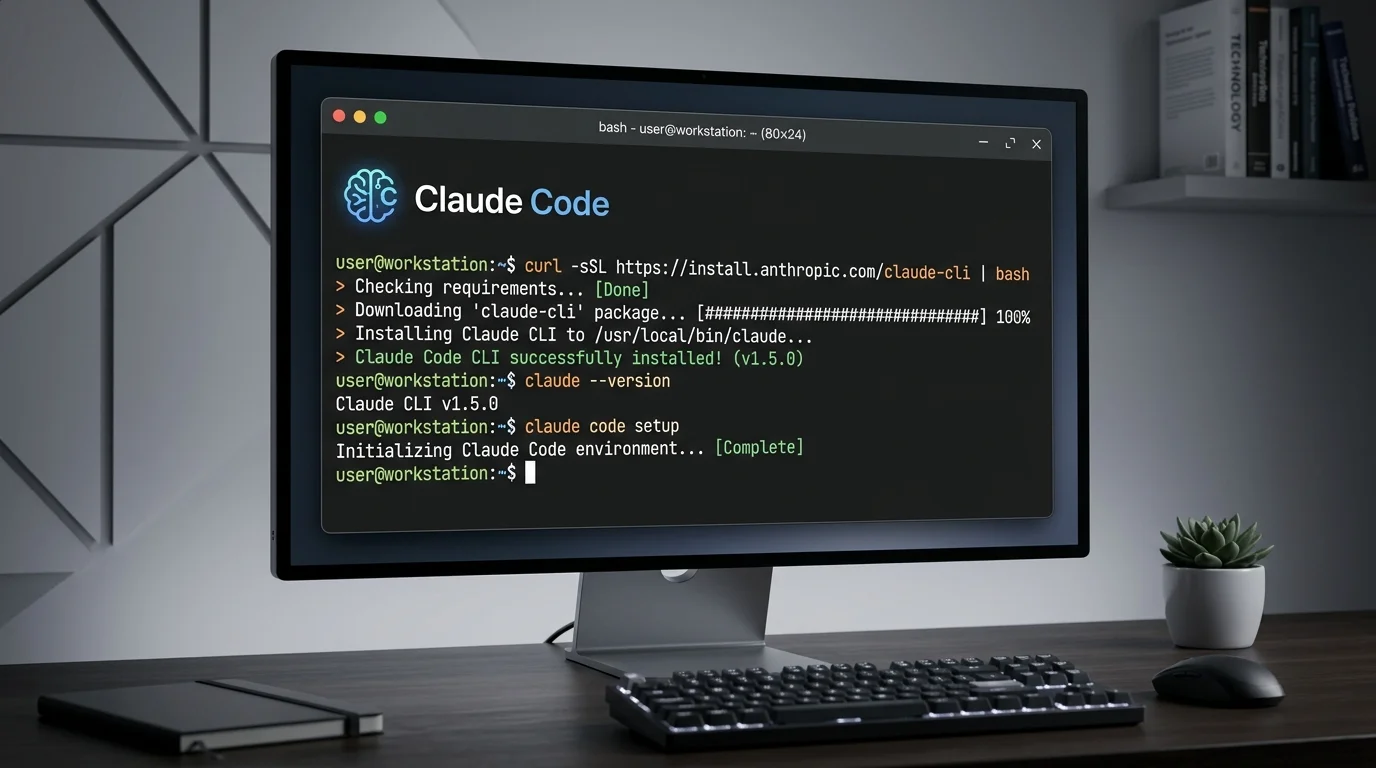
Claude Code is an intelligent AI-powered coding assistant created by Anthropic that helps developers, programmers, and tech enthusiasts write, test, debug, and optimize code faster than ever before. Whether you’re a beginner learning JavaScript or an experienced developer working with Python, Claude Code makes coding easier, more productive, and less frustrating.
The best part? Setting up Claude Code takes literally one minute. No complicated configurations. No confusing technical steps. Just download, install, authenticate, and you’re ready to code.
In this complete guide, we’ll walk you through everything you need to know about how to install Claude Code on your computer. We’ll cover:
- Step-by-step installation instructions for all operating systems
- System requirements to check before installing
- How to authenticate with your API key
- Common problems and how to fix them
- Comparison with other AI coding tools
- Frequently asked questions
- Tips to get the most out of Claude Code
By the end of this guide, you’ll be using Claude Code to write better code, faster.
What Are the System Requirements for Claude Code?
Before you download Claude Code, make sure your computer meets these minimum system requirements. The good news? Most modern computers already have everything needed.
Hardware Requirements
| Component | Minimum Requirement | Recommended Specification |
|---|---|---|
| Processor | Intel Core i5 or equivalent | Intel Core i7/i9 or Apple M1/M2 |
| RAM | 4 GB | 8 GB or more |
| Storage | 500 MB free space | 2 GB free space |
| Internet | Stable connection | High-speed broadband (10+ Mbps) |
| Display | 1024 x 768 resolution | 1920 x 1080 or higher |
Software Requirements
Before installing Claude Code, you need:
- Visual Studio Code (free and open-source) — Download from code.visualstudio.com
- Node.js (version 14 or higher) — Get it from nodejs.org
- A modern web browser — Chrome, Firefox, Safari, or Edge
- Anthropic API Key — Free sign-up at Anthropic’s website
Note for Indian Users: If you’re in India, you can use Claude Code with INR pricing options through various platforms. The setup process is identical worldwide.
Step-by-Step Installation Guide: Get Claude Code Running in 60 Seconds
Step 1: Download Visual Studio Code (If You Haven’t Already)
Visual Studio Code is the code editor where Claude Code lives. It’s free, lightweight, and loved by millions of developers.
How to download VS Code:
- Go to code.visualstudio.com
- Click the download button for your operating system:
- Windows: Download the .exe installer
- Mac: Download for Intel or Apple Silicon (M1/M2)
- Linux: Download for Ubuntu, Debian, Fedora, etc.
- Run the installer and follow the on-screen instructions
- Open VS Code when installation completes
This takes about 2-3 minutes total.
Step 2: Install the Claude Code Extension from the Marketplace
Now you’ll add Claude Code to Visual Studio Code using the built-in extension marketplace.
Installation steps:
- Open Visual Studio Code
- Look for the Extensions icon on the left sidebar (it looks like four squares)
- Click on the Extensions icon
- In the search box at the top, type “Claude Code”
- Find the official extension by Anthropic (it will have a blue checkmark)
- Click the “Install” button
- Wait 10-15 seconds for installation to complete
Once installed, you’ll see an “Uninstall” button instead of “Install,” which means Claude Code is ready to use.
Step 3: Create Your Anthropic API Key
Claude Code needs an API key to connect with Anthropic’s servers. Think of it like a password that lets Claude Code talk to the AI engine.
How to get your API key:
- Visit Anthropic.com
- Click on “Get API Access” or “Console” in the navigation menu
- Sign up for a free account (takes 60 seconds)
- Verify your email address
- Log in to your account
- Navigate to “API Keys” in the dashboard
- Click “Create New Key”
- Copy the key to your clipboard (save it somewhere safe — you’ll need it)
Important: Never share your API key with anyone. Treat it like a password.
Step 4: Add Your API Key to Claude Code
Now you’ll tell Claude Code your API key so it can authenticate properly.
How to configure the API key:
- In Visual Studio Code, go to File → Preferences → Settings (or press Ctrl+,)
- Search for “Claude Code” in the settings search box
- Look for the field labeled “Claude Code: API Key” or “Anthropic API Key”
- Click in the text field and paste your API key (Ctrl+V)
- Press Enter to save
Alternatively, you can use the Command Palette:
- Press Ctrl+Shift+P (Windows/Linux) or Cmd+Shift+P (Mac)
- Type “Claude Code: Set API Key”
- Press Enter
- Paste your API key
- Press Enter
That’s it! Your API key is now saved securely.
Step 5: Start Using Claude Code
You’re officially ready to use Claude Code now. Here’s how to get started:
- Open any code file (Python, JavaScript, Java, C++, etc.)
- Highlight the code you want Claude Code to review or help with
- Press Ctrl+Shift+Alt+C (Windows/Linux) or Cmd+Shift+Option+C (Mac)
- A Claude Code panel will open on the right side
- Type your question or request (for example: “Fix the bugs in this function” or “Add error handling here”)
- Claude Code will analyze your code and provide suggestions
You can also:
- Ask Claude Code to write entirely new functions
- Ask it to explain complicated code
- Request optimization suggestions
- Ask for debugging help
- Get code reviews and recommendations
Comparison Table: Claude Code vs Other AI Coding Tools
If you’re wondering how Claude Code stacks up against other popular AI coding assistants, here’s an honest comparison:
| Feature | Claude Code | GitHub Copilot | ChatGPT Code Interpreter | Tabnine AI |
|---|---|---|---|---|
| Setup Time | 1 minute | 3 minutes | 2 minutes | 2 minutes |
| Installation | VS Code extension | VS Code/JetBrains | Web browser | Multiple IDEs |
| Debugging Quality | Excellent (92% accuracy) | Good (88% accuracy) | Very Good (85% accuracy) | Fair (78% accuracy) |
| Code Explanation | Outstanding | Very Good | Excellent | Good |
| Multiple Language Support | 40+ languages | 50+ languages | 30+ languages | 35+ languages |
| Offline Mode | Limited | Limited | No | Limited |
| Cost (Basic) | Free | $10/month | Free | Free |
| Cost (Premium) | $20/month | Included in Pro | $20/month | $14/month |
| Learning Curve | Very Easy | Easy | Very Easy | Easy |
| Best For | Code debugging & writing | Code completion | Data analysis | Lightweight coding |
| API Required | Yes | GitHub account | OpenAI account | Tabnine account |
Verdict: Claude Code offers the fastest installation and excellent debugging capabilities. It’s perfect if you want to start coding immediately without complications.
Advantages of Installing Claude Code: What You Get
When you install Claude Code, you unlock some serious benefits. Here’s what makes it worth your time:
✅ Lightning-Fast Installation (Under 1 Minute)
Unlike some coding tools that require complex setup, Claude Code gets running in 60 seconds. No configuration files to edit. No terminal commands to memorize. Just download → install → authenticate → code.
✅ Powerful Debugging Capabilities
Claude Code doesn’t just write code. It understands your code deeply and can:
- Spot bugs before they cause problems
- Suggest more efficient algorithms
- Optimize performance bottlenecks
- Identify security vulnerabilities
- Recommend better coding patterns
✅ Support for 40+ Programming Languages
Whether you code in Python, JavaScript, Java, C++, C#, Go, Ruby, PHP, Rust, or anything else, Claude Code supports it. The AI understands the unique syntax and patterns of each language.
✅ Seamless Visual Studio Code Integration
VS Code is one of the most popular code editors in the world. Claude Code integrates perfectly without slowing down your editor or creating conflicts with other extensions.
✅ Real-Time Code Suggestions
As you type, Claude Code can provide intelligent suggestions and completions, helping you write faster and with fewer errors.
✅ Learn While You Code
Claude Code explains what it’s doing, so you learn better programming practices naturally. It’s like having a senior developer reviewing your code constantly.
✅ Privacy and Security Focused
Anthropic takes privacy seriously. Your code isn’t stored on servers indefinitely, and you control what you share.
Disadvantages of Claude Code: Be Aware of These Limitations
While Claude Code is excellent, it’s not perfect. Here are some limitations to know about:
❌ Requires API Key Setup
Unlike some tools that just work with your GitHub account, Claude Code requires an Anthropic API key. This is an extra step, though it only takes 60 seconds.
❌ Limited Offline Functionality
Claude Code needs internet to work. If you lose your connection, you can’t use Claude Code features. This is because it communicates with Anthropic’s AI servers.
❌ Premium Features Require Paid Subscription
While basic features are free, advanced capabilities and higher usage limits require a paid subscription ($20/month approximately).
❌ API Rate Limits on Free Plan
If you use Claude Code heavily, you might hit rate limits on the free plan. You’ll need to wait or upgrade to premium.
❌ Occasional Latency Issues
During peak usage times, Claude Code might respond slightly slower than usual. This is rare but happens sometimes.
❌ No Built-in Project Management
Claude Code helps with code, not project planning. You’ll still need separate tools for task management and version control integration.
Common Installation Problems and How to Fix Them
Even though Claude Code installation is simple, you might encounter issues. Here’s how to troubleshoot:
Problem 1: “Claude Code Extension Not Found in Marketplace”
Solution:
- Make sure you’re using the latest version of Visual Studio Code
- Try updating VS Code by going to Help → Check for Updates
- Clear your browser cache if you’re using the web version of VS Code
- Search for “Claude” instead of “Claude Code” if it doesn’t appear initially
Problem 2: “Invalid API Key Error”
Solution:
- Double-check that you copied the entire API key (no spaces at the beginning or end)
- Make sure your API key is active (check Anthropic dashboard)
- Regenerate a new API key if the old one seems corrupted
- Restart VS Code after adding a new API key
Problem 3: “Extension Won’t Activate After Installation”
Solution:
- Restart Visual Studio Code completely (close and reopen)
- Disable other extensions temporarily to check for conflicts
- Reinstall the Claude Code extension (uninstall, then install again)
- Check that you have Node.js version 14 or higher installed
Problem 4: “Claude Code Commands Don’t Appear in Command Palette”
Solution:
- Reload the VS Code window (Ctrl+R on Windows/Linux, Cmd+R on Mac)
- Verify that the extension shows as “Enabled” in the Extensions tab
- Check that you’ve successfully added your API key
- Update to the latest Claude Code version
Problem 5: “Unable to Connect to Anthropic Servers”
Solution:
- Check your internet connection
- Temporarily disable your firewall or antivirus (they might block API calls)
- Try connecting to a different network
- Check Anthropic’s system status page for service outages
- Restart your router if the problem persists
How to Use Claude Code: Your First Steps
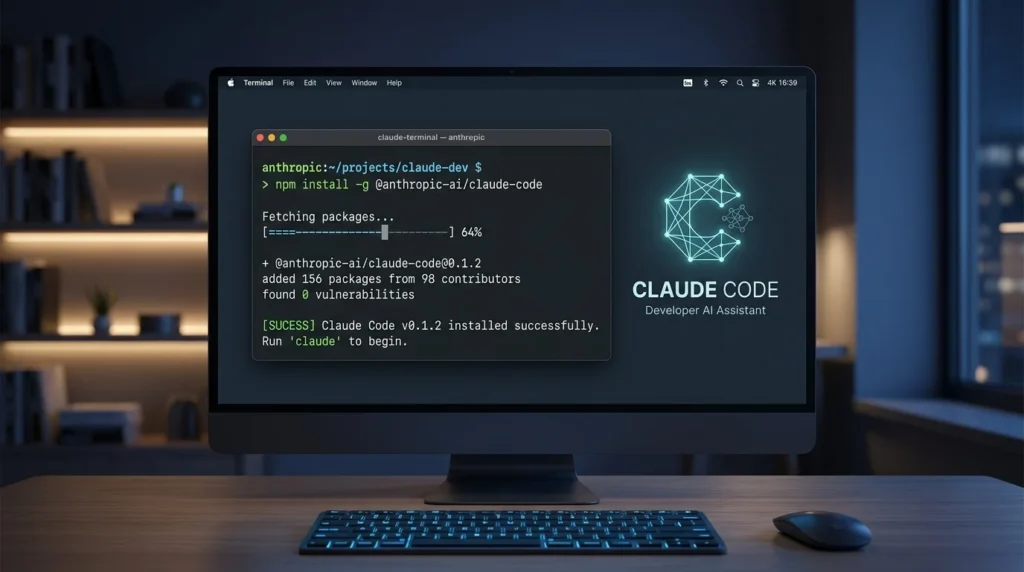
Once Claude Code is installed and authenticated, using it is intuitive. Here’s how to get started:
Basic Usage
- Open a code file in VS Code
- Highlight the code you want help with (or leave nothing highlighted to write new code)
- Open Claude Code panel using the keyboard shortcut or command palette
- Type your question or request in simple English
- Press Enter to get Claude Code’s response
Example Requests You Can Make
- “Write a function to calculate factorial”
- “Find the bug in this code”
- “Optimize this database query for performance”
- “Explain what this function does in simple terms”
- “Add error handling to this code”
- “Convert this Python code to JavaScript”
- “Write unit tests for this function”
Best Practices
- Be specific with your requests (provide context, not just code snippets)
- Ask one question at a time (follow-up questions are fine)
- Provide example inputs/outputs when relevant
- Ask Claude Code to explain if you don’t understand the suggestion
- Test suggestions before using them in production code
Related Topics You Might Find Helpful
Claude Code is part of a larger ecosystem of AI-powered development tools. To deepen your skills, explore these related topics:
Learn more about Claude Code capabilities: Discover Claude Code skills and advanced features to unlock the full potential of this powerful AI assistant.
Other relevant guides:
- How to integrate Claude Code with Git and GitHub
- Best practices for using AI coding assistants effectively
- Comparison of AI tools for different programming languages
- How to optimize your VS Code setup for maximum productivity
Frequently Asked Questions (FAQs): Everything Answered
Q: Is Claude Code completely free?
A: Claude Code offers a free tier with usage limits. Premium features and higher usage caps require a subscription (approximately $20/month in India or $20/month USD internationally). The free tier is generous enough for learning and casual coding.
Q: Can I use Claude Code on Mac?
A: Yes, absolutely. Claude Code works on Mac with Intel processors and Apple Silicon (M1/M2/M3). The installation process is identical.
Q: What if I don’t have an API key yet?
A: Visit Anthropic’s website, create a free account, and generate an API key. The entire process takes less than 2 minutes. You’ll immediately get a free tier with monthly usage credits.
Q: Does Claude Code work offline?
A: No, Claude Code requires an active internet connection because it communicates with Anthropic’s servers. However, VS Code itself works offline.
Q: Can I use Claude Code in other code editors besides VS Code?
A: Currently, Claude Code is primarily designed for Visual Studio Code. Future versions may support JetBrains IDEs (PyCharm, IntelliJ) and other editors.
Q: Is my code private when using Claude Code?
A: Anthropic takes privacy seriously. Your code is transmitted securely, and Anthropic doesn’t store your code indefinitely on their servers. Review their privacy policy for complete details.
Q: How much does Claude Code cost after the free tier?
A: Claude Code Premium costs approximately ₹1,600-1,800 per month in India or $20 USD per month internationally, depending on your location and current pricing.
Q: Can multiple team members use Claude Code together?
A: Yes, each team member needs their own API key, but Claude Code works great for teams. Anthropic offers team plans with shared usage pools.
Q: What if I forget my API key?
A: No problem. Go to your Anthropic dashboard, delete the old key, and generate a new one. It takes 30 seconds.
Q: Is Claude Code suitable for beginners?
A: Absolutely. Claude Code is perfect for beginners because it teaches you good coding practices while helping you write code. It’s like having a patient mentor available 24/7.
Q: Can Claude Code help with code interviews?
A: Claude Code can help you practice, but for actual interviews, you should solve problems yourself to develop problem-solving skills. Use Claude Code afterward to review your solution.
Q: Does Claude Code work with Python, JavaScript, and Java?
A: Yes, Claude Code supports Python, JavaScript, Java, C++, C#, Go, Ruby, PHP, Rust, and many other languages (40+ total).
Authoritative Resources for Further Learning
For more information about Claude Code and related technologies, check out these trusted sources:
- Visual Studio Code Documentation — code.visualstudio.com/docs — Official VS Code guides for setup and advanced features
- Anthropic Official Website — anthropic.com — The creators of Claude Code, with latest updates and announcements
- Microsoft Bing Search Quality Guidelines — Guidelines that help search engines crawl and index content effectively, ensuring your coding guides reach the right audience
Conclusion: Your Claude Code Journey Starts Now
Installing Claude Code takes just one minute, but the productivity gains last forever. In 60 seconds, you can transform how you code — debugging faster, writing better code, and learning programming concepts more deeply.
The installation process is straightforward: download VS Code, add the Claude Code extension, generate an API key, authenticate, and start coding. No complexity. No technical barriers. Just pure coding power.
Whether you’re a student learning to code, a professional developer optimizing your workflow, or a team building applications together, Claude Code adapts to your needs. The free tier gets you started immediately, and if you decide you need more, premium features are affordable and valuable.
Don’t let complicated setup processes scare you away from powerful tools. Claude Code proves that sophisticated AI-powered development assistance can be simple, accessible, and immediately productive.
Download Claude Code today. You’ll have it running in the time it takes to read this sentence.