

The year is 2026, and best free cloud storage isn’t just for broke students anymore. Here’s why thousands of professionals, small business owners, and families choose free solutions:
Cost Savings Matter
Whether you’re launching a startup in Singapore, managing a freelance business in Brazil, or studying in Canada, paid cloud storage costs add up. Free services let you test before you invest real money. A single family can save $50-100 yearly by choosing the right free option instead of paying subscriptions.
Collaboration is Built-In
Modern work requires sharing documents and commenting on files instantly. Best free cloud storage now include real-time editing, meaning your team in Toronto, Tokyo, and Istanbul can work together on the same document simultaneously—no extra software needed.
Backup Protection is Essential
Hard drives fail. Devices get stolen. Having your files in cloud storage provides peace of mind that your important documents, photos, and videos are safe even if your computer crashes tomorrow.
Access Files Anywhere
Whether you’re at your office desk, traveling on a train, or sitting in a coffee shop, cloud storage keeps your important files accessible from phones, tablets, and computers. Sync automatically happens in the background.
Works with Your Ecosystem
Google Drive works beautifully with Gmail and Android. OneDrive plays nice with Windows and Outlook. Apple’s iCloud feels natural on iPhones and Macs. You get to pick the storage that matches the devices you already use.
How to Choose Your Perfect Cloud Storage (Decision Framework)
Before jumping to the comparison table, ask yourself these five questions:
| Question | What It Means | Examples |
|---|---|---|
| How much space do I need? | Calculate your typical file usage monthly | 5 GB for documents only? 50+ GB for photos and videos? |
| Who do I share files with? | Assess your collaboration needs | Solo work, family sharing, or team projects? |
| How sensitive are my files? | Determine privacy requirements | Personal documents, client information, or business secrets? |
| What devices do I use? | Check operating system compatibility | Windows PC, Mac, iPhone, Android, or mixed? |
| Will I upgrade soon? | Think about your growth timeline | Will you need paid storage within 1-2 years? |
The 7 Best Free Cloud Storage Services Compared (2026)
1. Google Drive — Best Overall for Collaboration

Perfect For: Students, teachers, small teams, anyone using Gmail
Free Storage Allocation: 15 GB (shared with Gmail and Google Photos)
Why People Choose It: Google Drive remains the gold standard because it just works. You get Google Docs, Sheets, and Slides built right in—no need for Microsoft Office. Real-time collaboration means you and a coworker in another country can edit the same document simultaneously. Your colleague sees your cursor moving and comments appear instantly.
Key Features:
- Create professional documents, spreadsheets, and presentations within the app
- Search through thousands of files using smart filters
- Version history up to 30 days—recover older versions instantly
- Offline access means you can work without internet on specific files
- Mobile app syncs automatically on iOS and Android
- Share links give you granular control over permissions
What’s Not Included:
- End-to-end encryption (Google can technically see your files)
- Unlimited file versions or lengthy storage history
- Advanced organizational features require paid plans
Best For International Users: Google Drive’s language support covers 50+ languages. Collaboration features work smoothly across time zones. The web interface loads quickly in developing nations with slower connections.
Upgrade Path: Google One starts at $1.99/month for 100 GB, making it budget-friendly for growing needs.
2. Microsoft OneDrive — Best for Windows Professionals

Perfect For: Windows users, Office subscriptions users, business professionals
Free Storage Allocation: 5 GB
Why People Choose It: If you live in Windows and Microsoft Office, OneDrive feels like a natural extension of your computer. Files on Demand means your cloud storage doesn’t eat your local hard drive space. Click a file once, and it downloads automatically.
Key Features:
- Seamless Windows Explorer integration (feels like a regular folder)
- Files On-Demand saves massive local storage by keeping files in the cloud
- Version history stores previous versions for 93 days
- Automatic backup of your Desktop and Documents folders
- Family sharing allows up to 6 people to share one subscription
- Office integration means you can open Word, Excel, and PowerPoint files directly
What’s Not Included:
- Limited collaboration compared to Google Drive
- Only 5 GB is genuinely small for photos and videos
- Privacy controls aren’t as transparent as competitors
- Syncing can be slow on older computers
Best For International Users: OneDrive supports 100+ languages and works reliably in countries with unstable internet through its delta sync technology (only uploads what changed).
Upgrade Path: Microsoft 365 Family includes 1 TB and Office apps for $9.99/month.
3. MEGA — Best for Privacy Advocates

Perfect For: Privacy-conscious users, privacy in developing countries, large file storage needs
Free Storage Allocation: 20 GB (plus bonus storage through referrals)
Why People Choose It: MEGA uses end-to-end encryption, meaning the files are encrypted on your device before they leave your computer. Even MEGA employees cannot see what you’re storing. Your encryption keys never touch MEGA’s servers.
Key Features:
- Military-grade AES encryption protects files end-to-end
- 20 GB free is double Google Drive’s allocation
- 20 GB monthly transfer quota for downloads
- Desktop and mobile apps available for Windows, Mac, iOS, and Android
- Share encrypted links without revealing file contents to MEGA
- Version history stores up to 30 previous versions
What’s Not Included:
- Collaboration features are limited compared to Google Drive
- Syncing is slower because encryption happens locally
- Free plan’s 20 GB transfer limits large downloads
- Mobile app doesn’t allow editing documents
Best For International Users: MEGA operates independently from US jurisdiction, which appeals to users in countries with strict data sovereignty requirements. Excellent for international teams handling sensitive information.
Upgrade Path: MEGA Pro starts at $4.99/month for 400 GB with 4 TB transfer.
4. Apple iCloud — Best for Apple Ecosystem
Perfect For: iPhone, iPad, and Mac users
Free Storage Allocation: 5 GB
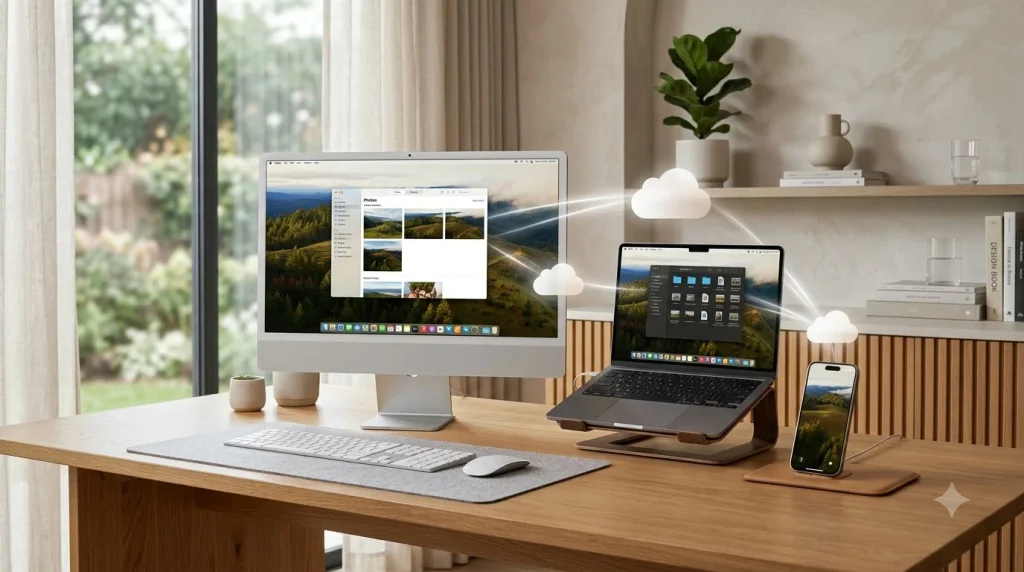
Why People Choose It: Nothing integrates with Apple devices like Apple’s own iCloud. Photos automatically sync from your iPhone to your Mac. Messages backup without you doing anything. It’s seamless.
Key Features:
- Automatic photo library backup to all Apple devices
- All your devices stay perfectly synchronized
- iCloud Keychain stores passwords safely across devices
- Find My feature helps locate lost devices
- Mail, Contacts, and Calendar sync automatically
- Document backup for iOS apps that support iCloud
What’s Not Included:
- Works best only within Apple ecosystem (limited cross-platform)
- 5 GB is quite small for modern photo libraries
- File management feels limited compared to competitors
- Limited folder organization options
Best For International Users: Apple’s infrastructure operates regional servers, so users in EU, China, and Japan have data stored locally. iCloud supports all major languages.
Upgrade Path: iCloud+ starts at $0.99/month for 50 GB (often first month free).
5. Dropbox Basic — Best for Straightforward Syncing

Perfect For: Simple users who want syncing without complexity, cross-platform users
Free Storage Allocation: 2 GB
Why People Choose It: Dropbox doesn’t overwhelm you with features. You get one folder that syncs to all your devices. Done. Sometimes simplicity is exactly what you need.
Key Features:
- Drop files into a folder and they sync everywhere automatically
- Works identically on Windows, Mac, iOS, and Android
- Smart Sync saves space by keeping some files cloud-only
- View previous file versions for 30 days
- Easy file sharing with customizable link settings
- Track file changes and access history
What’s Not Included:
- Only 2 GB free is the smallest of all major services
- No built-in document editing
- Collaboration features are minimal
- Advanced features require paid plans
Best For International Users: Dropbox’s simple syncing algorithm works reliably in countries with inconsistent internet connectivity through smart compression.
Upgrade Path: Dropbox Plus costs $11.99/month for 2 TB.
6. pCloud — Best for Media Streaming & Lifetime Options

Perfect For: Photography and video creators, people who want lifetime access
Free Storage Allocation: 10 GB (expandable through referrals)
Why People Choose It: pCloud’s built-in media player lets you watch videos directly from cloud storage without downloading. Unique lifetime purchase option means you pay once and own it forever.
Key Features:
- Integrated media player for photos and videos
- File lock feature prevents accidental deletion
- Automatic photo upload from phones
- Trash bin keeps deleted files for 30 days
- Share links with password protection
- Optional client-side encryption through pCloud Crypto add-on
What’s Not Included:
- Client-side encryption requires paid add-on
- Collaboration features are limited
- Document editing is not supported
- Slower syncing than competitors
Best For International Users: pCloud has servers in multiple countries (EU, USA, Asia), letting users choose where their data is stored. Lifetime purchase option appeals to users wanting no recurring payments.
Upgrade Path: pCloud Premium lifetime is $249 one-time (roughly 10-year break-even).
7. Sync.com — Best for Privacy and Compliance

Perfect For: Healthcare professionals, lawyers, consultants, privacy-focused users
Free Storage Allocation: 5 GB
Why People Choose It: Sync.com stores your encryption keys separately from your files. Even if someone hacked Sync.com’s servers, they couldn’t decrypt anything. It’s zero-knowledge encryption done right.
Key Features:
- True zero-knowledge encryption (Sync.com cannot access files)
- HIPAA-compliant for healthcare data
- GDPR-compliant infrastructure
- Version history with unlimited retention on paid plans
- Easy file recovery within 30 days
- Secure sharing with downloadable reports
- SOC 2 certified for security compliance
What’s Not Included:
- Limited free storage at 5 GB
- No document editing built-in
- Collaboration features are minimal
- Smaller ecosystem means fewer integrations
Best For International Users: Sync.com operates Canadian servers with EU data residency options. Perfect for organizations in countries requiring strict data localization.
Upgrade Path: Sync.com Standard is $7.99/month for 2 TB with professional support.
Side-by-Side Comparison: All 7 Services
| Feature | Google Drive | OneDrive | Dropbox | iCloud | MEGA | pCloud | Sync.com |
|---|---|---|---|---|---|---|---|
| Free Storage | 15 GB | 5 GB | 2 GB | 5 GB | 20 GB | 10 GB | 5 GB |
| Real-Time Editing | Yes | Yes | No | Limited | No | No | No |
| Desktop Sync Client | Yes | Yes | Yes | Yes | Yes | Yes | Yes |
| End-to-End Encryption | No | No | No | No | Yes | Optional | Yes |
| Zero-Knowledge | No | No | No | No | Yes | No | Yes |
| Version History | 30 days | 93 days | 30 days | 30 days | 30 days | 30 days | 30 days |
| Mobile Apps | iOS/Android | iOS/Android | iOS/Android | iOS only | iOS/Android | iOS/Android | iOS/Android |
| File Upload Limit | 5 GB | Unlimited | 20 GB | 5 GB | 20 GB | 500 GB | 5 GB |
| Collaboration Tools | Excellent | Good | Fair | Limited | Limited | Limited | Limited |
| Price for 1 TB | $9.99/mo | $9.99/mo | $11.99/mo | $4.99/mo | $4.99/mo | $4.99/mo | $7.99/mo |
Smart Strategies: Maximizing Free Cloud Storage
Strategy 1: The Layered Approach
Don’t choose just one. Use Google Drive for collaboration and daily work, MEGA for large media files, and Sync.com for sensitive documents. This way you’re using complementary strengths.
Example: Freelance designer in Philippines + clients in Australia
- Google Drive: Client proposals and design briefs (collaboration)
- MEGA: Large PSD files and backups (20 GB free space)
- Sync.com: Invoices and contracts (privacy)
Strategy 2: The Ecosystem Approach
Choose one primary service that matches your devices. Windows users go OneDrive. Mac users go iCloud. Android users go Google Drive. This minimizes friction.
Example: Student in Canada using MacBook and iPhone
- Primary: Apple iCloud (automatic photo backup, document sync)
- Secondary: Google Drive (group projects with PC-using classmates)
Strategy 3: The Privacy Approach
Combine a general-purpose service with a privacy-focused one.
Example: Entrepreneur in Brazil handling client data
- Daily work: Google Drive (easy sharing, collaboration)
- Sensitive files: Sync.com (HIPAA-compliant if healthcare)
Security Best Practices Everyone Should Follow
Enable Two-Factor Authentication (2FA)
Every single cloud storage provider offers 2FA. Enable it immediately. This prevents someone from accessing your account even if they steal your password. Most services use your phone number or an authenticator app.
International travelers: Use authenticator apps (Google Authenticator, Microsoft Authenticator) instead of SMS since phone numbers may not work across countries.
Use Strong, Unique Passwords
Your cloud storage is only as secure as your password. Use passphrases combining random words (“BluePizza47Mountain!”) rather than patterns hackers expect.
Recommendation: Use a password manager like Bitwarden (free) or 1Password to generate and store unique passwords.
Enable Selective Sync
Selectively sync folders to each device. Your work laptop needs work files; your personal tablet doesn’t need your entire archive.
Benefit: Saves local storage space and reduces the damage if a device is stolen (fewer files on it to access).
Compress Large Files Before Uploading
ZIP files reduce upload time and storage usage. Photos and videos compress moderately; documents compress significantly.
Tool: Windows has built-in ZIP support. Mac has built-in archive utility. Linux users use tar and gzip commands.
Maintain Offline Backups
Cloud storage fails occasionally. Ransomware, hacking, or service outages happen. Keep important files on an external drive too.
Best practice: The 3-2-1 backup rule = 3 copies, 2 different media types, 1 offsite location.
Optimize Your Storage: Pro Tips for Each Service Type
For Google Drive Users
- Create shared drives for team projects (cleaner than individual folders)
- Use Google Takeout monthly to export critical files
- Archive old files to Google One (paid) and keep Drive clean
- Use search operators like “type:document” to find files fast
For OneDrive Users
- Enable Files On-Demand immediately to save local space
- Use the “Share” button instead of right-clicking to reduce bugs
- Pin important folders to your Quick Access bar
- Enable automatic OneDrive sync for Desktop and Documents
For MEGA Users
- Create separate accounts for different purposes (business vs. personal)
- Use MEGA’s Secure Chat for end-to-end encrypted file discussions
- Enable 2FA with authenticator app (SMS 2FA less reliable internationally)
- Backup your recovery key in case you forget your password
For Dropbox Users
- Use Smart Sync to keep rarely-used files cloud-only
- Organize files into clear folder structures (Dropbox search is less powerful)
- Share specific file links instead of folder links for security
- Use team folders once you have collaborators
For iCloud Users
- Optimize photos using iCloud Photo Library (originals stored in cloud)
- Enable iCloud Keychain for password syncing
- Use iCloud Drive instead of Dropbox for Apple-only teams
- Enable automatic library optimization to save phone space
For pCloud Users
- Use the media player for video previews without downloading
- Enable File Lock on important documents to prevent deletion
- Use Crypto add-on if handling sensitive data (costs $3.99/month)
- Export files regularly since pCloud is smaller ecosystem
For Sync.com Users
- Create shared folders for client work (different from links)
- Use Secure Inbox for receiving files without account access
- Enable automatic photo backup from phone
- Review activity logs monthly for security audits
International Considerations for Global Users
Data Residency Requirements
- EU/GDPR users: Choose services with EU server options (Sync.com, pCloud, OneDrive in EU)
- China users: Google Drive and most Western services blocked; consider local alternatives
- Canada/Australia users: All major services comply with local regulations
- Healthcare professionals: Choose HIPAA-compliant services (Sync.com) or BAA-covered options
Bandwidth Limitations
- Developing nations with limited bandwidth: Use Dropbox (most efficient syncing) or OneDrive
- Paid data users in Africa/South Asia: Avoid photo auto-backup; manually upload instead
- Starlink/satellite users: Sync small batches of files; avoid large continuous uploads
Language Support
- Google Drive: 60+ languages; best for non-English speakers
- Sync.com: 12 languages; focus on major regions
- OneDrive: 100+ languages through Microsoft
- MEGA: 10+ languages; growing support
Time Zone Challenges
- Asynchronous teams: Use services with strong version history (OneDrive at 93 days)
- Real-time collaboration: Google Drive or Microsoft Office 365 essential
- Different date formats: Check settings in each service for regional dates
Why Free Cloud Storage is Perfect Right Now (2026)
Growing file sizes: Average file sizes increased 40% since 2024. Free tiers finally match actual needs.
Better collaboration: Real-time editing makes remote work possible for any team size.
Mobile-first world: Smartphones create photos and videos constantly. Cloud backup is essential, not optional.
Pricing maturity: Services optimize free tiers competitively; you get genuine value, not just teasing.
Privacy awareness: More people understand why encryption matters; privacy services gained prominence.
Hybrid work: Offices and remote teams need reliable file sharing; free options now serve this well.
Related Topic: Optimize Your Cloud Costs
As your cloud storage needs grow, check out this comprehensive guide to cloud cost optimization tools to manage expenses efficiently when upgrading to paid plans. Learn strategies for auditing storage usage, choosing cost-effective providers, and implementing quotas.
Frequently Asked Questions
What Free Cloud Storage Gives You The Most Space?
MEGA wins with 20 GB free, plus another 15 GB through referrals (35 GB total possible). Google Drive’s 15 GB is second. Storage is often less important than speed and collaboration features for most people though.
Is Free Cloud Storage Safe for Important Files?
Yes, absolutely, IF you follow security basics:
- Enable two-factor authentication (2FA)
- Use a strong, unique password
- Choose zero-knowledge services (MEGA, Sync.com) for sensitive files
- Enable any available encryption options
- Maintain offline backups of critically important files
Free cloud storage providers invest heavily in security because their reputation depends on it. Google, Microsoft, and Apple employ security teams larger than some countries’ defense budgets.
Can You Really Use Multiple Services Together?
Yes, and it’s actually smart. Many professionals use 2-3 services:
- Option A: Google Drive + MEGA (collaboration + privacy backups)
- Option B: OneDrive + Sync.com (Windows ecosystem + sensitive files)
- Option C: iCloud + Dropbox (Apple ecosystem + cross-platform sharing)
The 3-2-1 backup rule encourages using multiple providers anyway.
Which Free Cloud Service Works Best for Teams?
Google Drive or Microsoft OneDrive are your only realistic choices for serious collaboration. Both offer:
- Real-time document editing
- Multiple user permissions
- Comment threads
- File version history
- Mobile access
- Affordable team upgrades
Dropbox Basic works okay for teams but lacks editing features.
How Do I Move Files Between Cloud Services?
Three reliable methods:
- Manual download/upload: Download from old service, upload to new service (works everywhere, slow for large files)
- Native transfer tools: Some services (especially Google, Microsoft) offer built-in migration tools
- Third-party apps: Services like MultCloud or Sync.com allow syncing between providers
For largest files, download to external drive first, then upload to avoid internet interruptions.
What Happens to Free Files If a Service Shuts Down?
This has happened (remember Megaupload?). Protect yourself:
- Assume all free services could disappear (unlikely for Google/Microsoft/Apple, possible for smaller players)
- Keep copies in at least 2 services
- Download critical files to external drive annually
- Check terms of service for notice period if shutdown happens
Platform-Specific Recommendations
Windows Users
Best Choice: Microsoft OneDrive (native integration, no learning curve) Backup: Google Drive (for collaboration with non-Windows users) Privacy Option: MEGA (end-to-end encryption if needed)
Mac Users
Best Choice: Apple iCloud (native integration, photo syncing) Backup: Google Drive (for cross-platform projects) Privacy Option: Sync.com (GDPR compliance if applicable)
Android Users
Best Choice: Google Drive (perfect integration, best collaboration) Backup: MEGA (more free space, privacy-focused) Privacy Option: Sync.com (zero-knowledge encryption)
iPhone/iPad Users
Best Choice: Apple iCloud (automatic photo backup, ecosystem) Backup: Google Drive (for team projects) Privacy Option: Sync.com (end-to-end encryption)
Linux Users
Best Choice: Dropbox (most reliable syncing on Linux) Backup: Google Drive (web interface works perfectly) Privacy Option: MEGA (has Linux client support)
Final Recommendations: Choose Your Cloud Storage Today
Start Here If You…
| If You’re A… | Best Choice | Why | 2nd Choice |
|---|---|---|---|
| Student | Google Drive | Free Docs/Sheets; collaboration with classmates | OneDrive if Windows-focused |
| Freelancer | Google Drive + MEGA | Drive for client work; MEGA for backups | Dropbox for simplicity |
| Small Business Owner | OneDrive + Sync.com | OneDrive for daily work; Sync.com for secure files | Google Drive alternative |
| Photographer/Creator | pCloud | Media player; streaming features; lifetime option | Google Drive for sharing |
| Privacy Advocate | MEGA or Sync.com | Military encryption; zero-knowledge design | No backup needed (standalone) |
| Apple Ecosystem | iCloud | Perfect native integration; photo syncing | Google Drive for collaboration |
| Casual User | Dropbox Basic | Simple, reliable, works everywhere | Google Drive (more space) |
| Remote Team | Google Drive | Best collaboration tools; real-time editing | OneDrive if Windows-only |
Action Steps: Your Next 10 Minutes
- Decide: Read the descriptions above and pick 1-2 services matching your needs
- Sign up: Create free accounts (5 minutes)
- Configure: Enable two-factor authentication on each (3 minutes)
- Upload: Move important files from your computer to cloud storage (2 minutes per service)
- Test: Download a file from mobile app to confirm everything works
That’s it. You now have secure, reliable cloud storage for free.
Helpful External Resources
For comprehensive information about specific services:
- Google Drive official documentation — everything about features, storage, and troubleshooting
- Microsoft OneDrive support center — Windows integration, Files On-Demand, and sharing
- Dropbox Help Center — syncing best practices, smart sync features, and account management
The Bottom Line
Free cloud storage in 2026 isn’t a compromise—it’s a legitimate solution for millions of people. Google Drive excels at collaboration. MEGA wins for privacy. OneDrive serves Windows professionals perfectly. iCloud feels native to Apple users. Each service does something well.
Pick the one matching your needs, enable two-factor authentication, and start uploading. Your files deserve to be safe, accessible, and backed up. Free cloud storage makes it possible without any credit card required.