
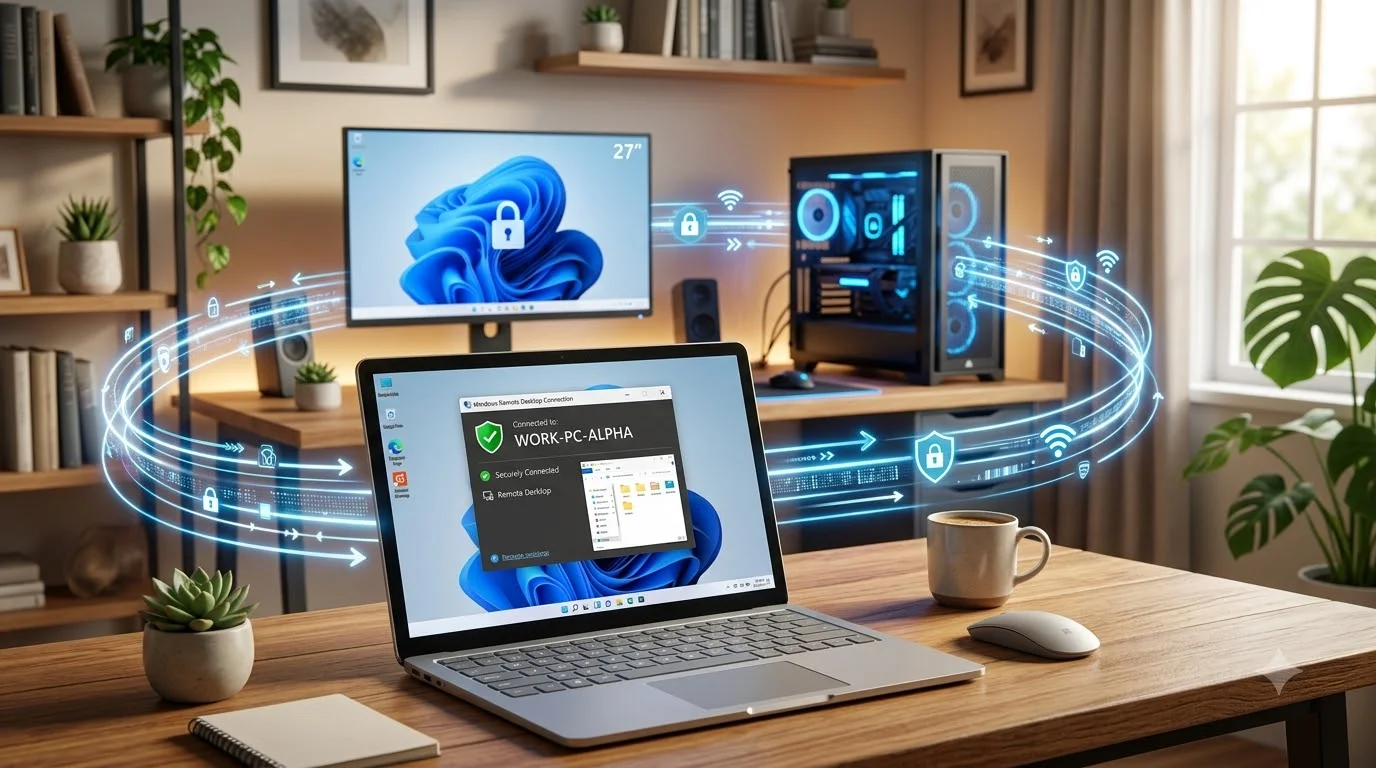
Imagine this: You’re on vacation in Bali. Your boss emails asking for a file that’s on your office computer. Or you’re helping your aging parent troubleshoot their laptop while you’re 500 miles away. Or you need to access work documents from a coffee shop across town.
Fifteen years ago, these scenarios required you to physically travel back to your computer. Today, you can control your entire PC from any device—smartphone, tablet, or laptop—from anywhere on Earth with an internet connection.
Remote PC access is one of Windows’ most powerful features, and most people don’t know it exists or how to use it safely.
This comprehensive guide explains exactly how to connect to your pc remotely (Windows 11 & 10), compares all available methods, shows you how to do it securely, and troubleshoots common problems. Whether you’re using Windows 11 or Windows 10, whether you need to access your computer for work or help someone else, this guide covers everything.
What Does “Connecting Remotely” Actually Mean? (Simple Definition)
Remote PC access means controlling your computer from a different location—sometimes across the room, sometimes across the world—using another device.
When you connect to your pc remotely (Windows):
- You see your desktop on your remote device (phone, tablet, laptop)
- You can click, type, and interact with programs as if you were sitting at the original computer
- You can open files, run software, and do anything you’d normally do
- The remote computer stays physically in one place, but you control it from anywhere
Key difference from other tech:
- Sharing files: Uploading/downloading files one at a time
- Remote access: Controlling the entire computer like you’re sitting in front of it
- That’s why it’s powerful: You get full control, not just file access
Real-world examples:
- Access your work computer from home (or hotel, or anywhere)
- Help your parents troubleshoot their computer without visiting in person
- Monitor your home computer while traveling
- Access files you forgot to bring with you
- Run programs on a powerful computer from a weak device
Why Remote PC Access Matters (The Real Impact)
Scenario 1: The Business Impact
Your company saves $200,000+ annually when employees can work from home or anywhere. Remote PC access makes this possible—employees don’t need to carry massive files; they just remotely access their work computer.
Scenario 2: The Family Impact
You can help your parents, grandparents, or kids troubleshoot computer problems without driving to their house. That’s saved time and reduced frustration.
Scenario 3: The Emergency Impact
Your colleague is sick and can’t come to the office. Instead of everything stopping, you remotely access their computer, complete their urgent work, and business continues.
Scenario 4: The Theft Recovery Impact
If someone steals your laptop, you can remotely access your desktop computer, back up important files, or notify authorities with your computer’s location.
All Ways to Connect Remotely to Windows PC (5 Methods Explained)
Method 1: Windows Remote Desktop (Built-In, Most Powerful)
What It Is
Remote Desktop is Windows’ native remote access technology—built directly into Windows Pro and Enterprise editions. It’s been the professional standard for 20+ years.
How It Works
- Enable Remote Desktop on your PC (where you want to connect to)
- Find your PC’s network address (IP address or computer name)
- From another device, open Remote Desktop app and enter that address
- Authenticate with your Windows username and password
- Your desktop appears on the remote device—full control
Setup Requirements
- PC side: Windows Pro, Enterprise, or Education edition (NOT Home)
- Devices to connect from: Any Windows, Mac, iOS, or Android device
- Network: Both devices on internet or same network
- Account: Administrator account on the PC
Step-by-Step Setup (Windows 11)
Step 1: Enable Remote Desktop on Your PC
- Right-click Start menu > Settings
- Click System in left sidebar
- Scroll down to “Remote Desktop”
- Toggle ON “Remote Desktop”
- A message appears asking to confirm
- Click “Confirm”
- Your PC now accepts remote connections
Step 2: Find Your Computer Name or IP Address
- Right-click Start menu > Settings
- Click System > About
- Look for “PC name” or “Device name” (this is your computer name)
- Alternative: Find IP address by opening Command Prompt and typing “ipconfig”
Step 3: Connect From Remote Device
- Install Microsoft Remote Desktop app on your remote device
- Windows: Built-in, search “Remote Desktop Connection”
- Mac: Download from App Store (free)
- Android/iOS: Download “Microsoft Remote Desktop” (free)
- Open the app
- Enter your computer name or IP address
- Click “Connect”
- Enter your Windows username and password
- You’re now remotely accessing your PC
Advantages of Remote Desktop
✓ Built into Windows (no additional software to buy) ✓ Most secure remote access method available ✓ Full desktop control (not limited like other solutions) ✓ Excellent performance on fast networks ✓ Supports multiple monitors and printers ✓ Works with file sharing (access your PC’s files from remote device)
Disadvantages of Remote Desktop
✗ Only available in Pro/Enterprise/Education editions (not Home) ✗ PC must be connected to network and powered on ✗ Requires setup and configuration ✗ Can be slow on poor internet connections ✗ Performance depends on network quality
Best For
- Business and professional use
- IT professionals accessing servers
- Accessing work computers from home
- Full-featured remote control needs
- Secure enterprise environments
Not Ideal For
- Windows 10/11 Home edition users (unavailable)
- One-time help situations (too much setup)
- Users uncomfortable with technology
- Mobile-only scenarios (better options exist)
Method 2: Quick Assist (Built-In, One-Time Help)
What It Is
Quick Assist is Windows’ built-in tool for getting and giving remote support. It’s designed for short-term help—one person helping another with a specific problem—not for ongoing remote work access.
How It Works
- The person needing help opens Quick Assist
- They generate a code and share it with the helper
- The helper enters the code in their Quick Assist
- Connection established (either view-only or full control)
- Helper can see the screen, interact with it
- When done, connection automatically closes
Setup Requirements
- Both devices: Windows 10 or 11
- Connection: Internet (doesn’t need to be on same network)
- Account: Any Windows account (no administrator needed)
- Setup time: 0 minutes (completely built-in)
How to Use Quick Assist
If You Need Help:
- Open Windows Start menu
- Type “Quick Assist” and press Enter
- Click “Get Support”
- A code appears (example: “ABC123DEF456”)
- Share this code with the person helping you (via email, phone call, text)
- They enter the code and you accept the connection
If You’re Helping Someone:
- Open Start menu
- Type “Quick Assist” and press Enter
- Click “Give Support”
- They give you their code
- Enter the code
- They accept your request
- You can now see and interact with their screen
Advantages of Quick Assist
✓ Completely built into Windows (zero setup) ✓ No software installation needed ✓ Very fast to start helping (seconds) ✓ Works across any networks ✓ Codes automatically expire (improved security) ✓ Perfect for one-time support ✓ Works in all Windows editions (Home, Pro, etc.)
Disadvantages of Quick Assist
✗ Designed for temporary help, not ongoing access ✗ Codes must be manually shared each time ✗ Less feature-rich than Remote Desktop ✗ Slower performance than Remote Desktop ✗ Limited control options
Best For
- Helping family members troubleshoot
- Tech support interactions
- One-time remote assistance
- Anyone uncomfortable with technology setup
- Quick problem-solving situations
Not Ideal For
- Regular remote work access
- Accessing your own computer regularly
- Complex or long-term tasks
- Business environments requiring security controls
Method 3: Microsoft Remote Desktop App (Mobile Access)
What It Is
The Microsoft Remote Desktop app is a free application available for Mac, iPhone, iPad, and Android. It connects to your Windows PC running Remote Desktop.
How It Works
Same as Remote Desktop (Method 1), but using mobile or Mac devices instead of Windows computer.
Setup Requirements
- PC side: Windows Pro/Enterprise with Remote Desktop enabled
- Remote device: Mac, iPhone, iPad, or Android phone
- App: Download “Microsoft Remote Desktop” (free)
How to Install and Use
Step 1: Download the App
- Mac: App Store > search “Microsoft Remote Desktop” > Install
- iPhone/iPad: App Store > search “Microsoft Remote Desktop” > Install
- Android: Google Play Store > search “Microsoft Remote Desktop” > Install
Step 2: Add Your PC
- Open the app
- Tap “+” (plus button) to add device
- Enter your PC’s name or IP address
- Enter your Windows username
- Save the connection
Step 3: Connect
- Tap the saved connection
- Enter your password when prompted
- Accept the certificate warning (first time only)
- Your PC’s desktop appears on your mobile device
Advantages
✓ Completely free ✓ Works on all major platforms (Mac, iOS, Android) ✓ Same security as Remote Desktop ✓ Touch-friendly interface for tablets ✓ File sharing capability
Disadvantages
✗ Screen size limitations on phones (hard to work on small screen) ✗ Touch interaction less precise than mouse ✗ Performance depends on network quality ✗ Still requires PC with Pro edition and Remote Desktop enabled
Best For
- Checking on your PC while traveling
- Quick file access from mobile device
- Occasional remote access needs
- Mac users accessing Windows PCs
Method 4: Chrome Remote Desktop (Cross-Platform, Free)
What It Is
Google’s free remote access tool that works across Windows, Mac, Linux, Chrome OS, Android, and iOS. It’s simple, free, and works on Home editions of Windows.
How It Works
- Install Chrome browser (free)
- Install Chrome Remote Desktop extension (free)
- Set up remote access by creating a PIN
- From another device, access your PC via Chrome
Setup Requirements
- PC side: Windows 10/11 any edition (including Home)
- Remote device: Any device with Chrome browser
- Account: Google account (free)
- Setup time: 5-10 minutes
Step-by-Step Setup
Step 1: Install Chrome
- Go to google.com/chrome
- Download and install Chrome browser
- Open Chrome and sign into your Google account
Step 2: Install Extension
- Go to remotedesktop.google.com
- Click “Set up remote access”
- Click “Install Chrome Extension”
- Extension automatically installs
Step 3: Configure Remote Access
- In Chrome Remote Desktop, click “Enable remote connections”
- Create a PIN (6+ digits)
- Your PC is now available for remote access
Step 4: Connect From Another Device
- Open remotedesktop.google.com from any device
- Sign in with the same Google account
- Click your PC name
- Enter your PIN
- Connected! You’re now remotely accessing your PC
Advantages
✓ Completely free (no subscription) ✓ Works on Windows Home edition ✓ Works across multiple operating systems ✓ Very easy setup (simpler than Remote Desktop) ✓ No router configuration needed ✓ Works anywhere with internet
Disadvantages
✗ Slower performance than Remote Desktop ✗ Requires Chrome browser ✗ Requires Google account ✗ Performance limited by internet speed ✗ Less secure than Remote Desktop for business
Best For
- Windows 10/11 Home edition users
- Cross-platform access (Windows to Mac, etc.)
- Simple, easy-to-use solution
- Free remote access needs
- Non-business use cases
Method 5: TeamViewer & AnyDesk (Commercial Third-Party Tools)
What They Are
TeamViewer and AnyDesk are commercial remote access software that work on all Windows editions and are extremely popular for:
- Technical support
- Remote work
- Home/personal use
- Business applications
How They Work
- Install software on the PC you want to access
- Get an ID number for your PC
- From another device, enter that ID
- Quick connection without complex setup
Setup Requirements
- PC side: Windows 10/11 any edition
- Remote device: TeamViewer or AnyDesk app installed
- Account: Free account (with limitations) or paid subscription
- Setup time: 2-5 minutes
Advantages
✓ Works on any Windows edition (including Home) ✓ Cross-platform (Windows, Mac, Linux, mobile) ✓ Very easy to use (minimal setup) ✓ Good performance ✓ Professional grade security ✓ Support team available
Disadvantages
✗ Not free for business use (requires subscription) ✗ Paid plans can be expensive ($200-600/year) ✗ Third-party company (privacy concerns for some) ✗ Not as integrated as Windows native solutions
Best For
- Business remote support
- IT companies providing remote assistance
- Users wanting professional-grade features
- Non-Windows connections needed
- Commercial applications
Comparison Table: All Remote Access Methods
| Method | Platform | Cost | Ease of Setup | Security | Best For | Speed |
|---|---|---|---|---|---|---|
| Remote Desktop | Windows Pro/Ent only | Free | Medium (5 mins) | Highest | Business, professional | Very Fast |
| Quick Assist | Windows 10/11 all editions | Free | Easy (1 min) | High | One-time help | Medium |
| Remote Desktop App | Mac/iOS/Android | Free | Medium (5 mins) | High | Mobile access | Fast |
| Chrome Remote Desktop | Any with Chrome | Free | Easy (5 mins) | Good | Home users, cross-platform | Medium |
| TeamViewer | All Windows + others | Free (limited)/Paid | Easy (3 mins) | High | Business support | Fast |
| AnyDesk | All Windows + others | Free (limited)/Paid | Easy (3 mins) | High | Remote work | Very Fast |
Security: How to Keep Your Remote Access Safe
Critical Security Practices
1. Use Strong, Unique Passwords
- Minimum 12 characters
- Mix of uppercase, lowercase, numbers, symbols
- Never use the same password as other accounts
- Change passwords every 3-6 months
- Example strong password:
Tr0pical-Sunset#2024!Secure
2. Enable Network Level Authentication (NLA) For Remote Desktop users:
- Open Settings > System > Remote Desktop
- Look for “Network Level Authentication”
- Ensure it’s enabled
- NLA requires login before desktop loads (better security)
3. Use VPN for External Connections
- Don’t access Remote Desktop directly from internet
- Always use VPN (Virtual Private Network) first
- VPN encrypts all data, protects from hackers
- Benefits: Data encrypted, location hidden, safer than direct connection
How to set up Windows VPN:
- Open Settings > Network & Internet > VPN
- Click “Add VPN”
- Configure with your VPN provider’s details
- Connect to VPN before using Remote Desktop
4. Keep Windows Updated
- Windows 11 is more secure than Windows 10
- Install all security updates immediately
- Enable automatic updates:
- Settings > System > About
- Check for updates
- Install all available updates
5. Limit Remote Desktop Users Who can access your PC remotely:
- Right-click Start > Settings > System
- Remote Desktop > Select users that can access remotely
- Only add people who truly need access
- Remove access for people who leave your organization
6. Disable Remote Access When Not Needed
- Only enable Remote Desktop when you need it
- Turn it off when not using it
- This prevents hackers from trying to access it
7. Use Multi-Factor Authentication If available through your Windows account:
- Adds extra layer of security
- Even if password is stolen, account is protected
- Takes 10 seconds to set up
What NOT to Do
❌ Don’t use easily guessable passwords (“password123”, “admin”, your name) ❌ Don’t access Remote Desktop over public WiFi without VPN ❌ Don’t leave Remote Desktop enabled on unused computers ❌ Don’t share your IP address or computer name publicly ❌ Don’t ignore Windows security updates ❌ Don’t allow multiple unknown users to access your PC ❌ Don’t use Free WiFi (coffee shop) without VPN for Remote Desktop
Device Requirements & Network Setup
Computer Requirements (PC You’re Accessing)
Minimum Specifications:
- Windows 10 or Windows 11
- 2 GB RAM minimum (4 GB recommended)
- Internet connection (broadband recommended)
- Power must stay ON during remote access
Recommended Specifications:
- Windows 11 (more secure, better performance)
- 8+ GB RAM
- SSD storage (faster boot)
- Fiber or cable internet (better speed)
Device You’re Connecting From
Can Be Any Device:
- Windows PC (via Remote Desktop app)
- Mac (via Remote Desktop app or Chrome)
- iPhone/iPad (via Remote Desktop app)
- Android phone/tablet (via Remote Desktop or Chrome Remote Desktop)
- Chromebook (via Chrome Remote Desktop)
Requirements:
- Internet connection
- App installation (or just Chrome browser)
- Screen large enough to see desktop (laptop/tablet better than phone)
Network Setup
For Remote Desktop Specifically:
If connecting from outside your home network:
- Set up port forwarding (technical)
- Or use VPN (recommended, easier)
- Or use Dynamic DNS if IP changes frequently
If connecting on same network:
- No special setup needed
- Just use computer name or local IP
Troubleshooting: When Remote Access Doesn’t Work
Problem 1: “Can’t Find the PC” or “Connection Failed”
Likely Causes & Solutions:
- Wrong computer name or IP address
- Solution: Double-check the name/IP
- Get correct name: Settings > System > About
- PC is powered off
- Solution: Turn the PC on
- Remote access only works when computer is on
- PC not connected to internet
- Solution: Connect PC to WiFi or Ethernet
- Check internet connection on the PC
- Firewall blocking connection
- Solution: Allow Remote Desktop through firewall
- Settings > Privacy & Security > Windows Firewall
- Click “Allow app through firewall”
- Check Remote Desktop is allowed
- Remote Desktop not enabled on PC
- Solution: Enable it
- Settings > System > Remote Desktop
- Toggle to ON
Time to fix: 5-10 minutes
Problem 2: Connection Drops or Is Very Slow
Likely Causes:
- Poor internet connection
- Solution: Check your internet speed (speedtest.net)
- Minimum required: 2 Mbps
- Recommended: 10+ Mbps
- Network interference
- Solution: Move closer to WiFi router
- Or use Ethernet cable for PC
- Too much network traffic
- Solution: Close other apps using internet
- Stop downloads/uploads on other devices
- Too many programs running
- Solution: Close unnecessary programs on remote PC
- This frees up processing power
Time to fix: 5-15 minutes
Problem 3: “Access Denied” or Password Not Working
Likely Causes:
- Wrong password
- Solution: Verify your Windows password
- Try resetting password if forgotten
- User account doesn’t have permission
- Solution: Add your account to Remote Desktop Users
- Right-click Start > Settings > System > Remote Desktop
- Click “Select users that can access remotely”
- Click Add > Enter your username
- Account is locked/disabled
- Solution: Log in locally to unlock account
- Or ask administrator to unlock
Time to fix: 5-10 minutes
Problem 4: Screen Resolution Wrong or Stretched
Solutions:
- Disconnect and reconnect (usually fixes it)
- In Remote Desktop app, go to Display settings
- Adjust resolution to match your device
- Restart Remote Desktop connection
Time to fix: 2-5 minutes
Remote Access & Connected Devices
Accessing Printers Remotely
One common question: “Can I print to my home printer while remotely accessing my PC?”
Answer: Yes! When you remotely connect to your PC:
- Any printer connected to that PC is available
- Print jobs go to that printer
- It works like you’re sitting at your PC
For detailed printer setup and troubleshooting, reference this comprehensive guide on connecting wireless printers in Windows, which covers printer configuration, sharing, and remote printing setup.
Other Devices While Remote
USB Devices: Can redirect USB devices to appear on remote PC (advanced) Microphone/Camera: Can be used for video calls while remotely connected Files: Full access to PC’s files, can transfer files between devices
Comparison: Windows 10 vs Windows 11 for Remote Access
| Feature | Windows 11 | Windows 10 |
|---|---|---|
| Remote Desktop | Yes (Pro+) | Yes (Pro+) |
| Quick Assist | Yes (all editions) | Yes (all editions) |
| Security | Better (more updates) | Good (support ends) |
| Performance | Slightly faster | Slightly slower |
| Support | Full support through 2026 | Support ended October 2025 |
| Recommendation | Upgrade to Windows 11 | Consider upgrading |
Real-World Use Cases: When Remote Access Saves Time
Use Case 1: Working From Home (40+ hours/week saved)
Instead of going to office: Access work PC from home, coffee shop, vacation
- Time saved: 1-2 hours daily commute
- Cost saved: Gas, parking, meals
- Benefit: Flexibility, work-life balance
Use Case 2: IT Support (30+ hours/month saved)
Instead of traveling to client: Remote support troubleshooting
- Time saved: Travel time eliminated
- Cost saved: Mileage, vehicle expense
- Benefit: Faster problem resolution
Use Case 3: Family Support (5+ hours/month saved)
Instead of visiting in person: Help parents/grandparents remotely
- Time saved: Travel time
- Cost saved: Gas
- Benefit: More frequent help available
Use Case 4: File Access (30+ minutes/day saved)
Instead of carrying files or emailing: Access files directly from anywhere
- Time saved: No file transfer needed
- Benefit: Always have latest files
- Security: No files on external drives
FAQ Section
Q: Does the PC need to be at a specific location? A: No. As long as it’s powered on and connected to internet, it can be anywhere—office, home, another country.
Q: Can multiple people access the same PC remotely at once? A: Typically no—only one person at a time. Logging in remotely logs out the local user. However, QuickAssist allows simultaneous viewing.
Q: Is my data safe when accessing remotely? A: Yes, if you use the security practices mentioned (strong passwords, VPN, NLA). Remote Desktop uses encryption to protect data.
Q: How much does it cost? A: Remote Desktop is free (built into Windows Pro). Quick Assist is free. Chrome Remote Desktop is free. TeamViewer has free and paid plans.
Q: Can I use this on Windows 10 Home? A: No for Remote Desktop. Yes for Quick Assist, Chrome Remote Desktop, TeamViewer, or AnyDesk.
Q: What if I forget my password? A: You can reset it on the PC itself. If you don’t have access to the PC, you’ll need to use an account recovery process or contact Microsoft support.
Q: Does remote access work over mobile data? A: Yes, but performance depends on mobile speed. 4G/5G usually works; 3G is very slow.
Summary: Choosing Your Remote Access Method
For professional/business use: Windows Remote Desktop (most secure, full-featured)
For mobile access: Microsoft Remote Desktop app (free, works everywhere)
For one-time help: Quick Assist (zero setup needed)
For non-Pro Windows editions: Chrome Remote Desktop (free, easy)
For professional support businesses: TeamViewer or AnyDesk (business-grade)
Additional Resources
For the most current information on Windows Remote Desktop capabilities and configuration options, consult Microsoft’s official Remote Desktop documentation, which provides detailed technical specifications and best practices.
To understand VPN setup and security implementation for remote access, explore Microsoft’s official VPN setup guide, which covers configuration for secure remote connections.
For troubleshooting specific remote connection issues and advanced network configuration, reference Microsoft’s Remote Desktop troubleshooting guide, which addresses common problems and solutions.
Final Recommendation
Start with the method matching your situation:
- Professional/business? → Remote Desktop
- One-time help needed? → Quick Assist
- Home user or mobile access? → Chrome Remote Desktop
- Any Windows edition needed? → TeamViewer/AnyDesk
Then prioritize security: strong passwords, VPN for external access, and keep Windows updated.
Remote access is incredibly powerful—when configured securely, it gives you complete PC control from anywhere on Earth. You don’t need to carry files, don’t need to travel to your office, and can help others instantly regardless of distance.
That’s the power of Windows remote access in 2026.