
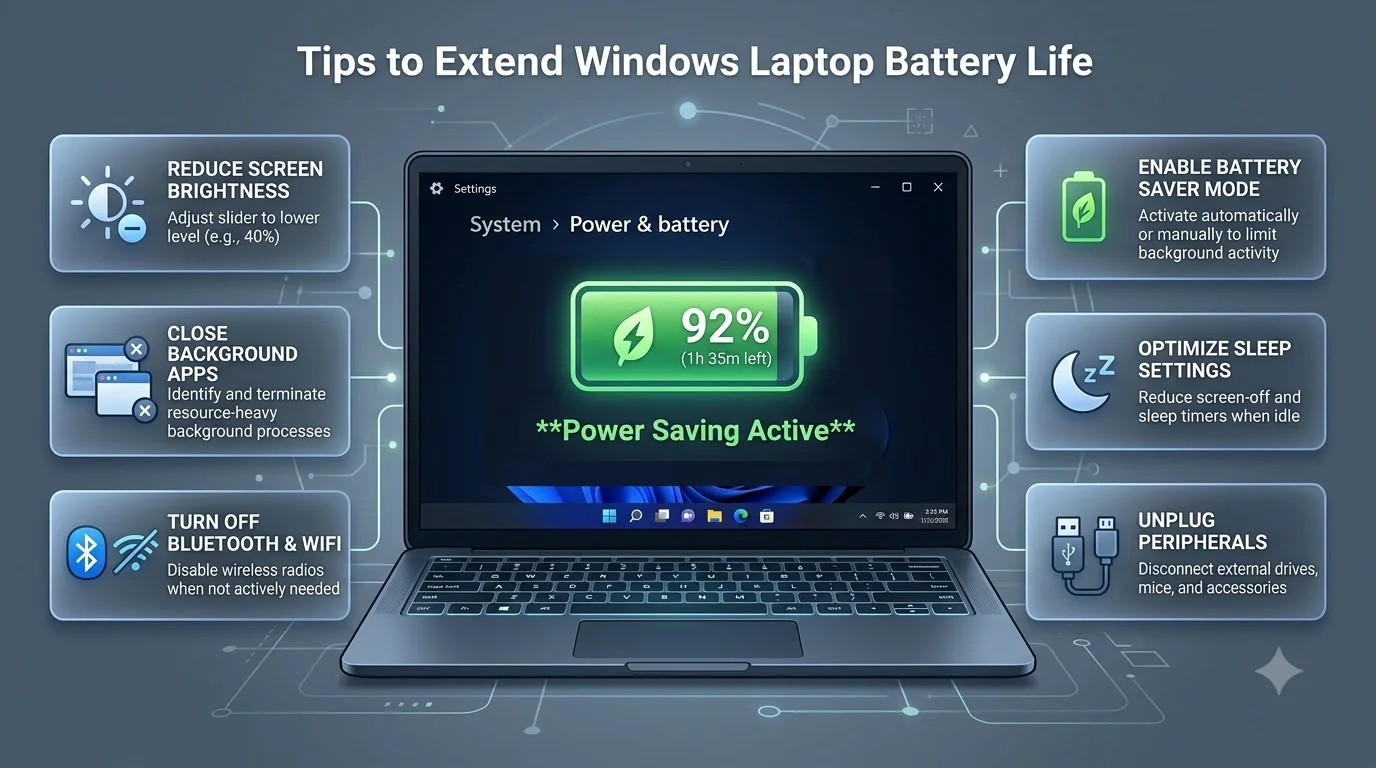
The 5 Essential Strategies to Extend Your Battery Life Effectively on Windows
If you’re in a hurry, here’s what works:
- Activate Windows power modes smartly — Switch to “Best power efficiency” when unplugged
- Cut display power drain — Lower brightness to 30–40% and set screen off after 2 minutes
- Stop background app vampires — Close apps running behind the scenes that waste battery
- Tune hardware and drivers — Update graphics drivers and disable GPU when not gaming
- Preserve battery health — Use vendor charge-limiting features to keep battery alive longer
These five methods can add 3–7 extra hours to your laptop’s battery life, depending on your current settings and hardware.
Why Extending Battery Life Actually Matters (And Why Most People Get It Wrong)
Here’s the reality: Most laptop users leave their Windows battery settings on factory defaults. Factory defaults prioritize performance, not longevity.
What does that mean for you?
Your display is running at full brightness. Windows is downloading updates in the background. That discrete graphics card (if you have one) is always active. Your disc is indexing files at random. Bluetooth is searching for devices even when you don’t use it.
Together, these drain your battery at roughly 15–25% per hour.
Smart optimizations? They can cut that to 7–10% per hour. That’s not a small change—that’s the difference between:
- A 3-hour battery running for 4 hours
- A 5-hour battery running for 8 hours
- A 10-hour battery running for 14+ hours
For students, remote workers, and travelers, that’s the difference between “searching for a charger every afternoon” and “working all day without stress.”
Part 1: Master Windows Power Plans and Battery Saver
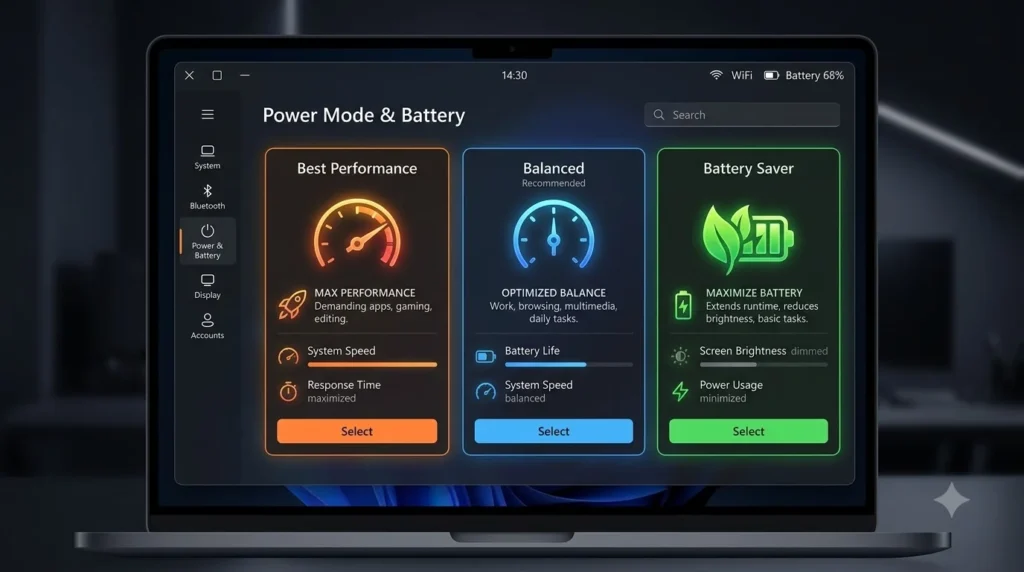
Understanding Windows Power Modes (Windows 11)
Windows 11 offers three power modes. Each one adjusts how your CPU, GPU, and system perform:
| Power Mode | CPU Speed | GPU Activity | Background Tasks | Battery Life | Best For |
|---|---|---|---|---|---|
| Best Performance | Maximum (boost enabled) | Full power | All active | Shortest (50–70% drain/hour) | Gaming, video editing, plugged in |
| Balanced | Adaptive (boosts when needed) | Moderate | Limited throttling | Medium (20–30% drain/hour) | Daily work, mixed use |
| Best Power Efficiency | Reduced speed, no boost | Minimal | Heavily limited | Longest (8–12% drain/hour) | Travel, meetings, battery mode |
What each setting actually does:
When you select “Best Power Efficiency,” Windows:
- Limits CPU clock speed to 2.0–2.5 GHz (vs. 3.5–4.5 GHz in performance mode)
- Disables CPU turbo boost (the feature that speeds up for heavy work)
- Reduces GPU clock speed by 30–50%
- Delays background syncing (cloud, email, OneDrive)
- Throttles disk indexing and maintenance tasks
Result: Your laptop feels slightly slower, but you get dramatic battery savings.
How to Set Power Modes in Windows 11
Step 1: Click the battery icon in the taskbar (bottom right)
Step 2: You’ll see “Best Battery Saver” or power slider options
Step 3: Choose your mode:
- Sliding to “Battery saver” = Best power efficiency
- Sliding to middle = Balanced
- Sliding to “Best performance” = Performance mode (only when plugged in)
Pro tip: Set your default to “Balanced” and let Battery Saver activate automatically when battery drops below 20%. This gives you the best of both worlds—normal performance when plugged in or above 20% battery, automatic efficiency when the battery is low.
Windows 10 Power Plans (Different Approach)
Windows 10 uses “power plans” instead of “modes.” The process is less intuitive:
- Right-click battery icon → Power settings
- Click “Power plans” → Shows Balanced, Power saver, High performance
- Select “Power saver” when on battery; “Balanced” for everyday use
Windows 10’s power plans work similarly to Windows 11 modes but without the automatic switching. You need to manually change them, or use the battery slider in Quick Settings.
Battery Saver Explained: What It Actually Does
Battery Saver is an additional toggle that works on top of power modes.
When you enable Battery Saver:
- Windows reduces background app refresh frequency by 50%
- Push notifications are delayed
- Email and OneDrive sync happens less often
- Some visual effects (animations, blur) are disabled
- The system prioritizes keeping the CPU in low-power states
Impact: Adding Battery Saver to Power Efficiency mode can add another 1–2 hours of runtime.
Trade-off: You might notice emails arrive 5–15 minutes slower, and cloud files sync less frequently.
Part 2: Cut Display Power Drain (The Single Biggest Win)
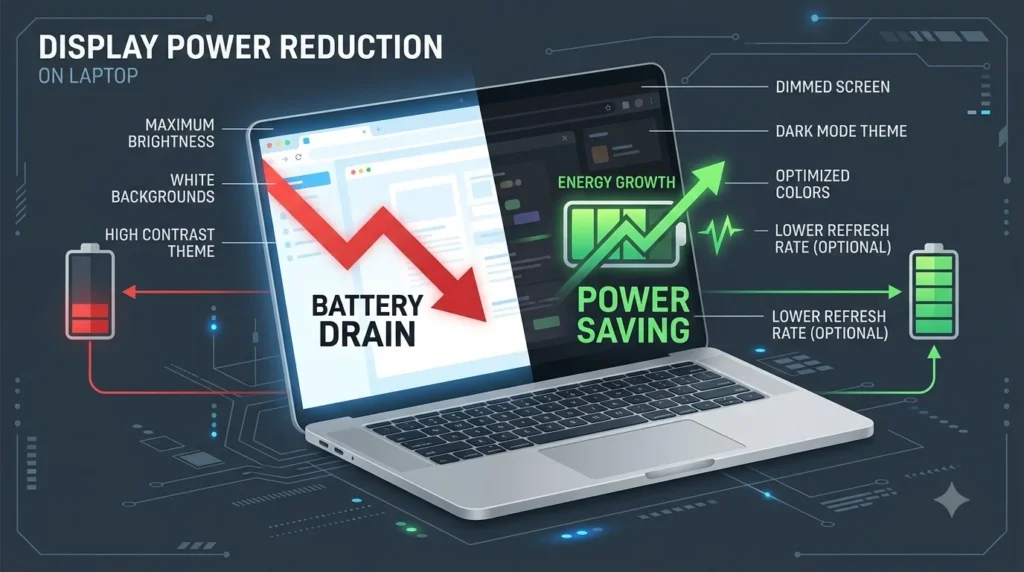
Why Your Display Kills Your Battery So Fast
The display—the bright panel in front of you—uses 20–45% of your laptop’s total power. On some thin laptops (ultra-portables), it’s even higher.
Why? Because millions of pixels are being lit up constantly. Brighter pixels = more electricity needed.
Here’s the math:
| Brightness Level | Power Draw (Typical 15.6″ Laptop) | Estimated Battery Drain Rate |
|---|---|---|
| 100% brightness | 15–20W | 25–35% per hour |
| 75% brightness | 12–16W | 20–28% per hour |
| 50% brightness | 8–12W | 14–20% per hour |
| 25% brightness | 4–8W | 8–14% per hour |
Dropping brightness from 100% to 50% saves approximately 40–50% of display power.
How to Lower Display Brightness
Method 1: Physical Keys (Fastest) Most laptops have brightness keys on the keyboard:
- Look for sun symbols (☀) on your keyboard
- Hold Fn + brightness key to adjust
- Reduce to 30–40% brightness for typical indoor use
Method 2: Windows Settings (Windows 11)
- Click Settings
- Go to System → Display
- Drag “Brightness” slider to 30–40%
Method 3: Quick Settings (Windows 11)
- Click battery icon → Brightness slider
- Drag left to reduce
Enable Adaptive Brightness (Automatic Adjustment)
Adaptive brightness is a feature that automatically reduces screen brightness in dimly lit environments (like airplanes or night work) and increases it in bright environments (outdoors).
How to enable (Windows 11):
- Settings → System → Display → Brightness
- Toggle “Adaptive brightness” ON
How to enable (Windows 10):
- Settings → System → Display
- Check “Change brightness automatically when lighting changes”
Reality check: Adaptive brightness saves 15–25% additional battery because it never leaves your screen brighter than necessary.
Set Screen Timeout (Auto-Off When Idle)
Your display wastes power even when you’re not looking at it. Setting an aggressive timeout means your screen turns off quickly after you stop typing.
Recommended settings (on battery):
- Light work (emails, browsing): 2-minute timeout
- Video calls or presentations: 10-minute timeout
- Watching videos: Disable timeout (or 30 minutes)
How to set (Windows 11):
- Settings → System → Power & battery
- Scroll to “When using battery power”
- Set “Screen turns off after” to 2–5 minutes
How to set (Windows 10):
- Settings → System → Battery
- Find “Screen turns off after” and set to 2–5 minutes
Impact: If you take a 15-minute break, a 2-minute timeout prevents 13 minutes of wasted display power.
Dark Mode: Real But Modest Savings
Dark mode (white text on black background) does save battery—but only on OLED screens, which are rare on Windows laptops. Most Windows laptops have LED-backlit LCD screens, where dark mode provides minimal savings (2–5%).
If you have an OLED screen (very premium laptops): Dark mode can save 10–20% battery.
For everyone else: Dark mode is nice for eye comfort but not a major battery strategy.
Part 3: Stop Background Apps from Draining Your Battery
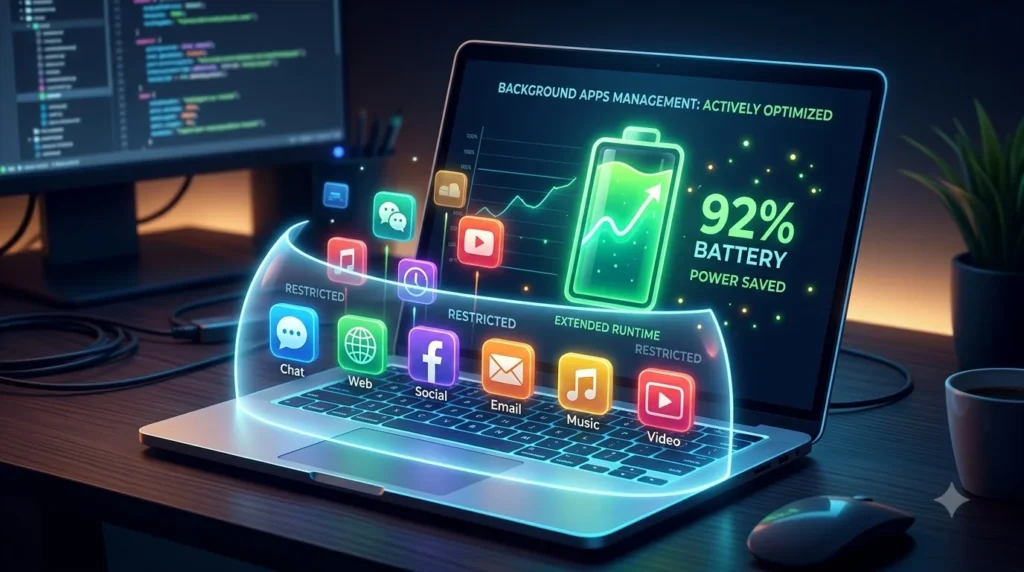
Finding Power-Hungry Background Apps
Some apps run invisibly, consuming CPU and disk power even when you don’t see them.
Common battery vampires:
- Web browsers (Chrome uses 15–25% more battery than Edge due to its multiple processes)
- Cloud sync apps (OneDrive, Google Drive, Dropbox)
- Antivirus software (performing full scans)
- Game launchers (Steam, Epic Games, Ubisoft)
- Communication apps (Slack, Discord, Telegram running in background)
- Indexing services (Windows Search continuously scanning your drive)
How to Find Which Apps Are Draining Battery (Windows 11)
- Open Settings → System → Battery
- Click “Battery usage by app”
- You’ll see a table like this:
| App Name | Battery Impact (Last 24 Hours) | Battery Impact (Last 7 Days) |
|---|---|---|
| Microsoft Edge | 8% | 12% |
| Windows Search | 6% | 9% |
| Outlook | 5% | 8% |
| Discord | 7% | 11% |
| Spotify | 4% | 6% |
Apps listed at the top use the most battery.
How to Find Which Apps Are Draining Battery (Windows 10)
- Open Settings → System → Battery
- Click “See which apps are affecting your battery”
- Same table structure as Windows 11
Action: Disable or Close Power-Hungry Apps
For heavy offenders, you have options:
| Action | How | Impact | Effort |
|---|---|---|---|
| Close the app | Alt+Tab to app, close it | Stops immediately | 30 seconds |
| Disable background activity | Settings → Privacy → Background apps → Toggle off | Prevents auto-running | 2 minutes |
| Uninstall app | Settings → Apps → Remove | Total removal; freest RAM | 3 minutes |
| Use lightweight alternative | E.g., Edge instead of Chrome | Different app, lower power | Requires reinstall |
| Delay sync | Cloud app settings → Sync every 60 minutes instead of 5 | Reduces frequent disk access | 5 minutes |
Real example: Switching from Chrome to Edge browser can free up 2–3 hours of battery life because Edge is optimized for Windows 11 and uses 30% less memory.
Disable Startup Programs
Some apps automatically launch when Windows starts, running in the background all day.
How to manage startup apps (Windows 11):
- Right-click taskbar → Task Manager
- Click “Startup” tab
- Right-click unnecessary apps → “Disable”
Apps safe to disable:
- Game launchers (Steam, Epic Games) — only needed when gaming
- Social media apps (Discord, Telegram) — use web versions instead
- Cloud services duplicates (OneDrive and Google Drive) — pick one
- Printer utilities — only needed if printing often
Apps NOT to disable:
- Security software (Windows Defender, antivirus)
- GPU drivers (if gaming)
- Trackpad software (if laptop doesn’t have built-in support)
Part 4: Optimize Hardware, Drivers, and Disabled Features
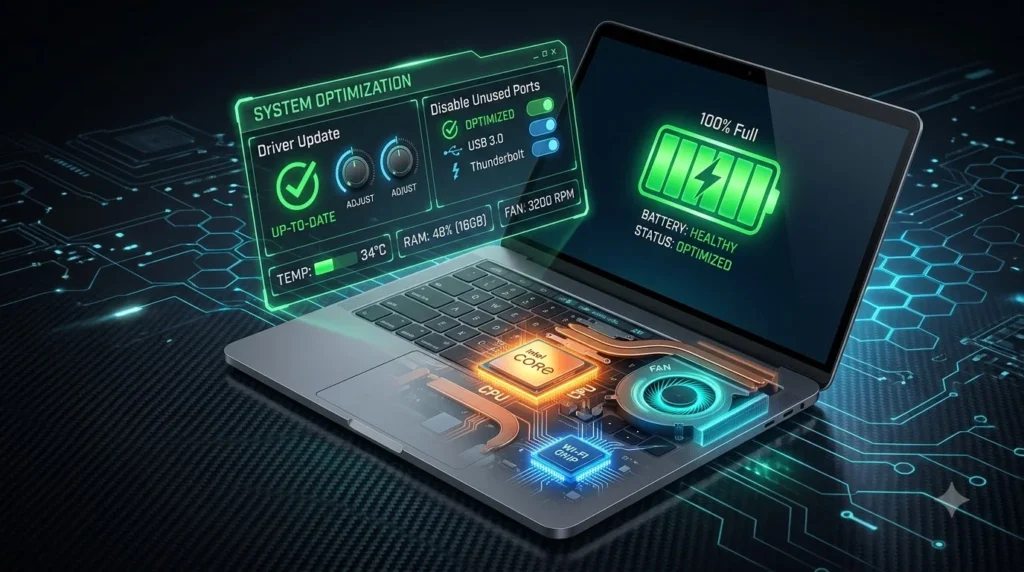
Update Graphics Drivers (Critical for Battery)
Outdated GPU drivers can cause the discrete graphics card to stay active even during light work, wasting massive amounts of battery.
Impact of outdated drivers:
- GPU stays in high-power state (15–25W)
- System doesn’t switch to integrated graphics efficiently
- Battery drain increases by 20–40%
How to update drivers (Windows 11/10):
Option 1: Windows Update (Easiest)
- Settings → Update & Security → Check for updates
- Install all updates, including driver updates
- Restart
Option 2: Manufacturer Website (Most Reliable)
- NVIDIA → Visit nvidia.com → Driver downloads
- AMD → Visit amd.com → Driver support
- Intel → Visit intel.com → Driver support
Download the latest driver, install, and restart.
Reality: Most Windows users never update drivers. Updating drivers alone can add 1–3 hours to battery life.
Switch to Integrated Graphics for Light Work
If your laptop has both integrated graphics (built into CPU) and discrete graphics (separate GPU), Windows should automatically switch to integrated for light work and discrete for heavy work. But it doesn’t always.
Integrated vs. Discrete Graphics Power:
| Graphics | Power Draw | Best For | Battery Life |
|---|---|---|---|
| Integrated GPU | 2–5W | Browsing, email, Office, video calls | Excellent (adds 2–4 hours) |
| Discrete GPU (Idle) | 10–15W | Standby between games | Good but wastes power |
| Discrete GPU (Active) | 30–50W | Gaming, video editing, 3D design | Minimal (loses 3–5 hours) |
How to force integrated graphics (Windows 11):
- Right-click desktop → Graphics settings
- Browse → Select your app (e.g., Chrome)
- Options → Power saving
- Click “Save” and restart the app
How to check which GPU is active (Windows 11):
- Right-click taskbar → Task Manager
- Click “Performance” tab
- Click “GPU” — if “NVIDIA” shows usage, discrete GPU is active; if “Intel” shows, integrated GPU is active
Disable Bluetooth and Wi-Fi When Not Used
Bluetooth and Wi-Fi consume continuous power even when idle because they’re actively scanning for devices and networks.
Power draw when idle (not transferring data):
- Wi-Fi radio: 2–4W
- Bluetooth radio: 0.5–1W
- Combined: 2.5–5W
That adds up: 5W of idle Wi-Fi × 8 hours = 40 Wh (significant portion of a 60–80 Wh battery).
How to disable:
- Click battery icon (Windows 11) → Wi-Fi or Bluetooth toggle
- Turn off when not needed
When to disable:
- Airplanes or flight mode ✓
- Not browsing the internet ✓
- Outdoors without connection ✓
- Conference presentations ✓
- Sleeping/storage mode ✓
When to keep on:
- Work that requires internet ✗
- File syncing (OneDrive, Google Drive) ✗
- Wireless mouse/keyboard in use ✗
Part 5: Preserve Battery Health and Monitor Long-Term Capacity

Understanding Battery Degradation
Lithium batteries (used in all modern laptops) slowly lose capacity. A battery that starts with 60 Wh capacity drops to about 50 Wh after 2 years of normal use, then to 40 Wh after 4 years.
Why degradation matters:
- Year 1: 60 Wh battery = 8 hours runtime
- Year 3: 45 Wh battery = 6 hours runtime
- Year 5: 36 Wh battery = 4.5 hours runtime
Three factors speed up degradation:
- Heat (charging while warm)
- Full charging cycles (repeatedly charging to 100%)
- Deep discharge cycles (draining to 0% regularly)
Enable Battery Health/Charge Limiting (Vendor Feature)
Premium laptop vendors include battery conservation modes that limit maximum charge to 80%. This dramatically slows degradation.
How to enable (varies by vendor):
Dell laptops:
- Search “Dell Power Manager” → Open it
- Find “Battery charge” or “Charging settings”
- Toggle “Extend battery life” (caps at 80%)
HP laptops:
- Search “HP Support Assistant” → Open
- Go to MyNotebook → Power settings
- Enable “Battery conservation mode”
Lenovo laptops:
- Search “Lenovo Vantage” → Open
- Device → Power → Battery health
- Set to “Maximum lifespan” (80% charge limit)
ASUS laptops:
- Search “ASUS Battery Health Charging” → Open
- Select “80%” charge limit
Impact: Limiting to 80% charge extends battery lifespan from 2–3 years to 4–5 years.
Trade-off: Your effective battery life is reduced by ~20%, but the battery lasts twice as long.
Calibrate Your Battery (When Percentage Becomes Inaccurate)
Battery calibration helps Windows accurately report remaining capacity. Over time, the reported percentage drifts from reality.
How to know if calibration is needed:
- Battery percentage jumps unexpectedly (85% → 45% suddenly)
- Laptop shuts down at 5% battery
- Battery shows “0%” but device still works
How to calibrate (same for Windows 10 and 11):
- Charge to 100% — Plug in overnight
- Wait for charging to complete — Light turns solid green/white
- Use normally until battery dies — Let the laptop shut down at 0%
- Charge back to 100% — Plug in and leave alone
Duration: This takes 1–2 days total. Do it quarterly for accuracy.
Temperature Management (Critical for Battery Life)
Battery chemistry is sensitive to heat. Charging or using your laptop in hot environments speeds up degradation.
Temperature guidelines:
| Temperature | Charging? | Using Laptop? | Note |
|---|---|---|---|
| 0–10°C (32–50°F) | Risky | OK | Cold charging can damage cells |
| 10–25°C (50–77°F) | Ideal | Ideal | Sweet spot for battery lifespan |
| 25–35°C (77–95°F) | OK | OK | Room temperature; moderate stress |
| 35–45°C (95–113°F) | Avoid | Avoid | Gaming/heavy use on hot day = accelerated aging |
| 45°C+ (113°F+) | Stop charging | Stop using | Battery damage risk |
Practical tips:
- Charge in cool rooms (not in direct sunlight)
- Don’t game on hot days without external cooling
- Use a cooling pad if your laptop gets hot during work
- Remove laptop from bag immediately after travel (let it cool)
Comparison Table: All 5 Methods Ranked by Impact
Which method adds the most battery life? Here’s the breakdown:
| Method | Time to Implement | Immediate Impact (Single Charge) | Long-Term Battery Health | Best For |
|---|---|---|---|---|
| Power modes | 1 minute | +1–2 hours | Moderate | Anyone, immediate wins |
| Display optimization | 3 minutes | +2–3 hours | Low | Daytime users, outdoor work |
| Close background apps | 5 minutes | +1–2 hours | Low | Browsers, cloud apps running |
| Update drivers | 15 minutes | +1–3 hours | High | GPU-intensive users |
| Battery health mode | 5 minutes | -0.5 hours (slight loss) | Very high | Long-term ownership |
Total potential gain: Implementing all five methods can add 5–10 hours to a typical laptop’s battery life.
Real-World Scenarios: What Works Best for Your Situation
Scenario 1: Remote Worker (8-Hour Workday)
Goal: Work full day without charger
Setup:
- Balanced power mode (normal performance needed for calls)
- 40% brightness (comfortable for 8 hours)
- Disable Bluetooth (unless using wireless mouse)
- Battery health: 80% charge limit (planning to keep this laptop 4+ years)
- Close browser tabs (keep 2–3 open max)
Expected battery life: 8–10 hours (if laptop originally rated 6–8 hours)
Scenario 2: Frequent Traveler
Goal: Maximize battery for flights and commutes
Setup:
- Best power efficiency mode (flights, trains)
- 25–30% brightness (screen barely visible but usable)
- Disable Wi-Fi and Bluetooth on flights
- Enable Battery Saver (toggle on at 40%)
- Skip graphics-heavy apps (no YouTube, only text/work)
Expected battery life: 10–14 hours (on a 6–8 hour rated battery)
Scenario 3: Casual Student
Goal: Get through classes without charging
Setup:
- Balanced mode (social media, videos during breaks)
- 50% brightness (outdoor classrooms bright)
- Disable sync apps (just check email at breaks)
- Disable startup programs
- Keep laptop plugged in during heavy tasks
Expected battery life: 7–9 hours (on a 6–8 hour rated battery)
Scenario 4: Content Creator (Video Editing on Laptop)
Goal: Maximize performance while on battery
Setup:
- Best performance mode (can’t reduce performance for video editing)
- Disable non-essential apps while editing
- Use external cooling pad
- Keep plugged in when possible
- Accept that battery life will be 3–4 hours max (just get portable power bank)
Reality: Heavy tasks drain battery 50–80% per hour. Battery life isn’t the goal; performance is. Use this setup when plugged in, switch to power efficiency when unplugged.
Troubleshooting: When Battery Still Drains Quickly
Problem: Battery drains 30%+ per hour even with optimizations
Step 1: Check for malware
- Run Windows Defender scan: Settings → Virus & threat protection → Scan options → Full scan
- Or use Malwarebytes (free version)
Step 2: Verify driver updates
- Open Device Manager (right-click Start menu)
- Look for yellow warning triangles (indicates outdated drivers)
- Right-click each warning → Update driver
Step 3: Disable power-hungry features
- Disable background apps completely: Settings → Privacy → Background apps → Off
- Disable Windows Indexing: Right-click Start → Settings → Privacy & Security → Search permissions (toggle off)
Step 4: Check battery health
- Open PowerShell (Admin)
- Type:
powercfg /batteryreport - Check the Design Capacity vs. Full Charge Capacity
- If Full Charge is <80% of Design Capacity, battery is aging
- Consider replacement if <60%
Problem: Battery percentage jumps erratically
Step 1: Calibrate battery (see Part 5)
Step 2: Update embedded controller firmware
- Visit your laptop manufacturer’s support page
- Download firmware updates for your exact model
- Install following manufacturer instructions
Step 3: Check for hardware issues
- If percentage still jumps after calibration and firmware update, battery may be failing
- Consider replacement (cost: $40–100 USD / ₹3,300–8,300 INR for most laptops)
FAQ: Quick Answers to Battery Questions
Q: Can I leave my laptop plugged in all the time? A: Yes, but it stresses the battery. If you’ll keep your laptop >3 years, use battery health/charge limiting mode to cap charging at 80%. This reduces battery stress significantly.
Q: How often should I fully discharge my battery? A: Never intentionally. Only calibrate (full discharge) quarterly. Modern lithium batteries prefer staying between 20–80% charge. Full discharges wear them out faster.
Q: Does closing browser tabs really help? A: Yes. Each browser tab consumes 50–150 MB of RAM and uses CPU cycles. Closing tabs not in use saves 1–3% battery per hour on average.
Q: Is it bad to use my laptop in sleep mode for weeks? A: No. Sleep mode uses minimal power (~0.5% per day). Hibernation is even better (~0.1% per day). You can safely leave a laptop in sleep mode for months.
Q: Will gaming destroy my laptop battery? A: Yes. Gaming uses the discrete GPU at full power, draining battery at 60–100% per hour. For gaming, your battery life is effectively 1–2 hours. Always plan to stay plugged in while gaming.
Related Topic: Keep Windows Secure While Optimizing Battery
When you optimize your Windows system for battery life, don’t skip security updates. In fact, maintaining security and battery health go hand-in-hand. Many security updates include driver optimizations that improve power efficiency.
For a deep dive on keeping Windows protected without draining your battery, see our guide on updating Windows security signatures manually. This article explains how to maintain security protection while controlling when updates run—essential for battery-conscious users who want protection without the battery hit.
Authority Resources for Battery and Power Management
For official technical details on Windows power management:
- Microsoft Support: Battery and power settings — Official Windows battery documentation
- CNET: How to extend laptop battery life — Hands-on testing and recommendations
- Tom’s Hardware: Battery optimization guide — Hardware-focused battery efficiency testing
Final Checklist: Apply These Changes Right Now
Use this checklist to implement all five methods today:
In the next 5 minutes:
- Lower screen brightness to 40%
- Enable adaptive brightness
- Switch to Balanced or Power Efficiency mode
- Set screen timeout to 2–3 minutes
In the next 15 minutes:
- Open Battery usage in Settings
- Close or uninstall apps using >5% battery
- Disable unnecessary startup programs
- Turn off Bluetooth and Wi-Fi if not needed
In the next hour:
- Update graphics drivers (Windows Update or manufacturer website)
- Check if GPU drivers are outdated (Device Manager → Display adapters)
- Enable battery health/charge limiting (if your laptop supports it)
This week:
- Test your new battery life (should see immediate improvement)
- Monitor battery health trends for 1–2 weeks
- Calibrate battery if percentage was inaccurate
Monthly:
- Check battery health (Settings → Battery → Battery health)
- Update any outstanding drivers
- Revisit power settings if new apps installed